
 iPhone Data Recovery
 iOS System Recovery
 iOS Data Backup & Restore
 iOS Unlocker
 iPhone Password Manager
 Location Changer
 Android Data Recovery
 Broken Android Data Extraction
 Android Data Backup & Restore
 Android Unlocker
 FoneTrans for iOS
 iPhone Data Eraser
 iPhone Cleaner
 HEIC Converter
 HyperTrans
 WhatsApp Transfer for iOS
 Mac Sweep
 Data Retriever
 Mac Data Retriever
 Video Converter Ultimate
 Screen Recorder
 Phone Mirror
- Unlock Apple ID
- Bypass iCloud Activation Lock
- Doulci iCloud Unlocking Tool
- Factory Unlock iPhone
- Bypass iPhone Passcode
- Reset iPhone Passcode
- Unlock Apple ID
- Unlock iPhone 8/8Plus
- iCloud Lock Removal
- iCloud Unlock Deluxe
- iPhone Lock Screen
- Unlock iPad
- Unlock iPhone SE
- Unlock Tmobile iPhone
- Remove Apple ID Password
How to Change Your Password on iPhone in Quick Techniques
 Updated by
 iPhone is convenient to use due to its size, smooth performance, and supported features. It allows us to store data, browse online, download applications, and more. Due to the frequent use and essential data, users need to add a password to their iPhone. It can be for the screen lock, application, website, etc.
However, there are circumstances wherein the password is weak. In this case, the iPhone users tend to change the password. You might wonder: How do I change my password on my iPhone? If you want answers, kindly scroll below to see the reliable contents of this article about the topic.

Guide List
Part 1. How to Change Password on iPhone
The iPhone screen lock and Apple ID passwords are important to secure the device, including the mentioned account. However, having a weak password can also be risky for your data and information. In this case, it is recommended to change the password to a strong combination of numbers and letters. How to change phone password on iPhone, including Apple ID account? Two methods are presented below. Scroll below to know them.
1. Use Settings
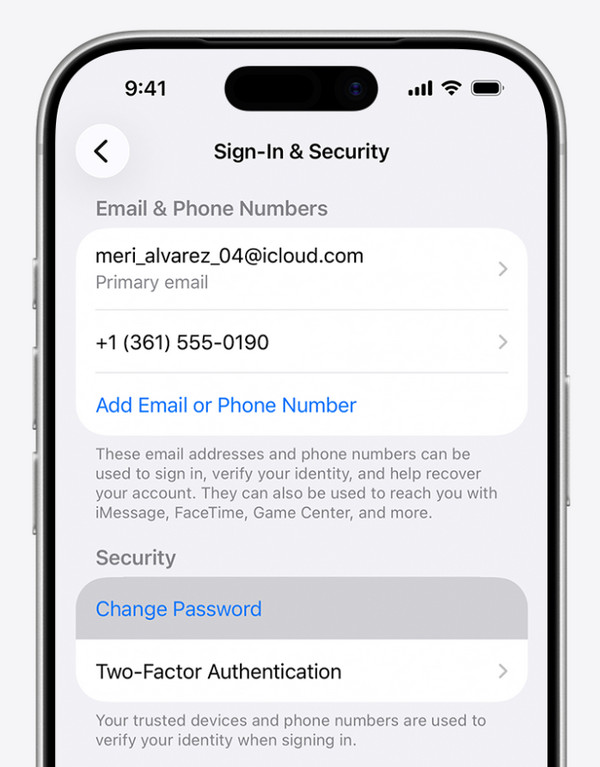
The iPhone Settings app holds the features that are important for your iPhone, including when you want to change your screen lock and Apple ID password. These steps are posted below for your reference.
Change Apple ID Password: Open the Settings app on your iPhone. Then, tap the account name at the top of the main interface. Select the Sign-in & Security button from the list. Choose the Change Password button from the screen. Enter your current Apple ID password or iPhone lock screen passcode. Enter the new one and tap the Change button to apply the changes.
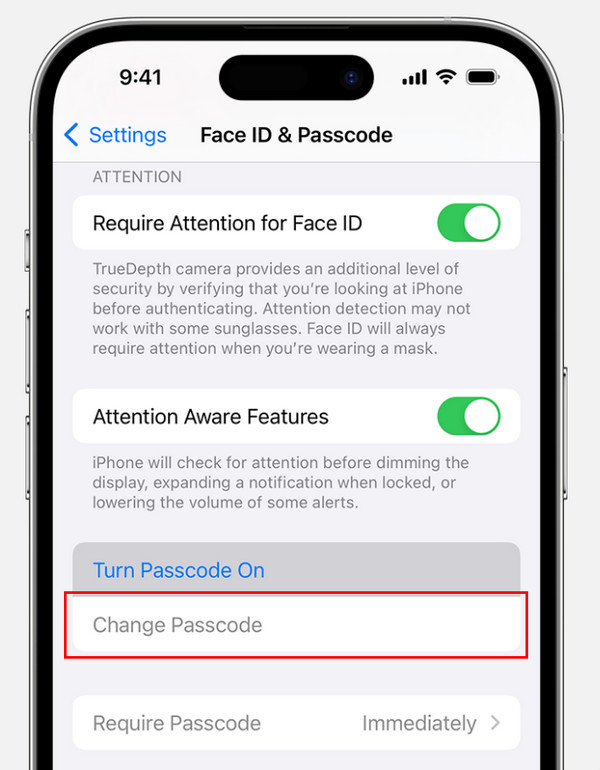
Change iPhone Passcode: Access the iPhone Settings app. Then, select the Face ID & Passcode button from the first interface of the mentioned application. Tap the Change Passcode button from the list. Enter your current passcode. Then, choose a screen lock type and set it up. Follow the on-screen instructions to complete the process.
2. Visit Apple iForgot
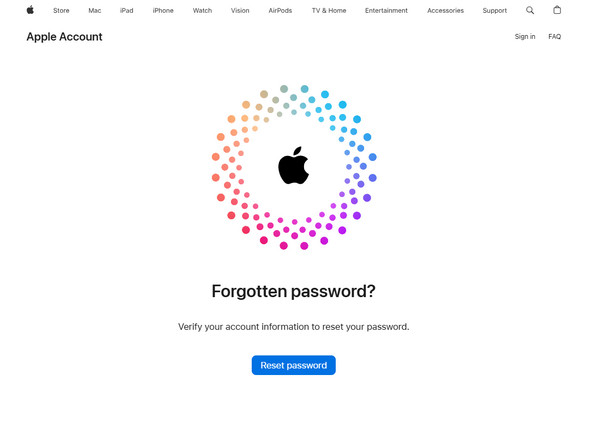
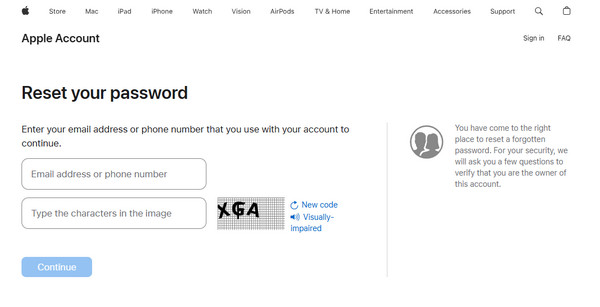
However, there are iPhone users who accidentally forget their Apple ID password. If so, Apple iForgot can help! It is the main website of Apple for resetting the Apple ID password. The authentication procedure is one of the most important. The associated phone number, email, or security questions must be known. If not, you cannot proceed with the process. Please use the steps below to know how to reset password on iPhone Apple ID.
Step 1Access the device and web browser that you want to use with the process. Then, search for the Apple iForgot website. After that, click the Reset Password button at the bottom center of the screen.
Step 2A new screen will be encountered. Please enter an email or phone number in the first box. Then, type the characters from the image to the next one. Click Continue at the bottom left. Enter the authentication information required for the next screen. Finally, create your new Apple ID password and confirm the process to apply the changes.
Part 2. How to Remove Apple ID and Password from iPhone
The previous methods require verifications. Unfortunately, some iPhone users cannot provide the mentioned information. Are you one of them? Don’t worry! This section has 2 easy ways to remove your Apple ID or screen lock without the password or passcode. Please continue browsing to know the complete information about them.
1. Use iCloud
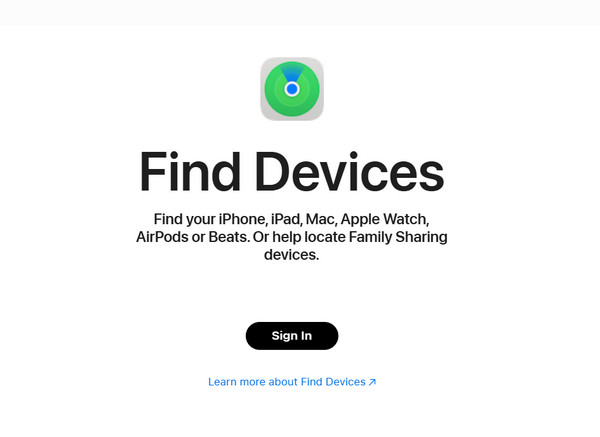
iCloud is known for tracking the real-time location of your Apple devices, including your iPhone. This service can also remove Apple ID from iPhone, including the screen lock passcode. The associated Apple ID is the main requirement. Use the steps below to know how.
Access the iCloud Find My website. Then, enter your Apple ID account. Choose the All Devices button and select the iPhone from the list. Then, select the Remove This Device or Erase This Device button. Follow the on-screen instructions afterward.
2. Utilize FoneLab iOS Unlocker
Besides the Apple way from the previous section, FoneLab iOS Unlocker can also help. It can remove the Apple ID and screen lock on your iPhone without any verification or account. It wipes out the data and settings it contains. Having a backup will be a great help after the process. Besides the Apple ID and screen lock, the tool can also remove your iPhone’s Screen Time restrictions, MDM profile, SIM lock, and more. Please use the steps below to know the procedure of the tool.

FoneLab Helps you unlock iPhone screen, Removes Apple ID or its password, Remove screen time or restriction passcode in seconds.
- Helps you unlock iPhone screen.
- Removes Apple ID or its password.
- Remove screen time or restriction passcode in seconds.
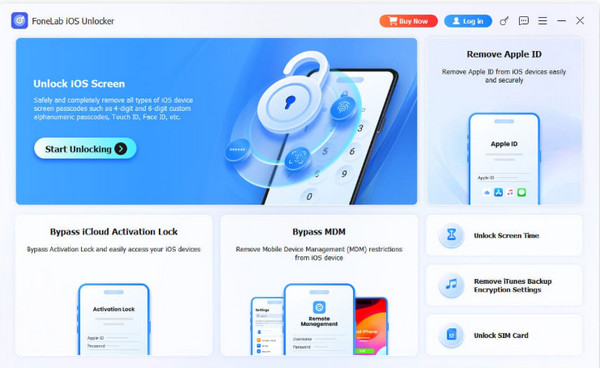
Step 1Download, set up, install, and open the tool. After that, click the Unlock iOS Screen feature from the first screen. Alternatively, click the Remove Apple ID feature.
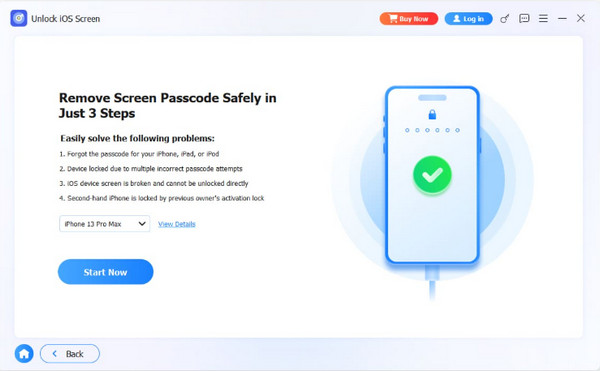
Step 2Plug an iPhone into the computer with your USB cable. Follow the on-screen instructions for the recovery mode. Then, click the Start Now button. The firmware package will be downloaded.
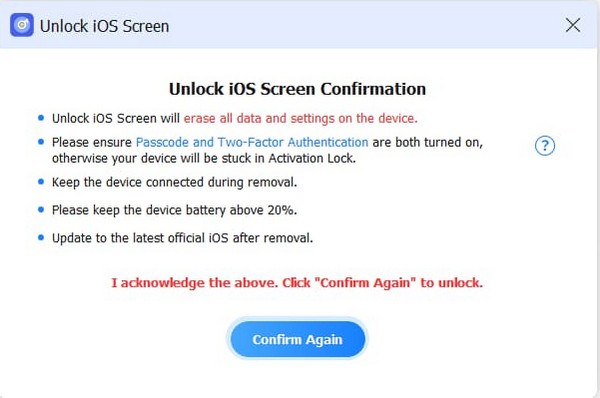
Step 3Click the OK button. Later, click the Confirm Again button to start the removal. Click the Finish button to complete the process.
Part 3. How to Change Password on iPhone from Website or App
iPhone allows you to store passwords for your websites and applications. It offers its Passwords app to store the mentioned security information. This application enables you to change your saved passwords. However, it will not change the account password directly from it. You need to visit the main website or the app’s account to do this, depending on your default way. Please use the steps below to change the saved password for your iPhone’s website and application.
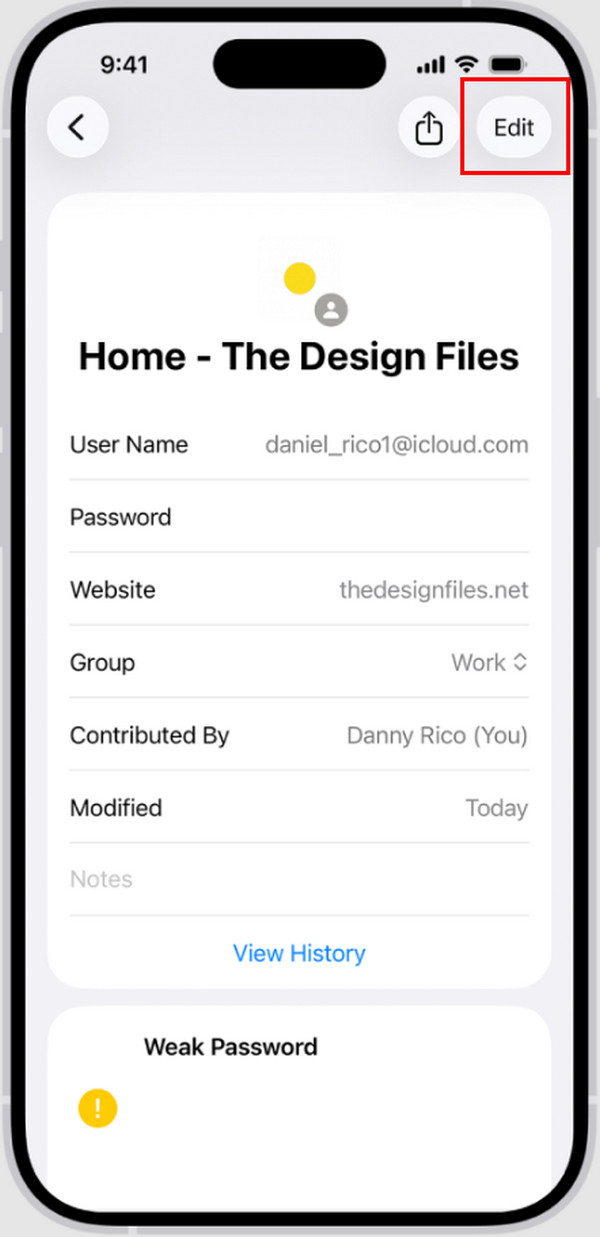
Go to the Passwords app on your iPhone. After that, please select the All button on the main interface. Locate the website or application that you prefer to change the password for. Later, tap the account and select the Edit button at the top right. Select the Change Password button and enter your new and strong password on the screen. Confirm the changes afterward.
Part 4. FAQs about How to Change Password on iPhone
Can Siri unlock a locked iPhone?
Yes. However, it can only be done with the earlier iPhone models. But Siri cannot unlock a locked iPhone on the later versions. On the other hand, you can use the voice command to simulate tapping the lock screen password on the iPhone screen.
How do I get my iPhone out of lockout?
When the iPhone is locked out, you need to reset it with a computer. But the iPhone must have been connected to the computer before with the needed permission. Open iTunes, Finder, or Apple Devices. After that, plug an iPhone into the computer using the compatible USB cable. Then, select the iPhone name or button from the screen. Click the Restore iPhone button and click the button again to confirm the procedure.
How do you change your iPhone password? In this article, you will know how to do the process for your iPhone screen lock, Apple ID, website, and application. FoneLab iOS Unlocker can be used to bypass the screen lock and remove the Apple ID. Besides that, you can also use it to remove Screen Time restrictions, iTunes backup encryption settings, and more. Download the tool to explore more of its supported features.



