
 iPhone Data Recovery
 iOS System Recovery
 iOS Data Backup & Restore
 iOS Unlocker
 iPhone Password Manager
 Location Changer
 Android Data Recovery
 Broken Android Data Extraction
 Android Data Backup & Restore
 Android Unlocker
 FoneTrans for iOS
 iPhone Data Eraser
 iPhone Cleaner
 HEIC Converter
 HyperTrans
 WhatsApp Transfer for iOS
 Mac Sweep
 Data Retriever
 Mac Data Retriever
 Video Converter Ultimate
 Screen Recorder
 Phone Mirror
8 Simple Techniques to Fix Google App Keeps Crashing
 Updated by
 Why does Google keep crashing on my phone? I often use the app on my device, and not once have I ever experienced an issue with it. However, I noticed it’s been constantly crashing these past few days, and I have no idea what the problem might be. Does anyone have some knowledge about this? If so, I hope I can ask for your help. It would be very appreciated!
A Google app that keeps crashing is among the most frustrating yet common issues Android users face. One moment you’re peacefully browsing, and the next, you are presented with an error message that is immediately followed by Google crashing. Luckily, this problem is almost always fixable, as experts have already figured out effective ways to resolve this issue. Thus, stick around and browse the information and simple techniques for fixing your Google app below.

Guide List
Part 1. Why Does Google Keep Crashing on My Phone
Why does my Google app keep closing or crashing? Many wonder about this, so before diving into the solutions, it's helpful to understand the typical culprits behind these sudden crashes. This way, it will be easier to determine the appropriate solution to a crashing Google app. Thus, be informed that the following are the possible causes of the issue: corrupted cache data on the app, app-specific bugs, system glitches, unstable internet connection or network issues, or an outdated operating system.
Part 2. How to Fix Google Keep Crashing on Android/iPhone
Now that you have an idea about the possible causes of a Google app that keeps crashing, it’s time to resolve them with the practical techniques below. Both solutions for Android and iPhone are presented. So navigate the appropriate one for your device’s app.
Option 1. Clear Google App Cache and Data
Corrupted cache data is among the most common causes of a crashing Google app. Don’t worry, though. The app’s cache and data aren’t necessarily dangerous, but once they pile up, that’s when they could start causing issues. Hence, we suggest clearing them as the initial solution. That said, navigate the simple steps below to fix Google keeps crashing Android by clearing its app cache and data.
Step 1Initially, open Settings and head directly to the Apps section. The following display will present your installed apps, so pick Google. The app’s information will then appear.
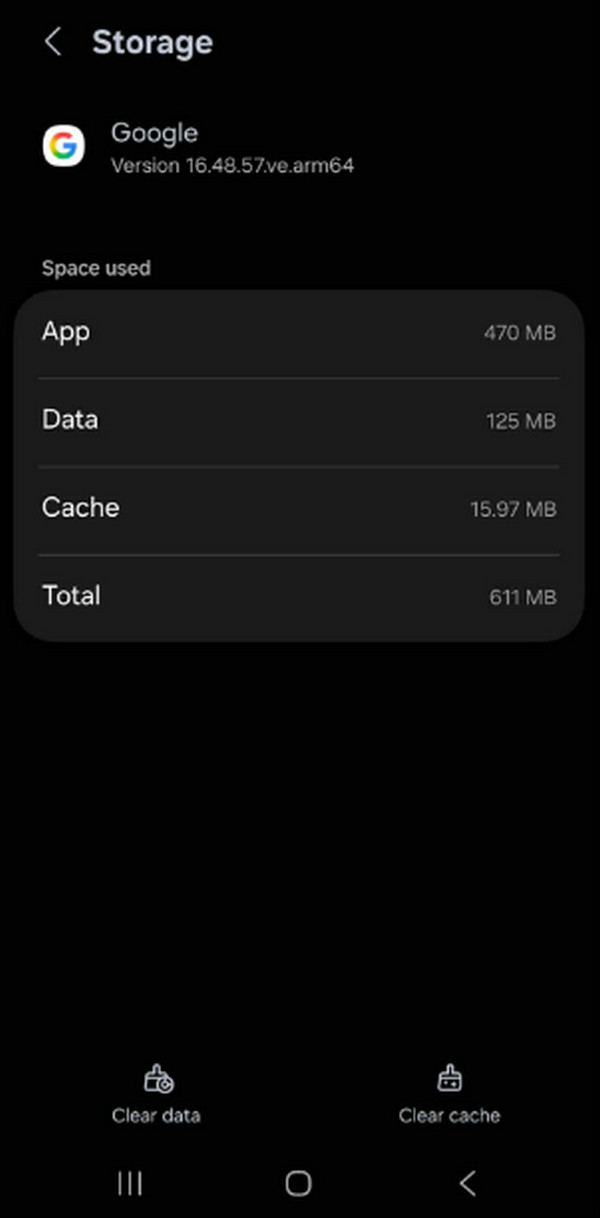
Step 2From there, choose Storage and tap Clear data at the bottom. All its data, including caches, will shortly be deleted from your device.
But if you use an iPhone, opt for your Settings > General > iPhone Storage to find and select Google. Then, from its options, choose Offload App.
Option 2. Reboot Google App
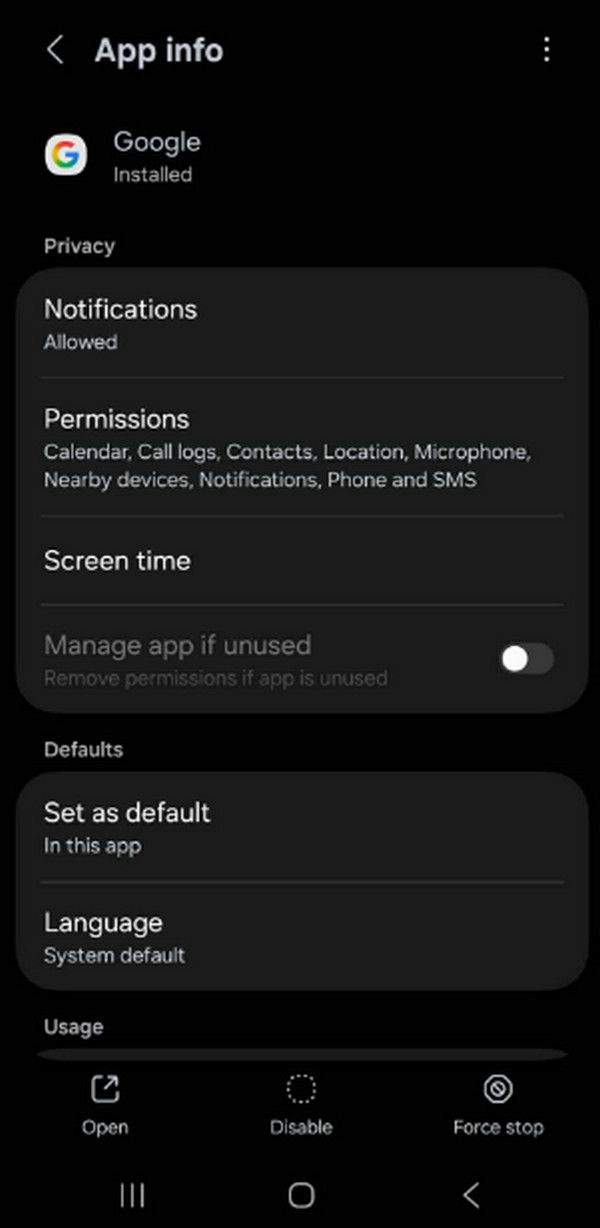
Other than the option to clear Google app’s cache and data, you may also notice the Force Stop button. If you’re unaware, this option will help you reboot Google, as it will give the app a fresh restart after forcing it to stop running. Thus, proceed again to your Settings > Apps > Google. You will then no longer have to proceed to another section since the Force Stop button will already be available in this part. Tap it on the lowermost screen to stop the app, then reopen it afterward. Meanwhile, the iPhone doesn’t offer such an option; thus, if you wish to reboot it, simply close or exit the app and reopen it afterward.
Option 3. Reboot Android/iPhone
What if rebooting the app doesn’t work? In this case, try rebooting the device instead. As mentioned, among the possible causes of a Google app that keeps crashing is a system glitch or other minor issues. The good news is that this can be fixed by simply rebooting your Android or iPhone.
Emulate the user-friendly guide below to reboot and restart iPhone or Android to fix a Google app crashing:
Reboot Android: Simultaneously long-press your Android’s Power and Volume Down buttons. After a few seconds, the device screen will go black and be rebooted afterward.
Reboot iPhone: Press and quickly release the iPhone’s Volume Up key and do the same to the Volume Down key. Right after, long-press the device’s Power key until it reboots.
Option 4. Reset Network Settings
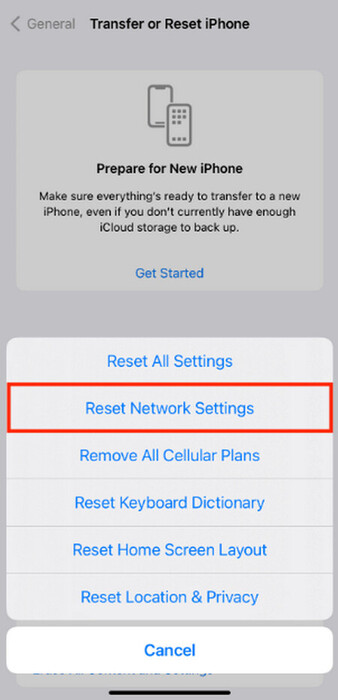
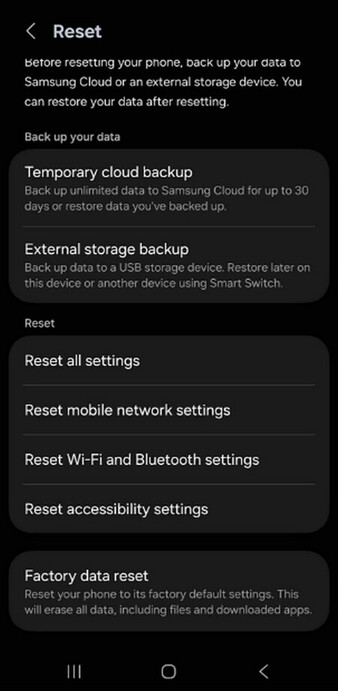
Meanwhile, resetting the device’s network settings would be the suitable solution if the cause is the internet connection or a network issue. You can quickly reset network settings on iPhone by tapping Settings > General. Next, pick Transfer or Reset iPhone > Reset. Finally, hit Reset Network Settings.
On the other hand, for Android users, you must also head to Settings > General management. After that, tap Reset on the lower part and choose Reset mobile network settings. You may also select Reset Wi-Fi and Bluetooth settings afterward to be sure.
Option 5. Reinstall Google App
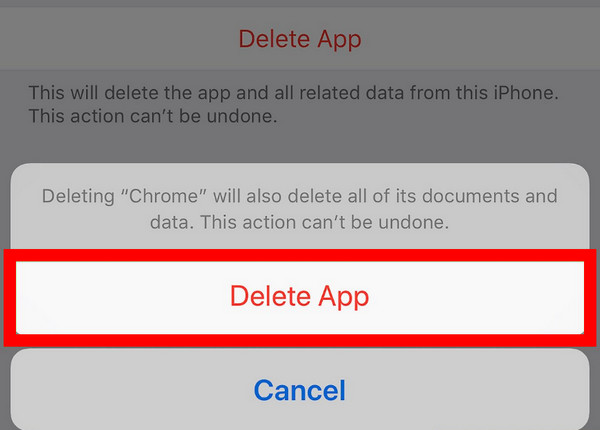
Another solution is reinstalling the Google app on your device, though you can only do this on an iPhone since Google is pre-installed on Android and can’t be uninstalled. Like the prior methods, this process is done on the Settings app, and you can effortlessly perform it, even without technical knowledge. Hence, abide by the convenient directions below to resolve your Google keeps closing or crashing concern by reinstalling the app:
Step 1Navigate to Settings, and once its interface is presented, tap General and pick iPhone Storage. Following that, select Google and choose Delete App from the options.
Step 2When done, move to the App Store and view the Google app through the search field. Finally, hit Get when it appears to reinstall the app on your device.
Option 6. Update iOS/Android OS
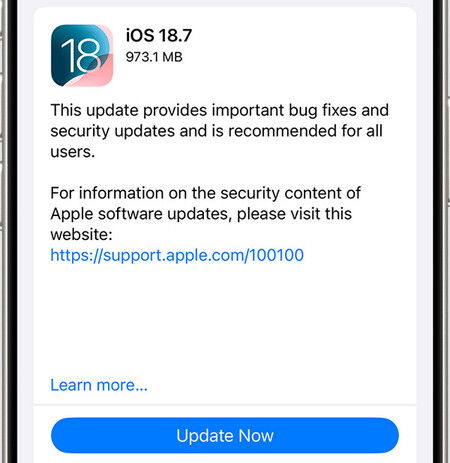
An outdated OS can also cause issues, like a crashing Google app, on a device. Thus, performing an update will be great, especially if it’s been long enough since you last updated your iOS or Android OS. That said, fix the app’s issue by updating the device’s operating system.
Update iOS: On the iPhone’s Settings, tap General > Software Update. Once the Update Now option is available, select it to get the new iOS update on your iPhone.
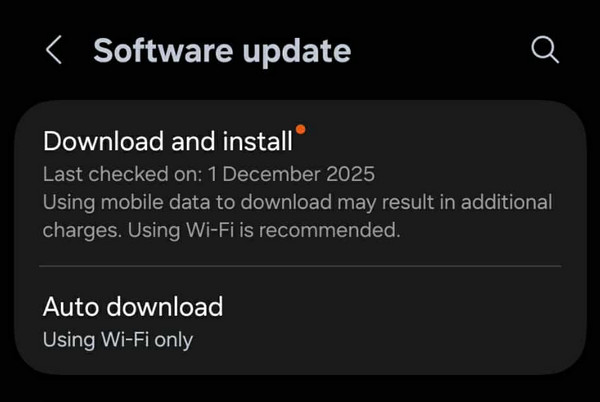
Update Android OS: On Android, you will immediately see the Software update on the Settings’ initial screen. So, tap it and hit Download and install > Install now.
Option 7. FoneLab Broken Android Data Extraction
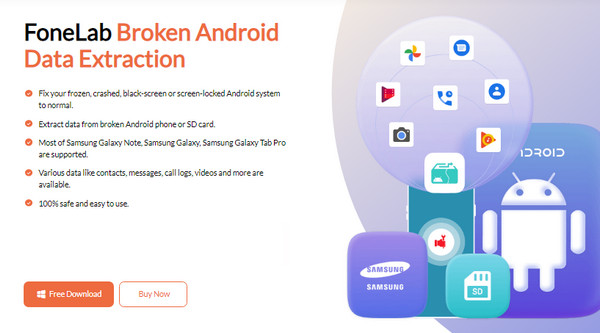
If the Google issue persists, it’s time for the professional FoneLab Broken Android Data Extraction to step in. This program can resolve numerous Android issues, supporting various models and versions. Optimize its use and follow the guidelines below to fix your Google crashing on Android without a problem.
Fix your frozen, crashed, black-screen or screen-locked Android system to normal or Recover data from broken Android phone or SD card.
- Fix your Android disabled problems and recover data from phone.
- Extract Contacts, Messages, WhatsApp, Photos, etc. from broken android device or memory card.
- Android phone and SD card data are available.
Step 1Visit the primary FoneLab Broken Android Data Extraction site and use its Free Download tab to obtain the installer. When the file appears in your Downloads, launch it, prompting the installation process. When done, start the tool and click Broken Android Data Extraction.
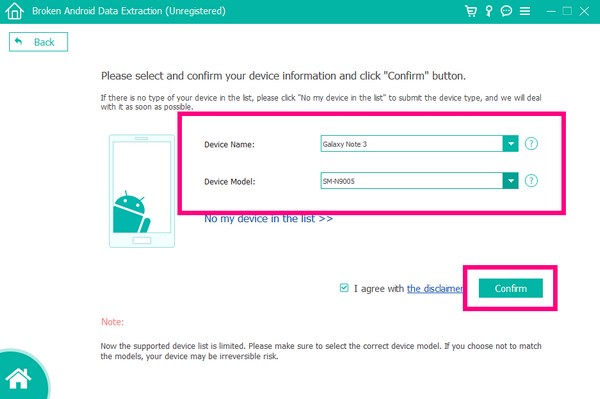
Step 2Next, click the suitable Start button and attach your Android via a USB cable. You will need to enter the device’s details afterward, then click Next. Finally, put the Android into Download mode with the presented directions and go through the prompts to resolve the issue.
Option 8. FoneLab iOS System Recovery
Meanwhile, FoneLab iOS System Recovery is here if you use an iOS device like an iPhone and not an Android. Like the last repair program, it repairs abnormal iOS systems, including the issue that may have caused your Google app to crash repeatedly. Thus, use the directions below.

FoneLab enables you to fix iPhone/iPad/iPod from DFU mode, recovery mode, Apple logo, headphone mode, etc. to normal state without data loss.
- Fix disabled iOS system problems.
- Extract data from disabled iOS devices without data loss.
- It is safe and easy to use.
Step 1Install FoneLab iOS System Recovery the same way as the last program, then choose iOS System Recovery when its interface starts. It offers a comprehensive design, so understanding the functions won’t be difficult. After that, click Next before attaching your iPhone through a Lightning cable.
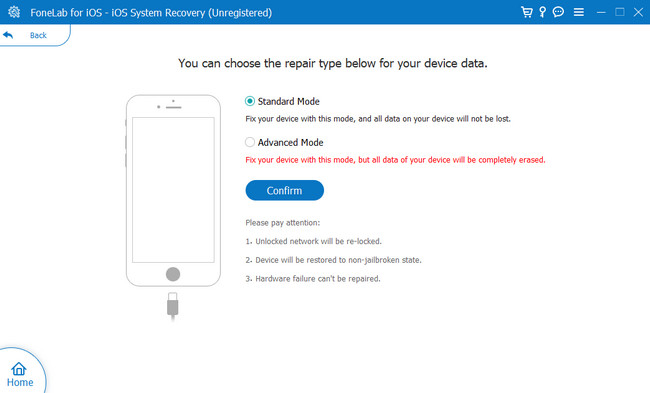
Step 2When asked, tick your desired repair type, Standard Mode, and Advanced Mode, and click Confirm below. You must then obtain the required firmware package, as instructed on the program’s on-screen guidelines. Later, the Google app issue will be resolved.
Part 3. FAQs about Google App Keeps Crashing
Is Google having problems now?
As of this writing, Google has no current problems. So, if you’re having complications with the app, it must be due to a different reason, which you can resolve with the methods above. As mentioned, you must only opt for the appropriate method for a successful repair process.
Can you reset the Google app?
Yes, you can. The Google app can be reset by forcing the app to stop or clearing its cache and data. If you’re unfamiliar with their procedures, don’t hesitate to rely on this article’s Options 1 and 2 of Part 2. They provide informational details and sufficient guidelines to help you.
No matter what issue your device faces, the methods in this post will likely be a great help. Thus, resolve your Google app concern quickly by trusting and navigating the provided guidelines correctly. After all, professional repair tools, FoneLab Broken Android Data Extraction, and FoneLab iOS System Recovery have your back if other methods fail. Thus, go ahead and install it.



