
 iPhone Data Recovery
 iOS System Recovery
 iOS Data Backup & Restore
 iOS Unlocker
 iPhone Password Manager
 Location Changer
 Android Data Recovery
 Broken Android Data Extraction
 Android Data Backup & Restore
 Android Unlocker
 FoneTrans for iOS
 iPhone Data Eraser
 iPhone Cleaner
 HEIC Converter
 HyperTrans
 WhatsApp Transfer for iOS
 Mac Sweep
 Data Retriever
 Mac Data Retriever
 Video Converter Ultimate
 Screen Recorder
 Phone Mirror
- Unlock Apple ID
- Bypass iCloud Activation Lock
- Doulci iCloud Unlocking Tool
- Factory Unlock iPhone
- Bypass iPhone Passcode
- Reset iPhone Passcode
- Unlock Apple ID
- Unlock iPhone 8/8Plus
- iCloud Lock Removal
- iCloud Unlock Deluxe
- iPhone Lock Screen
- Unlock iPad
- Unlock iPhone SE
- Unlock Tmobile iPhone
- Remove Apple ID Password
Forgot Apple ID: Find and Retrieve It Immediately to Reaccess Account
 Updated by
 Hi! I forgot my Apple ID. I need to know it because my iPhone needs an Apple ID account. Accessing the additional features is impossible without the mentioned account. I hope you can help me find and retrieve it quickly! Thank you in advance.
Apple ID is the account needed for every Apple device, including iPhone, Mac, iPad, etc. With it, you can access the other features that iCloud and Apple offer. If it is accidentally forgotten, you need to find and retrieve it immediately. This article will help you achieve the mentioned process. Continue browsing for all the details about the topic.

Guide List
Part 1. Find Apple ID from Settings App on Apple Devices
The Apple ID email or account can commonly be found on your Apple devices. It will be listed from the Apple device where you signed in. However, you cannot find it on devices where you signed out of the account. There will be no trace. See the steps below to know how.
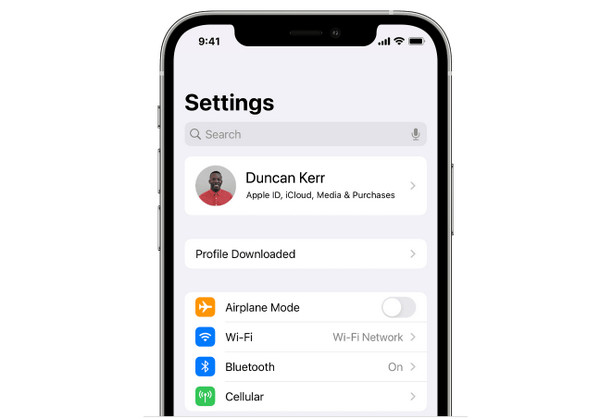
iPhone/iPad: Open your iPhone or iPad and tap Settings from the Home Screen. Then, the account name will appear at the top of the main interface. Please tap the name, and you will find the Apple ID account email under it.
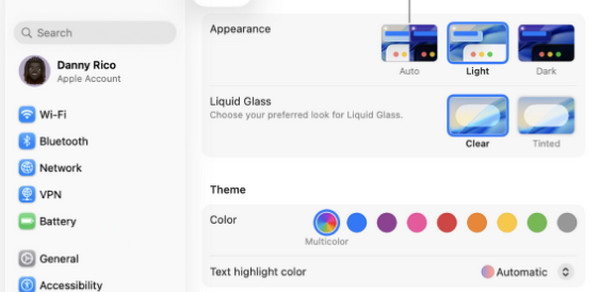
Mac: Unlock your Mac. After that, select the Apple button at the top left. Then, drop-down options will appear. Select the System Settings button. A window will appear on the main interface. Select the account name at the top left. The Apple ID account email will appear under the account name on the right.
Part 2. Visit Apple Account Webpage to Find Your Apple ID
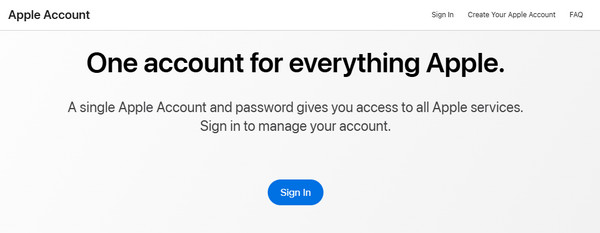
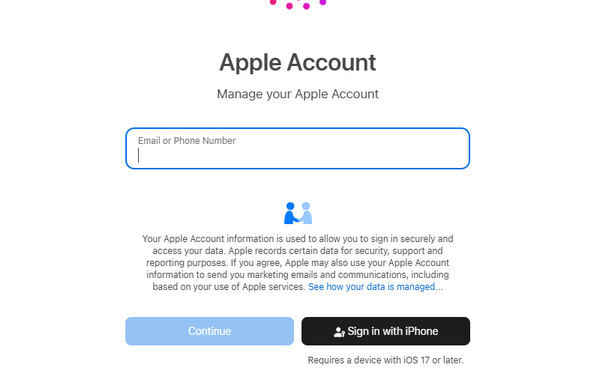
Aside from finding it, you can retrieve your Apple ID from the Apple Account webpage. Since the Apple ID email is unknown, you can use your mobile number associated with the account. However, losing access to this phone number will mean losing your chance to retrieve your Apple ID email. The reason is that Apple will ask you for authentication. Without the code, the phone number will not lead you to the process. Please use the steps below to know how.
Step 1Go to the Apple Account website. Then, click the Sign In button at the center of the screen. Since the email is missing, enter the phone number associated with the Apple ID. Click the Continue at the bottom left to proceed.
Step 2Then, the screen will load for a few seconds. The website will need you to enter the account password. If you do not know the password of the account, please tap the Forgot Password button at the bottom right. Then, you will undergo authentication. Later, please enter the code from the phone number. Click the account name at the top, and the Apple ID email will be prompted afterward.
Part 3. Find Apple ID from Family Sharing
Family Sharing is associated with the Find My feature on your Apple devices. It allows 6 members to share different services, including iCloud+, TV+, and Apple Music. This feature allows you to find the Apple ID from your iPhone, Mac, or iPad. It can be achieved by family members and the organizer.
It means that if you do not have access to Family Sharing, one of the family members can see your Apple ID account email on your behalf. Please see how with the steps below.
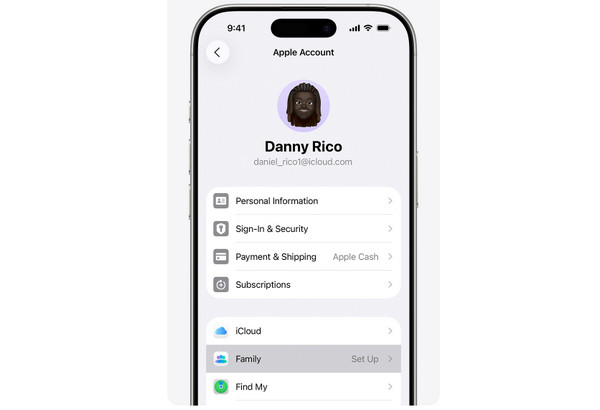
iPhone/iPad: Please go to the Settings app on your iPhone and iPad. You can find it from the Home Screen section, where the apps are listed. Then, tap the account name at the top of the main interface. Tap the Family button afterward. Tap the name of the family member. Finally, the Apple ID account email will be prompted on the screen.
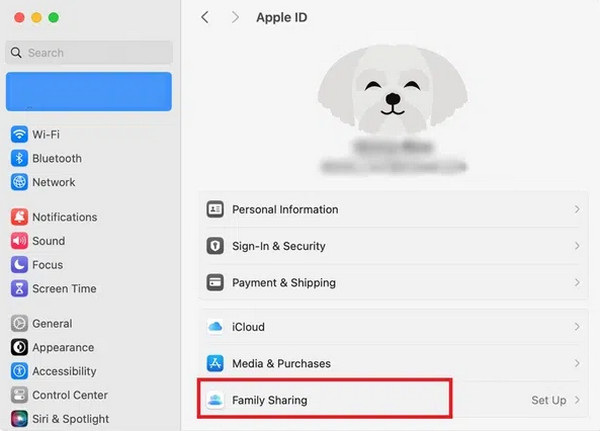
Mac: Select the Apple button at the top left. The drop-down options will appear. Please select the System Settings button from the list. Later, please select the Apple ID account at the top left. Choose the Family Sharing button and the member you want to check the Apple ID for. The email will appear afterward on the next screen.
Part 4. Remove Apple ID from iPhone/iPad
Besides finding the Apple ID from your iPhone or iPad, you can also remove it. In this section, you will know how to remove the Apple ID from your iPhone or iPad using Apple ways or third-party tools. Remove Apple ID from iPhone and iPad as you scroll below.
1. Use Recovery Mode
Recovery mode is a professional procedure that can be used on your computer to remove the Apple ID from your iPhone or iPad. It uses iTunes, Apple Devices, or Finder. However, ensure that the computer used is trusted by the iPhone or iPad before. Learn how to use recovery mode to remove Apple ID from your iPhone or iPad.
Step 1Enter your iPhone and iPad’s recovery mode. The combination of physical buttons can be discovered below.
- • iPhone Without a Home Button: Press and quickly release Volume Up. Do the same with Volume Down. Press and hold Side afterward.
- • iPhone with a Home Button: Press and hold Side and Volume Down or Home.
- • iPad Without a Home Button: Press Volume closest to Top. Do the same with the farthest Volume. Press and hold Top.
- • iPad with a Home Button: Press and hold Side and Home.
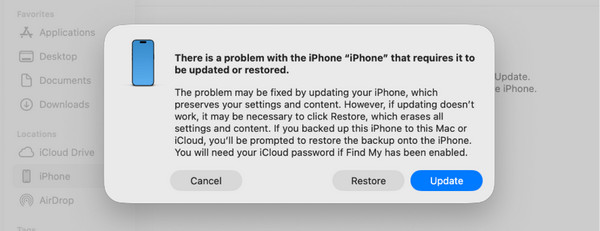
Then, plug the iPhone or iPad into the computer using a USB cable. Later, open iTunes, Apple Devices, or Finder on your computer. It will automatically detect the issue on the mentioned devices.
Step 2A small window will be prompted on the screen. Please click the Restore at the bottom right corner. Then, you will be asked one more time to confirm the process. Please click the Restore at the bottom right. Finally, unplug the iPhone or iPad from the computer to complete the procedure.
2. Visit iCloud
iCloud Find My is associated with your Apple ID. It can be used to eliminate the Apple ID from your iPhone or iPad. Please use the steps below as your guide for the process using Apple Find My iPhone or iPad.
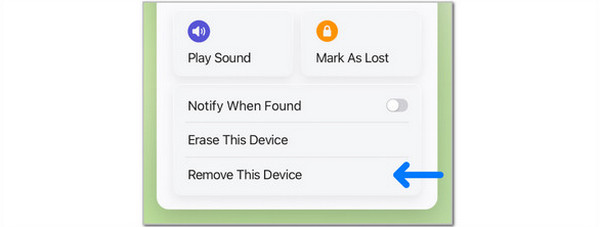
Visit the official website of iCloud Find My. Then, the account must be remembered on the device. Later, go to the All Devices section at the top left. The list of devices associated with an Apple ID will appear. Click the one you prefer to remove the Apple ID. Finally, tap the Remove This Device button from the list. Follow the on-screen instructions to complete the process.
3. Use FoneLab iOS Unlocker

FoneLab Helps you unlock iPhone screen, Removes Apple ID or its password, Remove screen time or restriction passcode in seconds.
- Helps you unlock iPhone screen.
- Removes Apple ID or its password.
- Remove screen time or restriction passcode in seconds.
FoneLab iOS Unlocker can also help! It is a third-party program that allows you to remove the Apple ID on your iPhone or iPad without the password. You do not need to worry about the Activation Lock during the setup process. It can do it on the latest and earlier versions of iPadOS and iOS. Besides Apple ID, it can also be used to bypass the MDM, iTunes backup encryption password, and more. Please use the tool as you scroll below with its detailed steps.
Step 1Open your web browser on your computer and search for the main website of FoneLab iOS Unlocker. After that, click the Free Download to download it. Set up, install, and open the tool to start. Select the Remove Apple ID feature from the list. Plug your iPhone or iPad into a computer to proceed.

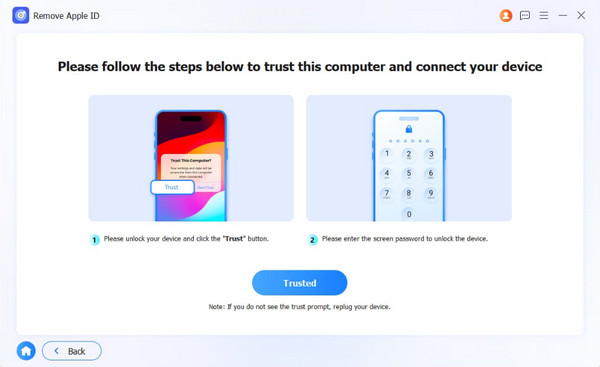
Step 2Please follow the on-screen instructions. Then, click the Trusted button on the screen. Later, the interface will change.
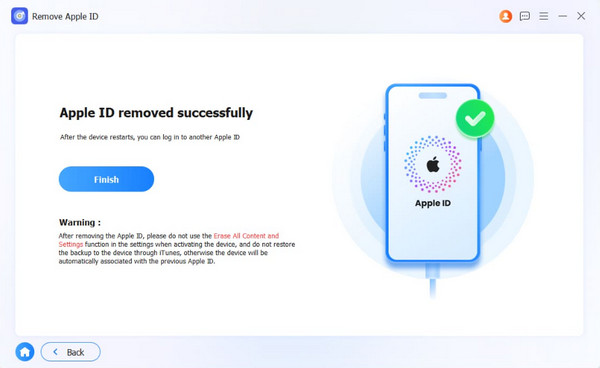
Step 3Click the OK button at the bottom center. Then, please click the Confirm Again button in the same area. Later, the removal of your Apple ID from the iPhone or iPad will continue. Finally, please click the Finish button to end the process.
Part 5. FAQs about Forgot Apple ID
What happens if you can't recover your Apple ID?
If the Apple ID is unrecoverable due to lost or unknown information, it is recommended to create a new one. Take note of the account if possible. However, all of the synced data from your Apple ID will no longer be accessible.
What happens if I press Forgot Password for Apple ID?
The Forgot Password button, when you try to authenticate or sign in to your Apple ID, is a feature that allows you to reset your forgotten password. In this case, you can make the changes from the Apple ID or devices.
When you forgot Apple ID email, it will be a total disaster. It is much harder compared to a forgotten password. This article helps you recover or find the mentioned account. FoneLab iOS Unlocker is here to help you remove the Apple ID from the account if it cannot be retrieved. You can also use it to remove the screen lock, bypass the iCloud Activation Lock, bypass MDM, and more. Downloading it is the key to exploring these features.



