iPhone Data Recovery
 iOS System Recovery
 iOS Data Backup & Restore
 iOS Unlocker
 iPhone Password Manager
 Location Changer
 Android Data Recovery
 Broken Android Data Extraction
 Android Data Backup & Restore
 Android Unlocker
 FoneTrans for iOS
 iPhone Data Eraser
 iPhone Cleaner
 HEIC Converter
 HyperTrans
 WhatsApp Transfer for iOS
 Mac Sweep
 Data Retriever
 Mac Data Retriever
 Video Converter Ultimate
 Screen Recorder
 Phone Mirror
- Convert AVCHD to MP4
- Convert MP4 to WAV
- Convert MP4 to WebM
- Convert MPG to MP4
- Convert SWF to MP4
- Convert MP4 to OGG
- Convert VOB to MP4
- Convert M3U8 to MP4
- Convert MP4 to MPEG
- Embed Subtitles into MP4
- MP4 Splitters
- Remove Audio from MP4
- Convert 3GP Videos to MP4
- Edit MP4 Files
- Convert AVI to MP4
- Convert MOD to MP4
- Convert MP4 to MKV
- Convert WMA to MP4
- Convert MP4 to WMV
How to Compress MP3 Files without Losing Quality
 Posted by Boey Wong / September 21, 2026 09:00
MP3 files are everywhere: podcasts, audiobooks, music, voice recordings. But a single high-quality MP3 can be 5-10 MB, and a folder of them can quickly fill up your storage or exceed email attachment limits. Compressing MP3 files lets you reduce the file size without a noticeable drop in quality, as long as you do it right.
In this guide, I will explain how MP3 compression works, show you two methods to compress MP3 files (one desktop tool and one online tool), and share tips for getting the smallest file size while keeping the audio sounding great. The desktop method uses FoneLab Video Converter Ultimate, which handles both single files and batch compression.

Guide List
Part 1. Why Compress MP3 Files?
There are several common reasons to compress MP3 files:
- Email attachments. Most email providers limit attachments to 25MB. A few large MP3s can easily exceed this.
- Limited storage. If you have a phone or MP3 player with limited space, compression lets you fit more songs.
- Faster streaming. Smaller files buffer faster on slow internet connections.
- Uploading to websites. Some platforms have file size limits for audio uploads.
- Organizing large libraries. A music library of thousands of songs can take up hundreds of gigabytes.
The key is to compress without losing quality. MP3 is already a lossy format, meaning some audio data is discarded during encoding. Compressing further can reduce quality if you go too far, but with the right settings, the difference is often inaudible to most listeners.
Part 2. Understanding MP3 Quality and Bitrate
Before you start compressing, it helps to understand what determines MP3 file size. The most important factor is bitrate, measured in kilobits per second (kbps).
- 320 kbps. The highest common MP3 bitrate. Near-CD quality, file size about 2.4 MB per minute.
- 256 kbps. High quality, difficult to distinguish from 320 kbps on most equipment. About 1.9 MB per minute.
- 192 kbps. Good quality for most listening. About 1.4 MB per minute.
- 128 kbps. Standard quality, noticeable compression on complex music. About 1 MB per minute.
- 96 kbps or lower. Low quality, suitable for voice/podcasts only.
For music, I recommend not going below 192 kbps if you care about quality. For podcasts and audiobooks (which are mostly voice), 96-128 kbps is often sufficient and can cut the file size in half. The sample rate (44.1 kHz is standard) and channel mode (stereo vs. joint stereo) also affect size, but bitrate is the biggest lever.

Video Converter Ultimate is the best video and audio converting software which can convert MPG/MPEG to MP4 with fast speed and high output image/sound quality.
- Convert any video/audio like MPG, MP4, MOV, AVI, FLV, MP3, etc.
- Support 1080p/720p HD and 4K UHD video converting.
- Powerful editing features like Trim, Crop, Rotate, Effects, Enhance, 3D and more.
Part 3. Method 1: Compress MP3 with FoneLab
FoneLab Video Converter Ultimate is primarily a video converter, but it also handles audio compression excellently. It supports batch processing, so you can compress an entire folder of MP3s at once, and it gives you precise control over bitrate and quality.
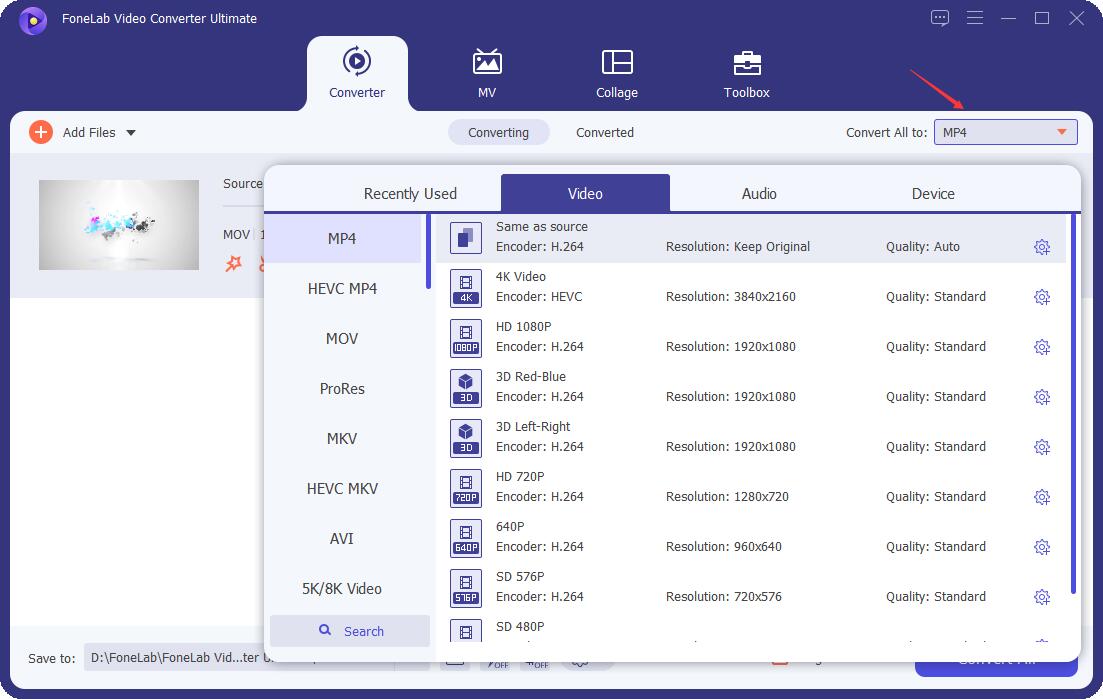
Step 1Download and install FoneLab Video Converter Ultimate on your Windows PC or Mac. Open it and choose Converter from the top menu, then click Add File to import the MP3 files you want to compress. You can also drag and drop files directly.
Step 2Click the Profile dropdown at the bottom and choose General Audio > MP3. This sets the output format to MP3.
Step 3Click the Settings button next to the Profile dropdown.
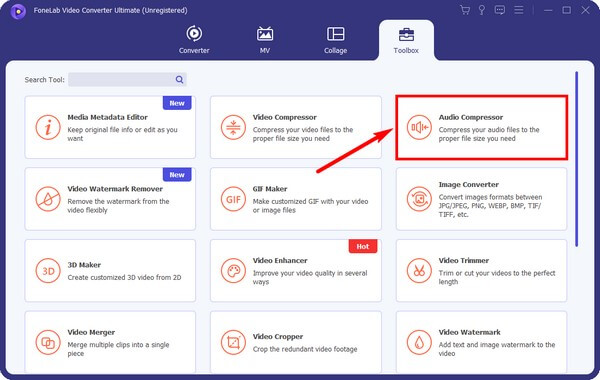
In the audio settings, adjust the Bitrate to a lower value (e.g., from 320 kbps to 192 kbps). You can also adjust the sample rate and channel if needed.
Step 4Click Browse to choose an output folder for the compressed files.
Step 5Click Convert to start the compression. The software will process all selected files and save them to the output folder.
What makes this tool useful is that it shows you the estimated output file size before you convert, so you can experiment with different bitrates to find the sweet spot. It also supports converting to other formats like AAC, WAV, FLAC, and OGG if you need more flexibility.
Part 4. Method 2: Compress MP3 Online
If you do not want to install any software, there are free online MP3 compressors that work in your browser. Popular options include MP3Smaller, YouCompress, and Online Audio Converter. Here is the general process.
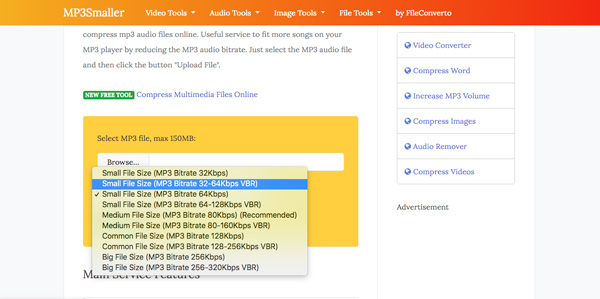
Step 1Open your browser and go to an online MP3 compressor website, such as mp3smaller.com.
Step 2Click Upload or Select File and choose the MP3 file you want to compress. Most sites have a file size limit (usually 150MB or less).
Step 3Choose the desired bitrate or quality level. Some sites let you pick a specific bitrate, while others use a simple quality slider.
Step 4Click Compress or Upload to start. The file will be uploaded to the server, compressed, and made available for download.
Step 5Download the compressed file to your computer.
Online tools are convenient for one-off compressions, but they have limitations. Most do not support batch processing, so you have to compress files one at a time. They also require uploading your files to a third-party server, which raises privacy concerns for sensitive audio. And the file size limits can be restrictive for large files. For frequent or batch compression, the desktop method in Part 3 is better.
Video Converter Ultimate is the best video and audio converting software which can convert MPG/MPEG to MP4 with fast speed and high output image/sound quality.
- Convert any video/audio like MPG, MP4, MOV, AVI, FLV, MP3, etc.
- Support 1080p/720p HD and 4K UHD video converting.
- Powerful editing features like Trim, Crop, Rotate, Effects, Enhance, 3D and more.
Part 5. Tips for Compressing MP3 Without Quality Loss
Follow these tips to get the smallest file size while keeping the audio quality high:
- Start with the highest quality source. Compressing an already low-quality MP3 will make it sound worse. Always compress from the highest bitrate version you have.
- Do not go below 192 kbps for music. For most listeners, 192 kbps is the sweet spot between size and quality. Going lower introduces audible artifacts.
- Use 96-128 kbps for voice. Podcasts and audiobooks can handle lower bitrates because they contain mostly speech, not complex music.
- Use joint stereo. Joint stereo reduces file size by exploiting similarities between the left and right channels, with minimal quality loss.
- Test before batch converting. Compress one file at a few different bitrates and listen to them on your usual headphones or speakers to find the quality you are happy with.
- Keep the original. Always keep a copy of the original high-quality file. You never know when you might need it.
- Consider VBR. Variable Bitrate (VBR) adjusts the bitrate dynamically, using more bits for complex passages and fewer for quiet ones. This gives better quality at the same average file size.
With these tips, you can typically reduce an MP3 file size by 30-50% without any noticeable quality loss. For voice content, you can often reduce it by 60-70%.
Video Converter Ultimate is the best video and audio converting software which can convert MPG/MPEG to MP4 with fast speed and high output image/sound quality.
- Convert any video/audio like MPG, MP4, MOV, AVI, FLV, MP3, etc.
- Support 1080p/720p HD and 4K UHD video converting.
- Powerful editing features like Trim, Crop, Rotate, Effects, Enhance, 3D and more.
Part 6. FAQs about MP3 Compression
Does compressing an MP3 reduce quality?
Technically yes, because MP3 is a lossy format. But if you compress from 320 kbps to 192 kbps, most people cannot hear the difference. The key is not to go below 192 kbps for music and to use a good encoder.
Can I compress MP3 files without losing quality at all?
For truly lossless compression, you would need to use a lossless format like FLAC or ALAC. But these files are larger than MP3. If you need to stay in MP3 format, some quality loss is inevitable, but it can be made inaudible.
What is the best bitrate for MP3?
For music, 256-320 kbps is considered high quality, 192 kbps is good for everyday listening, and 128 kbps is acceptable for casual use. For podcasts and audiobooks, 96-128 kbps is usually fine.
Can I compress multiple MP3 files at once?
Yes, FoneLab Video Converter Ultimate supports batch conversion. You can add an entire folder of MP3 files and compress them all at once with the same settings. Online tools usually only support one file at a time.
Compressing MP3 files does not have to mean sacrificing quality. With the right bitrate settings and a good tool like FoneLab Video Converter Ultimate, you can shrink your files significantly while keeping them sounding great. For more audio tips, check how to convert MP3 to WAV or use an MP3 compressor.