
 iPhone Data Recovery
 iOS System Recovery
 iOS Data Backup & Restore
 iOS Unlocker
 iPhone Password Manager
 Location Changer
 Android Data Recovery
 Broken Android Data Extraction
 Android Data Backup & Restore
 Android Unlocker
 FoneTrans for iOS
 iPhone Data Eraser
 iPhone Cleaner
 HEIC Converter
 HyperTrans
 WhatsApp Transfer for iOS
 Mac Sweep
 Data Retriever
 Mac Data Retriever
 Video Converter Ultimate
 Screen Recorder
 Phone Mirror
- Part 1. Why Can't I Change My Apple ID Password?
- Part 2. Simple Table about How to Change Apple ID Password
- Part 3. Check and Fix Your Network
- Part 4. Update iOS on Settings
- Part 5. Verify Two-Factor Authentication
- Part 6. iforgot.apple.com: Unlock and Reset Password
- Part 7. Check for Restrictions on Settings for Screen Time
- Part 8. Remove Apple ID with Fonelab iFoneWiz
- Part 9. FAQs about Can’t Change Apple ID Password
- Unlock Apple ID
- Bypass iCloud Activation Lock
- Doulci iCloud Unlocking Tool
- Factory Unlock iPhone
- Bypass iPhone Passcode
- Reset iPhone Passcode
- Unlock Apple ID
- Unlock iPhone 8/8Plus
- iCloud Lock Removal
- iCloud Unlock Deluxe
- iPhone Lock Screen
- Unlock iPad
- Unlock iPhone SE
- Unlock Tmobile iPhone
- Remove Apple ID Password
Resolve Can’t Change Apple ID Password Issue Effectively
 Updated by
 Why can't I change my Apple ID password?” A question usually asked by users who find themselves struggling with the process of changing passwords. The reason? There are actually various factors that cause this on an Apple device. If you’re also attempting to change or set a new Apple password, this article will walk you through the most practical ways to examine and solve the problem yourself. The possible reasons you can’t change the password will also be included in the following sections, so understand every part to resolve the issue smoothly.

Guide List
- Part 1. Why Can't I Change My Apple ID Password?
- Part 2. Simple Table about How to Change Apple ID Password
- Part 3. Check and Fix Your Network
- Part 4. Update iOS on Settings
- Part 5. Verify Two-Factor Authentication
- Part 6. iforgot.apple.com: Unlock and Reset Password
- Part 7. Check for Restrictions on Settings for Screen Time
- Part 8. Remove Apple ID with Fonelab iFoneWiz
- Part 9. FAQs about Can’t Change Apple ID Password
Part 1. Why Can't I Change My Apple ID Password?
Whether you can't change your iCloud password or Apple password, the information in this post will help, as they both refer to the same thing. Hence, the possible causes you’re experiencing this are also the same. That said, the most common reasons include having an unstable internet connection, as a weak signal can prevent Apple's servers from verifying your request.
Being unable to access your trusted device for two-factor authentication can also be the reason, since Apple requires verification from a device. Or it may simply be because you entered an incorrect current password or verification code, which often comes down to a simple typo or an outdated saved password. Another possibility is restrictions because, as you know, Apple is strict regarding security. You may have unintentionally set up a restriction incorrectly.
Aside from those, we can also look at the outdated iOS version, a forgotten password, and more. Each of these factors blocks the password change process, so identifying the right cause will help you choose the correct solution, which we will cover in the following parts.
Part 2. Simple Table about How to Change Apple ID Password
| Method | What It Does | Best When |
| Check and Fix Your Network | Ensures a stable internet connection for Apple's verification process | You see loading errors or “request timed out” messages |
| Update iOS on Settings | Installs the latest system fixes from Apple | Your device runs an outdated iOS version |
| Verify Two-Factor Authentication | Confirms you have access to your trusted device or phone number | Apple asks for a code you never received |
| iforgot.apple.com: Unlock and Reset Password | It lets you reset your password through Apple's official website | Your account is locked, or you forgot your current password entirely |
| Check for Restrictions on Settings for Screen Time | Removes device restrictions blocking account changes | The “Change Password” option is grayed out |
| FoneLab iFoneWiz | An acclaimed tool to bypass or remove Apple ID locks | Other methods fail, and you prefer a professional solution |
Part 3. Check and Fix Your Network
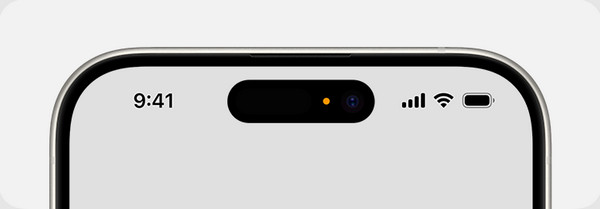
Before trying any advanced solution, start with the simplest possibility: your internet connection. Apple requires a stable network to verify your identity when changing the Apple ID password; thus, ensuring your WiFi or mobile data is working fine will save a lot of time. To check your network, look at the status bar on your device. For WiFi, you should see the WiFi symbol with at least two solid bars. Meanwhile, look for LTE, 5G, or 4G next to the signal symbol for mobile data. If you don’t see these indications, it means your connection is too weak.
Part 4. Update iOS on Settings
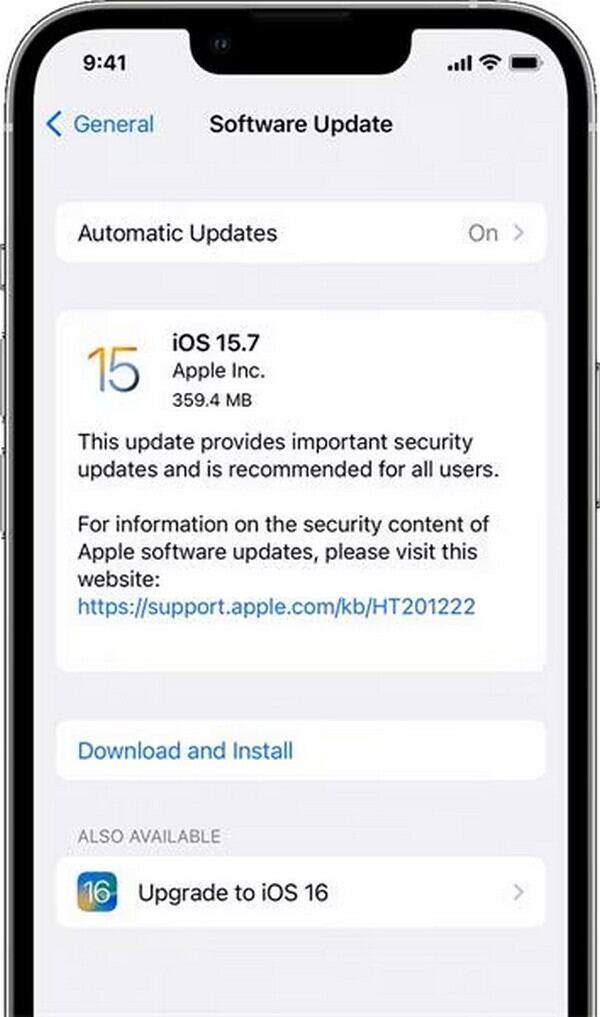
Outdated software is another common but often ignored reason why you cannot change your Apple ID password. Apple continuously releases iOS updates that fix security bugs, improve authentication processes, and patch glitches that may interfere with password changes. So, if you haven’t updated your iOS for a long time, it is likely the cause that prevents you from changing your Apple ID password. Fortunately, updating can be easily done in Settings.
Follow the directions below if you can’t resolve it by updating your iOS in Settings:
Step 1Head to your device’s Settings, then tap General > Software Update.
Step 2If there’s an available update, tick Download and Install to update your iOS.
Part 5. Verify Two-Factor Authentication
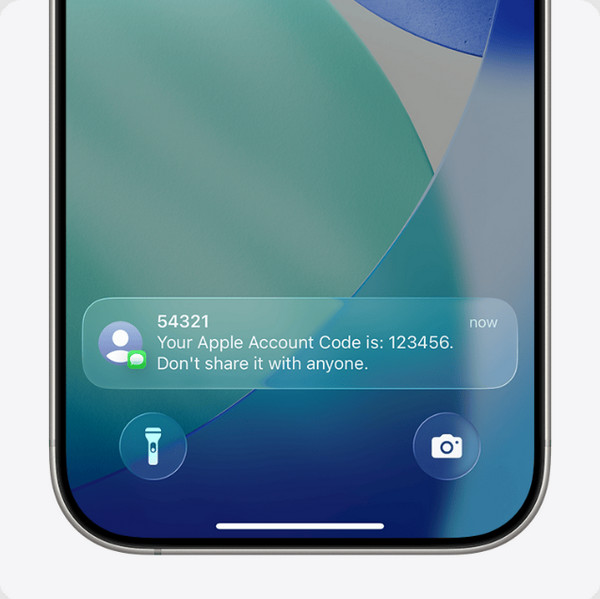
Meanwhile, two-factor authentication is an extra security layer Apple uses to protect your account. Thus, when you try to change your Apple ID password, it sends a verification code to a trusted device or phone number that’s associated with your account. So, in this case, we advise you to check the device or number you have registered to see the verification code. Simply perform the process for password changing first on Settings > your profile > Sign-In & Security, then Change Password. Follow the prompts afterward, and when a verification is sent to your trusted device or number, enter it on your device accordingly.
Part 6. iforgot.apple.com: Unlock and Reset Password
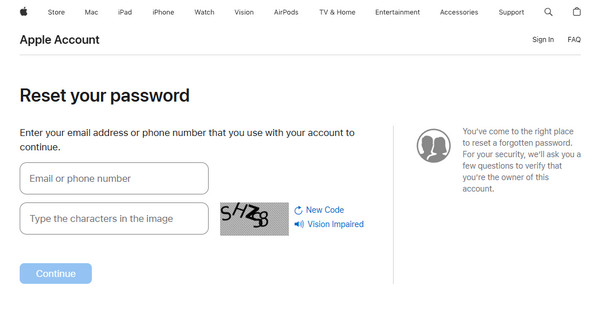
A forgotten password is also among the frequent reasons users fail to change their Apple ID password or other credentials. Fortunately, Apple offers a specialized website for this concern, to unlock and reset Apple ID password. It bypasses local device glitches and connects directly to Apple's account servers. Also, you can perform the process on any web browser.
Follow the instructions below if you can’t change iCloud password to fix it via iforgot.apple.com:
Step 1On the iforgot.apple.com site, select Reset Password, then input the required details in the text fields on the following page. Afterward, choose Continue below.
Step 2Following that, simply wait until you receive an email containing further guidelines for resetting your password. Use them until you successfully change it.
Part 7. Check for Restrictions on Settings for Screen Time
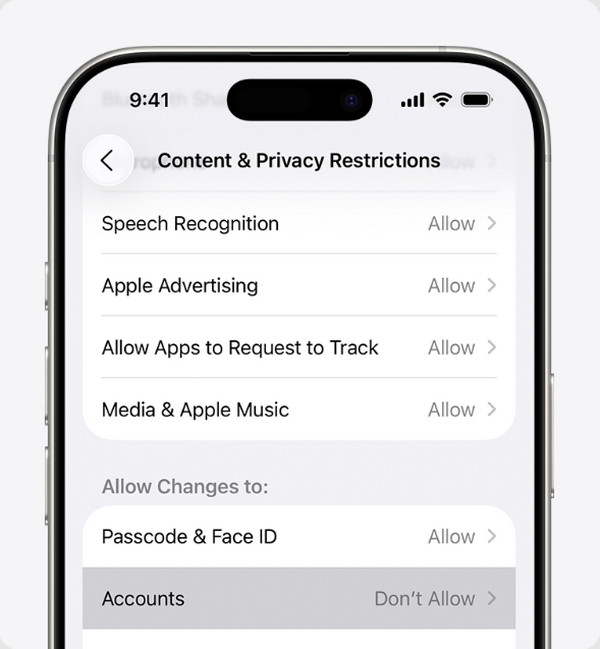
Screen Time is a helpful feature for managing device usage, but it can also accidentally block you from changing your Apple ID password. Within Screen Time settings, an Account Changes option is available, which allows you to prevent unauthorized modifications. Whether it was enabled intentionally or unintentionally, turning the feature off is a suitable solution.
Follow the procedure below if you can’t change Apple ID password to resolve it by checking for restrictions:
Step 1Open Settings and tap Screen Time. Provide its password when prompted, and once accessed, select Content & Privacy Restrictions.
Step 2After that, tap Accounts and set its option to Allow on the following screen.
Part 8. Remove Apple ID with Fonelab iFoneWiz
When all else fails, don't be discouraged yet — you can still rely on FoneLab iFoneWiz to help you access the device containing your Apple password. Since your Apple ID is the primary source of this concern, removing it from your iPhone or iPad will be suitable, especially if it prevents you from using the device. After all, this program offers a user-friendly process. FoneLab iFoneWiz can safely remove Apple ID from iPhone or other iOS devices, even if you can’t provide its password. Also, its other functions can be used for your other concerns later.

iFoneWiz Helps you unlock iPhone screen, Removes Apple ID or its password, Remove screen time or restriction passcode in seconds.
- Helps you unlock iPhone screen.
- Removes Apple ID or its password.
- Remove screen time or restriction passcode in seconds.
Discern the hassle-free guide below as a model to remove Apple ID with FoneLab iFoneWiz:
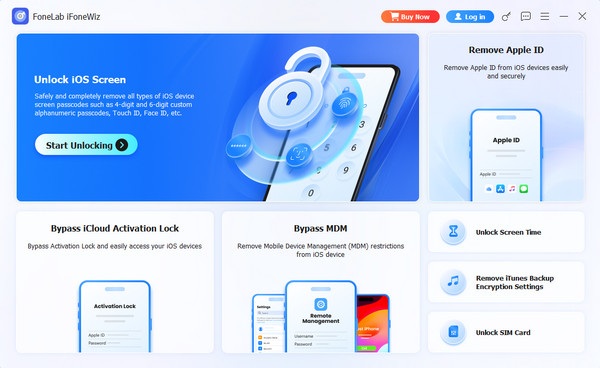
Step 1Opt for the FoneLab iFoneWiz’s Download option to save the program file in your Downloads. Then, from there, launch it when ready to start managing the initial setup. The Start button will appear shortly, letting you run the tool. So, pick Remove Apple ID on the interface.
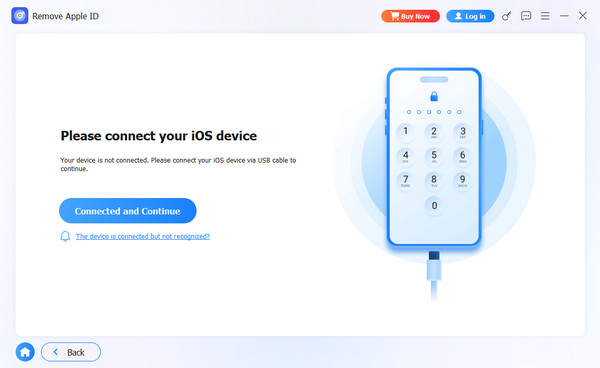
Step 2It would be necessary to attach your device afterward; hence, use a Lightning cable to do so, and let further instructions appear. Use them to proceed with the process and remove the Apple ID from your Apple device.
Part 9. FAQs about Can’t Change Apple ID Password
Why can't I change my iCloud password after too many failed attempts?
For security. Apple locks the account after too many failed attempts to prevent unauthorized access. You can try again after a few minutes to several hours.
Will updating iOS delete my data?
No, it won’t. A standard iOS update keeps all your photos, apps, and other content safe.
The inability to change your Apple ID password can be resolved with the suitable method. Thus, understand each solution above to choose the most appropriate one. But if they don’t work, you can always try FoneLab iFoneWiz to remove your Apple ID and its password safely.



