
 iPhone Data Recovery
 iOS System Recovery
 iOS Data Backup & Restore
 iOS Unlocker
 iPhone Password Manager
 Location Changer
 Android Data Recovery
 Broken Android Data Extraction
 Android Data Backup & Restore
 Android Unlocker
 FoneTrans for iOS
 iPhone Data Eraser
 iPhone Cleaner
 HEIC Converter
 HyperTrans
 WhatsApp Transfer for iOS
 Mac Sweep
 Data Retriever
 Mac Data Retriever
 Video Converter Ultimate
 Screen Recorder
 Phone Mirror
- Unlock Apple ID
- Bypass iCloud Activation Lock
- Doulci iCloud Unlocking Tool
- Factory Unlock iPhone
- Bypass iPhone Passcode
- Reset iPhone Passcode
- Unlock Apple ID
- Unlock iPhone 8/8Plus
- iCloud Lock Removal
- iCloud Unlock Deluxe
- iPhone Lock Screen
- Unlock iPad
- Unlock iPhone SE
- Unlock Tmobile iPhone
- Remove Apple ID Password
5 Quick Techniques to Fix Can't Sign Out of Apple ID
 Updated by
 Greetings! Why can't I sign out of my Apple ID? I’m unsure about what’s happening right now on my account. I need to sign it out because I am planning to give my iPhone to my older sister. Can you help me determine causing the issue and how to fix it? Thank you!
The Apple ID account is the account that you can associate your iPhone and other Apple devices with iCloud. However, some cannot sign it out when needed. Please scroll below to know the causes of the issue, including the easy methods to fix it immediately.


Guide List
Part 1. Why Can't I Sign Out of My Apple ID
One of the primary causes of an Apple ID that cannot be signed out is an unknown password. You cannot sign out of the account if you do not have it. Also, there might be restrictions on the action, like what Screen Time does. Additionally, connectivity issues, like no internet connection, can also be the reason.
Furthermore, the Apple device might be experiencing minor or major issues. Fixing them will also fix the Apple ID that cannot be signed out of.
Part 2. How to Sign Out of Apple ID from Device
If you know the password of your Apple ID and cannot sign out, you might be signing out the wrong way, or you do not know how. Below are the steps to sign out of your Apple ID from your iPhone, iPad, and Mac.
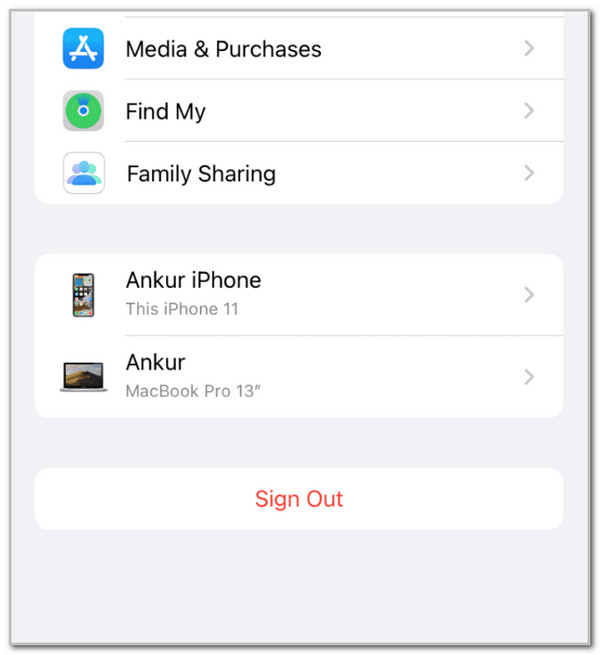
iPhone/iPad: Open the Settings app. Then, select your name at the top. Later, tap the Sign Out button at the bottom. Select the Sign Out But Don’t Erase button. Follow the on-screen instructions to complete it.
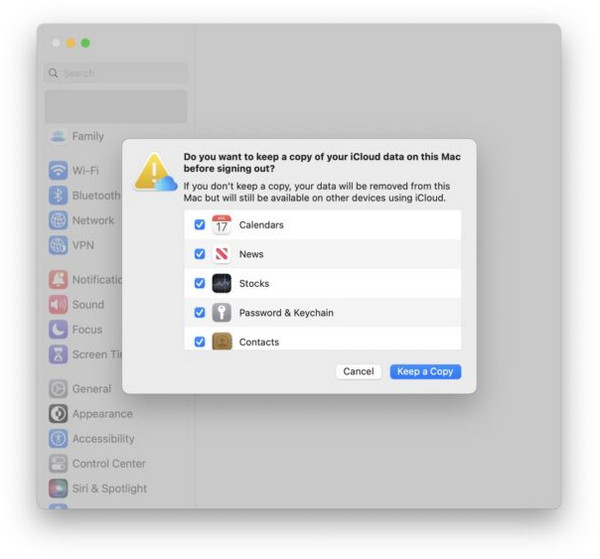
Mac: Choose the Apple menu. Click the System Settings button and choose your name. Click the Sign Out button. You may select the Keep a Copy button. Follow the on-screen instructions to complete the process.
Part 3. What to Do When You Can't Sign Out Apple ID
On the other hand, how to sign out of Apple ID without password or enabled restrictions? It depends on the issue your Apple device is experiencing. In this section, we will show you the 5 easy methods to sign out of your Apple ID.
1. Turn Off Screen Time Restrictions
Screen Time limits the operations on your iPhone, iPad, and Mac. This feature might be turned on, causing the Apple ID to be unable to be signed out. You might see the Apple ID Sign Out is Not Available Due to Restrictions error message. So, turning it off will allow you to sign out of the account.
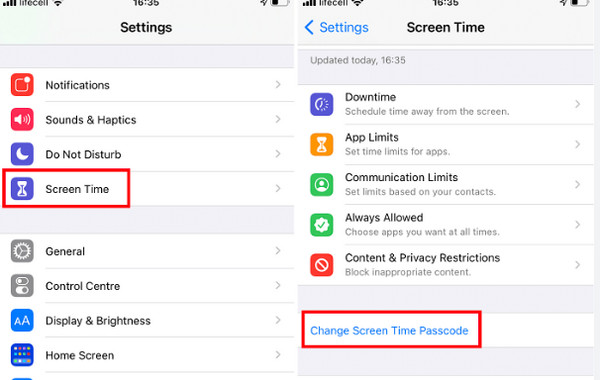
iPad/iPhone: Go to Settings. Then, select Screen Time. After that, select the Turn Off Screen Time button from the main screen.
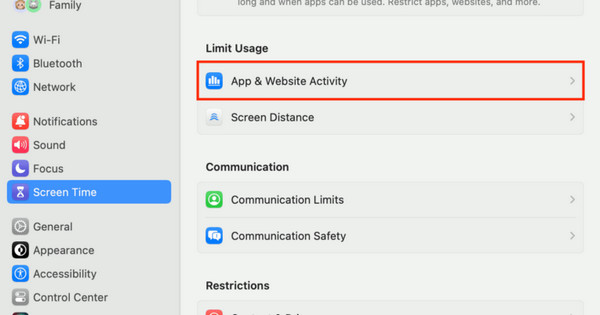
Mac: Open the Apple menu. Then, select System Settings. Later, choose the Screen Time button. Toggle off App & Website Activity.
2. Fix Network Connectivity
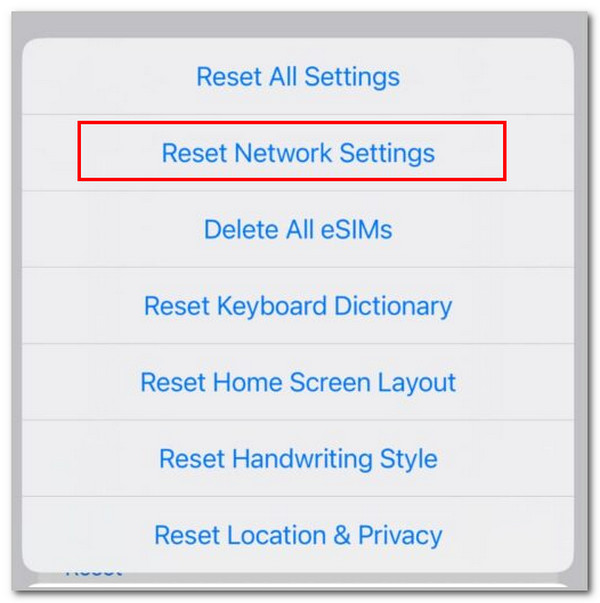
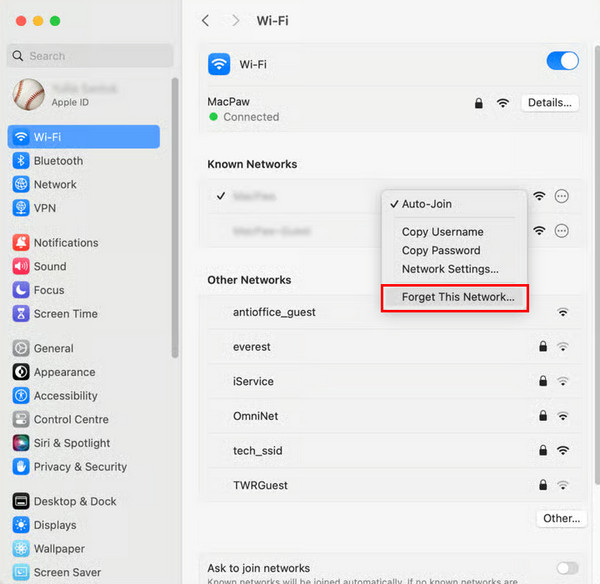
Signing out of the Apple ID requires an internet connection. You might have a problem with your Apple ID’s network settings if you cannot sign it out. Fix the issue with the steps below for Mac, iPhone, and iPad.
iPhone/iPad: Open the Settings app. Select General and tap Transfer or Reset iPhone/iPad. Tap Reset and select Reset Network Settings.
Mac: Go to System Settings. Click Wi-Fi and select Details. Later, click Forget This Network. Connect to a network afterward.
3. Reset Missing Apple ID Password
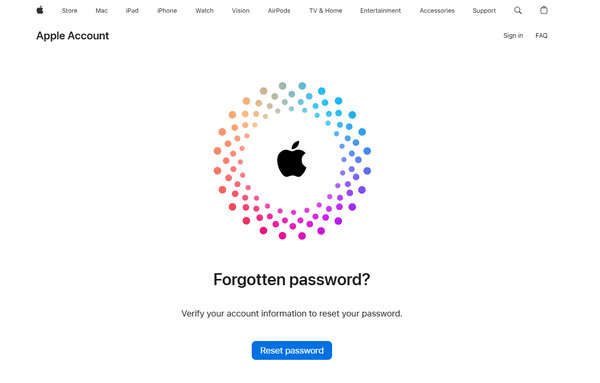
If the Apple ID password is unknown, you can reset it on the official Apple website. Please refer to the steps below on how to do that.
Search for the Apple - iForgot website. Click Reset Password. Enter your email or phone number. Type the text in the image. Enter the authentication information. Follow the on-screen instructions to complete the process.
4. Use Recovery Mode
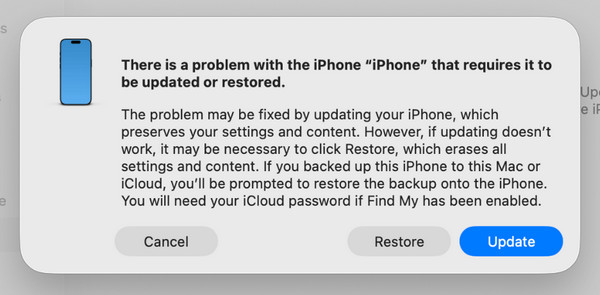
You can also sign out of Apple ID without password with Recovery Mode. This method requires a computer. The steps below will guide you.
Step 1Enter recovery mode. On an iPad without a Home button, press and release Volume Up. Do the same with Volume Down. Press and hold Top until the recovery mode screen is shown. If it does not have a Home button, press and hold Top and Home.
On an iPhone with a Home button, press and release Volume Up, same with Volume Down. Press and hold Side to see the recovery mode screen. If there is a Home button, press and hold Side and Volume Down or Side and Home.
Step 2Plug the iPhone or iPad into the computer. Open iTunes, Apple Devices, or Finder. Click Restore.
5. Use FoneLab iOS Unlocker

FoneLab Helps you unlock iPhone screen, Removes Apple ID or its password, Remove screen time or restriction passcode in seconds.
- Helps you unlock iPhone screen.
- Removes Apple ID or its password.
- Remove screen time or restriction passcode in seconds.
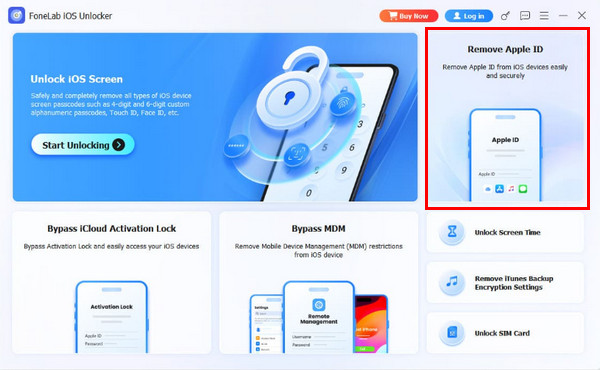
If the Apple ID password is unknown, you can remove Apple ID from iPhone and iPad. FoneLab iOS Unlocker can help you with this process. It removes the Apple ID without the password. This tool also bypasses the iCloud Activation Lock. It can also be used to remove Screen Time restrictions. This way, there will be no limitations to the iPhone and iPad operations. It uses a USB connection for a faster Apple ID removal process. The steps will help you know how to use the tool.
Step 1Click Free Download to get the tool. Install, set up, and open it to start the process.

Step 2Click Remove Apple ID. Then, you will see the next screen.
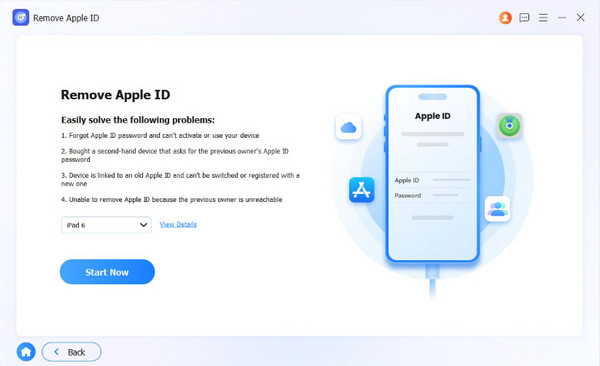
Step 3Plug the iPhone or iPad into the computer. Click the Start Now button. Later, follow the on-screen instructions to plug in and remove your Apple ID from your iPhone and iPad.
Part 4. Comparison Table of Methods to Fix Can’t Sign Out Apple ID
| Method | Purpose | Difficulty | Connectivity |
| Turning Off Screen Time | Remove Screen Time restrictions. | Easy | Internet Connection |
| Fixing Connectivity Issues | Fixing connectivity issues by resetting network settings. | Easy | Internet Connection |
| Recovering a Missing Apple ID Password | Recover the Apple ID, so you can sign it out | Hard | Internet Connection |
| Recovery Mode | Restoring the iPhone and iPad to factory settings to fix the issue | Hard | USB Connection |
| FoneLab iOS Unlocker | Remove the Apple ID without the password, without activating the iCloud Activation Lock | Easy | USB Connection |
Part 5. FAQs about Why Can't I Sign Out of My Apple ID
Does a factory reset remove Apple ID?
No. A factory reset will not remove the Apple ID. The Activation Lock feature will be encountered after the process. It happens due to the Find My service that is turned on on your Apple devices.
Will logging out of my Apple ID delete everything?
No. Signing out of your Apple ID will not delete everything. It will only remove the synced data from your iCloud to your Apple devices.
Why can I not sign out of my Apple ID? This article has explained the reasons and solutions to this question. FoneLab iOS Unlocker is included in the methods that can fix an Apple ID that cannot be logged out. It removes your Apple ID from your iPhone and iPad. This tool can also remove restrictions from your Screen Time and other security features. Download the tool to explore it!



