
 iPhone Data Recovery
 iOS System Recovery
 iOS Data Backup & Restore
 iOS Unlocker
 iPhone Password Manager
 Location Changer
 Android Data Recovery
 Broken Android Data Extraction
 Android Data Backup & Restore
 Android Unlocker
 FoneTrans for iOS
 iPhone Data Eraser
 iPhone Cleaner
 HEIC Converter
 HyperTrans
 WhatsApp Transfer for iOS
 Mac Sweep
 Data Retriever
 Mac Data Retriever
 Video Converter Ultimate
 Screen Recorder
 Phone Mirror
How iPhone Force Restart Works Conveniently to Fix Issues
 Updated by
 iPhone has multiple operations that offer a convenient experience for its users. You can browse online, download apps from App Store, take pictures, and more. However, there are times when it experiences unknown and significant issues out of nowhere. One thing is sure. It is due to software issues that faulty settings or accidental setups might cause.
Force restart is one of the primary ways to fix it. Unfortunately, some iPhone users find that the Power button not working and do not know how to use it properly. In this article, we will help you force iPhone restart to fix major issues. Please scroll below to learn more about this topic.

Guide List
Part 1. How to Force Restart iPhone
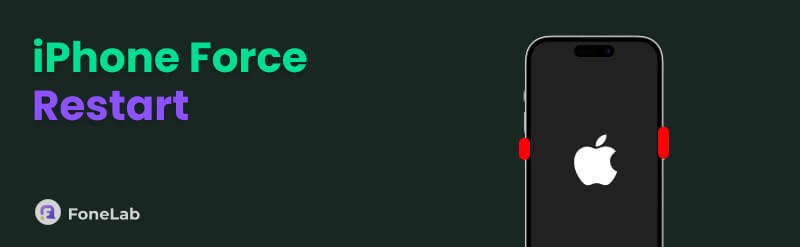
The force restart on your iPhone reboots its system to fix screen issues. It includes frozen and unresponsive screens due to apps, features, and more. The procedure simply forces the iPhone to shut down and start it again to give a refresh to the system. Please note that it is different when you restart iPhone.
iPhone has different ways to force restart, depending on the model you have. Please follow the instructions below to force restart the iPhone.
iPhone with Face ID/iPhone 8/SE/2nd Generation or Later: Press and quickly release Volume Up. Do the same with Volume Down. After that, press and hold Side. Wait for your Apple logo to appear on the screen. Release the button afterward.
iPhone 7: Press and hold Volume Down with Sleep or Wake. Please wait until the Apple logo appears on the iPhone screen before you release the buttons.
iPhone 6s/SE/1st Generation: Press and hold Sleep/Wake with the Home button. Then, wait for the Apple logo screen to be prompted. Release the buttons if that’s the case.
Part 2. What to Do If You Cannot Force Restart iPhone
However, what if the iPhone force restart not working? Well, that’s a good question. There are 3 ways to do it. You can use the methods below as an alternative to force restarting to fix different issues on your iPhone.
Recovery Mode
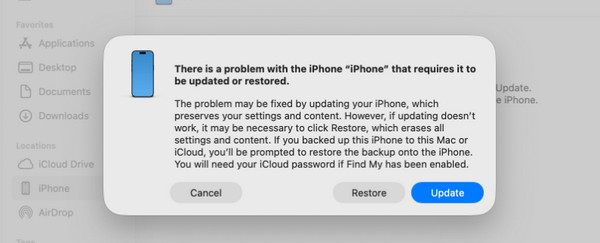
Recovery mode is a helpful operation on your iPhone. It offers different modes to fix your iPhone issues. It includes restoring and updating the iPhone. How to put iPhone in recovery mode? Follow the instructions below.
Step 1Connect your iPhone to the computer with your USB cable. Open Finder, Apple Devices app or iTunes on your computer. Now, enter the iPhone into recovery mode.
- • iPhone 8/SE 2nd Generation and Latest: Press and quickly release Volume Up. Do the same with Volume Down. Press and hold Side until the Connect to Computer screen is seen.
- • iPhone 7/7 Plus: Press and hold Top or Side and Volume Down. Keep holding the mentioned buttons and wait for the Connect to Computer screen to be shown before releasing them.
- • iPhone 6s/Earlier: Press and hold Home and Top or Side. Then, keep pressing the buttons until you see the Connect to Computer screen.
Step 2Locate the iPhone name or button in your iTunes or Finder. After that, when the computer scans an issue on the iPhone, it will show you a small window on the screen. Please click the Update or Restore button at the bottom right. Wait for the procedure to be completed before you unplug the iPhone from the computer.
iCloud Remote Erase iPhone
iCloud is known as more than a backup service for iPhone data and other Apple devices. This free service can be used to erase your iPhone when it faces serious issues with its system. The good thing about it is that it has a website that allows you to erase the iPhone remotely and with other non-Apple devices. It is the best alternative to the iPhone factory reset when it is disabled or locked out with an internet connection. Ensure that the associated Apple ID is known because it is the primary requirement of the website to erase your iPhone remotely. Follow the steps below.
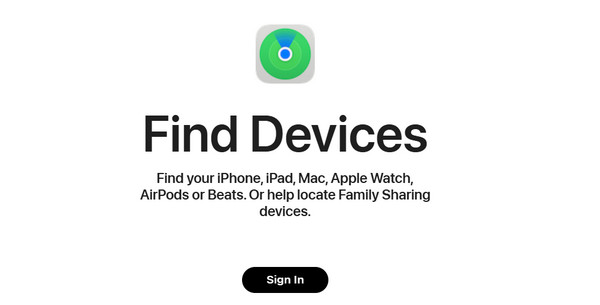
Step 1Go to the main website of iCloud Find My. After that, please choose the Sign In button in the center. Enter the associated Apple ID from the screen. Then, the map screen will be prompted.
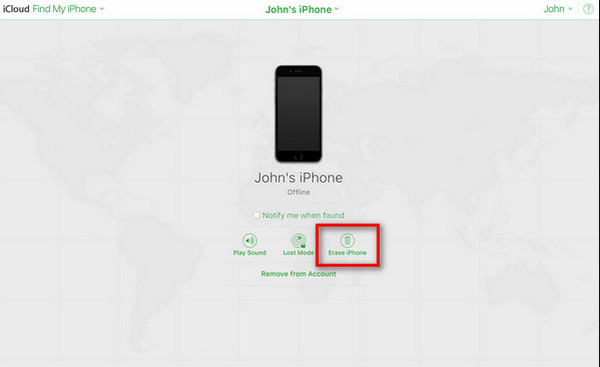
Step 2Select the All Devices button at the top left. Later, choose the iPhone name from the list. After that, click the Erase iPhone button from the options list.
FoneLab iOS System Recovery
There are also third-party tools that can help you fix minor and major issues on your iPhone. FoneLab iOS System Recovery is one of the top picks. This tool can fix 50+ issues on your iPhone, including screen and software issues. The tool can also update and downgrade the iOS version of your iPhone when needed. It supports your latest and earlier versions of iOS. You can also use it on your iPad.

FoneLab enables you to fix iPhone/iPad/iPod from DFU mode, recovery mode, Apple logo, headphone mode, etc. to normal state without data loss.
- Fix disabled iOS system problems.
- Extract data from disabled iOS devices without data loss.
- It is safe and easy to use.
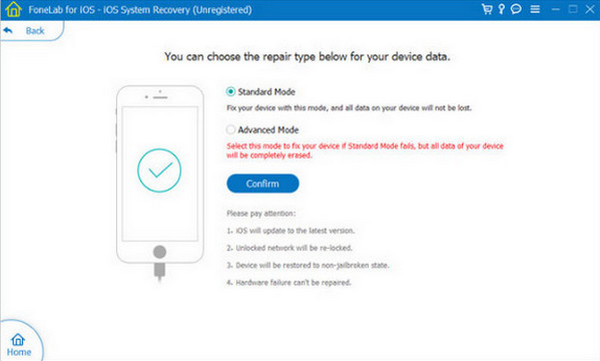
You can get this tool on your Windows and Mac. It has 2 repair modes that can fix your iPhone. It includes the Standard Mode and Advanced Mode.
1. Standard Mode - It repairs the iPhone, but it does not delete even a single piece of data from the storage.
2. Advanced Mode - It digs deeper into the iPhone issue and fixes it. However, ensure that you have backed up the iPhone data because the tool will delete the content and settings it contains.
Do you want to know how to use the tool? You can refer to the steps below to learn the proper procedure.
Step 1Get the tool on your computer. After that, please click Free Download button to do that. Then, the downloaded file will be imported into the web browser. Please set it up by clicking and allowing the permissions it requires. Finally, install the tool to proceed.
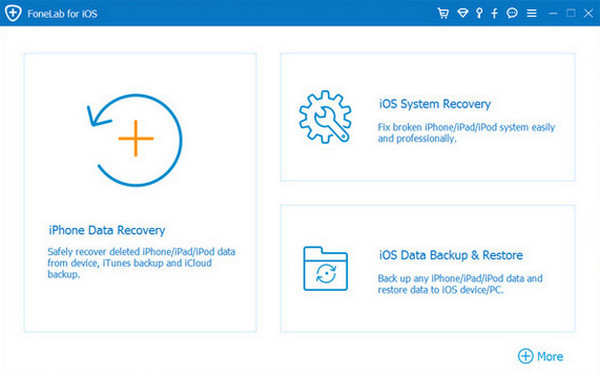
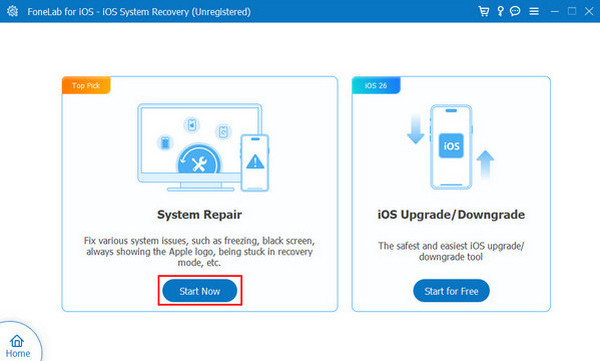
Step 2Multiple tools will be prompted on the screen. Please select the iOS System Recovery button from the main interface. This way, you will encounter the correct tool to fix the iPhone issues. Next, choose the Start button from the left side of the screen.
Step 3You will be required to choose between the Standard Mode and the Advanced Mode. Click the button you prefer to use based on its function. Click the Confirm button afterward to start fixing the iPhone issues.
Part 3. Comparison Table of Presented Methods
The presented methods are helpful to fix issues on your iPhone, including when your iPhone won't force restart. It could be for minor and major issues on the mentioned device. In this section, you will see important information about them in summary.
| Method | Data Loss | Effectivity | When to Use |
| Force Restart | No | Moderate | It can be used when the iPhone experiences screen issues, including crashing and lagging in its system or apps. |
| Recovery Mode | It depends on the mode used for the recovery mode. | High | It is best when you cannot access the operations from the iPhone Settings or apps. |
| iCloud Remote Erase | Yes | High | It is best when the iPhone is disabled, or you cannot unlock it, to fix significant issues. |
| FoneLab iOS System Recovery | No for Standard Mode. Yes for Advanced Mode. | High | This tool can fix 50+ issues on your iPhone, including lagging, a disabled iPhone, and more. It can also be used on your iPad. |
Part 4. FAQs about How to Force Restart iPhone
Does force restart delete everything on iPhone?
No. There is nothing to worry about your iPhone files when you force restart it. There will be no data loss for the mentioned procedure. It is similar to a soft reset or restart. Their only difference is that a force restart only uses buttons, while a soft reset requires you to operate the iPhone screen.
Is a force restart good for the phone?
Yes. A force restart is good for the phone if you do it occasionally. Additionally, it is safe when it is done properly. However, some mobile phone users reported that performing a force restart on the device should not be done every day. They say that occasional lag happens.
How do you force restart an iPhone? We hope that you learn the correct way in this post! The procedures to help you fix issues when the force restart does not work are also here. FoneLab iOS System Recovery is included. This tool can fix 50+ issues on your iPhone, including the problems that can be fixed with a force restart, like screen issues. Download it now!



