
 iPhone Data Recovery
 iOS System Recovery
 iOS Data Backup & Restore
 iOS Unlocker
 iPhone Password Manager
 Location Changer
 Android Data Recovery
 Broken Android Data Extraction
 Android Data Backup & Restore
 Android Unlocker
 FoneTrans for iOS
 iPhone Data Eraser
 iPhone Cleaner
 HEIC Converter
 HyperTrans
 WhatsApp Transfer for iOS
 Mac Sweep
 Data Retriever
 Mac Data Retriever
 Video Converter Ultimate
 Screen Recorder
 Phone Mirror
How to Install The New Samsung Update to Get The Latest Features
 Updated by
 Good day! I have the latest model of a Samsung phone. Some of my friends have features that do not exist on mine, even though we have the same model. They told me to update the software version of my Samsung phone. What is the software update on Samsung and how to perform it? Please help me. Thank you!
Samsung releases software versions every year. It is to level up the experience of Samsung phone users. You can get these features by updating the Samsung software version. Do you want to know how? Continue browsing to learn the essential details about this topic.

Guide List
Part 1. How Do I Check If My Samsung is Updated?
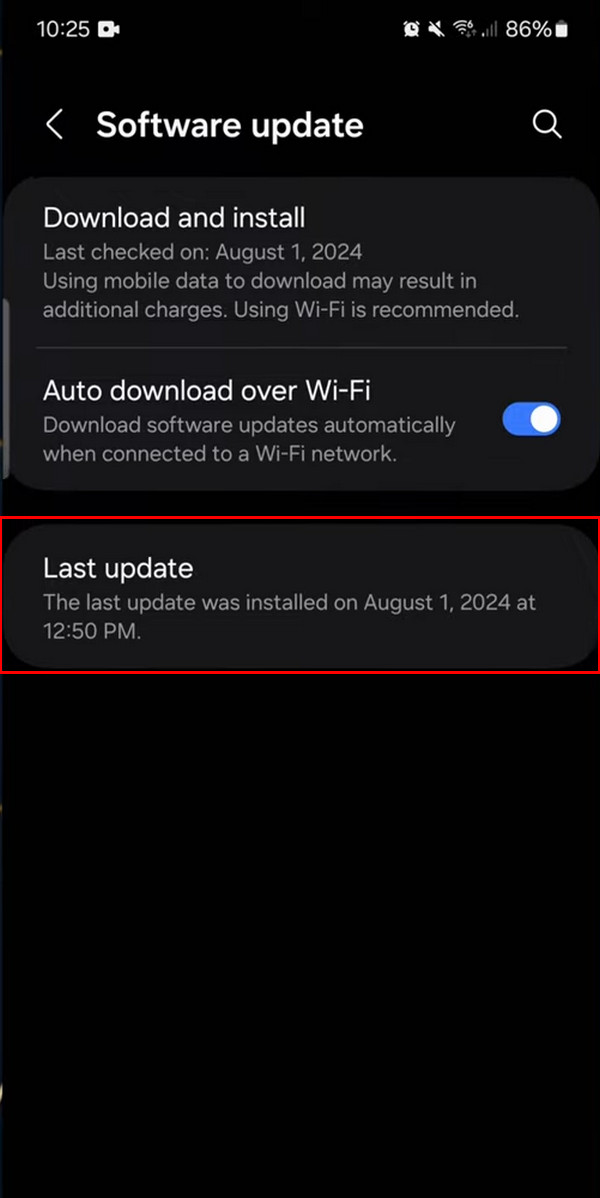
Not all Samsung phones can be updated to the latest versions of its software. They have their concrete-supported software versions. You can check if the latest Samsung software update for your phone is available using the Settings app. This app also allows you to know if it is installed or not. Please follow the steps below to know how.
Open the Samsung Settings app. After that, select the Software Update button from the list. Finally, go to the Last Update section. The last update information for the software version will be prompted.
Part 2. Samsung Update OTA on Settings App
OTA, or Over-the-Air, means that Samsung will deliver an update to your apps or features wirelessly. It means that you will need an internet connection, such as Wi-Fi or cellular data. A physical cable is not required for this process. If so, performing the Samsung update software can be done easily. You can refer to the steps below on how to.
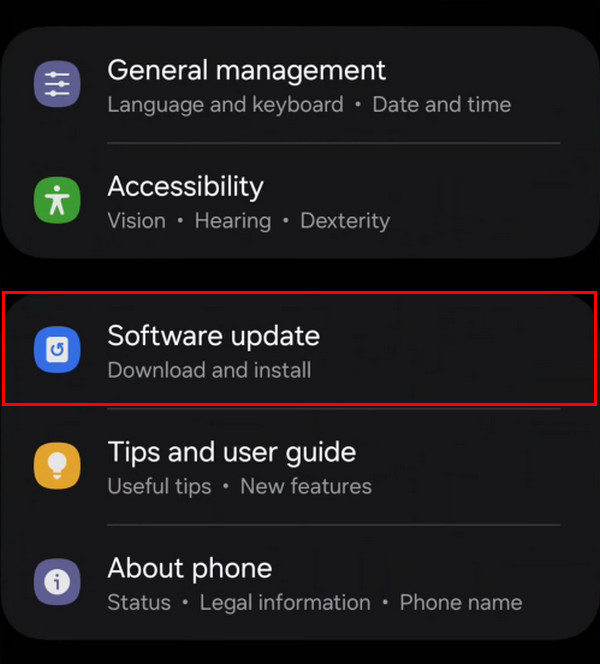
Step 1Access the Settings app on a Samsung phone. After that, the list of options will be prompted. Please select the Software Update button from the interface. You will see the following screen afterward.
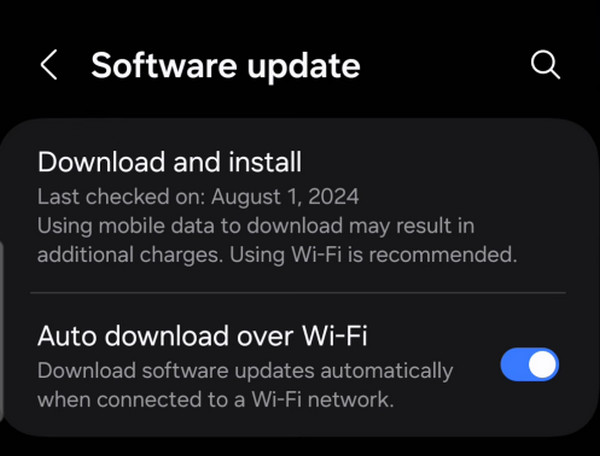
Step 2Please tap the Download and Install option at the top if there is an available update. Perform the on-screen steps and wait for the procedure to be completed. You can also toggle on the Auto Download Over Wi-Fi slider for automatic updates.
Part 3. Samsung Update with Kies on Computer
Kies is a free Samsung tool that is available on Mac and Windows. It allows you to sync, back up, and update your Samsung phone software version. In contrast to the previous method, this tool only uses a USB connection. Use the steps below for the Samsung software update download with Kies.
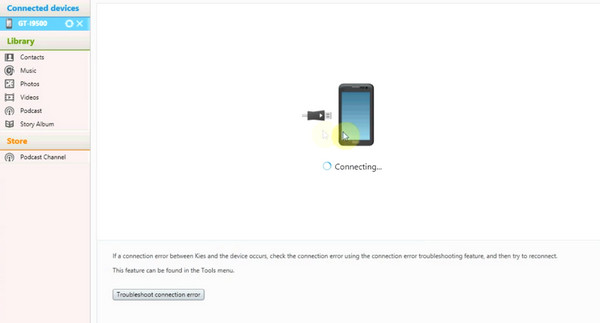
Step 1Download, install, and open Kies on your computer. Then, please plug your Samsung phone into the computer. The Samsung phone information must be prompted.
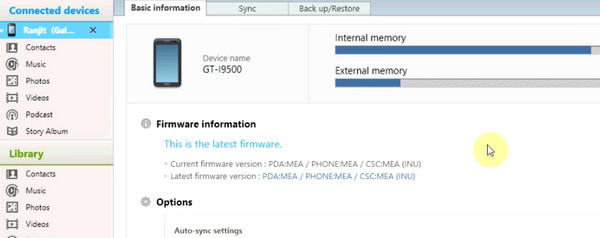
Step 2Click the Samsung phone name at the top left. Later, go to the Firmware Information section. Click the Download button to update the Samsung software version if there is an available update.
Part 4. What to Do If Samsung Is Not Updating
However, there are instances in which Samsung cannot update its software version. There might be various system issues that hinder it. You can refer to the 4 methods below to fix the problem.
Method 1. Charge If The Battery is Low
Updating the software version of a Samsung phone takes time. It depends on the size of the update. If you have a low battery, there is a chance that the update process will be interrupted. To ensure that the update process is successful, charge your Samsung phone to 50% or higher.
Method 2. Reboot Samsung
Samsung stores temporary data, including caches or cookies, which leads to glitches in its system. This issue might be the cause of why the Samsung phone cannot be updated. You can reboot your Samsung phone to fix the problem. Reboot Samsung with the steps below.
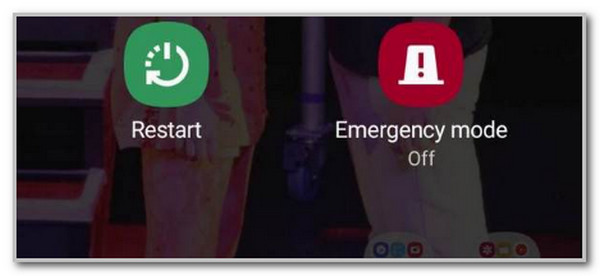
Press and hold the Volume Down and Power buttons for 7 seconds. You need to do it simultaneously. Wait for the Samsung logo to appear. Alternatively, you may press and hold the Power button. Tap the Restart button on the screen to reboot your Samsung phone.
Method 3. Check and Reset Internet
The Samsung phone software update relies on an internet connection. If it cannot be updated, it might be experiencing network settings issues. You can reset network settings on Samsung with the steps below.
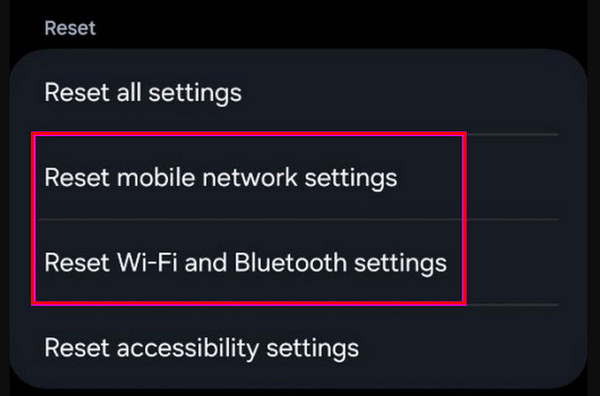
Open Settings. Swipe down on the screen and select the General Management button. Tap the Reset button. Later, you can select the Reset Mobile Network Settings and Reset Wi-Fi and Bluetooth Settings buttons. Complete the process afterward.
Method 4. FoneLab Broken Android Data Extraction
However, what if the reason why the Samsung phone is not updating is still unknown? It might be due to serious issues with its system. FoneLab Broken Android Data Extraction can help! Frozen, crashed, screen-locked, and black screen are some of the supported system problems of the tool. Most of the models of Samsung can be fixed using it, such as the Samsung Galaxy, Samsung Galaxy Tab Pro, Samsung Galaxy Note, and more. This third-party software is 100% safe and easy to use. You can retrieve your data before and after the fixing process for your Samsung phone. It includes messages, contacts, call logs, and more.

Fix your frozen, crashed, black-screen or screen-locked Android system to normal or Recover data from broken Android phone or SD card.
- Fix your Android disabled problems and recover data from phone.
- Extract Contacts, Messages, WhatsApp, Photos, etc. from broken android device or memory card.
- Android phone and SD card data are available.
Fix the software update issues of Samsung. This way, you can get the latest Samsung update. Use the tool with the steps below.
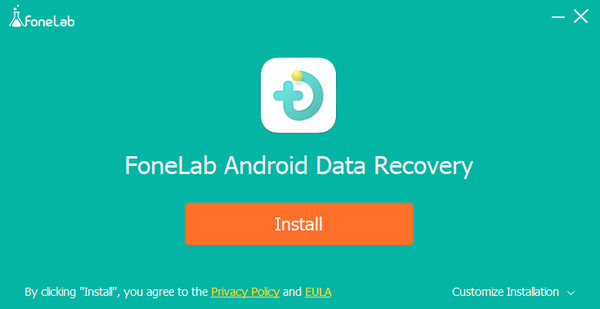
Step 1Click the Free Download option on the official website of FoneLab Broken Android Data Extraction. Set up the tool and click the Install option in the small window. Finally, the tool will be accessed by your computer.
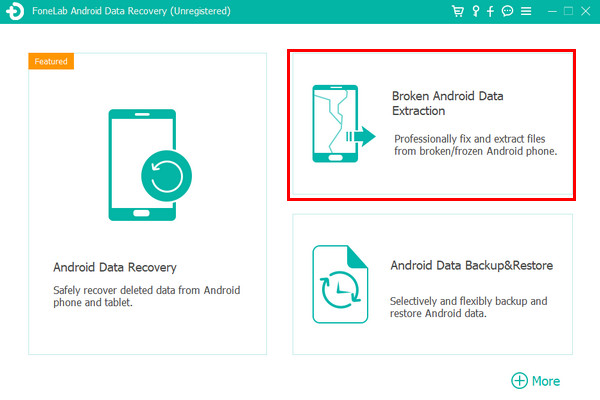
Step 2Select the Broken Android Data Extraction button from the first screen. Then, plug your Samsung phone into the computer. Use a USB cable for a successful plugging process.
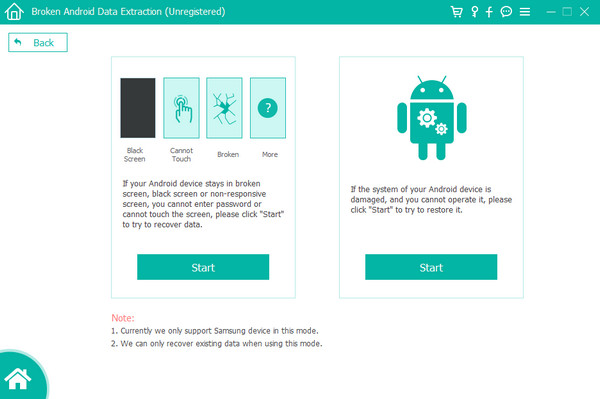
Step 3Determine your Samsung phone issue and click the Start button from the interface. Select your Samsung phone name and model. Later, click the Confirm button. Follow the on-screen instructions to start fixing your Samsung phone.
Part 5. FAQs about Samsung Update
Where to locate the Samsung software update list?
Samsung offers a specific website to see the software version list available for your Samsung phone. You can visit the Once UI Software Update website. You will see all the information about the updates from its software version.
What happens to the Samsung update for May 2025?
The software update of Samsung in May 2025 is designed to fix various Android and Samsung software vulnerabilities. It focuses on the security features of your Samsung phone.
In conclusion, some say that the new Samsung update sucks, and some like it. This post shows the easiest methods to update the software version of your Samsung phone. Also, you will know the techniques to fix an issue when the Samsung phone is not updating. FoneLab Broken Android Data Extraction is a tool that can fix problems on your Android phone. It can also recover data from the mentioned device. Download it on your computer and explore more of its features!



