
 iPhone Data Recovery
 iOS System Recovery
 iOS Data Backup & Restore
 iOS Unlocker
 iPhone Password Manager
 Location Changer
 Android Data Recovery
 Broken Android Data Extraction
 Android Data Backup & Restore
 Android Unlocker
 FoneTrans for iOS
 iPhone Data Eraser
 iPhone Cleaner
 HEIC Converter
 HyperTrans
 WhatsApp Transfer for iOS
 Mac Sweep
 Data Retriever
 Mac Data Retriever
 Video Converter Ultimate
 Screen Recorder
 Phone Mirror
Proper Strategies to Restart Apple Watch Effortlessly
 Updated by
 How do I restart my Apple Watch? It has been laggy lately, and I can’t put up with it any longer. I bought it mainly for convenience, but it’s only been stressing me out for the past few days. So, please help me restart it correctly, as this is the first time I’m doing such a process, and I don’t want to get anything wrong that might worsen the situation. Thank you!
Is your Apple Watch experiencing issues, such as lagging, freezing, crashing, etc.? These are only some of the common concerns on devices, not only on the Apple Watch but on mobile phones and computers as well. Hence, like them, the usual yet effective solution is a restart, refreshing the device’s system. However, it’s understandable if you aren’t familiar with the restart processes on the Apple Watch, unlike the others. Luckily, the guidelines below are prepared to help you.

Guide List
Part 1. How to Restart Apple Watch Using Buttons
Starting with the primary method, the Apple Watch’s physical buttons are designed for more than just app shortcuts and scrolling. Like on other devices, the designated key is used to perform a restart and further operations with minimal effort. Besides, this standard restart is the recommended first response to a wide array of glitches. It performs a clean shutdown and reboot of the watch's operating system, clearing RAM and closing temporary background processes that may have become corrupted.
Act under the user-oriented instructions below to grasp how to restart your Apple Watch using buttons:
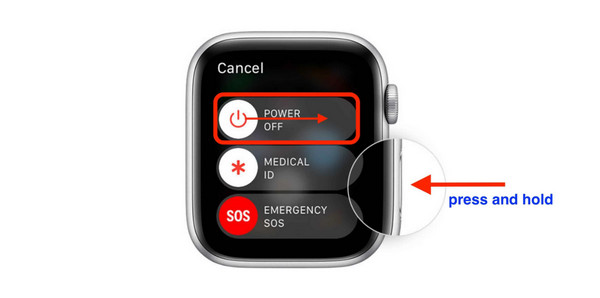
Step 1Turn the Apple Watch off first by long-pressing the Side button. When the Power slider is presented, drag the Power symbol to the right for the watch to power off.
Step 2Once off, long-press the Side button again to restart your Apple Watch.
Part 2. How to Restart Apple Watch Using Siri
For situations where physically pressing the buttons is inconvenient or challenging, Apple Watch offers a hands-free alternative to perform a restart, which is by using Siri. This virtual personal assistant is ideal when your hands are full, the Digital Crown and Side Button are defective, or you simply prefer using voice commands. Like the last process, it refreshes the watch’s system as a manual restart, but in this case, it is initiated through a simple speech command. You must only ensure your Apple Watch is linked to a network with a stable internet connection, as Siri relies on it.
Abide by the effortless process below to perform an Apple Watch restart using Siri:
Step 1Activate Siri by speaking “Hey Siri” near the Apple Watch’s microphone.
Step 2Afterward, command it to restart, and the Apple Watch will do so accordingly.
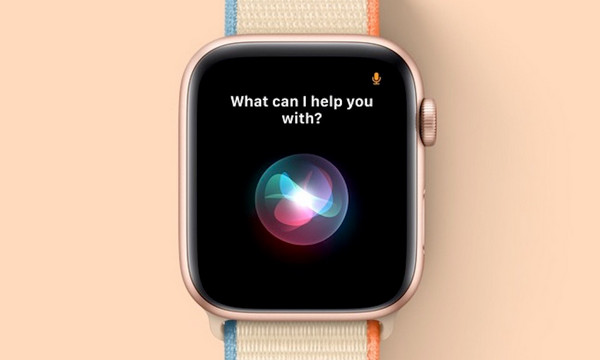
Besides the necessary internet connection, it is also important to note that you must already have activated Siri beforehand, or it won’t be responsive. Simply tap Settings > Siri, and enable the feature. Also, since it’s a feature that relies on voice command, the microphone must not be damaged, and the Apple Watch must still be responsive to actions. Hence, this will work best only for simple problems like lagginess.
Part 3. How to Restart Apple Watch with The Settings App
Meanwhile, if you can still navigate through your Apple Watch screen, restarting on the Settings app is also possible. Unlike the previous techniques, this process doesn’t require physical or specialized features. You simply need to tap the correct options on the device’s screen, specifically in Settings, to perform a restart successfully. It is best used for those seeking a controlled shutdown without any urgency, offering a moment to confirm your action before proceeding. Besides, the Settings interface is straightforward, letting you comprehend and navigate the options smoothly.
Stick to the uncomplicated navigation below to learn how to restart my Apple Watch with the Settings app:
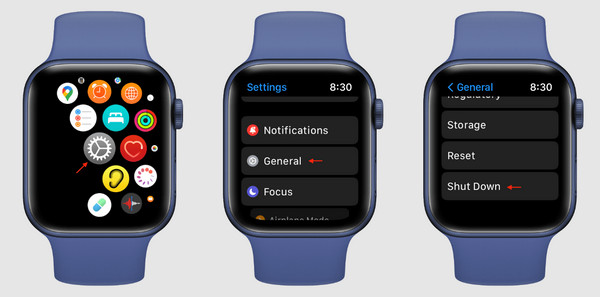
Step 1Navigate your screen to the Apple Watch’s Settings app and get into the General section. Located on the lower part is the Shut Down tab, so tap it, and the Power slider will appear.
Step 2As instructed, drag the Power icon to the right to turn the watch off. Once done, restart it by long-pressing the Apple Watch’s Side button until the Apple logo appears.
As mentioned, this method mainly relies on the Apple Watch screen. So, if the device’s problem involves freezing or other issues that prevent you from navigating the screen, it won’t be the ideal solution. In this case, opt for another method instead.
Part 4. How to Force Restart Apple Watch
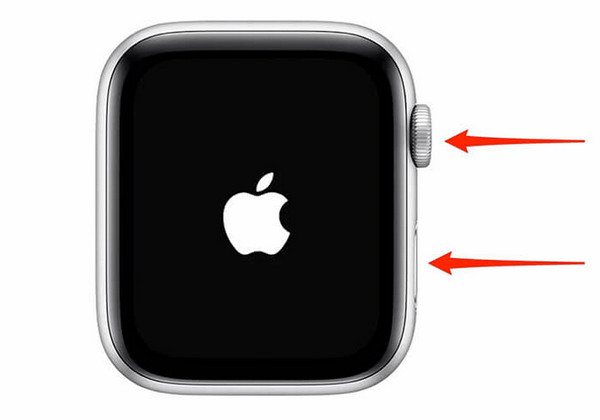
What if you can’t restart your Apple Watch using the usual methods? Don’t worry. You can still perform a force restart using the device’s buttons. Unlike earlier, the process will solely rely on the Digital Crown and Side button without needing to maneuver the screen. Thus, it will be helpful when the Apple Watch experiences various problems, especially when you can’t navigate the screen properly because of a particular issue. Yes, that’s right! This method is universally effective because it relies on the Apple Watch’s physical function, allowing you to do a restart, even in situations like having a frozen screen.
Mirror the comprehensive directions below to force restart Apple Watch:
Step 1Simultaneously, long-press your Apple Watch’s Digital Crown and Side button.
Step 2After around 10 seconds or once the watch’s screen shows the Apple logo, you can release both buttons and let the device restart for a few moments.
Part 5. How to Fix Apple Watch Issues on iPhone
As you know, Apple Watch can function properly on its own. However, it still requires an iPhone to optimize it, especially during the initial setup. Thus, if your watch faces issues, fixing it on the iPhone might also be helpful. Below are some of the solutions you can use, so check them out.
Method 1. Reboot iPhone
Like every other device’s initial fix, try to reboot the iPhone to give its system a fresh restart. Its process is almost the same as force restarting the Apple Watch, so, like it, you can expect effortless steps. You also won’t need to navigate anything on the screen, making it an ideal solution for iPhones with freezing and lagging issues. Then, once you restart iPhone, try the Apple Watch again. Sometimes, it only takes the mobile device to be fixed before you can use the watch properly.
Take to heart the simplified task below to fix your iPhone through a reboot:
Step 1Begin by quickly pressing and releasing the Volume Up key. Right after, do the same to the Volume Down key. Then, press the Side key, but this time, hold it longer than before.
Step 2It won’t take too long until the iPhone screen presents the Apple logo. Hence, release the key afterward to let the device restart without a problem.
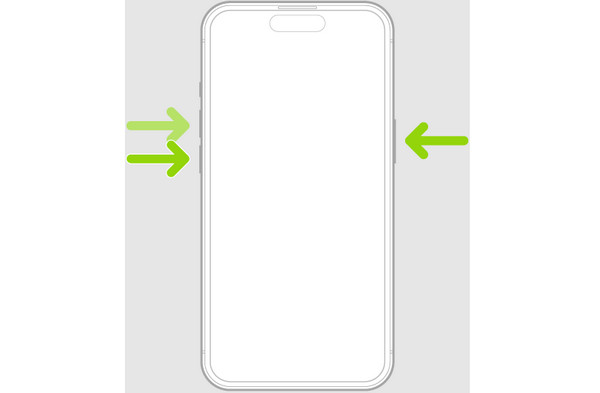
Meanwhile, for iPhone users with a Home button, long-press the device’s Sleep/Wake and Home buttons simultaneously and wait until it reboots.
Method 2. Re-pair Apple Watch
On the other hand, your Apple Watch may have only lost its connection to the iPhone, causing some issues. Hence, try disconnecting and re-pairing the watch to your mobile phone. This way, the link between your devices will renew and solidify. Besides, you can easily unpair Apple Watch from the iPhone. You must then only pair them again in the same way you did the first time.
Emulate the easy steps below to fix the problem by re-pairing your Apple Watch:
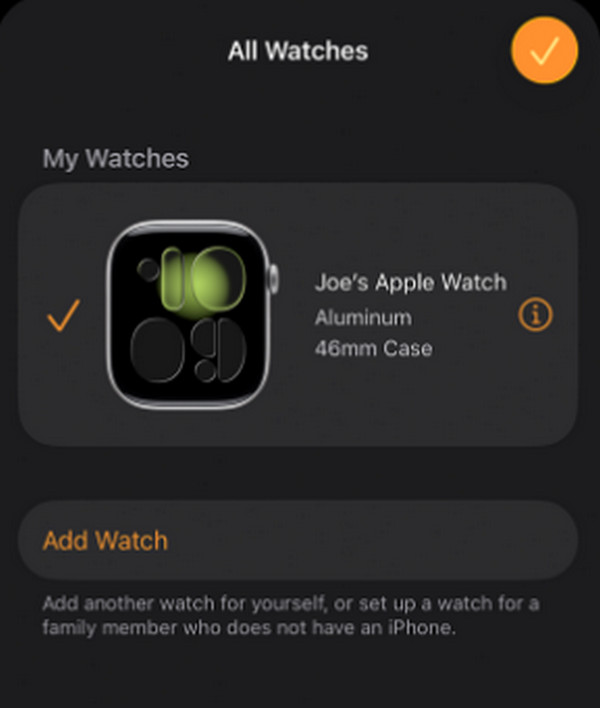
Step 1On your iPhone, launch the Apple Watch app and proceed to the My Watch section. Next, pick All Watches and hit the i symbol next to your watch. Afterward, select Unpair Apple Watch.
Step 2Once unpaired, opt for the Add Watch option in the same section and let the following prompts guide you in pairing the Apple Watch to your iPhone again.
Method 3. FoneLab iOS System Recovery
What if a simple reboot and re-pair can’t fix the problem on your Apple Watch or iPhone? It must be time to rely on a professional solution. In this case, we highly suggest FoneLab iOS System Recovery. It is an in-demand tool for repairing numerous issues on iOS devices; thus, installing and letting it handle the problem may be what your iPhone and Apple Watch need. It can easily fix abnormal systems that may be causing issues on your device.
Besides, unlike what you may expect, it doesn’t require technical or advanced knowledge to maneuver FoneLab iOS System Recovery. Although it offers professional performance, it is still designed to make the device repair convenient for everyone, even beginners. The program provides a comprehensible interface and user-friendly functions, allowing you to fix the problem smoothly.

FoneLab enables you to fix iPhone/iPad/iPod from DFU mode, recovery mode, Apple logo, headphone mode, etc. to normal state without data loss.
- Fix disabled iOS system problems.
- Extract data from disabled iOS devices without data loss.
- It is safe and easy to use.
See the stress-free guide below as an example to repair your iPhone with FoneLab iOS System Recovery:
Step 1Save the installer for FoneLab iOS System Recovery by heading to its official webpage and opting for Free Download. It will shortly be saved to your Downloads; so, access the folder and initialize the file to manage the program setup. Afterward, the installation will finish, presenting a Start tab right after. Click it, and the repair tool’s interface will be on your desktop.
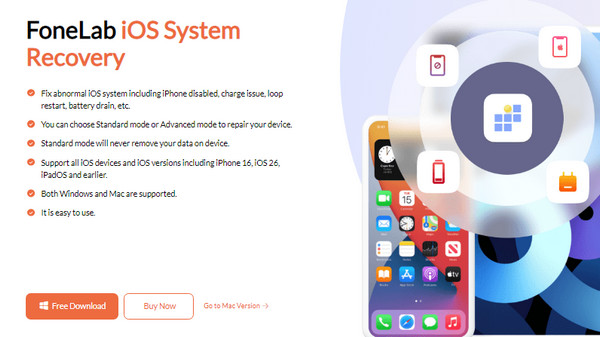
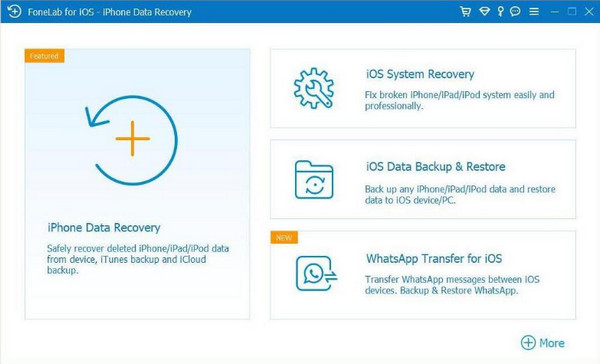
Step 2The program’s features will greet you on the key interface right away. Hence, choose the iOS System Recovery box and select the Start tab. You must also not forget to associate your iPhone with the program through a Lightning cable. Then, opt for your preferred repair type: Standard Mode or Advanced Mode, before hitting the Confirm selection.
Step 3After proceeding, it’s time to put the device into Recovery mode with the help of the succeeding interface’s on-screen instructions. Follow each guide accordingly, and afterward, the program will finish repairing your iPhone issue without complications.
Part 6. FAQs about How to Restart Apple Watch
How do you restart an Apple Watch that is unresponsive?
If your Apple Watch is unresponsive, the most recommended option is to perform a force restart. Unfortunately, the other methods might not work since they involve at least a single step requiring the screen’s responsiveness. But with a force restart, only the watch’s buttons need to be functional.
Is restarting the same as resetting?
No, it’s not the same. As you know, restarting simply turns off and turns on the device, refreshing its system. On the other hand, resetting deletes all the Apple Watch’s content and settings.
Refresh your Apple Watch by restarting to fix issues and experience a better performance. Whichever method you decide to use from above, we guarantee you will successfully achieve your goal with the help of a suitable process. You must also not miss the additional solutions, including FoneLab iOS System Recovery, as it can significantly help with your device experience.



