
 iPhone Data Recovery
 iOS System Recovery
 iOS Data Backup & Restore
 iOS Unlocker
 iPhone Password Manager
 Location Changer
 Android Data Recovery
 Broken Android Data Extraction
 Android Data Backup & Restore
 Android Unlocker
 FoneTrans for iOS
 iPhone Data Eraser
 iPhone Cleaner
 HEIC Converter
 HyperTrans
 WhatsApp Transfer for iOS
 Mac Sweep
 Data Retriever
 Mac Data Retriever
 Video Converter Ultimate
 Screen Recorder
 Phone Mirror
How to Erase an Apple Watch in 3 Convenient Practices
 Updated by
 Apple Watch is an Apple product that works with your iPhone. It helps you to track your health, stay connected, and stay active. You can do this by only wearing it on your wrist. You can use it to receive or make calls, reply to messages, use Siri, and perform other operations. However, some iPhone users have pairing or sync issues with their Apple Watch.
In this case, they need to erase it to fix the issue. How to erase an Apple Watch? In this post, 3 of the easiest ways to erase the mentioned device are included. Please continue scrolling to discover the complete details about this topic.

Guide List
Part 1. How to Erase Apple Watch Using iPhone
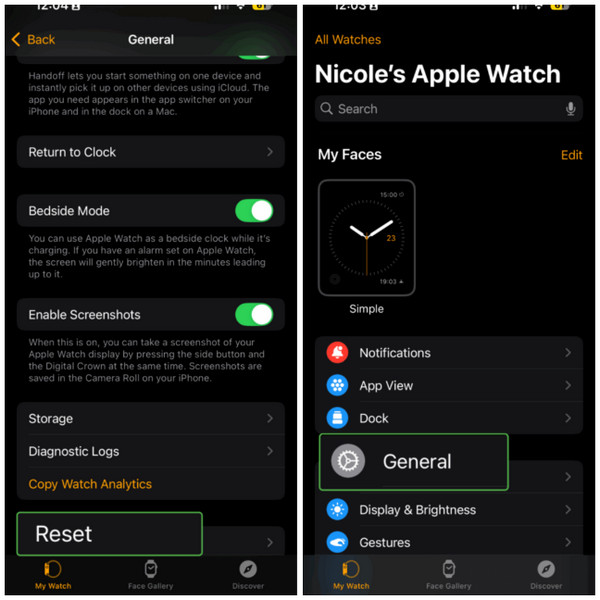
Pairing the iPhone with your Apple Watch can also give access to some of its operations. It includes erasing the Apple Watch. Please see the steps below to erase your Apple Watch with your iPhone.
Step 1Unlock your iPhone and tap the Apple Watch app to open it. After that, select the General button from the list. Tap the Reset option at the bottom of the main interface.
Step 2More options will be prompted on the next screen. Please tap the Erase Apple Watch Content and Settings button at the top. Imitate the on-screen instructions to complete the erasing process.
Part 2. How to Erase Apple Watch on Device Directly
Erasing the Apple Watch can be done directly from it. This process can be done with or without the password, but in different ways. Discover the 2 easy ways for erasing the Apple Watch directly.
Erase Apple Watch with Password: Open the Settings app on your Apple Watch. After that, select the General button and tap the Reset button. Tap Erase All Content and Settings button and type the password. Tap Erase All to proceed with erasing it.
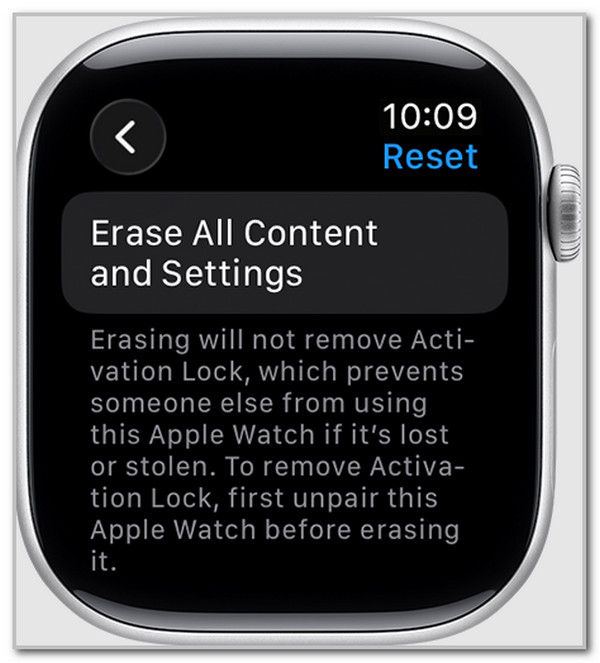
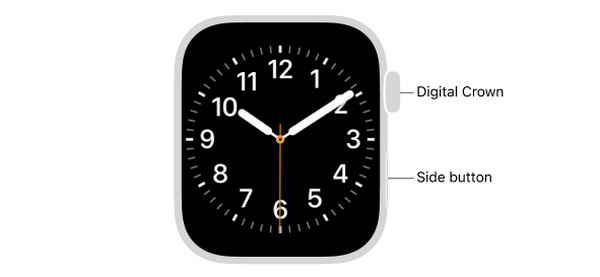
Erase Apple Watch Without Password: Put your Apple Watch into the charger. Press and hold Side until the Power button is prompted. Press and hold the Digital Crown, and you will view the Erase All Content and Settings section. Tap Reset and confirm it.
Part 3. How to Erase Apple Watch via iCloud
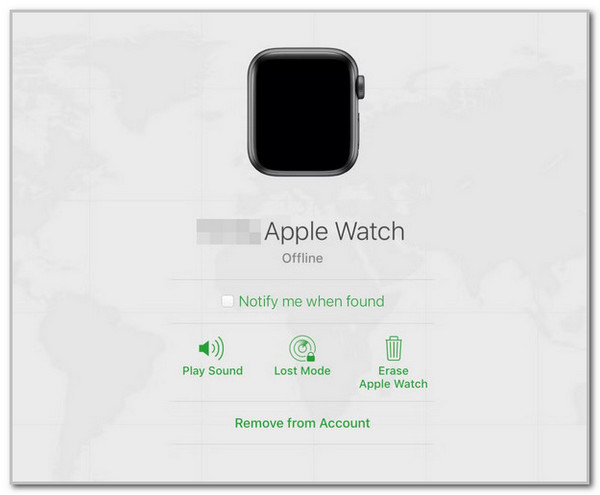
Apple Watch can also be associated with your iCloud account. You can erase it from the iCloud website using your Apple ID. Non-Apple devices can be used with this process. The steps below will show you how.
Search for the iCloud website. Sign in with your present Apple ID and select the All Devices button at the top left. Then, choose your Apple Watch from the list. Select the Erase Apple Watch button and follow the on-screen instructions to complete the process.
Part 4. How to Fix Apple Watch Issues
One of the primary reasons why users erase the Apple Watch is to fix issues. Here are other ways to resolve issues on your iPhone and Apple Watch for your future reference.
Restart Apple Watch/iPhone
You can restart iPhone and Apple Watch to fix issues. This procedure is helpful for simple errors from the devices. It clears temporary glitches, improves the device performance, fixes connectivity issues, and more.
Apple Watch: Turn it off by pressing and holding Side. Release it once the slider is prompted. Then, tap the Power button. Toggle the Power Off slider to the right. Turn it on again by pressing and holding Side until the Apple logo appears.
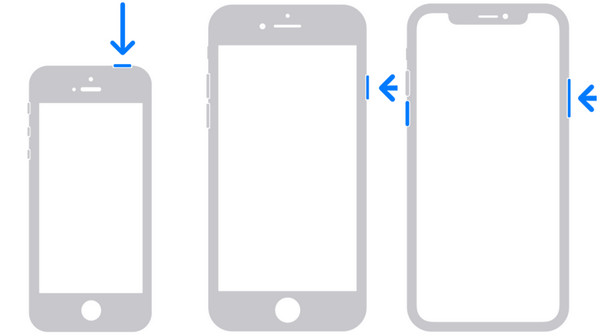
iPhone: For the iPhone that does not have a Home button, press and hold Volume and Side. Release them when the Power Off slider is displayed. Drag it to turn it off. Press and hold Side to turn on iPhone again. For an iPhone without the Home button, press and hold Side or Top until the slider appears. Drag it afterward to turn off the iPhone. Finally, turn it on by pressing and holding Side or Top.
Unpair and Pair Again
Unpairing and pairing the Apple Watch from your iPhone is commonly used when there is a sync or pairing issue. This procedure is easy! Let us unpair Apple Watch from your iPhone using the steps below.
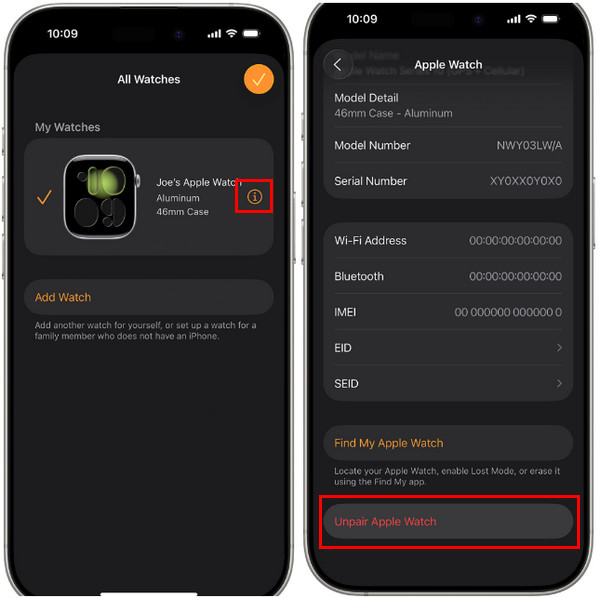
Grab your Apple Watch and iPhone. Put them closer together and open the Apple Watch app on your iPhone, select the My Watch tab. Tap the All Watches button and choose the Info button. Later, tap the Unpair Apple Watch button at the bottom.
FoneLab iOS System Recovery
Sometimes, the Apple Watch is not the main problem with the pairing or sync issue, but the iPhone. FoneLab iOS System Recovery can be used to fix this problem. It can fix countless iPhone issues, including the mentioned issue. It will help your iPhone undergo a system repair. It uses a USB connection, which means that you will not rely on the strength of your internet connection.

FoneLab enables you to fix iPhone/iPad/iPod from DFU mode, recovery mode, Apple logo, headphone mode, etc. to normal state without data loss.
- Fix disabled iOS system problems.
- Extract data from disabled iOS devices without data loss.
- It is safe and easy to use.
Additionally, this tool can upgrade and downgrade the iOS version of your iPhone. It can also help you fix the iPhone that won’t reset. Please use the steps below to know how to use it.
Step 1Please download the tool by clicking the Free Download button on its website. Then, set up the downloaded tool from your web browser. Install it afterward, and it will be launched automatically.

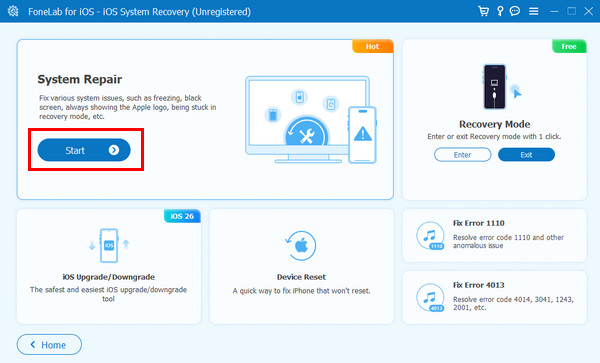
Step 2Click the iOS System Recovery button. The primary features of the tool will be prompted. Please click the Start button in the System Repair section. Plug an iPhone into the computer using a USB cable.
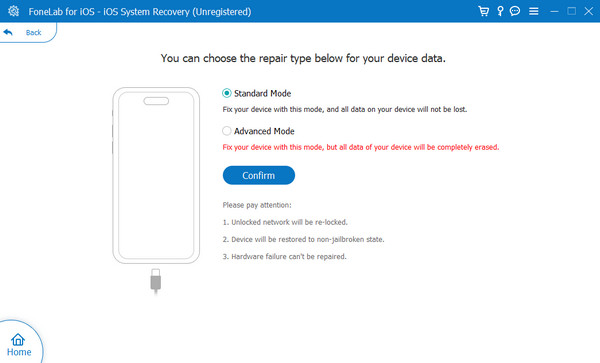
Step 3Choose Standard Mode to fix minor issues without losing data. Choose Advanced Mode for a deeper fixing process, but it will delete your iPhone data. Please click the Confirm button to proceed. Follow the on-screen instructions to start fixing your iPhone system issues.
Part 5. FAQs about How to Erase Apple Watch
Can you remove Apple Watch Activation Lock without the previous owner?
Apple does not have an official method to remove Apple Watch Activation Lock without the previous owner's permission because it does not allow it. You can ask for Apple Support help, but you need ownership proof. It includes the serial number of your receipt.
Does unpairing an Apple Watch erase it?
Yes. Unpairing the Apple Watch from your iPhone will erase it. You are required to set it up again, like after erasing it.
In conclusion, this article is all about how to erase an Apple Watch. 3ways are recommended for your convenient erasing process. Also, there are additional methods to help you fix issues on your Apple Watch and iPhone. FoneLab iOS System Recovery can help you fix 50+ issues on your iPhone. It can also be used to upgrade and downgrade its iOS version. Download the tool for your convenience!



