
 iPhone Data Recovery
 iOS System Recovery
 iOS Data Backup & Restore
 iOS Unlocker
 iPhone Password Manager
 Location Changer
 Android Data Recovery
 Broken Android Data Extraction
 Android Data Backup & Restore
 Android Unlocker
 FoneTrans for iOS
 iPhone Data Eraser
 iPhone Cleaner
 HEIC Converter
 HyperTrans
 WhatsApp Transfer for iOS
 Mac Sweep
 Data Retriever
 Mac Data Retriever
 Video Converter Ultimate
 Screen Recorder
 Phone Mirror
- Unlock Apple ID
- Bypass iCloud Activation Lock
- Doulci iCloud Unlocking Tool
- Factory Unlock iPhone
- Bypass iPhone Passcode
- Reset iPhone Passcode
- Unlock Apple ID
- Unlock iPhone 8/8Plus
- iCloud Lock Removal
- iCloud Unlock Deluxe
- iPhone Lock Screen
- Unlock iPad
- Unlock iPhone SE
- Unlock Tmobile iPhone
- Remove Apple ID Password
Lost Mode iPhone: What Is It All About and How to Bypass It
 Updated by
 What does Lost mode do on iPhone? I’ve seen it as one of the features on my iCloud’s Find My, so I’m curious about its function. Will it help me find my device in case it gets lost? I also want to know if I can bypass the mode after I turn it on, since I am forgetful with my passcodes. I’m afraid it would be more bad than good, so I need somebody’s advice. Please help.
Lost mode on iPhone is a security feature that many users notice but may not fully understand. It can be found on the Find My page and sounds useful, yet it can also raise questions and worries. You might turn it on by accident or test it out of curiosity. Then, suddenly, your phone asks for a passcode you cannot remember. Then, suddenly, your phone asks for a passcode you cannot remember. In this article, you will learn about the feature and how you can manage it correctly. Simply browse below.

Guide List
Part 1. What is Lost Mode on iPhone
What is Lost mode on iPhone? To answer that question simply: it is a built-in security feature in Find My that is designed to help you protect your phone if it ever gets lost or stolen. When you turn on Lost mode, your iPhone locks itself remotely. A custom message will then appear on the screen, such as your phone number or other contact information, if you have set one up.
Lost mode also stops anyone from using Apple Pay. It deactivates your credit and debit cards that are saved in Wallet, giving you time to look for your phone without worrying about someone spending your money. Meanwhile, you don’t have to worry about tracking the lost device’s location. Find My will still be able to locate it, even with Lost mode turned on, as long as it has a battery and an internet connection.
Additionally, turning Lost mode on won’t erase anything on the iPhone. It will only lock the device for protection and to keep others from accessing your content and information. Hence, your iPhone data will remain safe, even after you turn Lost mode off.
Part 2. How to Turn On Lost Mode on iPhone via iCloud
Now that you are aware of Lost mode’s capabilities, you probably want to learn how to turn the feature on in case your iPhone goes missing later. The good news is that the process is hassle-free because, as mentioned, Lost mode can be found on Find My, where you can do the options remotely. Yes! You do not need to have your iPhone in your hand to activate Lost mode.
Instead, you can simply activate it using another device or your computer’s browser by visiting iCloud’s website. Aside from that, the steps are straightforward and do not require any technical skills. The only requirements are your Apple account credentials for logging in and verification purposes on iCloud. Besides that, you can expect to turn on the Lost mode feature smoothly.
Act according to the simple task below to turn on Find my iPhone Lost mode via iCloud:
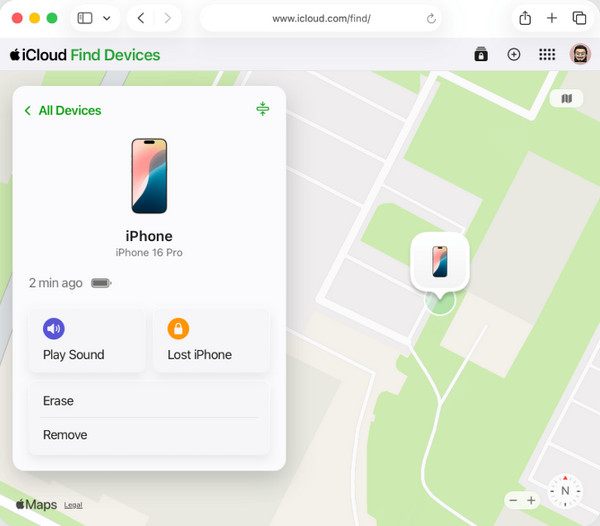
Step 1On your device or computer browser, access iCloud’s official page and input your Apple credentials in their designated fields. Once you’re signed in, select Find My on the homepage.
Step 2The top section of the page contains the All Devices tab, so click it and pick your iPhone in Lost mode. When the device’s options are available, select Mark as Lost and manage the confirmation to turn the feature on.
Part 3. Can You Bypass Lost Mode on iPhone
What if you turned on Lost mode, but after a while, you realize you don’t remember the passcode required to turn it off — even after finding your iPhone? Unfortunately, multiple users experience this, preventing them from accessing the device. Thus, the question is, will you be able to bypass the Lost mode on your iPhone, even without providing the passcode?
The short answer is yes, you can bypass it — but there is no official solution. However, we can guarantee that it is possible using third-party tools. You just need to look for alternative methods, such as the one described in the following section. We prepared the most effective technique we have proven to help you get through this concern, so kindly continue browsing.
Part 4. How to Bypass Lost Mode on iPhone with FoneLab iOS Unlocker
As you know, Lost mode is just one of many features in Find My, which is linked to the Apple account signed in to your iPhone. Hence, if you remove this Apple ID, the Lost mode and other Find My features activated on the device will also be removed, letting you access it without the restrictions. The answer is simple: use the FoneLab iOS Unlocker program.

FoneLab Helps you unlock iPhone screen, Removes Apple ID or its password, Remove screen time or restriction passcode in seconds.
- Helps you unlock iPhone screen.
- Removes Apple ID or its password.
- Remove screen time or restriction passcode in seconds.
No matter what state your iPhone is in, this unlocking tool has the ability to help you regain access to the device with its specialized features. In this case, the Remove Apple ID function will have your back, as it can eliminate the Apple ID from your iPhone, even without a passcode, easily. It works not only on iPhones but also on iPads and iPod Touches of various models and versions. Other than that, it can help you bypass Screen Time passcode, unlock the screen, etc., later.
Identify the hassle-free task below as an example to bypass Lost mode on iPhone with FoneLab iOS Unlocker:
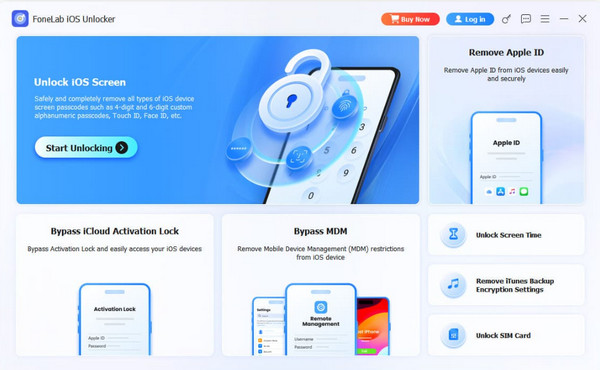
Step 1Using the download button, save the installer file for FoneLab iOS Unlocker. It will be directed to the Downloads folder, so when it’s ready, initialize it and navigate the initial setup. It won’t take too long until Start appears. Click it and hit Remove Apple ID on the key interface.
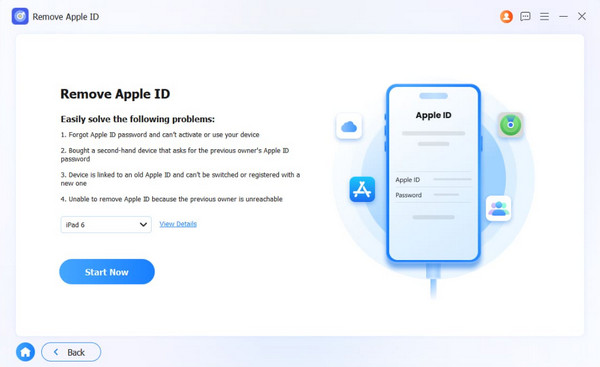
Step 2After entering the designated feature, let your iPhone connect through a Lightning cable. The program will shortly detect it, then you can select the Start Now tab on the following interface. Shortly, more prompts and directions will materialize, leading you to finish the process.
Part 5. FAQs about Lost Mode iPhone
Does Lost mode track my iPhone in real time?
Yes, it does. Lost mode uses Find My to show your iPhone's location on the map interface, and it updates whenever your device has an internet connection and battery power.
Can I still receive calls and messages in Lost mode?
Yes, your iPhone can still receive calls and messages. The screen will show your custom message, but it will still function normally aside from being locked.
Learn about Lost mode with our guidelines above, as it could greatly help you later if your iPhone goes missing. In the same way, FoneLab iOS Unlocker can greatly help when you encounter various lock concerns on your Apple devices. Install it anytime.



