
 iPhone Data Recovery
 iOS System Recovery
 iOS Data Backup & Restore
 iOS Unlocker
 iPhone Password Manager
 Location Changer
 Android Data Recovery
 Broken Android Data Extraction
 Android Data Backup & Restore
 Android Unlocker
 FoneTrans for iOS
 iPhone Data Eraser
 iPhone Cleaner
 HEIC Converter
 HyperTrans
 WhatsApp Transfer for iOS
 Mac Sweep
 Data Retriever
 Mac Data Retriever
 Video Converter Ultimate
 Screen Recorder
 Phone Mirror
- Part 1. How to Fix iPad Passcode Not Working via Reboot and Retry
- Part 2. How to Reset iPad via Recovery Mode
- Part 3. How to Reset iPad Using iCloud Find My
- Part 4. How to Reset iPad through Erase iPad/Forgot Passcode Option
- Part 5. How to Unlock Passcode via FoneLab iOS Unlocker
- Part 6. Comparison Table of Methods to Fix iPad Passcode Not Working
- Part 7. FAQs about iPad Passcode Not Working
- Unlock Apple ID
- Bypass iCloud Activation Lock
- Doulci iCloud Unlocking Tool
- Factory Unlock iPhone
- Bypass iPhone Passcode
- Reset iPhone Passcode
- Unlock Apple ID
- Unlock iPhone 8/8Plus
- iCloud Lock Removal
- iCloud Unlock Deluxe
- iPhone Lock Screen
- Unlock iPad
- Unlock iPhone SE
- Unlock Tmobile iPhone
- Remove Apple ID Password
Fix iPad Passcode Not Working in 5 Quick Approaches
 Updated by
 The iPad screen lock passcode is the ultimate way to secure your data. Without it, you cannot access them. In this case, no unauthorized people can access them without your permission. However, there are instances wherein the iPad passcode not working.
If so, you cannot access your iPad data and files. This issue can happen due to minor problems on your iPad, forgotten passcode, and more. Do you want to fix the issue? Scroll below to know the complete details about the topic.

Guide List
- Part 1. How to Fix iPad Passcode Not Working via Reboot and Retry
- Part 2. How to Reset iPad via Recovery Mode
- Part 3. How to Reset iPad Using iCloud Find My
- Part 4. How to Reset iPad through Erase iPad/Forgot Passcode Option
- Part 5. How to Unlock Passcode via FoneLab iOS Unlocker
- Part 6. Comparison Table of Methods to Fix iPad Passcode Not Working
- Part 7. FAQs about iPad Passcode Not Working
Part 1. How to Fix iPad Passcode Not Working via Reboot and Retry
The passcode on your iPad will be needed as you turn it on. Due to the prolonged inactivity, it might be facing a minor glitch or bug that causes the passcode to not work. If that’s the case, you can reboot the iPad and try to enter the passcode again. Please see below.
Step 1For the iPad that has no Home button, press and hold Volume or Top. After that, toggle off the Power slider and wait for the iPad to be turned off. Turn it back on by pressing and holding Top. If the iPad has a Home button, press and hold Top button. Toggle the slider afterward to turn it off. Later, turn on the iPad again by pressing and holding the said button.
Step 2Wait for the iPad to be turned on. Then, try to enter the passcode of your iPad.
Part 2. How to Reset iPad via Recovery Mode
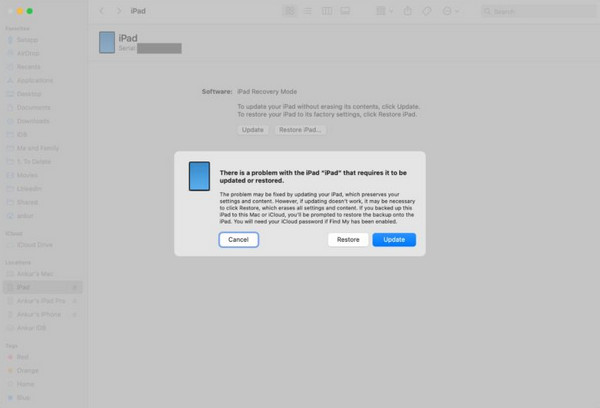
But what if the issue is not about a glitch, but a forgotten passcode? If that’s the case, a factory reset is needed to regain access to your iPad. iTunes, Apple Devices, and Finder can help you restore the iPad to its factory settings to unlock it from a forgotten passcode. You need to put iPad into recovery mode to use it for the process. Perform the detailed steps below.
Step 1Put the iPad into recovery mode. To do that on an iPad without a Home button, press and release Volume Down. Please do the same on the Volume Up. Later, press and hold Top. Wait for the Connect to Computer screen to be prompted. But if your iPad does have a Home button, press and hold Top. Keep holding it until the Connect to Computer screen is shown.
Step 2Plug your iPad into the computer. Then, open Finder, Apple Devices, or iTunes. Then, a small window will pop up. Please click the Restore option at the bottom right. The restore process will start.
Part 3. How to Reset iPad Using iCloud Find My
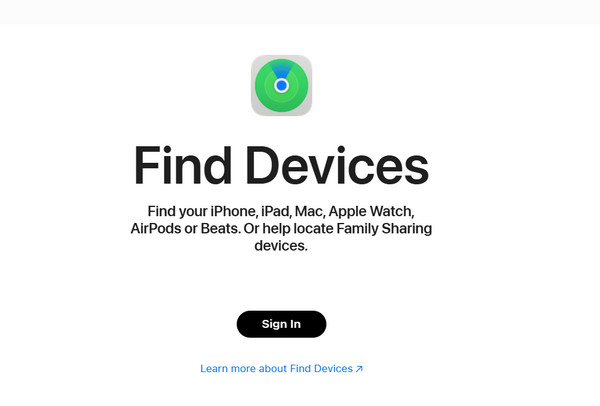
You can also erase iPad remotely. iCloud Find My is the best option. The associated Apple ID and an internet connection are the primary requirements. Please use the steps below as your guide.
Go to the website of iCloud Find My. Then, click the Sign In button. Enter your Apple ID and go to the All Devices section. Later, click the iPad name and click the Erase This Device button. Confirm the process afterward.
Part 4. How to Reset iPad through Erase iPad/Forgot Passcode Option
The Forgot Passcode and Erase iPad options are security features that allow the device to be factory reset when the passcode is forgotten, which requires iPadOS 15.2 or later versions. The Apple ID will serve as the authentication information for the process. Please use the steps below to know how to use this feature.
Enter multiple wrong passcodes on your iPad. After that, the Erase iPad or Forgot Passcode option will appear at the bottom. Tap the button again and enter your Apple ID password. Follow the on-screen steps to complete the erasing and setting up process.

Part 5. How to Unlock Passcode via FoneLab iOS Unlocker
Not all have enabled some of the security features mentioned in the previous methods. If so, use FoneLab iOS Unlocker. This tool can remove different screen lock types on your iPad. PIN, password, Face ID, and Touch ID are included. You can also use it for removing your Apple ID, Screen Time restrictions, MDM profile, iTunes backup encryption settings, and more. Please use the steps below to know how to use the tool.

FoneLab Helps you unlock iPhone screen, Removes Apple ID or its password, Remove screen time or restriction passcode in seconds.
- Helps you unlock iPhone screen.
- Removes Apple ID or its password.
- Remove screen time or restriction passcode in seconds.
Step 1Download FoneLab iOS Unlocker on your computer. After that, plug the iPad into the computer. Later, click the Unlock iOS Screen feature at the top left of the screen. This way, you will see the associated features for the process.
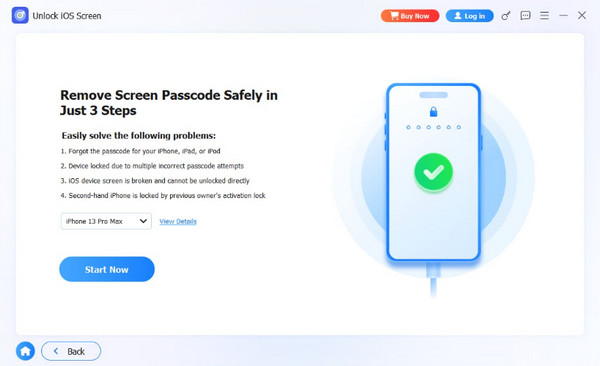
Step 2Follow the on-screen instructions to enter the iPad into recovery mode. Click the Next button at the bottom right. Later, please click the Start Now button at the bottom of the description. The firmware package for your iPad will be downloaded.
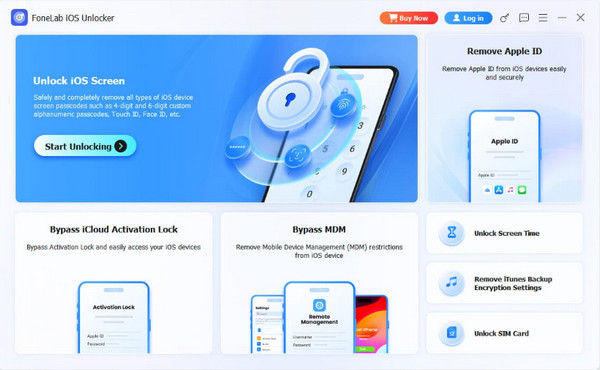
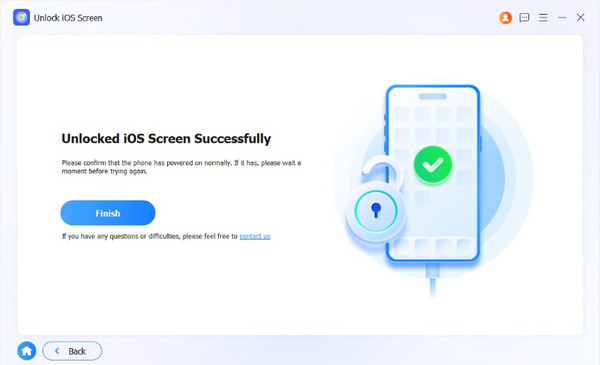
Step 3Confirm the erasing process. Click the OK button at the bottom center to start the erasing process. After that, click the Confirm Again button to confirm the process. Wait for the process to be completed and click the Finish button to complete it.
Part 6. Comparison Table of Methods to Fix iPad Passcode Not Working
| Method | Difficulty | Required Connection | Outcome |
| Rebooting and Retrying | Medium | None | It restarts the iPad and tries the password. |
| Recovery Mode | Hard | USB Cable | It restores the iPad to its factory settings. |
| iCloud Find My | Hard | Internet Connection | It remotely erases the iPad. |
| Erase iPad/Forgot Passcode | Hard | Internet Connection | It factory resets the iPad with the Apple ID. |
| FoneLab iOS Unlocker | Easy | USB Connection | It wipes out the iPad to bypass the different screen lock types. |
Part 7. FAQs about iPad Passcode Not Working
Why does my iPad keep saying my password is incorrect?
You should double-check the passcode you are entering. It has a strong possibility that it is incorrect. There might be typos in the password. Enter the iPad password as it is.
How many attempts are required to unlock an iPad?
You have 10 password attempts for your iPad screen lock. If you enter the wrong password in this limit, the iPad will be locked out. Also, it can be erased automatically, and the iCloud Activation Lock will be enabled. It happens when the Erase Data feature is turned on.
If the passcode not working on iPad, this article is a great help! It shows the 5 easy methods to reset it. FoneLab iOS Unlocker is included in the methods as a third-party tool that can wipe your iPad to remove its screen lock passcode. You can also use it to remove the Apple ID, MDM profile, and iCloud Activation Lock on your iPad. Download the tool to explore it!



