
 iPhone Data Recovery
 iOS System Recovery
 iOS Data Backup & Restore
 iOS Unlocker
 iPhone Password Manager
 Location Changer
 Android Data Recovery
 Broken Android Data Extraction
 Android Data Backup & Restore
 Android Unlocker
 FoneTrans for iOS
 iPhone Data Eraser
 iPhone Cleaner
 HEIC Converter
 HyperTrans
 WhatsApp Transfer for iOS
 Mac Sweep
 Data Retriever
 Mac Data Retriever
 Video Converter Ultimate
 Screen Recorder
 Phone Mirror
- Part 1. How to Unpair Apple Watch without Phone in Settings App
- Part 2. How to Unpair an Apple Watch without The Phone Using Charger
- Part 3. How to Unpair Apple Watch without The Phone on iCloud Page
- Part 4. How to Unpair Apple Watch without Old Phone via Find My App
- Part 5. Remove Apple ID from iPhone/iPad with FoneLab iOS Unlocker
- Part 6. FAQs about How to Unpair Apple Watch without Phone
- Unlock Apple ID
- Bypass iCloud Activation Lock
- Doulci iCloud Unlocking Tool
- Factory Unlock iPhone
- Bypass iPhone Passcode
- Reset iPhone Passcode
- Unlock Apple ID
- Unlock iPhone 8/8Plus
- iCloud Lock Removal
- iCloud Unlock Deluxe
- iPhone Lock Screen
- Unlock iPad
- Unlock iPhone SE
- Unlock Tmobile iPhone
- Remove Apple ID Password
How to Unpair an Apple Watch without the Phone Properly
 Updated by
 Good day! Could anybody please help me determine how to unpair Apple Watch without the phone? My iPhone is having issues, so I can’t navigate it properly at the moment. So, I want to connect it to my other device first. The problem is that I don’t have an idea about the unpair process. If anybody could provide the proper methods, it would be greatly appreciated
Unpairing an Apple Watch using different techniques other than the iPhone itself is not only possible but the essential solution when the device is unavailable, whether because it's broken, lost, stolen, or simply out of reach. But while the standard method always involves using the Watch app on your iPhone, don’t worry, because other built-in and professional solutions are offered to help users unpair the Apple Watch without a problem. Thus, check them out below.

Guide List
- Part 1. How to Unpair Apple Watch without Phone in Settings App
- Part 2. How to Unpair an Apple Watch without The Phone Using Charger
- Part 3. How to Unpair Apple Watch without The Phone on iCloud Page
- Part 4. How to Unpair Apple Watch without Old Phone via Find My App
- Part 5. Remove Apple ID from iPhone/iPad with FoneLab iOS Unlocker
- Part 6. FAQs about How to Unpair Apple Watch without Phone
Part 1. How to Unpair Apple Watch without Phone in Settings App
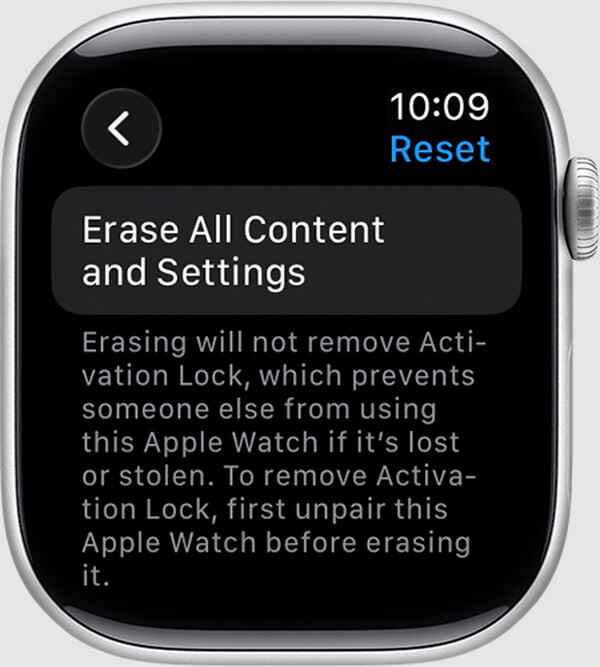
When your paired iPhone is unavailable, the most direct and reliable method to unpair your Apple Watch is directly on its Settings app. This built-in functionality is designed for precisely this scenario, letting your watch become a self-sufficient tool for managing its own pairing status and other device configurations. So, in this case, you can opt for the Settings app’s Erase All Content and Settings selection. It will reset the Apple Watch to its factory settings, removing everything, including the saved pairings or connections from the device, like your iPhone.
Follow the step-by-step task below to determine how to unpair an Apple Watch without old phone in the Settings app:
Step 1Launch the Apple Watch’s Settings and opt for the General selection.
Step 2Next, choose Reset, followed by the Erase All Content and Settings option. Tap it and confirm the action with the next prompt.
Part 2. How to Unpair an Apple Watch without The Phone Using Charger
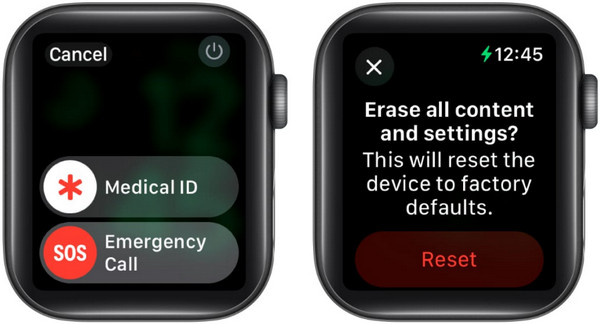
Meanwhile, putting your Apple Watch on its charger is a fail-safe procedure Apple prepared for situations where the device may be unresponsive or its touchscreen is malfunctioning. So, instead of navigating the Settings app, this method will give you the necessary Erase option that will delete everything on the watch, including all its pairings and connections. It will only take a button combination to initialize it while the Apple Watch is connected to the charger.
Be guided by the painless task below to know how to unpair Apple Watch from iPhone without phone by putting the watch on a charger:
Step 1Put your Apple Watch on its charger and long-press the Side button, viewing the menu.
Step 2After that, long-press the Digital Crown this time, and the Erase all content and settings screen will appear. From there, hit Reset and confirm to erase and unpair your Apple Watch.
Part 3. How to Unpair Apple Watch without The Phone on iCloud Page
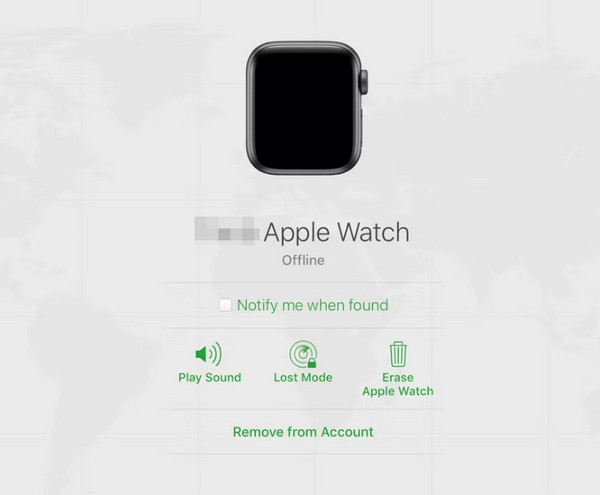
When physical access to both the Apple Watch and its paired iPhone is impossible, you can move to iCloud for another effective unpairing process. As you may know, iCloud’s page offers multiple services for Apple users, and among them is Find My. On its page, you will find various device options that allow you to manage your devices remotely, including the Erase (Device) selection. Like the previous processes, you will be able to erase everything on the Apple Watch to unpair it from the iPhone, even without navigating either device.
Note the unchallenging directions below to learn how to unpair Apple Watch without phone on the iCloud page:
Step 1Head to iCloud’s site and log in using the account credentials linked to your Apple Watch. Once you’re on the homepage, select Find My and choose its All Devices tab above.
Step 2Your Apple Watch will be among the appearing options, so select it and tick Erase Apple Watch on the following page. This way, it will be erased and unpaired.
Part 4. How to Unpair Apple Watch without Old Phone via Find My App
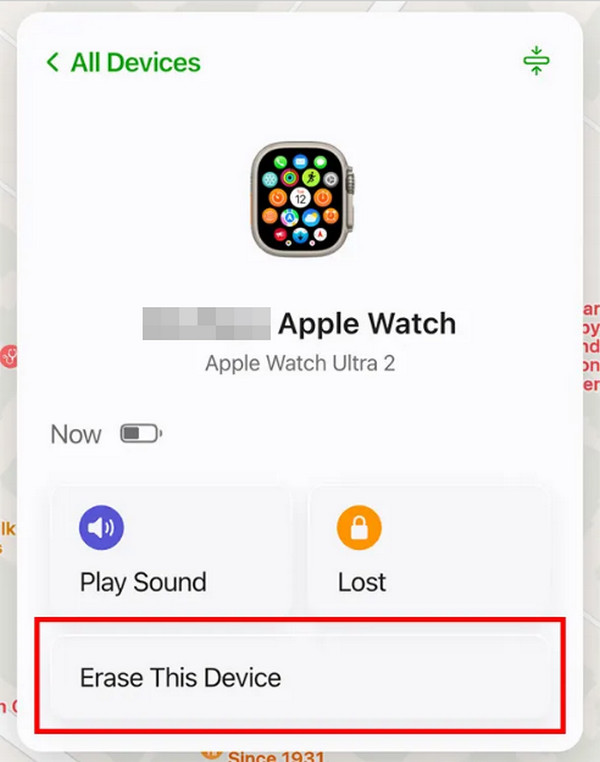
Aside from the Find My page on iCloud’s website, a Find My app is also available and pre-installed on Apple devices. Thus, even if the paired iPhone isn’t accessible, you can still use another device, such as your iPad or spare iPhone, to open the Find My iPhone app and manage the Apple Watch deletion from there. All you must ensure is to use the account linked to your watch, and the app will let you navigate its options, like the Erase button, remotely.
Emulate the simple procedure below to grasp how to unpair an Apple Watch without the phone via the Find My app:
Step 1Use your spare iPhone or iPad to open the Find My app and ensure you are using the correct account. Afterward, select Devices on the lower part.
Step 2The app’s interface will show your connected devices, so pick the Apple Watch from there. Then, opt for the Erase This Device selection to finish.
Part 5. Remove Apple ID from iPhone/iPad with FoneLab iOS Unlocker
Meanwhile, removing the Apple ID from your iPhone or iPad might also help unpair or remove the connection between your Apple Watch and iPhone. Hence, let FoneLab iOS Unlocker help you in this case. Apart from that, it is known to various types of users because of the program’s beginner-friendly design and functions. Still, when it comes to performance, its professionalism will consistently deliver. That’s not all. As its name indicates, FoneLab iOS Unlocker offers unlocking features that lets you access different aspects of the device, such as the lock screen and screen time.

FoneLab Helps you unlock iPhone screen, Removes Apple ID or its password, Remove screen time or restriction passcode in seconds.
- Helps you unlock iPhone screen.
- Removes Apple ID or its password.
- Remove screen time or restriction passcode in seconds.
Take in the worry-free instructions below as a pattern for removing the Apple ID from an iPhone to an iPad with FoneLab iOS Unlocker:
Step 1Open the FoneLab iOS Unlocker page through your trusted browser and hit Free Download. This action will deliver the tool’s installer to your Downloads folder; so, launch and set it up from there, immediately installing the unlocker program. Then, start it to view the interface.
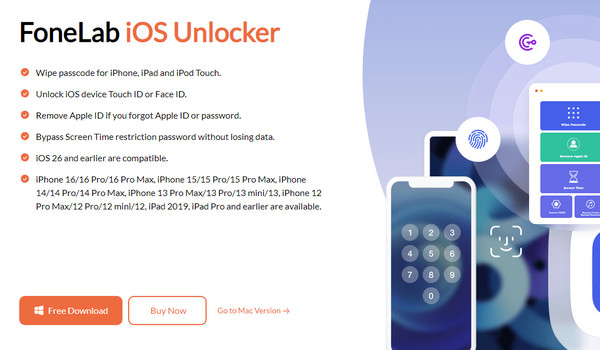
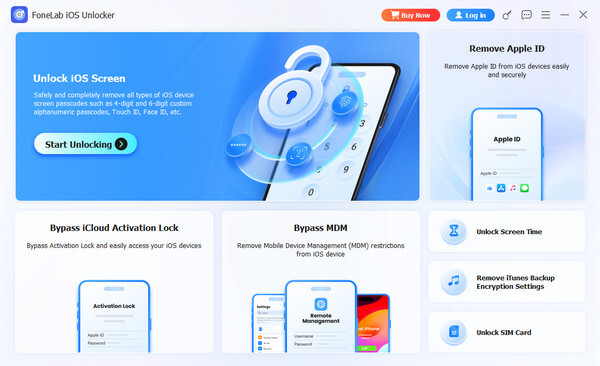
Step 2From the multiple available features, you will see Remove Apple ID on the right of the interface. Select it and, as the instructions say, use a Lightning cable to link your iPhone or iPad. After that, further prompts and directions will appear, guiding you to remove the Apple ID from the device.
Part 6. FAQs about How to Unpair Apple Watch without Phone
How to unpair Apple Watch without old phone?
Whether or not you’re using an old phone that you want to unpair from your Apple device, the unpairing methods above will help, as the processes focus on the watch.
Can I pair another iPhone to my Apple Watch without unpairing from the last one?
Unfortunately, you can’t. Apple Watches can only be paired to one iPhone at a time, so unpairing is necessary if you want to pair your watch to another.
Handle your Apple Watch’s unpairing process with ease with the proper techniques and convenient guidelines above. Then, get to know and install FoneLab iOS Unlocker, as it will significantly help with your concerns later.



