
 iPhone Data Recovery
 iOS System Recovery
 iOS Data Backup & Restore
 iOS Unlocker
 iPhone Password Manager
 Location Changer
 Android Data Recovery
 Broken Android Data Extraction
 Android Data Backup & Restore
 Android Unlocker
 FoneTrans for iOS
 iPhone Data Eraser
 iPhone Cleaner
 HEIC Converter
 HyperTrans
 WhatsApp Transfer for iOS
 Mac Sweep
 Data Retriever
 Mac Data Retriever
 Video Converter Ultimate
 Screen Recorder
 Phone Mirror
Excellent Strategies to Turn Off Apple Watch Conveniently
 Updated by
 Come and determine how to turn Apple Watch off. You probably know that, like other devices, Apple Watches are designed to be turned on or on display at all times, allowing you to keep being connected. However, there are times when it’s best, or sometimes even essential, to shut it down. Whether you’re conserving battery on a long journey, troubleshooting a glitch, or simply enjoying a moment of disconnected peace, knowing how to turn the watch off will be helpful.
Hence, let this guide walk you through the excellent yet simple strategies to power off your Apple Watch. Both primary and alternative shutdown methods are available, so look into them and choose the most suitable one for you and your Apple Watch. But what if you still fail to turn the watch off after everything? No worries, because afterward, you can also enjoy the following solutions we added to fix the possible issues that are causing it not to turn off.


Guide List
Part 1. How to Turn Off Apple Watch Using A Button
The initial and most universal way to turn your Apple Watch off is by using one of its physical buttons. It is most, if not everyone’s, go-to method not only because it is the default process, but also because it is the most effortless. So, whether you’re trying to power the watch off because of device issues or personal reasons, you can expect this process to be the most basic. You must only ensure your Apple Watch’s designated button and screen are functional.
Follow the convenient task below to determine how to turn off an Apple Watch using its button:
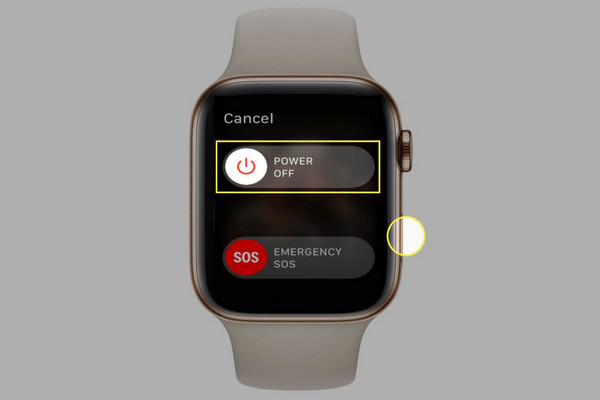
Step 1Long-press the Apple Watch’s Side button below the Digital Crown.
Step 2Once the Power slider is presented, swipe it to the right.
Part 2. How to Power Off Apple Watch with Siri
Meanwhile, if you want a hands-free method for turning your Apple Watch off, using Siri would be suitable. It is a modern approach that is perfect for moments when your hands are occupied, you have mobility difficulties, or you simply want to interact with your device in the most intuitive way possible. As you know, Siri is Apple’s very own voice-activated virtual assistant, allowing you to take action or handle device management through voice commands. Just make sure your watch is linked to the internet so that Siri can run your command without a problem.
Mind the easy instructions below to turn Apple Watch off with Siri:
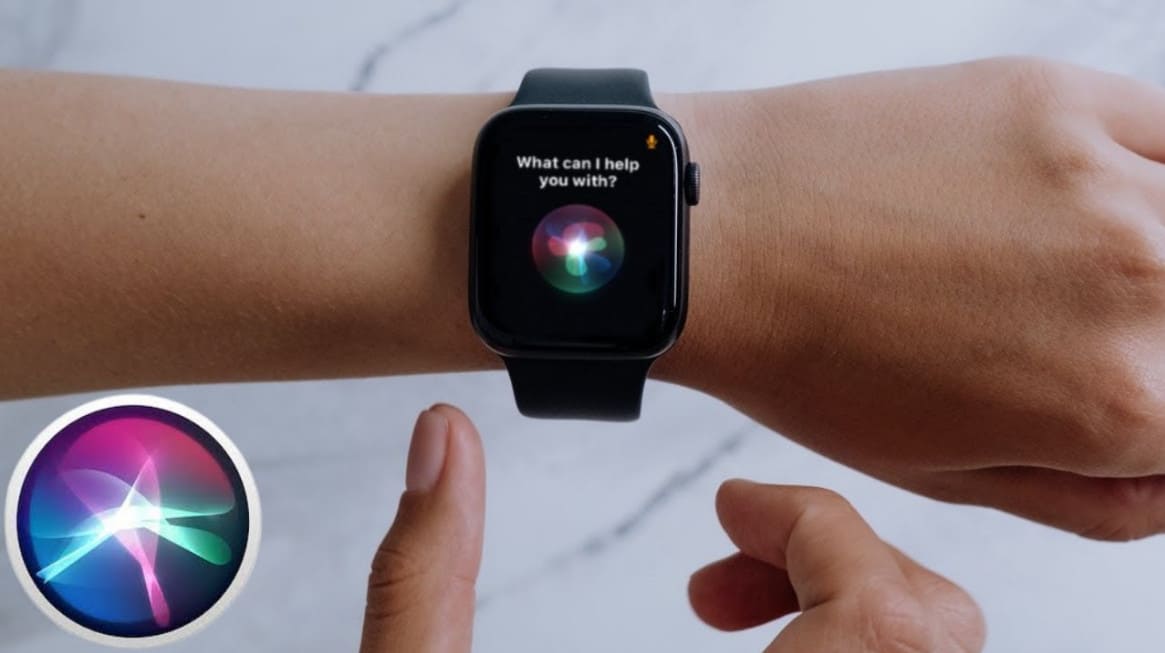
Step 1Voice out “Hey Siri” near the Apple Watch’s microphone to prompt the feature.
Step 2Once Siri is activated, say “Turn off my Apple Watch” to power it off.
Part 3. Turn Off Apple Watch via Settings App
As you may know, the Settings app contains an extensive set of options for device management. Hence, it is no longer surprising that you will also find a selection to turn off the Apple Watch on its interface, particularly in the General section. It is an ideal shutdown method for new users or those who prefer visual menus over memorizing button combinations. Besides, it is an excellent fallback option if the physical side button becomes unresponsive due to various possible issues. It may also be less efficient than the previous parts, as it requires multiple screen navigations.
Note the user-friendly process below to understand how to turn off my Apple Watch via the Settings app:
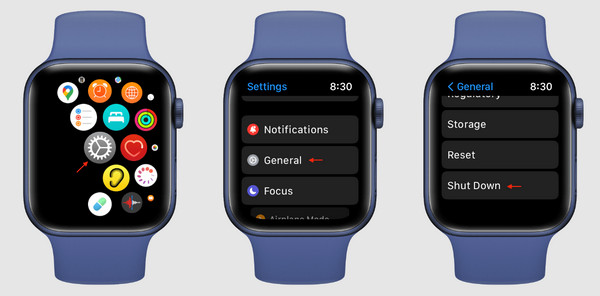
Step 1Navigate to your Apple Watch’s Settings and hit General.
Step 2At the bottom, tap Shut Down and drag the Power slider to the right.
Part 4. What to Do If You Cannot Turn Off Apple Watch
Unfortunately, even the most reliable technology can occasionally encounter a hiccup, but don’t be alarmed. If your Apple Watch becomes unresponsive, frozen on a screen, or refuses to power down using the standard methods, the top troubleshooting strategies below will help.
Method 1. Force Restart Apple Watch
A force restart is the go-to remedy for various issues, such as an unresponsive Apple Watch. It is among the safest and most fundamental troubleshooting procedures, as it clears the watch's RAM without affecting your data or settings, effectively pushing the system out of its frozen state. However, its key disadvantage is that it does not cleanly close apps or processes like a proper shutdown, which sometimes causes your actions or data not to be saved if you restart Apple Watch while the screen is frozen.
Mimic the unchallenging steps below to force restart an Apple Watch:
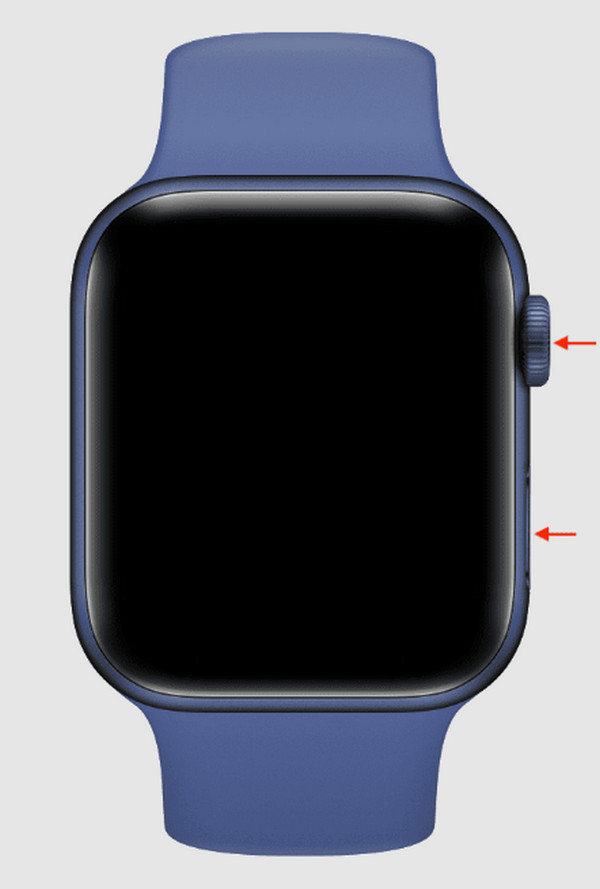
Step 1Long-press the watch’s Digital Crown and the Side button below it simultaneously.
Step 2After around 10 seconds, the screen will present the Apple logo, indicating the force restart. Release both the buttons then.
Method 2. Restart iPhone
There is also a possibility that the issue is not on the Apple Watch itself, but on the iPhone it is connected to. Thus, it would also help to restart iPhone to resolve the problem that might be preventing your Apple Watch from responding correctly. Aside from that, a fresh start on the iPhone can clear communication errors and re-establish a stable Bluetooth connection with your watch. However, the disadvantage is that this approach is entirely indirect and often based on speculation. It only fixes issues from the iPhone's side and is completely ineffective if the Apple Watch's issue is internal.
Mirror the suitable procedure below to restart your iPhone:
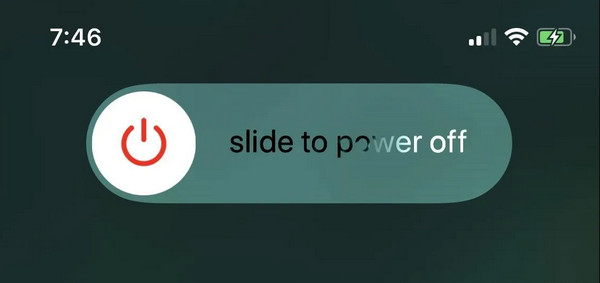
Step 1Long-press either the iPhone’s Volume buttons, then the Power key together. But if you use an iPhone with a Home key, press only the Power button.
Step 2The Power slider will shortly appear, prompting you to drag it to the right to turn it off. Once shut down, focus on long-pressing the Power key until the iPhone restarts.
Method 3. FoneLab iOS System Recovery
If indeed the problem is on the iPhone and it affects your Apple Watch’s performance, using FoneLab iOS System Recovery will help, aside from the restart process. This advanced program is designed to diagnose and repair deep-seated iOS system issues, such as software corruption, failed update errors, or persistent boot loops, that standard solutions cannot resolve.

FoneLab enables you to fix iPhone/iPad/iPod from DFU mode, recovery mode, Apple logo, headphone mode, etc. to normal state without data loss.
- Fix disabled iOS system problems.
- Extract data from disabled iOS devices without data loss.
- It is safe and easy to use.
Simply linking your iPhone can fix the underlying iOS issue that may be disrupting your iPhone’s connection to the Apple Watch. Meanwhile, we understand if you’re concerned with understanding technicalities, but no worries. Despite its advanced quality and performance, you won’t have to face complexities, as its interface and functions are created to accommodate all types of users, even beginners. Hence, let it handle your problem safely.
Recognize the stress-free operation below as a model to learn FoneLab iOS System Recovery to fix the device problem:
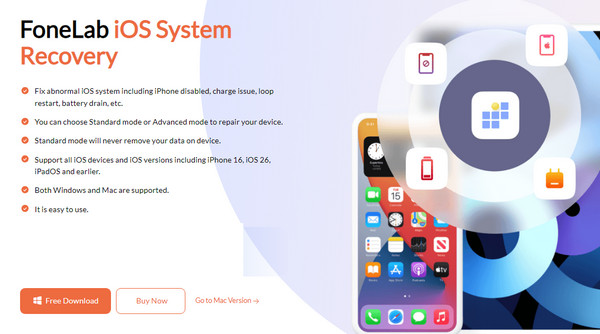
Step 1Find FoneLab iOS System Recovery’s Free Download option on its website and click it, obtaining the installer in your Downloads. Next, set up the file from there to proceed with the installation. When done, launch the program’s interface and click iOS System Recovery.
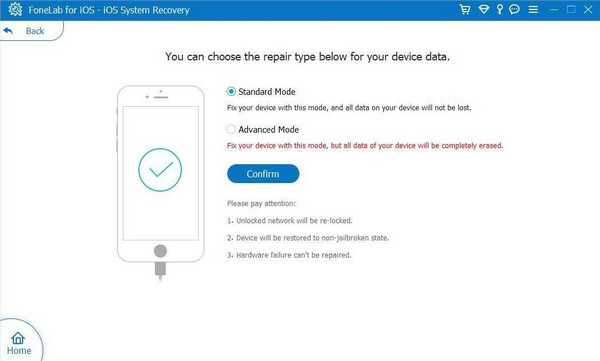
Step 2Afterward, associate the iPhone to your computer via a Lightning cable and hit Start. The next interface will then let you choose Standard or Advanced Mode for your preferred repair type and click Confirm. Finally, let the on-screen prompts lead you in fixing the issue.
Part 5. FAQs about How to Turn Off Apple Watch
How do I turn off my Apple Watch using my iPhone?
Unfortunately, there’s no option to turn off your Apple Watch directly using an iPhone, as it is not designed for a remote shutdown.
Can I turn my Apple Watch off with a frozen screen?
The possibility of turning the Apple Watch off with a frozen screen is minimal. Siri may still function since it is a voice command, but if that’s also affected by the unresponsive screen, it won’t be possible. On the other hand, you may also do a force restart. It won’t turn the device off, but if the screen finally responds after the restart, you can then perform the shutdown method.
Turning off an Apple Watch is not a complicated process, and it never has to be. As long as you stick to the guidelines above, you won’t have any problems, especially with FoneLab iOS System Recovery as your backup in case an issue suddenly appears. Hence, we suggest you install it.



