
 iPhone Data Recovery
 iOS System Recovery
 iOS Data Backup & Restore
 iOS Unlocker
 iPhone Password Manager
 Location Changer
 Android Data Recovery
 Broken Android Data Extraction
 Android Data Backup & Restore
 Android Unlocker
 FoneTrans for iOS
 iPhone Data Eraser
 iPhone Cleaner
 HEIC Converter
 HyperTrans
 WhatsApp Transfer for iOS
 Mac Sweep
 Data Retriever
 Mac Data Retriever
 Video Converter Ultimate
 Screen Recorder
 Phone Mirror
How to Uninstall Apps on Android in 3 Quick Practices
 Updated by
 Good day! My brother borrowed my Android phone this morning while I was asleep. He said that he will play one of his favorite mobile games. However, he downloaded additional games, and my Android phone’s storage is full. How to remove apps from Android? I hope you can help me. Thank you!
Android phones offer additional features. Downloading them is convenient, but having many of them on your Android phone can consume a lot of storage space. In this post, you will encounter the 3 leading ways to uninstall apps on your Android phone. Please see them as your scroll in this informative article.

Guide List
Part 1. How to Delete Apps on Android Home Screen
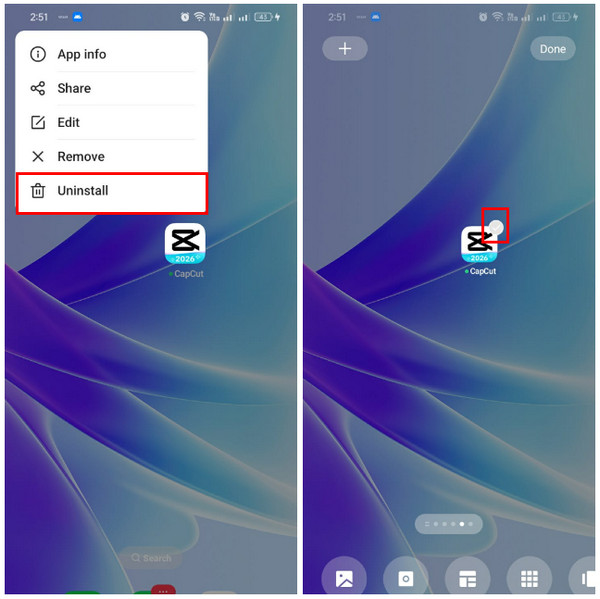
The Android phone Home Screen is responsible for different components. It displays the information on your Android phone, including its widgets. It also organizes your folders and applications. The applications can be deleted from the Home Screen of your Android phone. There are 2 ways to do that. Please see the steps below to know how Android uninstalls app quickly.
Unlock your Android phone if a lock screen password is required. After that, please long-press the space on your Home Screen. Then, the applications will show the Check button at the top. Please select the app you want to uninstall and tap the Delete button. Finally, confirm the action to complete it and tap the Done button at the top right corner.
Alternatively, you can directly long-press the app you want to uninstall. Then tap the Uninstall button in the small window that appears on the screen. Finally, confirm the deletion to complete the process on your Android phone.
Part 2. How to Uninstall Apps on Android Settings App
The Settings application on your Android phone is responsible for your device and system management. It can turn features on or off, change the date and time on your Android phone, modify regions, and more. It can also be used to clear cache on Android applications, including their deletion process. Deleting the app from the Settings app is easy. You do not need to install third-party apps. Discover how to delete an app on Android Settings app with the steps below.
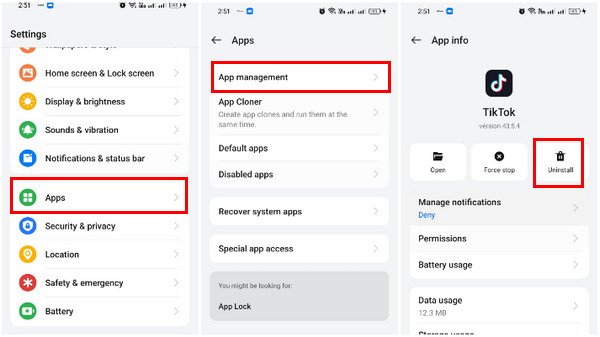
Step 1Unlock your Android phone, and you will be directed to the Home Screen section. Please tap the Settings app to open it. The first list will be prompted. Please select the Apps button at the bottom.
Step 2The available settings for your applications will appear. Please tap the App Management button at the top. Then, you will see all the installed apps on your Android phone. Select the one you need to delete.
Step 3The app’s information will appear on the screen. Please select the Uninstall button under the app’s name. Finally, confirm the action to start deleting the application from your Android phone.
Part 3. How to Remove Apps from Android Using Google Play Store
Google Play Store is your legit source of Android applications, including social media apps and games. This application is pre-installed chiefly on most Android phone brands and models. It is the safest way to download the applications on your Android phone, instead of APK files. The reason is that some APK files’ websites are not trusted or secure. However, the applications must be downloaded from the Google Play Store before you can uninstall them using it. Remove apps from Android using the Google service with the steps below.
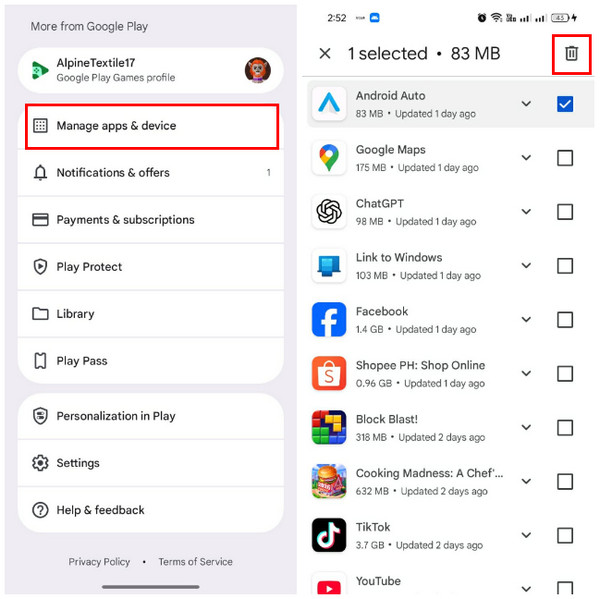
Step 1Open Google Play Store on an Android. After that, select your profile at the top of the screen. Later, select the Manage Apps & Device button from the list that will appear.
Step 2The downloaded applications from your Google Play Store will appear on the screen. Please select the app you want to eliminate. Tap the Check Box button on the right to check it. Later, more options will appear at the top. Select the Delete button.
Part 4. Back Up Android Data with FoneLab Android Data Backup & Restore
Besides the apps on your iPhone, the files it contains can also be deleted, including the app's data. However, it might happen due to accidental deletion. If so, backup Android phone with FoneLab Android Data Backup & Restore! This tool can back up and restore your Android data directly to your SD card on Mac and Windows. The included data types for the backup procedure are messages, call logs, contacts, videos, audio, photos, and more. It supports various Android phone brands, including Huawei, HTC, LG, Motorola, Samsung, and more. This tool is safe and easy to use. Do you want to know how to use it? The steps are available below.

Backup and restore Android data to your computer easily.
- Backup and restore Android data to your computer easily.
- Preview data in detail before you restore data from backups.
- Backup and restore Android phone and SD card data Selectively.
Step 1Download FoneLab Android Data Backup & Restore from its website. Select the Free Download button to do that. Then install and open the tool to proceed.

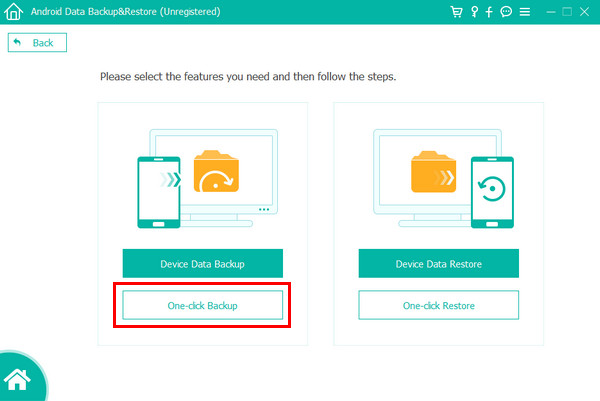
Step 2Click the Android Data Backup & Restore button from the main screen. Then, click the One-click Backup button at the bottom left of the screen. Please choose the destination folder of the backup. Later, click the OK option to save the changes.
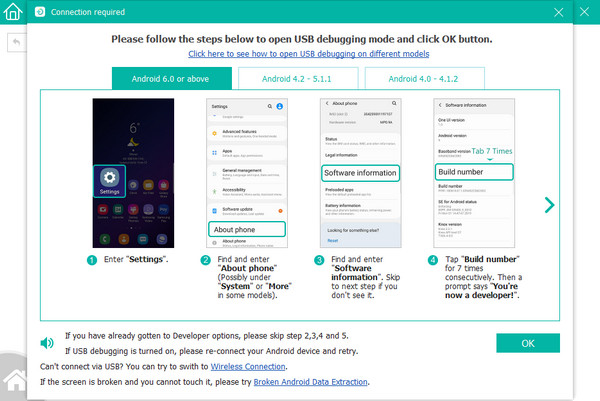
Step 3Plug the Android phone into the computer. Later, click the OK button to start backing up the Android phone.
Part 5. FAQs about How to Uninstall Apps on Android
How to uninstall apps on Android that won't uninstall?
If you cannot uninstall apps on your Android phone, they might be a system app or device admin. It is also possible that the deletion process is hindered by malware. Open the Settings application and choose the Security & Privacy button. Then, tap Device Admin Apps. Finally, you can proceed with uninstalling the apps. You can use the 3 methods in this post.
How to see recently deleted apps on Android?
Open the Google Play Store. After that, tap your profile at the top and tap the Manage Apps & Devices button on the screen. Go to the Manage section and tap the Installed button. Please switch to the Not Installed section.
How to recover deleted apps on Android?
You can only recover your deleted apps on your Android phone by reinstalling them. Open the Google Play Store. Then, use the Search button at the top. Search for the app’s name and tap the Install button. Tap the Open button to open it afterward.
All in all, you can uninstall apps on Android in 3 easy ways. This post included the methods for the Settings app, Home Screen, and Google Play Store. FoneLab Android Data Backup & Restore is also here to help you back up your Android data. It can back up contacts, call logs, messages, videos, audio, and more. It supports Android OS 5.0 and above. Download the tool to see more of its features!



