
 iPhone Data Recovery
 iOS System Recovery
 iOS Data Backup & Restore
 iOS Unlocker
 iPhone Password Manager
 Location Changer
 Android Data Recovery
 Broken Android Data Extraction
 Android Data Backup & Restore
 Android Unlocker
 FoneTrans for iOS
 iPhone Data Eraser
 iPhone Cleaner
 HEIC Converter
 HyperTrans
 WhatsApp Transfer for iOS
 Mac Sweep
 Data Retriever
 Mac Data Retriever
 Video Converter Ultimate
 Screen Recorder
 Phone Mirror
Fix Android Apps Keep Crashing in 6 Straightforward Ways
 Updated by
 Good day! My apps keep crashing on my Android phone. This issue happened this morning as I turned on my Android phone. The apps are crashing even though I do not operate them for long. Can you help me fix this app issue? Thank you in advance!
The applications on your Android phone can be built-in or downloaded. One thing is sure. These apps bring additional and convenient features or operations to your Android phone. However, you might experience a crashing issue while using them. If this happens, you need to know the 6 easy methods in this post. You can scroll below to discover them.


Guide List
Part 1. Why Do My Apps Keep Crashing on Android
Why are my apps crashing? The applications use storage. If you have multiple apps, videos, photos, music, and other files on your Android phone, you should check the storage space. Low storage can cause the applications to crash. Additionally, sometimes, there are bugs and glitches on your Android phone that you don’t notice. These issues can cause the app’s performance to crash.
Furthermore, some applications rely on an internet connection. A slow internet connection can also make them crash because the features they contain cannot operate properly. An outdated Android or app can also be the cause.
Part 2. How to Fix Android Apps Crashing
Now that you know why do apps keep crashing, you know how to fix them. In this section, you will encounter the 6 easy methods for fixing the issue. However, these 5 procedures vary slightly depending on the brand shown in the methods. Don’t worry. The procedures and buttons are generally the same. If there are differences, you can find them through the same definition. Scroll below to discover them.
1. Reboot App/Android Device
Glitches from the app and Android phone system can affect your applications. You can restart Android phone or the applications to fix the issue. The steps are available below.
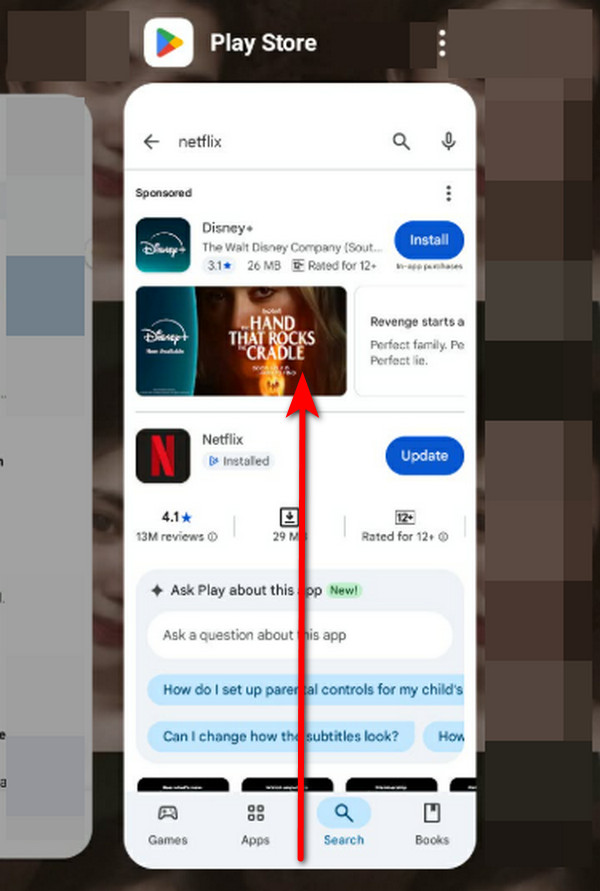
Reboot App: Swipe the bottom of the screen all the way to the top. The apps will run in the background. Locate the crashing app and swipe it up to close it.
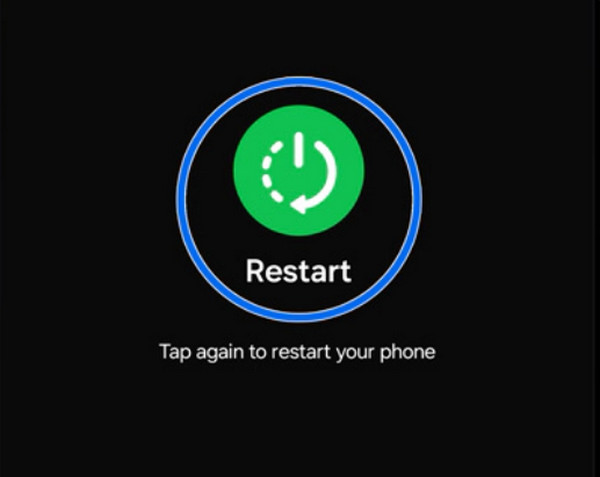
Reboot Android Phone: Press and hold Volume Down and Side. Options will appear, and tap the Restart button. Alternatively, press and hold Volume Down and Side or Power. Wait for the screen to turn black, and the logo will appear.
2. Update App/Android OS
The application or Android phone operating system might be outdated, causing the applications to crash. You may update them to fix the issue using the steps below.
Update App: Open Google Play Store. Then, search for the app’s name using the Search button at the top. Later, tap the Update button right beside the app. Wait for it to be updated afterward.
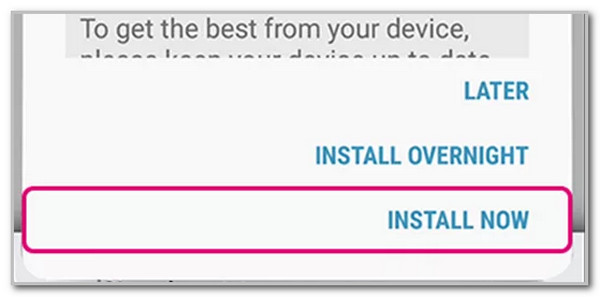
Update Android OS: Open the Settings application and select the About Phone button from the first interface. Then, tap the Check Now for Update button. If there are available updates, tap the Install Now button.
3. Reinstall App
Reinstalling the apps can also be performed to fix them on your Android phone. First, you need to learn how to delete apps on Android. After that, you can install the applications again, and your issues on Android might have been fixed. This simple technique can be performed using the steps below.
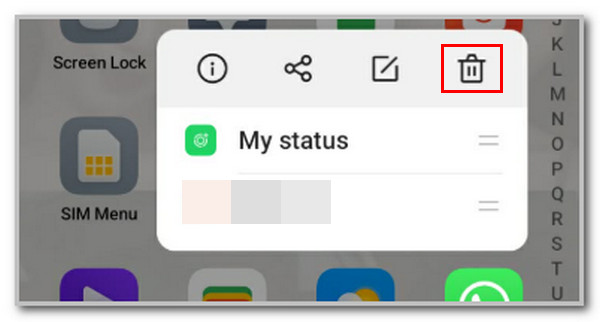
Unlock your Android phone and locate the app you want to uninstall. Long-press it afterward and tap the Delete button. Confirm the process afterward. Later, please go to the Google Play Store and search for the app’s name. Tap the Install option and wait for it to be downloaded.
4. Get More Storage on Android
A low storage space on an Android phone can cause its apps to crash. By default, you cannot add storage from your Android phone. If you want more storage, you can create a Google account and use its free services. For example, you can use Google Drive to store your documents. Also, Google Photos can be used to store your photos and videos.
Besides, you can also delete unwanted files from your device to free up space on Android.
5. Factory Reset Android
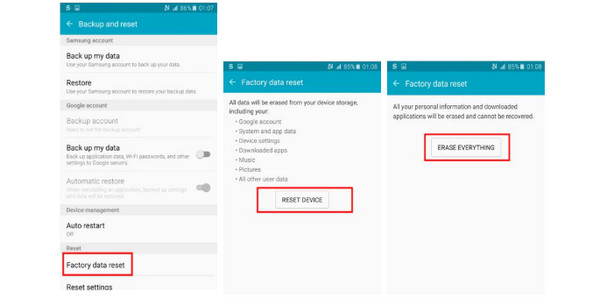
If a big issue is the cause of the crashing apps on your Android phone, simple ways cannot be used. You can factory reset your Android phone instead. It deletes all the content and settings of your Android phone because it brings it to its factory settings. It eliminates all the issues causing the problem. Follow the steps below to fix apps crashing on Android by factory resetting.
Tap the Apps button from the Home Screen. Then, select the Settings app and tap the Backup and Reset button from the list. Tap the Factory Data Reset option at the bottom. Then, select the Reset Device button and confirm the action by tapping the Erase Everything button.
6. FoneLab Broken Android Data Extraction
If the simple troubleshooting methods did not work, you can use FoneLab Broken Android Data Extraction. This user-friendly tool can fix the apps keep crashing on Android. Besides that, screen-locked, black screen, and frozen screen issues can also be fixed. You can also extract data from the broken Android phone, including its SD card. It includes messages, contacts, call logs, photos, videos, and more. You can fix the issue on different Samsung models and versions.

Fix your frozen, crashed, black-screen or screen-locked Android system to normal or Recover data from broken Android phone or SD card.
- Fix your Android disabled problems and recover data from phone.
- Extract Contacts, Messages, WhatsApp, Photos, etc. from broken android device or memory card.
- Android phone and SD card data are available.
The software is 100% safe and straightforward to use! Please use the tool with the detailed steps below.
Step 1Download the tool on its website by clicking the Free Download button. Set up, install, and open the software to start the process.

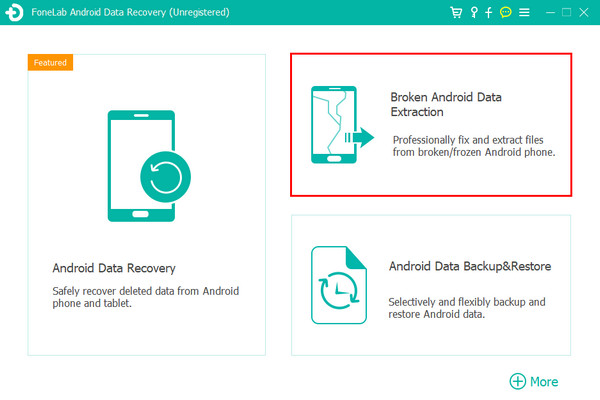
Step 2Please select the Broken Android Data Extraction button from the first screen. This way, you will see the correct features for the tool.
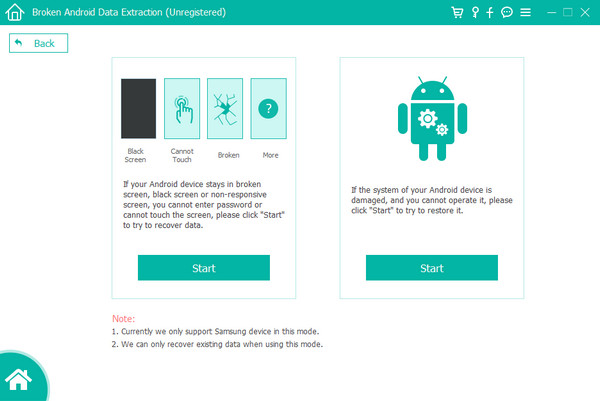
Step 3Click the Start button to continue. After that, select the name and model of your Android phone from the screen. Then, click the Confirm button. Follow the on-screen instructions to start fixing the issues with your Android phone apps.
Part 3. FAQs about Android Apps Keep Crashing
Why are the apps keep crashing on iPhone?
The apps that keep crashing on an iPhone have almost the exact causes on Android phones. It could be due to software bugs, an outdated iOS version, and more.
How to find out which app is crashing on Android?
Open the Device Care or Developer Options on your Android phone. Open the Settings app on your Android phone. Then, select the Apps Issues button from the list. Tap the button in the top section, and you will see the frequently crashing application.
How to see if your phone has a virus?
You will notice that your Android phone has a virus if it has a slow performance. It might be excessive data usage, draining battery quickly, ads popping up, or unfamiliar activities on your Android phone.
In conclusion, the app keeps crashing on Android phones due to different system issues. Lack of storage space, virus, malware, and more problems are included. 6 easy ways are posted to help you fix it. FoneLab Broken Android Data Extraction is here to help. It can fix the issue, including other Android phone system problems. It includes frozen screen, black screen, and more. It can also recover your data. You can experience this process by downloading it now!



