
 iPhone Data Recovery
 iOS System Recovery
 iOS Data Backup & Restore
 iOS Unlocker
 iPhone Password Manager
 Location Changer
 Android Data Recovery
 Broken Android Data Extraction
 Android Data Backup & Restore
 Android Unlocker
 FoneTrans for iOS
 iPhone Data Eraser
 iPhone Cleaner
 HEIC Converter
 HyperTrans
 WhatsApp Transfer for iOS
 Mac Sweep
 Data Retriever
 Mac Data Retriever
 Video Converter Ultimate
 Screen Recorder
 Phone Mirror
- How to Mirror iPhone to PC
- Cast Android to Windows
- Mirror iPhone to Windows
- Samsung Screen Mirror Not Working
- Mirror App for iPhone
- Mirror App for Android
- Use AirServer
- Mirror iPhone to Computer
- Cast from Phone to Computer
- iPhone Screen Mirror Not Working
- Mirror iPad to PC
- Mirror iPhone to Laptop
- Set Up Screen Mirror on iPhone
- Mirror iPhone
- Android Mirror to Mac
How to Screen Share on iPhone in 5 Quick Techniques
 Updated by
 The iPhone has a lot of operations that can be done every day. You can share apps, presentations, fix issues, take pictures, and more. Did you know that you can show these operations on another device screen? iPhone screen shares in different ways. You can use its built-in features, third-party tools, online programs, etc. In this article, we will show you the 5 different yet easy ways to share your screen on an iPhone with other devices, including TV, PC, and Mac. Please continue browsing this post to see the complete information about the mentioned procedures.

Guide List
Part 1. How to Screen Share on iPhone with Another iPhone When Using FaceTime
How to turn on screen share on iPhone FaceTime? FaceTime is an iPhone application that can make video calls to your loved ones. The screen share feature of this application does not need to be set up. The reason is that it is turned on automatically while using FaceTime because it is a built-in feature of the app.
However, not all iPhone screens can be shared. Applications that support restrictions on their contents will still be shared as a black screen, including famous streaming apps. Also, ensure that you turn off all your notifications if necessary. This feature will show the notifications from the screen sharing. Discover how to share screen on iPhone with FaceTime using the steps below.
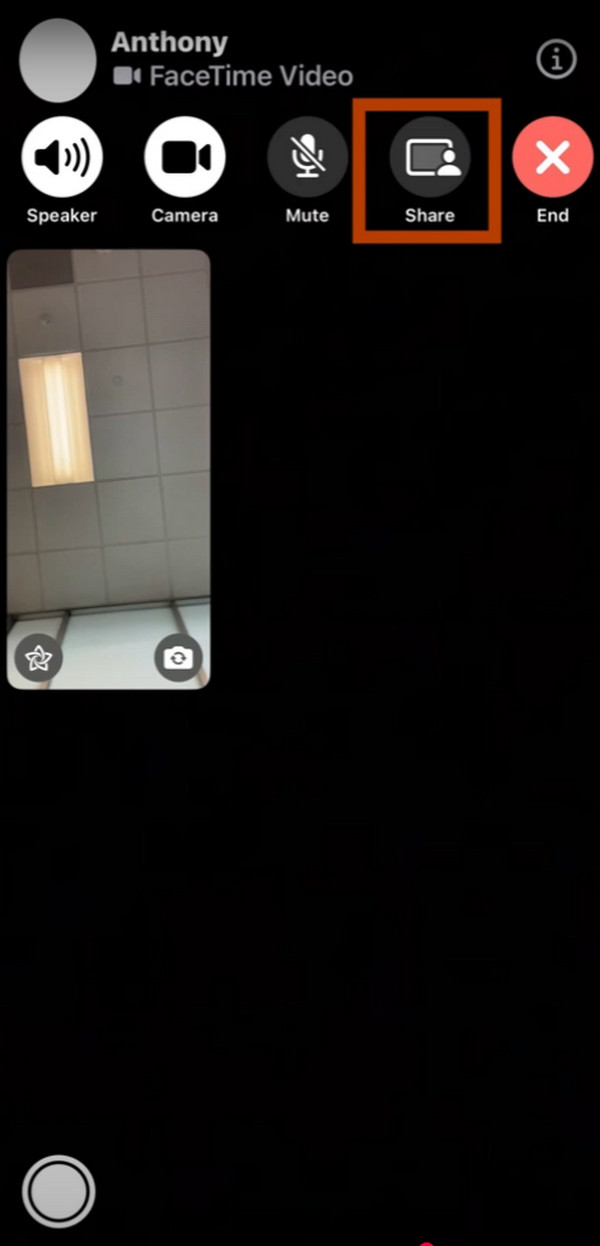
Step 1Tap the Contacts button from the Phone app. After that, look for the contact you want to FaceTime. Then, tap the FaceTime button and wait for the person to answer your call. Finally, the additional features will appear at the top.
Step 2Tap the Share button at the top right corner. A small window will be prompted at the bottom, containing different features. Tap the Share My Screen button. A countdown will start, and the screen will be shared after it.
Part 2. How to Share Screen on iPhone with AirPlay
AirPlay is a feature offered by Apple to mirror your iPhone on compatible devices. Mac and TV are the larger devices where you can mirror your iPhone. How do you screen share on iPhone? Below are 2 ways to mirror your iPhone with AirPlay. Please scroll below to discover them.
1. Mirror iPhone to Mac with AirPlay
You can mirror iPhone to Mac if they have the same Wi-Fi network. This procedure requires a code. In this case, there will be no automatic connection from devices that are unknown. See the steps below to share iPhone screen on Mac using AirPlay.
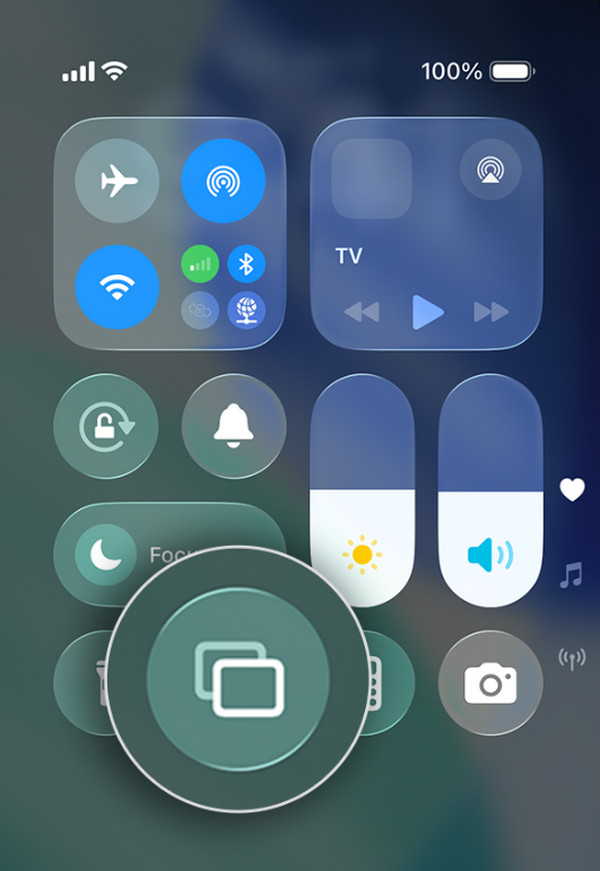
Open your iPhone and Mac. After that, swipe down at the top right of the iPhone to see the Control Center section. Tap the Screen Mirroring button, and the available devices will appear. Select the name of your Mac from the list. Enter the code to start the mirroring process.
2. Mirror iPhone to TV with AirPlay
You might ask: Can I share my screen on iPhone to the TV? Definitely, yes. You can still use AirPlay. The procedure from the previous method is almost the same as that of it. Please perform the steps below.
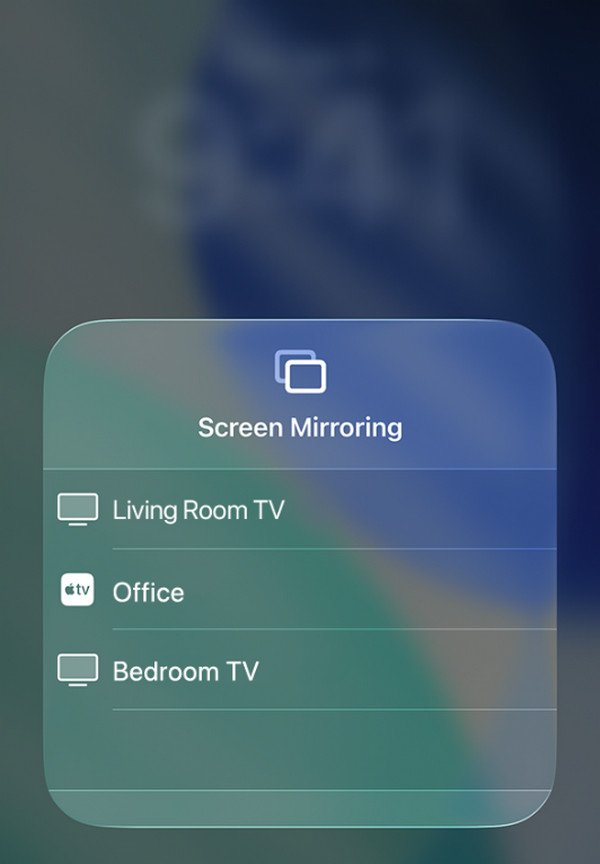
Open your AirPlay-compatible TV, including your iPhone. After that, go to the Control Center section by swiping down from the top right of the iPhone. Later, tap the Screen Mirroring button, and the list of available devices will appear. Tap the name of your TV and enter the code. Imitate the on-screen instructions to start the screen mirroring.
Part 3. Screen Mirroring Online Receiver
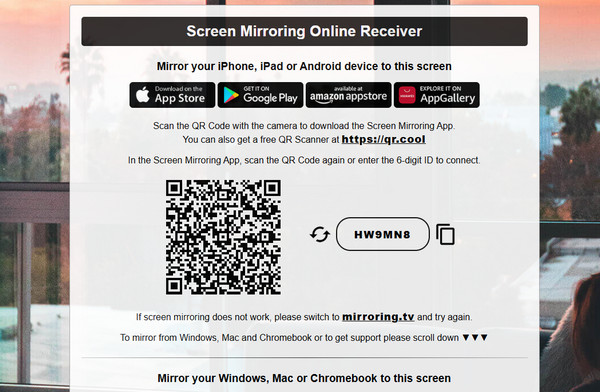
Online tools can help mirror iPhone to PC using a web browser. Screen Mirroring Online Receiver is one of them. However, this online tool requires you to download its associated application on your iPhone. Also, a strong internet connection is needed in the process. If not, the scanning process for the QR code will be slow or not work at all. Please refer to the steps below to know how to share iPhone screen with this online tool.
Visit the website of Screen Mirroring Online Receiver. After that, download the app from their website. Then, use the scanner from the app to scan the QR Code from the website. The screen mirroring will start.
Part 4. FoneLab Phone Mirror
Online tools require a strong internet connection to share iPhone screen, which might be inconvenient for some users. FoneLab Phone Mirror is the best alternative. This third-party tool can mirror your iPhone using a USB connection only. No internet connection is required. Also, you can use an internet connection if you prefer, as the program supports it. You can connect it with Wi-Fi, PIN code, and QR code.
With FoneLab Phone Mirror, you will mirror iPhone or Android to computer efficiently.
- Allows you to mirror iPhone or Android screen to a PC.
- Connect your devices through Wi-Fi, QR code, PIN code or USB cable connection.
- Take screenshots and record screen activities with ease.
Screenshots can be taken during screen mirroring. The procedure will not cause lag during the screen mirroring. This tool is easy to use and straightforward, yet it supports powerful features. Screen share on iPhone with the steps below using this tool.
Step 1Click the Free Download option on the website and set up the downloaded file afterward. After that, a small window will appear. Please click the Install button in the dialog box to open the tool on your computer.

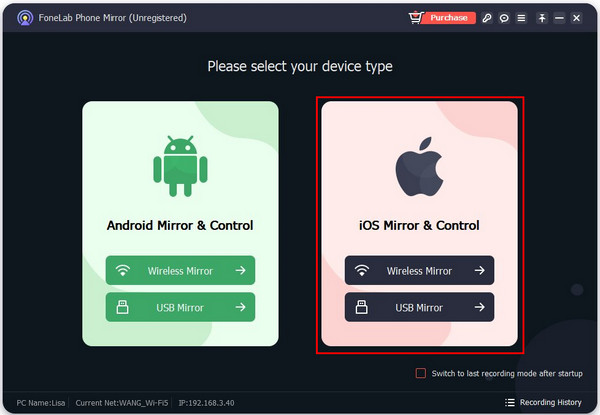
Step 2Please select the Wireless Mirror or USB Mirror button on the right side. It is in the iOS Mirror & Control section.
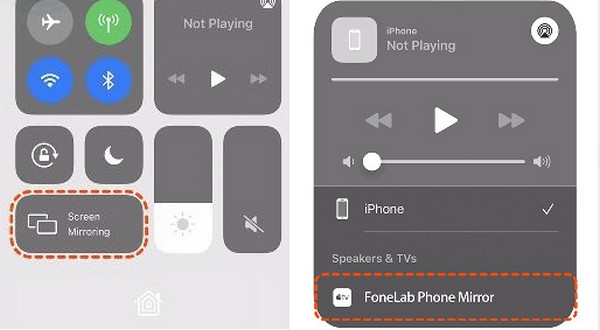
Step 3On your iPhone, please go to the Control Center section at the top of the screen. Tap the Screen Mirroring button and select FoneLab Phone Mirror. Perform the on-screen instructions to start mirroring your iPhone on the computer.
Part 5. FAQs about Screen Share on iPhone
How do I stop my iPhone from mirroring another iPhone?
You only need to turn off the screen mirroring feature that shares the screen with another iPhone. Unlock your iPhone, then swipe down from the top to open Control Center. After that, tap the Screen Mirroring button. Tap the Stop Mirroring button to end the session.
Can someone screen mirror my iPhone without me knowing?
By default, no one can screen mirror your iPhone without you knowing. However, the technology is way more advanced nowadays. Some people can mirror your device using advanced tools or applications, which is illegal in many ways.
In conclusion, you will know the 5 quick guides on how to screen share iPhone easily. You can use the methods mentioned in this post. FoneLab Phone Mirrorr lets you experience a smooth mirroring process from your iPhone to a PC. The software also allows you to record the screen mirroring session. Download the tool on your computer for more information about it.



