
 iPhone Data Recovery
 iOS System Recovery
 iOS Data Backup & Restore
 iOS Unlocker
 iPhone Password Manager
 Location Changer
 Android Data Recovery
 Broken Android Data Extraction
 Android Data Backup & Restore
 Android Unlocker
 FoneTrans for iOS
 iPhone Data Eraser
 iPhone Cleaner
 HEIC Converter
 HyperTrans
 WhatsApp Transfer for iOS
 Mac Sweep
 Data Retriever
 Mac Data Retriever
 Video Converter Ultimate
 Screen Recorder
 Phone Mirror
5 Dependable Ways to Fix Not Getting Verification Code Texts on iPhone
 Updated by
 Hi, guys! Why am I not getting verification texts on my iPhone? I need the code because I am required to sign in to a website. I do not know what was happening. Can you help me determine the issues and fix them immediately? Thank you in advance!
Verification texts are essential to verify your accounts on different platforms. Not getting them is a disaster because you cannot access the account. In this article, we will help you determine the cause of the issue and the leading ways to fix it. Scroll below to discover them.

Guide List
Part 1. Why Am I Not Receiving Verification Codes on iPhone
Why is my phone not receiving a verification code? There are various reasons why you cannot receive verification codes on your iPhone or other devices. They might be turned on features that block the network from receiving signals. It includes Airplane Mode, Do Not Disturb, and more.
Also, there might be a glitch or bug in the iPhone system. It is also possible that the iOS version is outdated. There might be faulty network settings.
Part 2. How to Fix If Not Receiving Verification Code Texts on iPhone
There are various methods to fix the issue of not getting verification code texts on your iPhone. However, we ensure that you will have a straightforward procedure. In this section, you will discover the most effective and concise ways to fix the mentioned problem. Please scroll below to know them.
1. Initial Checks: Signal, Airplane Mode, Do Not Disturb, and Blocked Numbers
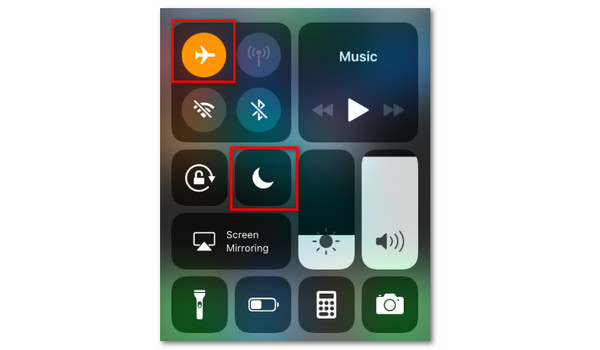
Before we go to some demanding processes, there are initial procedures you can take to fix iPhone not receiving verification codes. First, you should check if your iPhone has a signal. You will see it at the top right corner of the screen. Also, swipe down on the Control Center at the top right. Ensure that the Airplane Mode and Do Not Disturb features are turned off.
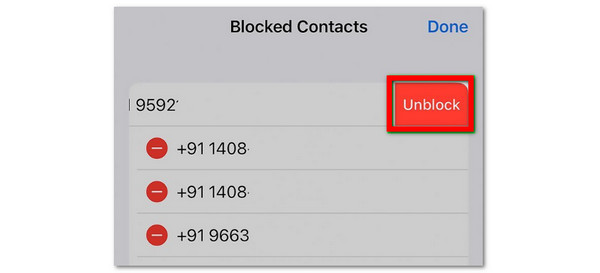
It is also possible that the sender is blocked on your iPhone. You can check and unblock the contacts by opening the iPhone Settings. Tap Privacy & Security and select Blocked Contacts. Tap Edit and choose Delete or Unblock from the contact you want to unblock.
2. Restart iPhone
You can also fix minor issues by restarting the iPhone, including iPhone not receiving verification codes. This procedure also depends on the physical buttons. Please perform the steps below for more information about the process.
How to Restart an iPhone Without a Home Button: Press the Volume and Side buttons. You only need to press and hold the chosen button until the Power-off slider is revealed. After that, please drag the mentioned slider to turn off the iPhone. This will take a few seconds for the iPhone to be turned off. Later, turn on the iPhone by pressing and holding the Side physical button until the Apple logo is shown on the screen.
How to Restart an iPhone with a Home Button: Press and hold the Top or Side physical button until the Power-off slider appears on the iPhone screen. Please drag it to turn off the iPhone. Later, wait for 30 seconds for the iPhone to be turned off. Turn on the iPhone again. To do that, please press and hold the Side or Top physical button until the Apple logo appears on the screen.
3. Update iOS
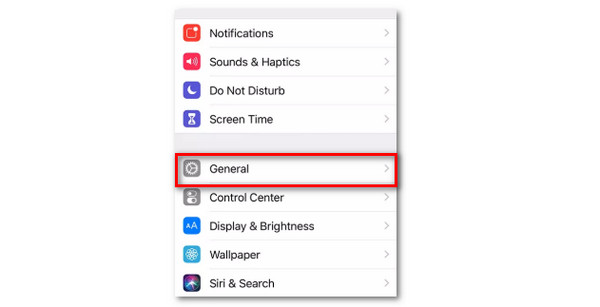
An outdated iOS version can lead to different issues, including not receiving verification codes. To update the iPhone iOS version, open the Settings app from the Home Screen section. Tap the General button and choose the Software Update button. Then, wait for an available update. Tap Download and Install afterward.
4. Reset Network Settings and Reset All Settings
A faulty network and other settings on your iPhone can also lead to the issue wherein you are not receiving verification codes or other text messages. You may reset these settings on your iPhone to fix the problem. Follow the steps below to know how.
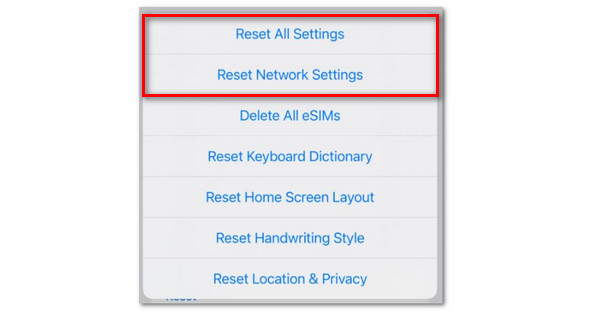
Open the Settings app and tap the General button from the list. Then, select the Transfer or Reset iPhone button at the bottom. Select the Reset button and choose the Reset All Settings or Reset Network Settings button.
5. FoneLab iOS System Recovery

FoneLab enables you to fix iPhone/iPad/iPod from DFU mode, recovery mode, Apple logo, headphone mode, etc. to normal state without data loss.
- Fix disabled iOS system problems.
- Extract data from disabled iOS devices without data loss.
- It is safe and easy to use.
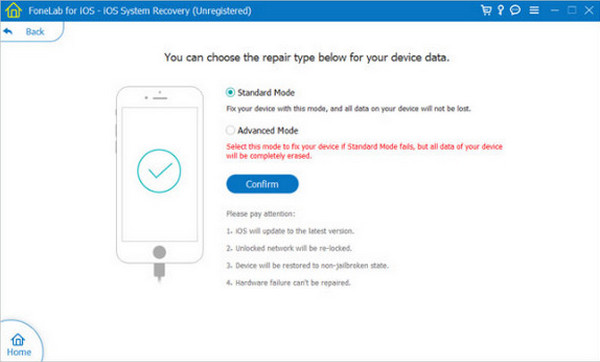
FoneLab iOS System Recovery is a third-party tool that can fix the not receiving verification texts on iPhone issue. This third-party tool is beginner-friendly due to the simple features and interface it supports. Also, it has 2 repair modes that can help you fix the problem. Choosing the Standard Mode will resolve the issue without deleting the data on your iPhone. On the other hand, you can fix deeper issues on your iPhone with the Advanced Mode. Follow the steps below to use the tool correctly.
Step 1Search for the main website of FoneLab iOS System Recovery. After that, click the Free Download button from the list. Later, set up and install the tool. This way, you will open the tool on your computer automatically.
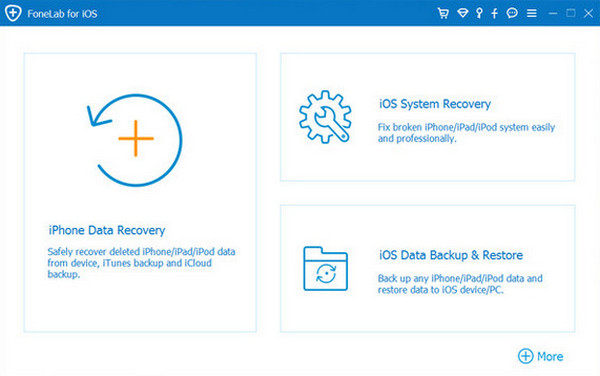
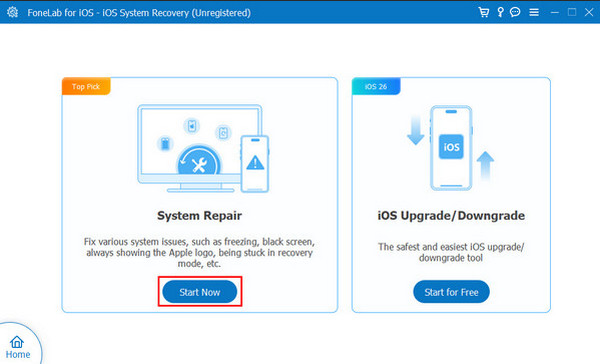
Step 2Please click the Start Now option at the bottom left of the screen. This way, you will see the features related to the fixing procedure.
Step 3Plug the iPhone into the computer utilizing a USB cable. Then, choose the Advanced Mode or Standard Mode from the screen. Click the Confirm option at the bottom to start fixing the iPhone.
Comparison Table of 5 Methods
| Method | Ease of Use | Effectivity | Cons |
| Initial Checks | Easy | Medium | It does not work with serious network issues. |
| Restart iPhone | Easy | Medium | It cannot be used when the iPhone screen freezes. |
| Update iOS | Hard | Low | iPhone iOS version cannot be updated when it is the latest. |
| Reset Network Settings and Reset All Settings | Hard | High | Other network settings will be reset. |
| FoneLab iOS System Recovery | Easy | High | Does not offer Wi-Fi connection. |
Part 3. FAQs about Not Receiving Verification Codes on iPhone
How do I check my iPhone's SMS settings?
iPhone has SMS settings that it offers to help you manage your text messages. You can open the Settings app. After that, swipe down on your screen and tap the Messages app from the list. Then, you can check the iPhone SMS settings afterward.
Why is my iPhone blocking SMS messages?
The iPhone might be blocking the SMS messages because the sender is blocked from your iPhone. It is also possible that the number reached the carrier restrictions. You may use the methods in this post to fix that.
This article will help you fix not receiving verification texts on your iPhone. 5 of the best methods are here, including FoneLab iOS System Recovery. It is a third-party tool that can fix 50+ software issues on your iPhone. You can download the tool to experience its smooth fixing process.



