
 iPhone Data Recovery
 iOS System Recovery
 iOS Data Backup & Restore
 iOS Unlocker
 iPhone Password Manager
 Location Changer
 Android Data Recovery
 Broken Android Data Extraction
 Android Data Backup & Restore
 Android Unlocker
 FoneTrans for iOS
 iPhone Data Eraser
 iPhone Cleaner
 HEIC Converter
 HyperTrans
 WhatsApp Transfer for iOS
 Mac Sweep
 Data Retriever
 Mac Data Retriever
 Video Converter Ultimate
 Screen Recorder
 Phone Mirror
How to Fix Flashlight on iPhone Not Working in 7 Reliable Ways
 Updated by
 Not all individuals use flashlights with batteries nowadays. The iPhone is one of the devices that is used as an alternative because it has a built-in flashlight feature. However, some individuals have reported that they experienced a malfunction with their iPhone flashlight. How can they see in the dark, find dropped items, or make emergency signals when needed? That’s inconvenient. Let’s fix the flashlight not working on iPhone with the 7 reliable ways in this post. They are listed below.

Guide List
Part 1. Why Is My Flashlight Not Working on My iPhone
You probably ask: Why is my iPhone flashlight not working? There are countless software issues related to this particular problem. The most common reasons are enabling Low Power mode, overheating, and opening the Camera app. Also, there might be a temporary software glitch in the iPhone system. Additionally, hardware damage can also be the cause.
Part 2. How to Fix iPhone Flashlight Not Working
Whatever the cause of the flashlight iPhone not working issue, this article is here to help! In this section, you will encounter the 7 easiest methods to fix the mentioned issue. Please continue scrolling below to discover them.
1. Ensure Your iPhone Is Not Overheating, Low Power Mode, or Running Camera App
You might wonder: My flashlight is not working on iPhone? Even though most of the applications are working fine. Not all apps or features affect the iPhone flashlight. Turning on Low Power mode, overheating, and opening the Camera app are the primary issues.
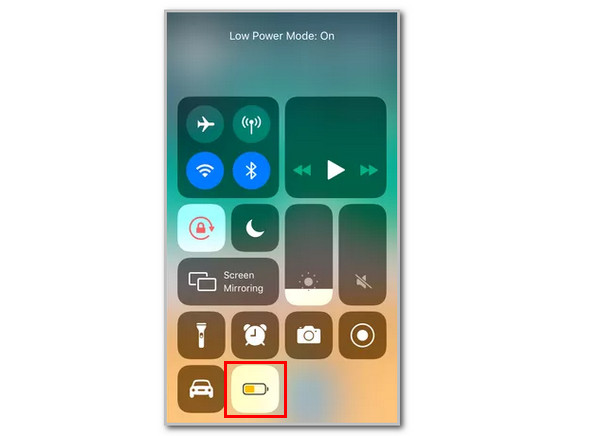
Do not let the iPhone overheat, and ensure that the Camera app is closed. Also, turn off the Low Power mode. To do that, swipe down on the Control Center and tap the Battery button.
2. Restart iPhone
However, there are times when the iPhone camera and flashlight not working simultaneously. Restarting the iPhone will be the best way to fix it. It will fix the glitches that are causing the issues. Please follow the steps below to restart iPhone.
Press and hold Side and Volume Down button at the same time on iPhone with Face ID. On the other hand, you need to press and hold the Side or Top button of the iPhone for other models. After that, the Power-off slider must be prompted. Please drag the slider to turn off the iPhone after a few seconds. Turn it on again by pressing and holding the Power button.
3. Reset iPhone Settings
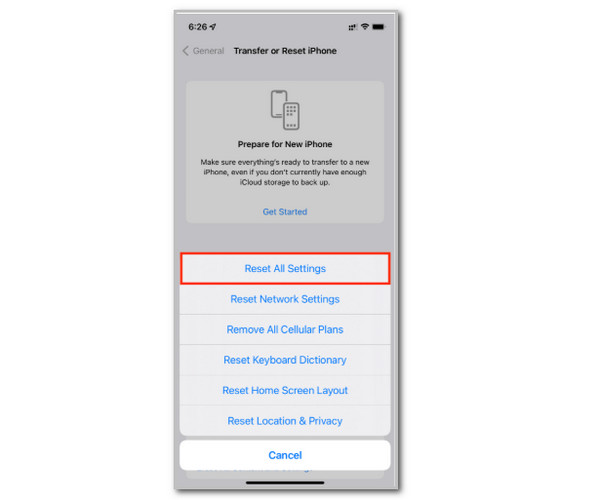
Faulty iPhone settings customization can lead to different issues, including the iPhone flashlight not working. The good thing is that the iPhone allows you to reset its settings without losing data. Use the steps below to reset the iPhone settings.
Go to the Settings app on the iPhone. After that, please tap the General button from the list. Then, select the Transfer or Reset iPhone button to see more options. Select the Reset button and choose the Reset All Settings button. Confirm the action by tapping the Reset All Settings button.
4. Update iOS
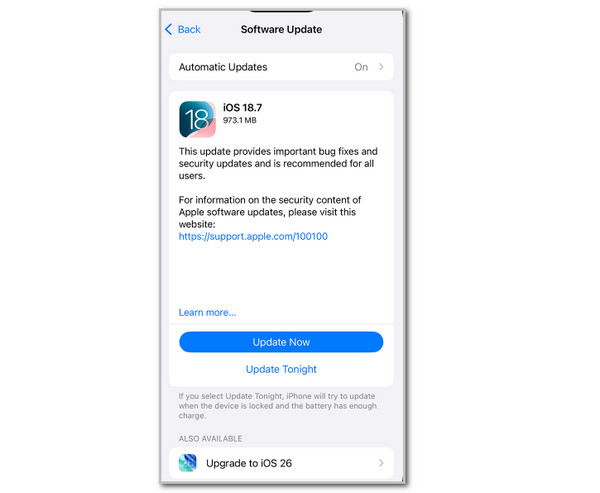
The iPhone flashlight might not function as expected if the iOS version is outdated. If that’s the case, get the latest updates for your apps or features, like flashlight, to fix the issues. Update iPhone iOS version using the instructions below.
Ensure that you back up your iPhone data to avoid data loss. Then, tap the Settings app to open it. Later, tap the General button at the top of the main interface. Then, tap the Software Update button. Wait for the available updates and tap the Update Now button.
5. Use iTunes/Finder to Update or Restore iPhone
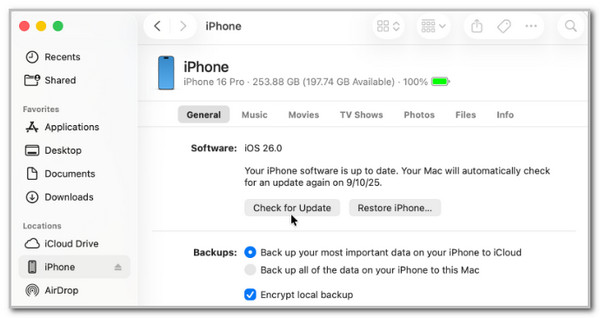
Another common question is: Why is my iPhone flashlight is not working after updating the iOS version? The primary reason might not be the iPhone iOS version or system. If so, you can update or restore it with iTunes or Finder. This way, you can use it as an alternative option. iTunes and Finder have almost the same operations in updating and restoring your iPhone. You can rely on the steps below.
Plug the iPhone into the computer and open iTunes or Finder. Then, click the iPhone button or name to see more options. Click the Summary or General button. Click the Restore iPhone afterward to restore it to factory settings. For updating it, click Check for Update and click the Download and Update button.
6. Factory Reset iPhone
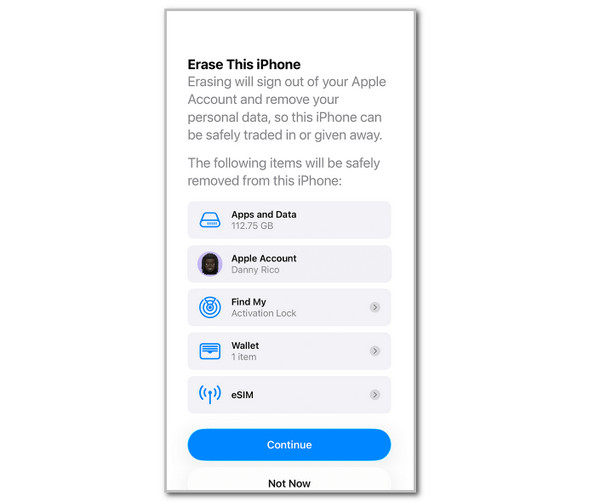
If the previous methods did not work, it is time to factory reset your iPhone. This technique has a higher chance of fixing your iPhone flashlight. Ensure that you back up your iPhone first because it will permanently delete your iPhone data. The steps are provided below.
Open Settings and tap General. After that, go to Transfer or Reset iPhone. Tap Erase All Content and Settings. Next, enter your iPhone passcode or Apple ID password. Choose the data to delete and tap Continue.
7. FoneLab iOS System Recovery
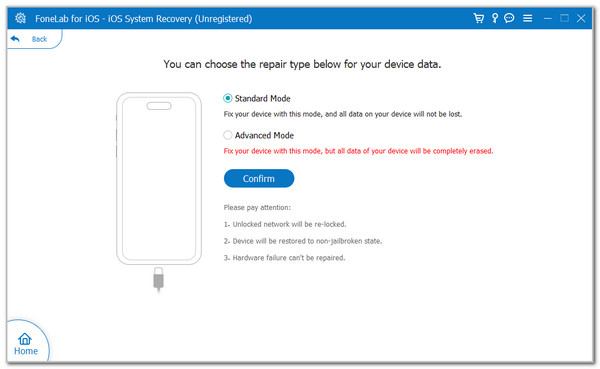
The built-in methods are indeed convenient. However, there are times when they do not 100% work. Use FoneLab iOS System Recovery as an alternative. It is a third-party tool that can fix the iPhone flashlight and 50+ more issues. It includes screen issues, system issues, and more. You can use its Standard Mode to fix the iPhone without data loss. On the other hand, use the Advanced Mode to fix the iPhone deeper, but it will delete your iPhone data. The steps below will be your assistance on how to use this tool.

FoneLab enables you to fix iPhone/iPad/iPod from DFU mode, recovery mode, Apple logo, headphone mode, etc. to normal state without data loss.
- Fix disabled iOS system problems.
- Extract data from disabled iOS devices without data loss.
- It is safe and easy to use.
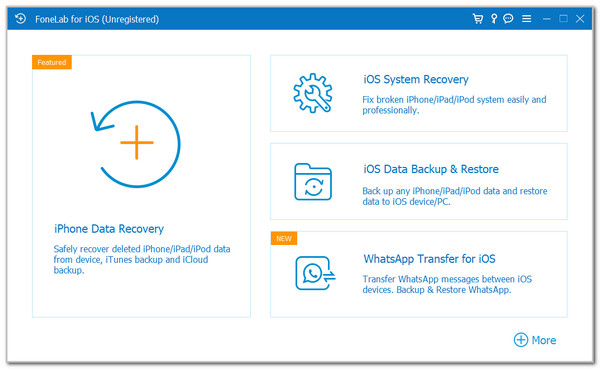
Step 1Download the tool on your computer. Plug the iPhone using a USB cable and choose the iOS System Recovery button.
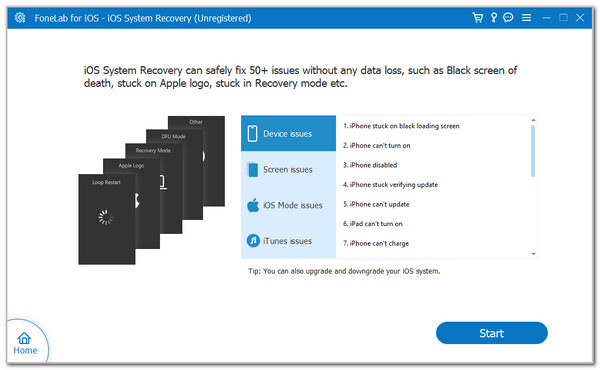
Step 2The supported issues will appear. Click Start to continue.
Step 3Select between the Standard Mode and the Advanced Mode. Then, click Confirm to start fixing your iPhone flashlight.
Part 3. Comparison Table for Troubleshooting Ways
| Method | When to Use | Success Rate |
| Ensure Your iPhone Is Not Overheating, Low Power Mode, or Running Camera App | When the iPhone flashlight is not responding. | Moderate |
| Restart iPhone | When the flashlight on the iPhone crashes or lags. | High |
| Reset iPhone Settings | When the issue occurs after changes to the iPhone settings. | Low |
| Update iOS | The flashlight is not working after updating the iPhone version to the latest version. | Moderate |
| Use iTunes/Finder to Update or Restore iPhone. | When the flashlight is still not working after multiple attempts at troubleshooting. | High |
| Factory Reset iPhone | When all of the troubleshooting methods did not work | High |
| FoneLab iOS System Recovery | When Apple or iPhone built-in methods or features did not work. | High |
Part 4. FAQs about Flashlight Not Working on iPhone
How do I turn on my iPhone flashlight?
Unlock your iPhone and swipe down the Control Center section. After that, the active tiles will appear. Please tap the Flashlight button at the bottom right to turn it on.
Does the iPhone flashlight ever run out?
No. The iPhone flashlight does not run out. It will be turned off if you do it manually. However, the iPhone flashlight consumes much of its battery.
The flashlight not working on iPhone issue is inconvenient for some people. They might need to find items in the dark. This article has shown the 7 easy ways to fix it. FoneLab iOS System Recovery is one of them. You can download the tool and fix your iPhone flashlight right away!



