
 iPhone Data Recovery
 iOS System Recovery
 iOS Data Backup & Restore
 iOS Unlocker
 iPhone Password Manager
 Location Changer
 Android Data Recovery
 Broken Android Data Extraction
 Android Data Backup & Restore
 Android Unlocker
 FoneTrans for iOS
 iPhone Data Eraser
 iPhone Cleaner
 HEIC Converter
 HyperTrans
 WhatsApp Transfer for iOS
 Mac Sweep
 Data Retriever
 Mac Data Retriever
 Video Converter Ultimate
 Screen Recorder
 Phone Mirror
How to Fix iPhone Camera Screen Black in 8 Easy Ways
 Updated by
 Hi! We were having fun on our vacation and decided to take a picture. However, I see nothing but black when I open my iPhone Camera app. Why is my camera screen black on my iPhone? I hope you can help me fix it to capture our moments. Thank you!
The Camera app on iPhone can take a picture and a video. However, some iPhone users report that they experience a black screen when using the said app. Do you want to know the possible reasons? Scroll through this post, and you will encounter the 8 quick ways to fix the issue.


Guide List
Part 1. Why is My Camera Black Screen on My iPhone
Why is my iPhone camera screen black? The iPhone Camera can have a black screen due to different reasons. Software and hardware issues are the causes. One of the most common is a hardware issue, which is a broken physical camera. You can also check for dirt or dust on the camera because it can cause the issue to occur. They might block the camera, which is the reason for the black screen in the app.
Software issues like an outdated iOS version, faulty settings, lagging, crashing, and more can also be the cause.
Part 2. How to Fix iPhone Camera Black Screen
Do not let the iPhone camera's black screen last longer. Fix the issue with the 8 easy methods in this section. Please scroll below to discover them.
1. Switching Cameras/Restart Camera App
The Camera application on your iPhone can be switched. It could be from the front and back cameras. You can check if the camera issue is a hardware problem. If the front camera is working and the back camera is not, or vice versa, there is a huge possibility that it is a hardware problem. If so, the iPhone camera needs a replacement.
On the other hand, there might be a glitch in the Camera app. You may restart the Camera app on your iPhone. You only need to swipe the Camera app up and swipe it once more to close it.
2. Force Restart iPhone
Sometimes, the cause of the black screen on the iPhone Camera app is a crashing problem. The camera app might have crashed due to a system error. You need to force restart the iPhone if that’s the case.
iPhone with Face ID: Press and quickly release Volume Up. Same with Volume Down. Press and hold Side. The Apple logo must be shown.
iPhone with Home Button: Press and hold Side and Volume Down. Keep pressing the said buttons until the Apple logo screen is shown.
3. Reset All Settings on iPhone
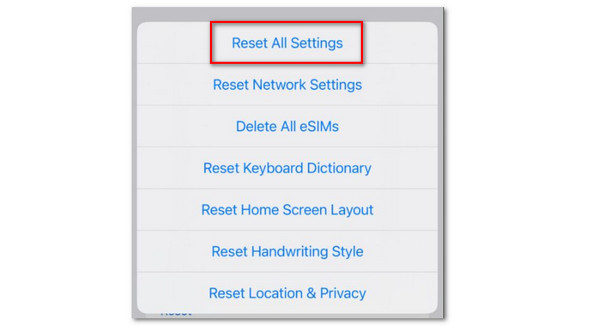
The Camera app on iPhone can be faulty when the settings are incorrect. If so, it is recommended to reset all settings on iPhone to bring back the original settings that are correct for the Camera app on the iPhone.
Tap Settings and select General. After that, choose Transfer or Reset iPhone. Then, select Reset and tap Reset All Settings.
4. Update iOS
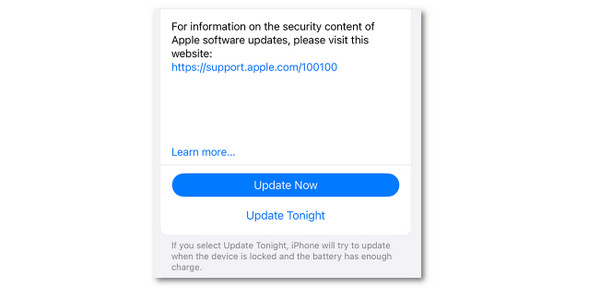
An outdated iOS version can be the reason why the iPhone Camera app is a black screen. It might not be receiving the latest version of the app, or there are glitches in supporting the function. Updating the iOS version will fix the issue.
Select iPhone Settings and choose General. Then, select Software Update and tap the Update Now button.
5. FoneLab iOS System Recovery

FoneLab enables you to fix iPhone/iPad/iPod from DFU mode, recovery mode, Apple logo, headphone mode, etc. to normal state without data loss.
- Fix disabled iOS system problems.
- Extract data from disabled iOS devices without data loss.
- It is safe and easy to use.
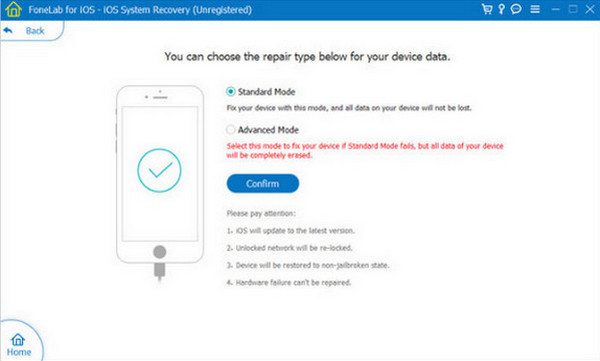
FoneLab iOS System Recovery can indeed fix the software issue that is affecting the iPhone Camera app, which leads to its black screen. It uses a USB connection to resolve the said issue. You can use its Standard Mode to fix the problem without data loss. You can also dig deeper into the issue by using Advanced Mode. Backups will be convenient with this feature because it will definitely delete all the content and settings of the iPhone. The steps on how to use the tool are available below.
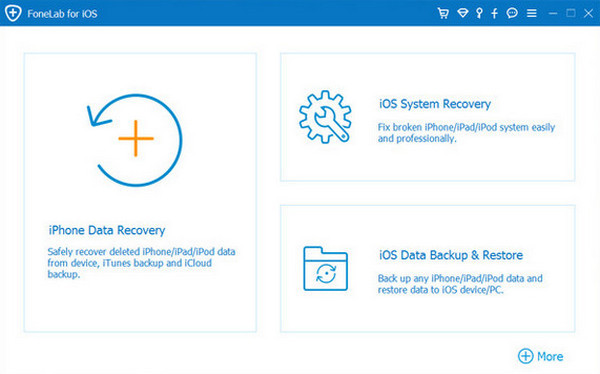
Step 1Download the tool by clicking Free Download. Set up and install it afterward. Click iOS System Recovery.
Step 2Plug your iPhone into a computer with your USB. Select Start Now afterward.
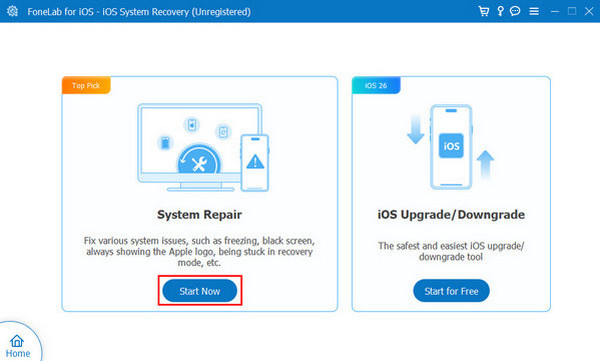
Step 3Choose a repair mode. Then, click Confirm to fix the issue.
6. Factory Reset iPhone
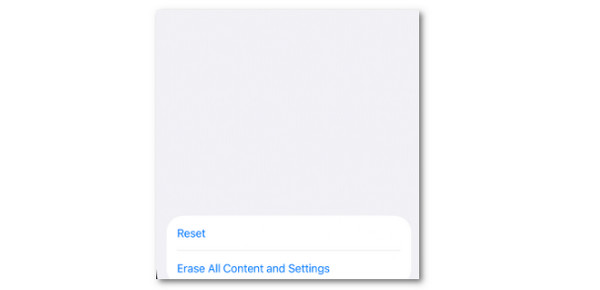
The factory reset on iPhone will indeed delete all the stored settings and data. It will bring it back to the default settings. This method is also used to fix issues on the iPhone. The steps can be seen below.
Open iPhone Settings and tap General. Select Transfer or Reset iPhone and choose Erase All Content and Settings. Enter the iPhone passcode.
7. Recovery Mode
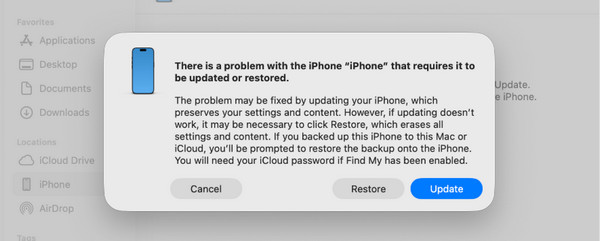
When the iPhone has ongoing software issues, you can use iTunes and Finder to fix them. You can also use Apple Device on Windows. These tools can determine and resolve the issue through recovery mode. The steps on how to do this are available below.
Step 1Plug your iPhone into the computer and access iTunes or Finder. Enter the iPhone into recovery mode. For an iPhone without the Home button, press and immediately release Volume Up and Volume Down. Press and hold Side, and the Connect to Computer screen will appear. For the iPhone models that have a Home button, press and hold the Side and Volume Down or Home button at the same time. Later, the Connect to Computer screen will appear.
Step 2A tiny window will be displayed on the screen. Please select the Restore button at the bottom right to fix the iPhone camera issue.
8. Restore Your iPhone with Backup
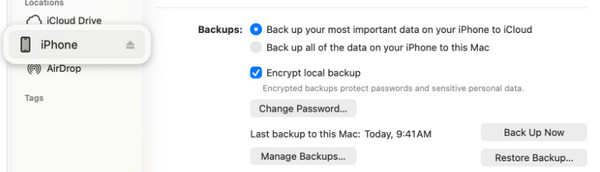
iTunes and Finder can also restore your iPhone from a backup. Apple Device on Windows can also be used. This way, you can fix the corrupted data or settings that cause the iPhone Camera app black screen. You can also choose the Restore button if you not have a backup. The steps are available below on how to do it.
Open the Finder or iTunes tool on your Mac or Windows. After that, please plug the iPhone into the computer with a USB cable. Then, click the iPhone button, and the information will appear. Select the Restore Backup button and choose the most relevant backup from the screen. Enter the password if required, and the restore procedure will start.
Part 3. FAQs about iPhone Camera Black Screen
How to tell if an iPhone camera is damaged?
You can directly check the hardware components of your iPhone camera to check if it has been damaged. There are also indications while you use it, like lagging and crashing issues.
How expensive is it to replace an iPhone camera?
It depends on whether you will replace the camera lens only or the whole camera module. Also, it varies depending on the model of your iPhone. The cost of the camera replacement ranges from $40 to $149.
The reasons and ways to fix the iPhone camera black screen are included in this post. FoneLab iOS System Recovery is the best third-party tool to fix the mentioned issue. It can fix the software issue that causes the Camera app to turn black screen. Also, the tool can upgrade and downgrade your iOS version. Get the tool now and explore more of its features.



