
 iPhone Data Recovery
 iOS System Recovery
 iOS Data Backup & Restore
 iOS Unlocker
 iPhone Password Manager
 Location Changer
 Android Data Recovery
 Broken Android Data Extraction
 Android Data Backup & Restore
 Android Unlocker
 FoneTrans for iOS
 iPhone Data Eraser
 iPhone Cleaner
 HEIC Converter
 HyperTrans
 WhatsApp Transfer for iOS
 Mac Sweep
 Data Retriever
 Mac Data Retriever
 Video Converter Ultimate
 Screen Recorder
 Phone Mirror
How to Reset AirPods to Factory Settings in The Easiest Way
 Updated by
 Hi! How to factory reset my AirPods? I cannot connect my iPhone and iPad to the AirPods. I think it has connection issues. Can you help me factory reset the AirPods to connect my iPad and iPhone successfully? Thank you!
It is indeed true that factory resetting your AirPods will fix connection issues. Do you experience the problem? This article is for you! The easiest and most proper way to factory reset your AirPods is here. Other procedures on your AirPods are also present. Please continue reading this post to discover them all.

Guide List
Part 1. How to Factory Reset AirPods
How to factory reset AirPods Max, and other versions? This method depends on the buttons and models your AirPods have. Please imitate the steps below to factory reset your AirPods successfully.
AirPods 1, 2, 3, AirPods Pro 1 and 2: Put the AirPods back into their case if you use them and close the lids. Wait for 30 seconds. After that, open the lid and press and hold Set Up from the back of the AirPods case for 15 seconds. Wait for the light to flash, and it must be white.
AirPods Pro 3 and AirPods 4: Get the AirPods case and put them into it. Later, close the lid and wait for 30 seconds. Later, open the lid and double-tap the front of the case three times. You will see the lights afterward.
AirPods Max: Please press and hold the physical Digital Crown and Noise Control buttons simultaneously. Wait for the status light to flash next to the status light. This will take a few seconds, approximately 15 seconds.
Part 2. How to Restart AirPods
The factory reset is commonly used on AirPods to fix issues. If you think twice in that process, you can initially restart your AirPods first. The steps will be shown below.
AirPods and AirPods Pro: Get the case to put back your AirPods with it. Then, close the lids for 10 seconds or more to restart them.
AirPods Max: On the AirPods right headphone, press and hold the physical Digital Crown and Noise Control. Wait until the status light flashes. Immediately release the buttons afterward.
Part 3. How to Unpair AirPods
You can also unpair the AirPods from the iPhone, iPad, and Mac and then connect them again to fix other issues. Removing the AirPods from the devices will remove all of the connected devices with the same Apple ID. This procedure is easy, and you can follow the steps below for the proper way.
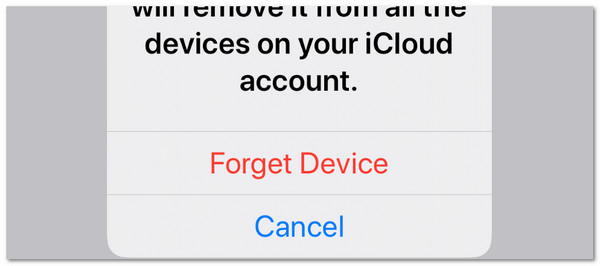
iPhone/iPad: Open the Settings app on an iPhone and select the name of your AirPods from the top of the screen. Then, tap the Forget Device button.
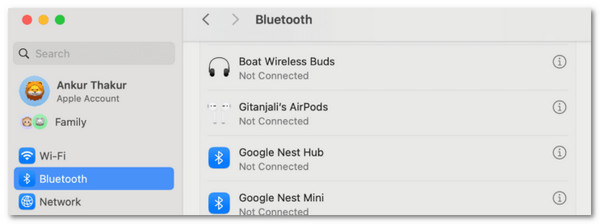
Mac: Open the System Settings program on your Mac. Select Bluetooth. After that, select the AirPods name from the side of the main interface. Click the Forget This Device button afterward from the list.
Part 4. What If You Can't Pair AirPods on iPhone
However, sometimes, AirPods are not the problem why you cannot connect them to your iPhone. If so, the iPhone or iPad must be the one you need to fix. In this section, you will discover the 3 leading ways to fix your iPhone that cannot connect to your AirPods. Please continue reading to know them.
1. Restart iPhone
Why not restart iPhone to fix the issue related to AirPods? This procedure is a bit demanding due to the physical button combinations. The steps below will guide you through this process.
If the iPhone does not have Home, press and hold Volume Down and Side. If the iPhone has Home, press and hold Top or Side only. Then, slide the Power-off slider to turn off the iPhone. Wait for 30 seconds and turn it on again by pressing and holding Side or Top.
2. Reset All Settings
You can reset your iPhone settings to their default to fix the issue on your iPhone related to your AirPods. This way, you can give fresh and correct settings for your iPhone Wi-Fi and Bluetooth that are commonly used for AirPods to be connected. Follow the steps below on how to reset all settings on iPhone.
Open Settings and choose the General button. Then, select Transfer or Reset iPhone from the list and choose Reset. Finally, tap Reset All Settings from the screen.
3. FoneLab iOS System Recovery

FoneLab enables you to fix iPhone/iPad/iPod from DFU mode, recovery mode, Apple logo, headphone mode, etc. to normal state without data loss.
- Fix disabled iOS system problems.
- Extract data from disabled iOS devices without data loss.
- It is safe and easy to use.
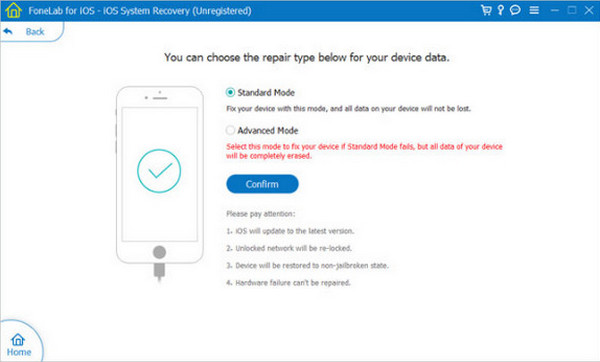
The iPhone that cannot be connected to your AirPods can be caused by system issues. It is hard to know which issues are affecting it. Use FoneLab iOS System Recovery if that’s the case! It can fix 50+ system issues that can be fixed in a few seconds or minutes. You can use the Standard Mode and the Advanced Mode of the tool. Advanced Mode will fix major issues on your iPhone, and Standard Mode will fix minor issues. These methods can restore your iPhone via a USB cable. Please follow the steps below to know how to use the tool.
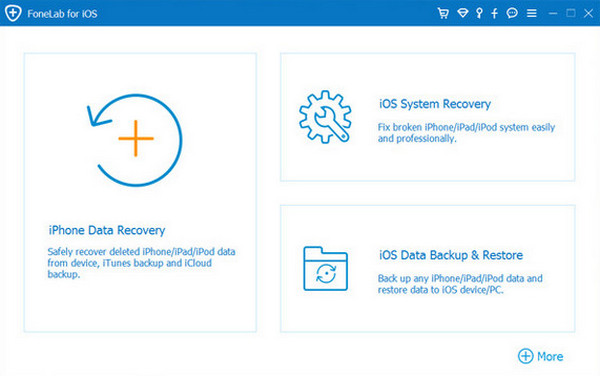
Step 1Go to the main website of FoneLab iOS System Recovery. After that, choose the Free Download button from the screen to get the file. Set it up afterward and install it from a small window. Later, the tool will be launched on your computer, and you will click iOS System Recovery to see the related features on the tool.
Step 2Please click the Start Now button on the left. This way, you will access the features of the tool that can fix issues on your iPhone.
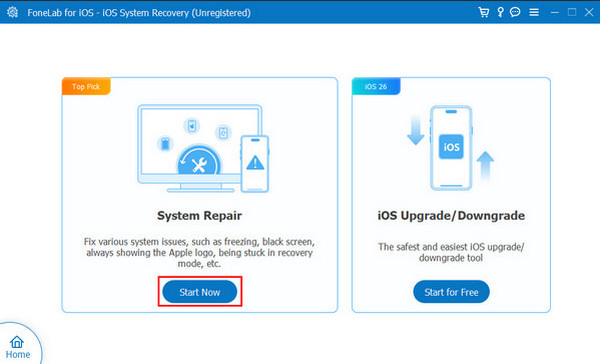
Step 3Plug the iPhone into the computer. Please use a compatible USB cable. Finally, choose a repair mode and click the Confirm button to start fixing your iPhone issue.
Part 5. FAQs about How to Factory Reset AirPods
How do I know my AirPods are factory reset?
It is easy to know when the AirPods have been factory reset. You will see the status light flash on your AirPods. After that, you will see white from the mentioned device. If you did not see these lights, the factory reset might be unsuccessful.
How to stop AirPods from being tracked by the previous owner?
You can ask them to remove the AirPods from their Find My app. To do that, ask them to open the app. After that, tap the Devices button at the bottom of the screen. Later, locate the AirPods name from the app. Finally, tap the Remove This Device button from the list.
This article provides you how to factory reset AirPods Pro and other models. It will also guide you on how to restart and unpair your AirPods easily. FoneLab iOS System Recovery is included to help you fix AirPods not connecting issues on iPhone or iPad. Download the tool now to use its excellent features!



