
 iPhone Data Recovery
 iOS System Recovery
 iOS Data Backup & Restore
 iOS Unlocker
 iPhone Password Manager
 Location Changer
 Android Data Recovery
 Broken Android Data Extraction
 Android Data Backup & Restore
 Android Unlocker
 FoneTrans for iOS
 iPhone Data Eraser
 iPhone Cleaner
 HEIC Converter
 HyperTrans
 WhatsApp Transfer for iOS
 Mac Sweep
 Data Retriever
 Mac Data Retriever
 Video Converter Ultimate
 Screen Recorder
 Phone Mirror
- Part 1. Turn Off Ringer on iPad Control Center
- Part 2. How to Turn Ringer Off on iPad by Adjusting the Volume
- Part 3. Enable Do Not Disturb to Turn Off iPad Ringer
- Part 4. How to Turn Off Ringer on iPad Using AssistiveTouch
- Part 5. How to Make a Ringtone on iPad with FoneTrans for iOS
- Part 6. FAQs about How to Turn Off Ringer on iPad
How to Turn Ringer Off on iPad in 4 Easy Techniques
 Updated by
 By default, we receive a sound whenever we receive a notification on an iPad. It could be from its apps or features that we often use. Additionally, we also hear them when there is an incoming call. This happens when the iPad is not in Silent mode.
However, some prefer to turn off the ringer on their iPad for some reasons. They might not want to be disturbed; they are going to sleep, and more. How to turn iPad ringer off? There are various ways to do this, but the 4 easy and quick ways are in this post. Kindly scroll down in this post to discover them.

Guide List
- Part 1. Turn Off Ringer on iPad Control Center
- Part 2. How to Turn Ringer Off on iPad by Adjusting the Volume
- Part 3. Enable Do Not Disturb to Turn Off iPad Ringer
- Part 4. How to Turn Off Ringer on iPad Using AssistiveTouch
- Part 5. How to Make a Ringtone on iPad with FoneTrans for iOS
- Part 6. FAQs about How to Turn Off Ringer on iPad
Part 1. Turn Off Ringer on iPad Control Center
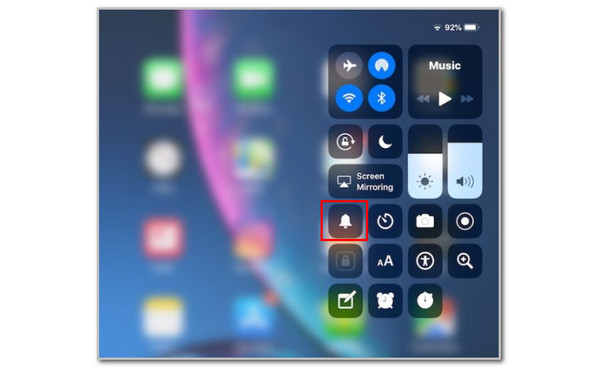
Apple offers Control Center to have quick access to some of the features it provides. This way, you do not need to open or navigate the applications or features manually, which takes time. You can use them as long as they are on the active tiles. Some features are not automatically added to the active tiles, but the Ringer feature is placed automatically. Turn off ringer on iPad using Control Center by following the steps below.
Open your iPad and unlock it if it requires a password. After that, swipe down at the top right of the screen to access Control Center. After that, the active tiles will appear on the screen. Locate the Bell button, which represents the ringer feature. Please tap it to turn it off. Ensure that it has the Line indication, which means that it is turned off.
Part 2. How to Turn Ringer Off on iPad by Adjusting the Volume
Besides the Control Center, the physical buttons of the iPad can also be a big help for turning off the ringer feature. These buttons must only meet the limit of lowering the ringer volume. However, ensure that you open a supported application from the ringer feature for notifications. The reason is that they are applications that reduce the system sound, instead of the ringer.
Additionally, ensure that there are no faulty or broken physical buttons, especially the Volume Down button. This way, you will have a smooth process in turning off the ringer feature. Follow the steps below to do that.
Open and unlock your iPad. After that, you can open any apps from your iPad that support the ringer feature. Then, long-press the Volume Down button from the side. Ensure that it reaches the limit to turn off the ringer feature on your iPad.
Part 3. Enable Do Not Disturb to Turn Off iPad Ringer
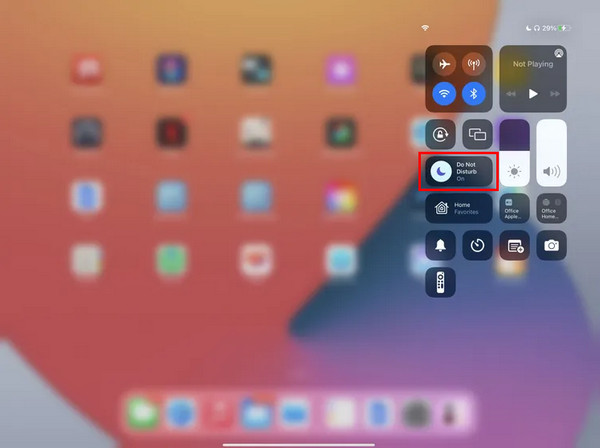
Do Not Disturb is a feature that can be accessed on your iPad. This feature does not allow any type of notification from your iPad when turned on. It is commonly used during rest, sleep, work, meetings, study, and more. Discover how to turn on Do Not Disturb on your iPad with the instructions below.
Open Control Center on your iPad by swiping from the top right of the screen. Then, you will see the active tiles from the main screen. Please locate the Moon button, which represents the Do Not Disturb feature. Ensure that it has the Purple color, indicating that the feature is turned on.
Part 4. How to Turn Off Ringer on iPad Using AssistiveTouch
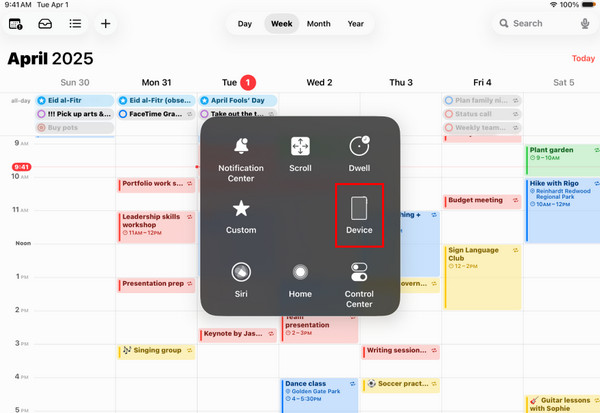
AssistiveTouch is the accessibility feature on your iPad. It helps you operate the iPad without pressing any physical buttons for some features, like the ringer feature. This feature can be accessed in all apps and features of your iPad. How to turn off the ringer on iPad? The steps are provided below.
Turn on AssistiveTouch: open Settings and tap Accessibility. Tap AssistiveTouch from Touch. Turn it on afterward. The floating feature will appear. Tap it, and more options will appear. Tap the Device and select the Mute button.
Part 5. How to Make a Ringtone on iPad with FoneTrans for iOS
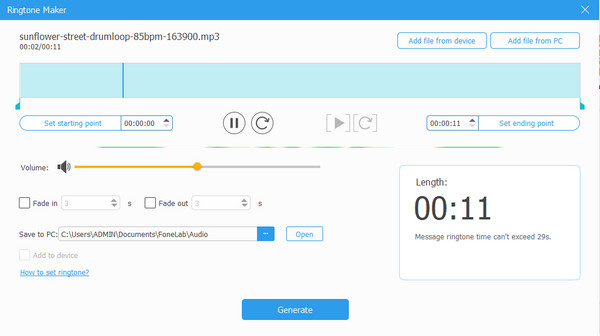
Are you interested in creating a ringtone for your iPad? If that’s the case, let us help you make a ringtone that meets your standards with FoneTrans for iOS. It is made to transfer files across Apple devices, but it has a Toolbox tool that offers the Ringtone Maker feature. You can import files from your PC, Mac, or mobile phone using it. Also, this tool applies different settings for your ringtone. It can add the fade in, fade out, adjust the volume, set the starting point, and more. Please follow the steps below to make a ringtone with this tool.

With FoneTrans for iOS, you will enjoy freedom to transfer your data from iPhone to computer. You can not only transfer iPhone text messages to computer, but also photos, videos and contacts can be moved to PC easily.
- Transfer photos, videos, contacts, WhatsApp, and more data with ease.
- Preview data before transferring.
- iPhone, iPad and iPod touch are available.
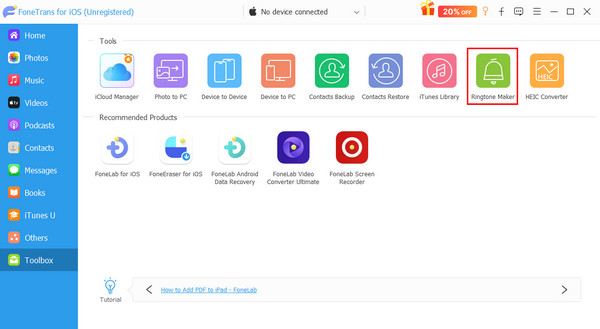
Step 1Go to the website of FoneTrans for iOS. After that, set up, install, and open it afterward. Later, click the Toolbox button at the bottom left of the screen. The additional tools will appear on the screen. Please click the Ringtone Maker button at the top right.
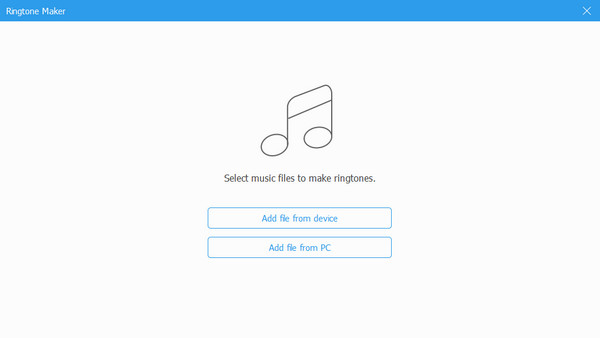
Step 2The import interface will be prompted. After that, you can click the Add File from Device button. Then, plug the mobile phone into the PC where the music, sound, or tone you want to make is stored. Alternatively, click the Add File from PC button and select the files from your File Explorer to import them.
Step 3The file will be visible at the top of the screen. Then, please edit the file based on your preference. Then, click the Generate button at the bottom center of the screen. Finally, save the file to the PC to complete the process.
Part 6. FAQs about How to Turn Off Ringer on iPad
Why can't I silence my iPad?
There are multiple reasons why you cannot silence your iPad. It might not have the Mute switch. Also, the system sounds of your iPad could not be set to play with the downloaded or default apps. Finally, the Do Not Disturb feature might not be enabled.
Do Not Disturb only for iPad?
No. The Do Not Disturb feature is not only for the iPad. Multiple Apple devices also contain it. It includes iPad, Mac, and Apple Watch. Furthermore, it is not limited to Apple devices. It is also supported by non-Apple devices, like an Android phone.
This informative post is all about how to turn ringer off on an iPad. The 4 leading ways to do it are included for your smooth process. FoneTrans for iOS is here to help you make and transfer a ringtone if you need it. You can download the tool right away and make your melodious ringtone!



