
 iPhone Data Recovery
 iOS System Recovery
 iOS Data Backup & Restore
 iOS Unlocker
 iPhone Password Manager
 Location Changer
 Android Data Recovery
 Broken Android Data Extraction
 Android Data Backup & Restore
 Android Unlocker
 FoneTrans for iOS
 iPhone Data Eraser
 iPhone Cleaner
 HEIC Converter
 HyperTrans
 WhatsApp Transfer for iOS
 Mac Sweep
 Data Retriever
 Mac Data Retriever
 Video Converter Ultimate
 Screen Recorder
 Phone Mirror
- Part 1. How to Transfer Contacts from iPhone to Android via Samsung Smart Switch
- Part 2. Transfer iPhone Contacts to Android via Google Drive
- Part 3. How to Move Contacts from iPhone to Android via Switch to Android
- Part 4. How to Transfer iPhone Contacts to Android Using iCloud
- Part 5. Transfer Contacts from iPhone to Android Using iTunes
- Part 6. Transfer Contacts from iPhone to Android with FoneLab HyperTrans
- Part 7. FAQs about How to Transfer Contacts from iPhone to Android
 Transfer Phone Data Now
Transfer Data From iPhone, Android, iOS, Computer to Anywhere without Any Loss.
- Transfer Data from One Micro SD Card to Another Android
- How to Transfer Pictures from One Phone to Another
- How to Transfer Photos from Old LG Phone to Computer
- How to Transfer Photos from an Old Samsung to Another Samsung
- Transfer Contacts from Samsung to iPhone
- Transfer Data from LG to Samsung
- Transfer Data from Old Tablet to New
- Transfer Files from Android to Android
- Transfer iCloud Photos to Android
- Transfer iPhone Notes to Android
- Transfer iTunes Music to Android
How to Move Contacts from iPhone to Android in 6 Trusted Ways
 Updated by
 An iPhone can store thousands of contacts without affecting or consuming much of your storage. However, some iPhone users still prefer to transfer their Android phone for backup, syncing, and other purposes. Do you want to move contacts from iPhone to Android? You are on the right post! This article will show you the 6 proven and tested methods for the transfer process of your contacts. Please proceed reading the post to see more information.

Guide List
- Part 1. How to Transfer Contacts from iPhone to Android via Samsung Smart Switch
- Part 2. Transfer iPhone Contacts to Android via Google Drive
- Part 3. How to Move Contacts from iPhone to Android via Switch to Android
- Part 4. How to Transfer iPhone Contacts to Android Using iCloud
- Part 5. Transfer Contacts from iPhone to Android Using iTunes
- Part 6. Transfer Contacts from iPhone to Android with FoneLab HyperTrans
- Part 7. FAQs about How to Transfer Contacts from iPhone to Android
Part 1. How to Transfer Contacts from iPhone to Android via Samsung Smart Switch
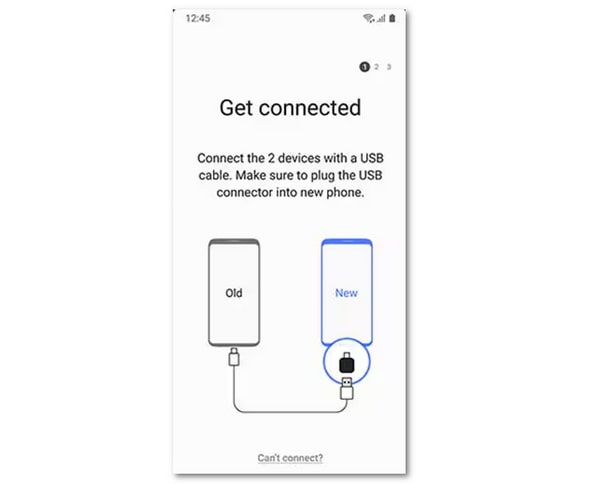
Samsung Smart Switch is a feature that is primarily accessible to your Samsung phones. This app is also available on other mobile phones, like the iPhone. The best method for transferring your iPhone contacts to an Android phone with this app is a USB connection. How to use Samsung Smart Switch to transfer iPhone contacts to an Android phone? Follow the steps below.
Plug the iPhone and Android phone into a USB cable and adaptor. After that, open the Samsung Smart Switch on the mobile phone. Then, tap the Trust button to allow the permissions. Select Samsung Smart Switch, and your iPhone will look for another device. Select Calls and Contacts and Transfer to start transferring.
Part 2. Transfer iPhone Contacts to Android via Google Drive
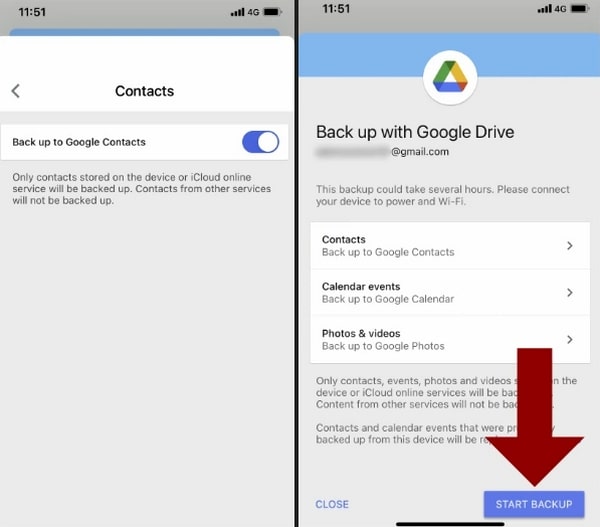
Google Drive is one of the free services that Google offers. This service allows you to transfer, manage, and store contacts on your mobile phone. Videos, photos, and documents are also supported. Transfer your iPhone contacts to an Android phone with Google Drive with the steps below.
Open Google Drive and sign in to your Google account. Tap Menu and select Settings. Tap Backup and toggle Contacts. Tap Start Backup to back up the iPhone contacts. Finally, sign in to the same account on your Android phone's Google Drive.
Part 3. How to Move Contacts from iPhone to Android via Switch to Android
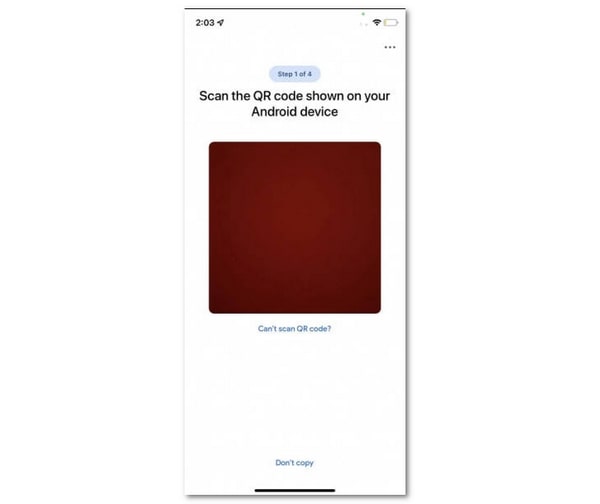
Switch to Android is an app that allows you to transfer multiple data from your iPhone to Android wirelessly. Contacts are the included data types. It allows you to transfer specific data from your iPhone to Android. You need an internet connection for the process. The steps below will be your guide.
Download Switch to Android on your iPhone. Then, tap the Start button and scan your Android phone using the scanner. To do that, set up the Android phone and follow the on-screen instructions. Tap Next from Copy Apps & Data. Tap No cable and tap Switching from iPhone or iPad. Log in to the Google account. Tap Join and toggle Contacts. Tap Continue to transfer the data.
Part 4. How to Transfer iPhone Contacts to Android Using iCloud
iCloud is commonly used to transfer contacs from iPhone to new iPhone. Did you know that this cloud service can also be a way to transfer your iPhone contacts to an Android phone? Learn this process with the steps below.
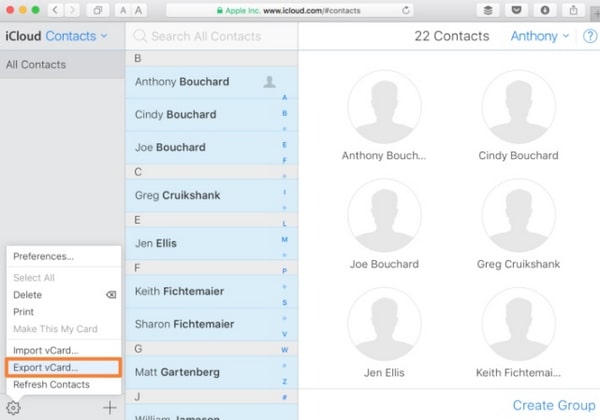
Go to iPhone Settings and tap iCloud. Then, toggle on Contacts to sync it to your iCloud. On your Android phone, visit the iCloud website. Then, go to Contacts and select the contacts you want to explore. Tap Gear at the bottom left and choose Export vCard.
Part 5. Transfer Contacts from iPhone to Android Using iTunes
iTunes can be used to sync your iPhone contacts to your PC. This way, you can transfer them to your Android phone afterward. This procedure is a bit demanding. It requires a bit of professional skills in this case. Be guided by the steps below.
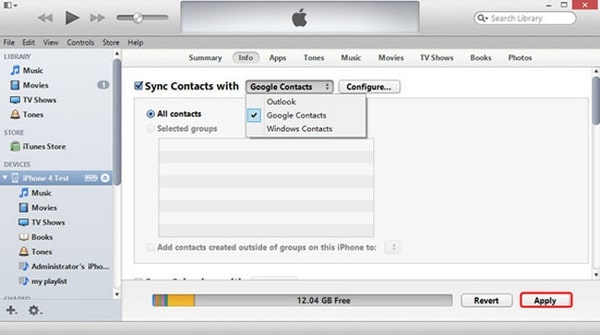
Step 1Open iTunes and plug the iPhone into the PC. After that, select the iPhone name on the left and choose Info. Select Sync Contacts with and choose Google Contacts. Click Apply afterward to proceed.
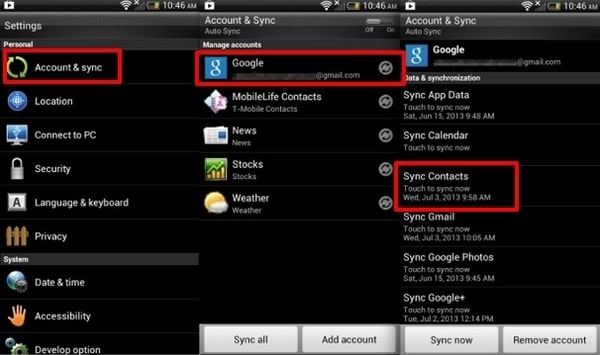
Step 2Open your Android phone's Settings. Then, select the Account & Settings button from the list. Later, select Google and ensure that the same Google account is signed in. Later, choose Sync Contacts from the list.
Part 6. Transfer Contacts from iPhone to Android with FoneLab HyperTrans
There are third-party tools that can move your iPhone contacts to your Android phone. But the best of them is FoneLab HyperTrans. It can transfer countless contacts in a single transfer procedure in a few clicks! Besides that, you can add, delete, and modify your contacts using the tool. This tool supports the latest versions of Android OS and iOS.
Transfer Data From iPhone, Android, iOS, Computer to Anywhere without Any Loss.
- Move Files between iPhone, iPad, iPod touch and Android.
- Import Files from iOS to iOS or from Android to Android.
- Move Files from iPhone/iPad/iPod/Android to Computer.
- Save Files from Computer to iPhone/iPad/iPod/Android.
You can also transfer your photos, videos, call logs, and other data types with ease. Follow the steps below to use this tool.
Step 1Go to the main website of FoneLab HyperTrans. Click the Free Download button. After that, set up, install, and launch the tool to access its helpful transfer features.

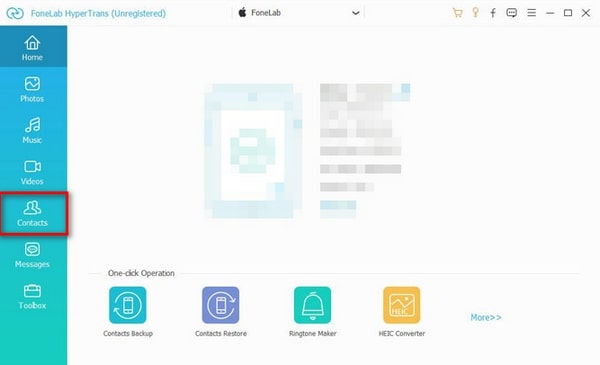
Step 2Plug the iPhone and Android phone into the computer where the tool is launched. Then, click the Contacts button on the left. This way, the tool will scan the available contacts on your iPhone. The results will be displayed on the screen, and you need to choose the contacts you want to transfer afterward.
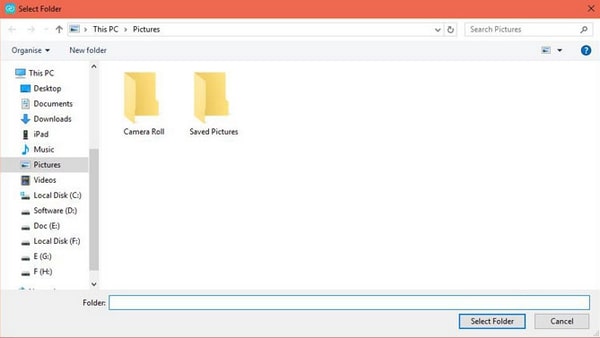
Step 3Step 3. Please click the Phone button at the top and choose the Android phone from the list. Later, a small window will appear, and you need to select a destination path and click the Select Folder button to start transferring your contacts from your iPhone to your Android phone.
Part 7. FAQs about How to Transfer Contacts from iPhone to Android
How to transfer 1000 contacts from one phone to another?
A thousand contacts is a considerable number that some methods cannot transfer from your iPhone to your Android phone. The fastest way to transfer them is by using FoneLab HyperTrans. This tool can transfer your 1000 contacts from an iPhone to an Android phone in a few minutes.
How long does the contacts transfer take?
It depends on the method used for transferring them. If you use FoneLab HyperTrans, it will only last for a few seconds or minutes. On the other hand, other methods can last for more than half an hour.
This article helps you transfer contacts from iPhone to Android. The 6 most convenient methods are here for your transfer process. FoneLab HyperTrans is what you need! It is a third-party tool that can transfer multiple contacts from your iPhone to Android in a few minutes. Download it now!



