
 iPhone Data Recovery
 iOS System Recovery
 iOS Data Backup & Restore
 iOS Unlocker
 iPhone Password Manager
 Location Changer
 Android Data Recovery
 Broken Android Data Extraction
 Android Data Backup & Restore
 Android Unlocker
 FoneTrans for iOS
 iPhone Data Eraser
 iPhone Cleaner
 HEIC Converter
 HyperTrans
 WhatsApp Transfer for iOS
 Mac Sweep
 Data Retriever
 Mac Data Retriever
 Video Converter Ultimate
 Screen Recorder
 Phone Mirror
- Part 1. What is Google Backup and Restore
- Part 2. How to Restore Google Backup During Initial Setup
- Part 3. How to Restore Google Backup After Initial Setup
- Part 4. How to Restore Android Data without Backup Using FoneLab Android Data Recovery
- Part 5. Comparison of Data Recovery Methods
- Part 6. FAQs about How to Restore Android Phone from Google Backup
 Recover Android Data Now
Recover the lost/deleted iPhone data including photos, contacts, videos, files, call log and more data from your SD card or device.
How to Restore Android Phone from Google Backup Correctly
 Updated by
 Come and learn to restore Google backup of your Android phone with the proper guides in the following parts. Restoring a backup can be done for various reasons, and among the most common is data loss or a device upgrade. Of course, you would want to retrieve a backup if it contains an important file you may have lost due to unintentional deletion, unwanted format, etc. Or you probably want to move your data to a new device you may have recently purchased.
Regardless, a Google backup is the primary option for many users who want to restore their Android phones. So, if you have previously activated Google’s backup feature on your device and want to perform a restoration, you have entered the best article guide to follow. Each section below contains the correct procedures for Google Backup’s different restoration methods. A bonus tool will also be introduced for those who didn’t save a backup beforehand.

Guide List
- Part 1. What is Google Backup and Restore
- Part 2. How to Restore Google Backup During Initial Setup
- Part 3. How to Restore Google Backup After Initial Setup
- Part 4. How to Restore Android Data without Backup Using FoneLab Android Data Recovery
- Part 5. Comparison of Data Recovery Methods
- Part 6. FAQs about How to Restore Android Phone from Google Backup
Part 1. What is Google Backup and Restore
Before anything else, let us first learn what Google backup and restore truly are all about. To put it simply. Google Backup and Restore is Android's integrated safety net. It is a seamless, cloud-based service designed to create a continuous copy of your device's most essential data, securely storing it in your Google Account.
Yes, that’s right. This backup function works automatically, so if you have already activated it, you no longer have to perform a backup process every time. Now, once a backup is saved, you perform an Android restore process to the same or a new device, letting you enjoy the data you may have lost for different reasons or circumstances. Meanwhile, the data types this backup function supports include apps, contacts, photos and videos, SMS and MMS messages, call history, and more.
Part 2. How to Restore Google Backup During Initial Setup
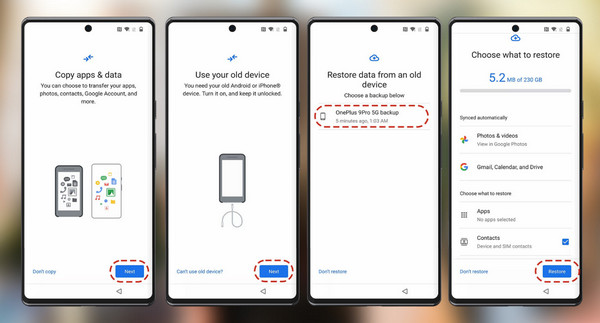
The primary restoration method for a Google backup is during the Android phone’s initial setup. It is mainly for new and newly reset device users. It will let you restore the entire backup or even only the data types you want. You also won’t have to worry about complications, as the designated restoration option will immediately be provided when you start the device. You must then only manage the prompts and on-screen instructions until you restore your Android phone from your Google backup successfully. However, restoring individual files won’t be possible.
Pay attention to the easy operation below to restore Android phone from Google backup during the initial setup:
Step 1Start your new or newly reset Android device and maneuver through the initial setup when ready. Shortly, you will reach the Copy apps and data screen, so hit the Next button below.
Step 2Choose the suitable options on the following screens, and once prompted, log in to the Google account containing your backup. Then, choose the backup you want when asked. You must also mark the data categories you wish to restore before finally tapping the Restore tab.
Part 3. How to Restore Google Backup After Initial Setup
Contrary to common beliefs, you can still restore your Google backup after setting up your Android phone. However, don’t expect the same advantages and convenience as the previous process, as Google’s data restoration after initial setup is more limited, especially in terms of the supported data types. Unfortunately, it can only restore specific data, which is contacts. It can be performed on Settings at any time, so it doesn’t matter how long it has been since you set up the Android device. You will still be able to restore this data type easily.
Mimic the user-oriented task below to restore phone from Google backup after the initial setup:
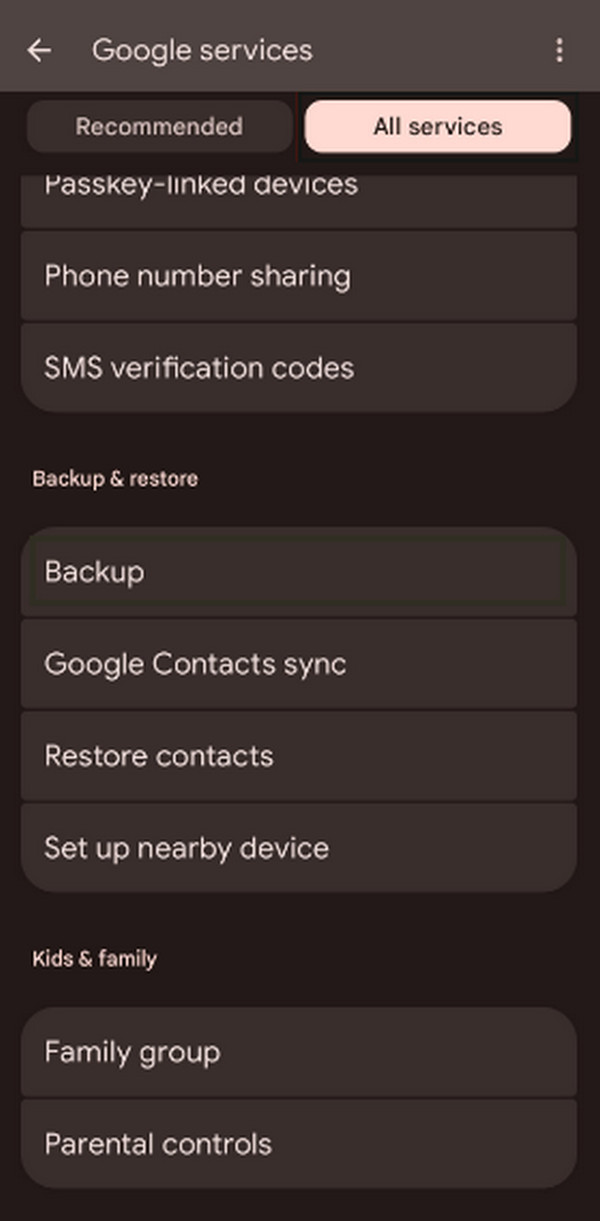
Step 1Since your Android device has already been set up, proceed now to the Settings app and go directly to its Google section. Afterward, tap All services on the upper right.
Step 2Several Google services will then be presented on the screen. Thus, scroll down and under the Backup and restore section, choose Restore contacts, then Restore on the next screen.
Part 4. How to Restore Android Data without Backup Using FoneLab Android Data Recovery
What if you failed to activate Google’s backup feature beforehand? No worries. Android data recovery is still possible as long as you have an effective solution. In this case, FoneLab Android Data Recovery is the reliable program we strongly recommend, as it offers advantages that can be much more helpful than Google’s backup service. Yes! That’s because this program doesn’t require a backup, but a simple device connection to recover your data.
FoneLab Android Data Recovery will present the files that have been deleted from your Android device, and you are free to retrieve them anytime. Unlike a backup, it will also allow you to recover files individually. You don’t have to restore an entire data category just to return your desired deleted file, making the process more convenient, efficient, and less hassle. Besides, among the best parts is that it’s perfect for beginners, thanks to its comprehensive interface.
With FoneLab for Android, you will recover the lost/deleted iPhone data including photos, contacts, videos, files, call log and more data from your SD card or device.
- Recover photos, videos, contacts, WhatsApp, and more data with ease.
- Preview data before recovery.
- Android phone and SD card data are available.
See the painless steps below as an example to restore Android data without backup using FoneLab Android Data Recovery:
Step 1Open a trusted browser to access the FoneLab Android Data Recovery tool’s website. Simply select its Free Download, and the installation file will quickly be in your Downloads. Use that to set up and install the program, then when ready, launch its interface on your desktop.
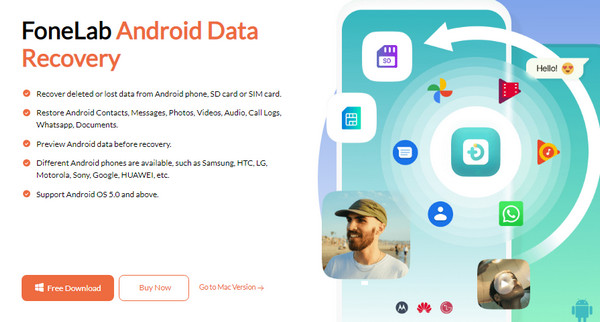
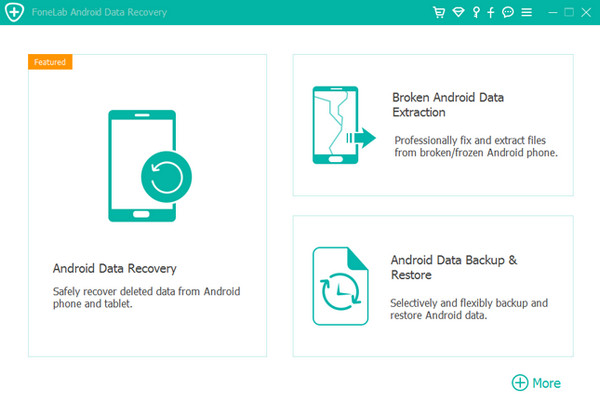
Step 2Click Android Data Recovery when the key interface is presented. You must attach your Android device afterward using a USB cable, and when the program detects it, various data types will appear. Mark the ones you wish to recover, then let the tool scan and show your files.
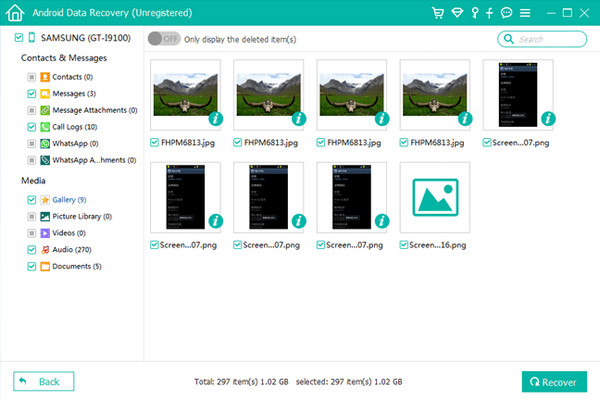
Step 3Following that, browse each data category in the left column to find the files you plan to recover. Then, mark their checkboxes until you’re satisfied with all the selected data. After that, go for the Recover button to restore the chosen items successfully.
Part 5. Comparison of Data Recovery Methods
| Method | Google Backup | FoneLab Android Data Recovery |
| Core Principle | Cloud-based, preventive backup and synchronized restore. | Computer-based recovery of deleted or lost data directly from device storage. |
| Main Advantage | Seamless, official, and free for integrated Android data restoration. | Powerful lifeline when backups fail or don't exist. It can recover data thought to be permanently lost. |
| Ease of Use | Very Good | Excellent |
| Internet Required | Yes | No |
Part 6. FAQs about How to Restore Android Phone from Google Backup
Can I restore Google backup without the internet?
Unfortunately, you can’t. Google backups can only be restored through the internet, so it won’t be possible to do the restoration without it. Instead, try FoneLab Android Data Recovery, as it works offline.
How long is the restoration time for a Google backup?
It depends on different factors. The restoration time will depend on how large your backup is, how fast your internet connection is, and more.
A Google backup resolves various device data concerns, like data loss. But if you want a more convenient approach, FoneLab Android Data Recovery will significantly help because, as mentioned, it provides more advantageous features for your data recovery process.



