
 iPhone Data Recovery
 iOS System Recovery
 iOS Data Backup & Restore
 iOS Unlocker
 iPhone Password Manager
 Location Changer
 Android Data Recovery
 Broken Android Data Extraction
 Android Data Backup & Restore
 Android Unlocker
 FoneTrans for iOS
 iPhone Data Eraser
 iPhone Cleaner
 HEIC Converter
 HyperTrans
 WhatsApp Transfer for iOS
 Mac Sweep
 Data Retriever
 Mac Data Retriever
 Video Converter Ultimate
 Screen Recorder
 Phone Mirror
 Recover Android Data Now
Recover the lost/deleted iPhone data including photos, contacts, videos, files, call log and more data from your SD card or device.
5 Best Android Data Recovery Tools with An Easy Guide
 Updated by
 Are you looking for the best data recovery software for Android? An accidental tap of the option for deletion, a factory reset without a backup, or other scenarios that cause data loss, it’s a frustrating feeling that many people know too well. The good news is that all may not be lost. Thanks to data recovery tools, retrieving deleted files from Android phones and tablets has been possible. However, with the numerous options, choosing the perfect one might be challenging.
Luckily, this article has been prepared to be your clear and practical guide to learning the leading recovery programs for Android devices. After thorough research, we have tested and compared the top contenders to help you choose the most suitable tool you can use for your Android data. Thus, seek each portion below to equip yourself with the necessary knowledge to recover your data successfully.

Guide List
Part 1. FoneLab Android Data Recovery
When it comes to a robust and reliable yet user-friendly solution for Android data recovery, FoneLab Android Data Recovery consistently rises to the top of our list. It easily earns the first spot because of its helpful capabilities, partnered with an intuitive interface. So, you won’t have to hesitate installing this program to recover deleted Android photos, videos, contacts, documents, messages, call logs, and other data types on your device.
Besides, you don’t need to be tech-savvy or have advanced knowledge about FoneLab Android Data Recovery to navigate it smoothly. Its functions are designed for both novice and experienced users, and you will be able to maneuver it, even without anyone’s help. Additionally, it will let you preview the deleted files, ensuring you will pick the correct items before recovery.
With FoneLab for Android, you will recover the lost/deleted iPhone data including photos, contacts, videos, files, call log and more data from your SD card or device.
- Recover photos, videos, contacts, WhatsApp, and more data with ease.
- Preview data before recovery.
- Android phone and SD card data are available.
Take to heart the painless steps below as a sample of Android recovery with FoneLab Android Data Recovery:
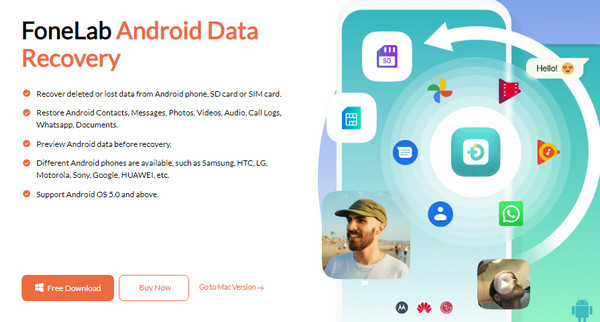
Step 1Acquire the FoneLab Android Data Recovery’s installation file through its website’s Free Download tab. When it appears in your Downloads, initialize it and set up the program for installation. This way, you can immediately start its interface once it's ready.
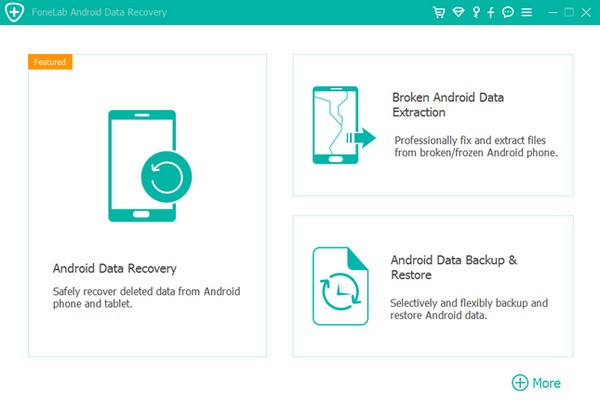
Step 2Select Android Data Recovery on the presented interface shortly and quickly attach your Android device through a USB cable. Once prompted, select the data types to scan and let the program read and display your files on the screen.
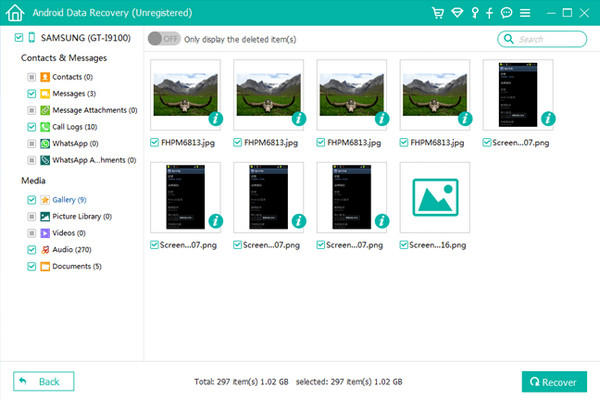
Step 3Visit each data category afterward to mark all the deleted items you desire to recover from the Android. Then, proceed to the Recover tab to retrieve your data.
Part 2. Dr.Fone Android Data Recovery
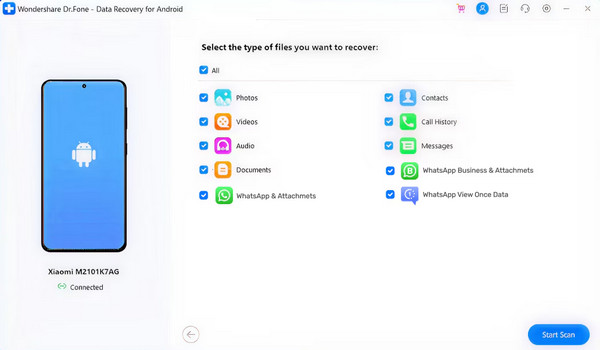
Dr.Fone Android Data Recovery is also a recognized program developed by Wondershare. It offers a comprehensive interface and a strong feature set capable of recovering diverse file types from Android devices, including messages, photos, contacts, and more. You can even recover data despite various recoverable scenarios, like forgotten passwords, accidental deletions, etc. However, its popularity doesn’t eliminate the disadvantages that prevent it from claiming our top spot. For instance, some users report how its scanning process is slower than average.
Act according to the easy operation below to perform an Android phone data recovery using Dr.Fone Android Data Recovery:
Step 1Acquire and install Dr.Fone Android Data Recovery, and once its key interface is shown, select the Data Recovery function. Next, click Android > Recover Android Data and connect your device.
Step 2Shortly, you must choose the data type of the file you want to retrieve, then click Start Scan. After scanning, you can finally mark your desired items before ticking Recover.
Part 3. FonePaw Android Data Recovery
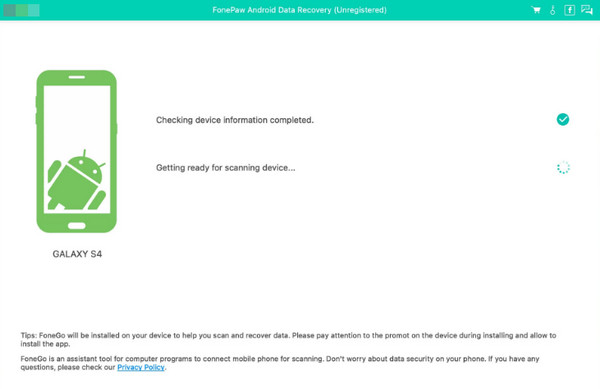
Meanwhile, FonePaw Android Data Recovery is a reliable and accessible choice for users seeking a straightforward recovery process. Like the prior recovery tools, it provides a clean, intuitive interface that effectively guides users through scanning and retrieving lost photos, messages, contacts, and documents from their Android devices or external SD cards. But among its drawbacks is that its deep scan capability can be less thorough compared to top-tier competitors.
Emulate the user-oriented procedure below to perform an Android phone recovery via FonePaw Android Data Recovery:
Step 1Download FonePaw Android Data Recovery’s installer from its webpage and use it to set up and launch the recovery tool. Next, link your device and pick the suitable recovery feature.
Step 2After that, follow the prompts for the program to present your device content. Once they appear, choose the deleted files you want and click Recover.
Part 4. Stellar Data Recovery
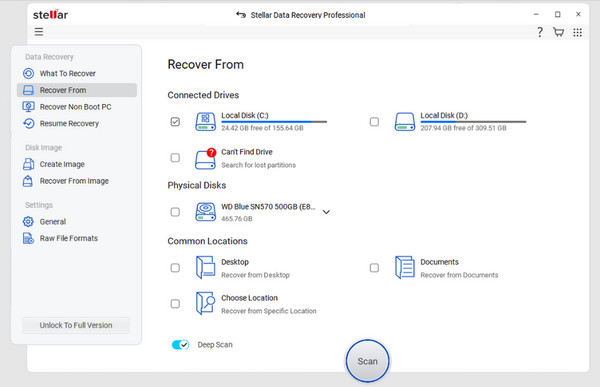
Stellar Data Recovery is another widely respected name in the data recovery industry, primarily known for its effective performance in retrieving files from different storage devices. Even if you didn’t backup Android videos, photos, documents, and other data types, this tool will still be able to help you recover them. But note that its primary strength, which is its ability to recover from both computers and mobile devices, can also be a disadvantage. That’s because its Android functionality becomes more of an add-on, making its performance or connection less efficient.
Adhere to the simplified instructions below for Android file recovery through Stellar Data Recovery:
Step 1Install Stellar Data Recovery with the help of the files you will acquire after clicking the download option on its website. Once you view the tool’s interface, connect your Android and pick the data type and device storage accordingly on the following screens.
Step 2When the subsequent screen shows your device folders and individual files, mark every item you wish to retrieve before opting for the Recover tab at the bottom.
Part 5. iMyFone D-Back for Android
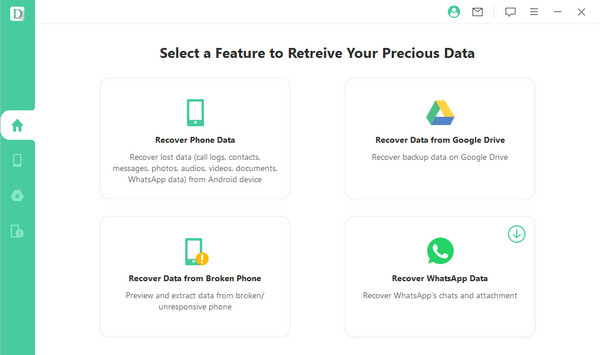
On the other hand, iMyFone D-Back for Android emphasizes its primary data target when recovering from Android devices. It is a trustworthy and efficient technique, but most notably for recovering WhatsApp data. But don’t worry. Aside from WhatsApp, it can also be used for other data, including contacts, call logs, messages, videos, audio, documents, and more.
However, while reliable, its scanning speed can be inconsistent, sometimes lagging behind the previous competitive tools. So, we only recommend it the most for users trying to recover WhatsApp data since that’s where this program specializes.
Go along with the unexacting task below for data recovery for Android using iMyFone D-Back for Android:
Step 1Install and initialize iMyFone D-Back for Android and click Recover Phone Data from its main interface. When prompted, you must attach your Android via a USB cord.
Step 2Later, let the iMyFone scan and present your Android device’s data. Then, mark the checkboxes of the items you wish to recover. Finally, opt for the Recover selection.
Part 6. Comparison of Android Data Recovery Tools
| Tools | FoneLab Android Data Recovery | Dr.Fone Android Data Recovery | FonePaw Android Data Recovery | Stellar Data Recovery | iMyFone D-Back for Android |
| Verdict | Best Overall | Popular but Pricier | Best Budget Friendly | Desktop Powerhouse | WhatsApp & Chat Specialist |
| Primary Strength | Excellent balance of everything | Brand recognition | Good for basic recovery | Deep recovery engine | Optimized for messaging |
| Ease of Use | Excellent | Very Good | Very Good | Good | Very Good |
Part 7. FAQs about Android Data Recovery
Which is the best Android data recovery software?
After careful testing, we concluded that FoneLab Android Data Recovery offers the best performance, success rate, and overall features.
Is it possible to recover only a few files?
Yes, it is. Unlike backup restoration processes, the tools above allow users to recover only their desired files and not an entire backup or data category.
Besides the effectiveness of the data recovery tools above, we have also proven their safety, especially the number one recommendation, FoneLab Android Data Recovery. Thus, install it anytime.



