
 iPhone Data Recovery
 iOS System Recovery
 iOS Data Backup & Restore
 iOS Unlocker
 iPhone Password Manager
 Location Changer
 Android Data Recovery
 Broken Android Data Extraction
 Android Data Backup & Restore
 Android Unlocker
 FoneTrans for iOS
 iPhone Data Eraser
 iPhone Cleaner
 HEIC Converter
 HyperTrans
 WhatsApp Transfer for iOS
 Mac Sweep
 Data Retriever
 Mac Data Retriever
 Video Converter Ultimate
 Screen Recorder
 Phone Mirror
 Recover Android Data Now
Recover the lost/deleted iPhone data including photos, contacts, videos, files, call log and more data from your SD card or device.
How to Recover Deleted Instagram Chats on Android Easily
 Updated by
 Are you ready to learn how to recover deleted Instagram chats on Android? If you’ve ever accidentally deleted a precious conversation, a vital piece of information, or a memory-filled chat on Instagram, the panic you may have felt is understandable. You may have also thought that the messages would be gone forever, but here’s some good news! Although the app doesn’t offer an option to undo the deletion, you may still recover the chats with recovery methods.
Therefore, if you have missed a message and failed to read it before deletion, whether or not accidental, rely on the strategies recommended in the following sections. All you must do is learn and choose which one would be the best for your situation, and perform the process with the help of the provided instructions smoothly. Afterward, don’t miss the additional recovery program for different data types on Android, which you can acquire anytime.

Guide List
Part 1. Request Official Instagram Data Download
The official recovery method that Instagram offers is to request to download its data. It is the most straightforward and secure approach, as it works directly with the data Instagram stores on its servers. However, it's crucial to understand its primary limitation. Unfortunately, this method only guarantees the recovery of current chats on your account the moment you request the download. So, the messages you have already deleted months ago will likely no longer be available.
Don’t worry, though. Instagram states that after deletion, messages may remain in backup copies for a limited time, which is typically up to 30 days. They won’t be guaranteed, so it is most effective if you act quickly after an accidental deletion, or it would be best if you proactively download your data regularly as a backup when such data loss problems occur.
Yield to the painless directions below to grasp how to recover deleted Instagram chats on Android by requesting an official Instagram data download:
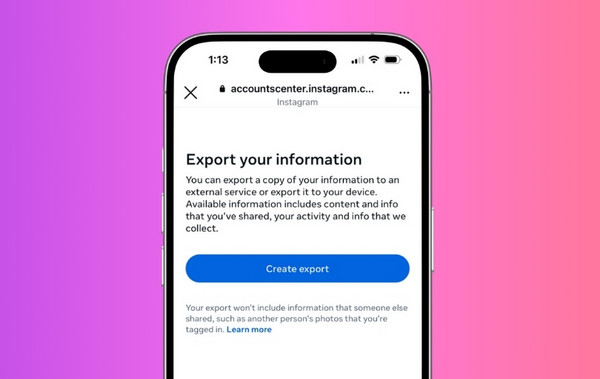
Step 1On your Instagram app, hit the three-bar symbol at the top right and tap Accounts Centre > Your information and permissions. After that, select Export your information.
Step 2You will be directed to a link, so tap Create export and choose the Instagram account containing your chat. Next, select Export to device and pick your preferred export options on the next screen. Finally, hit Start export and find your desired chat once your data is downloaded.
Part 2. Check Android Notification History
Meanwhile, checking your Android device’s notification history will also help. This method is often overlooked, but it’s actually a quick solution that relies on a native Android feature. If you don't usually clear your notification history, snippets of your lost Instagram chats may still be accessible here. Thus, even if you have already deleted the source of the message within the Instagram app, you will still have a chance to see its preview through the Quick panel.
Have regard to the stress-free steps below to determine how to recover deleted Instagram chats on Android by checking the Android’s Notification history:
Step 1Present the Quick Panel on your Android by sliding your finger from the top screen to the bottom, viewing your Notification history.
Step 2As expected, various notifications from different apps will appear; thus, browse them to find your desired Instagram chat. Once found, expand it by tapping the down arrow on the right.
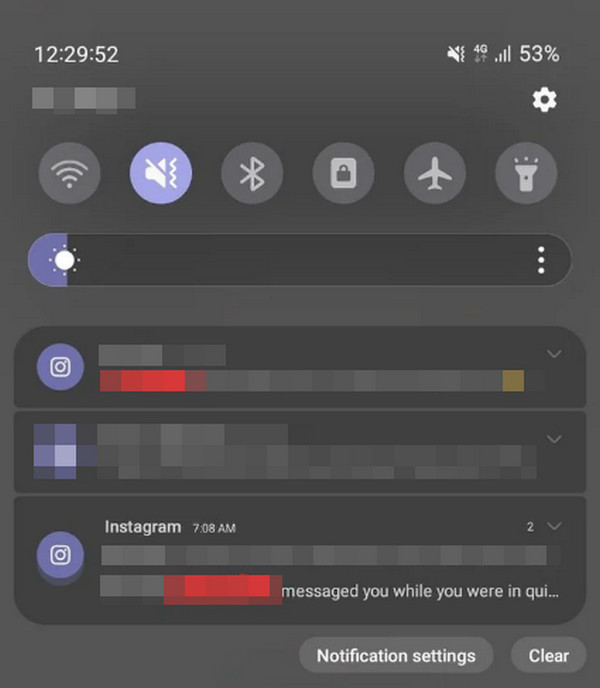
Checking the Notification history is very effective, especially if you haven’t yet cleared it since you received the Instagram message, but know that it comes with significant limitations. First, you won’t be able to see the entire chat because the most recent message notifications will be the only ones available. Also, the Instagram app’s notification feature must be enabled beforehand.
Part 3. Check Mirrored Facebook Messenger Chats
You may know that Instagram and Facebook Messenger can be linked together, as they are both owned by Meta. So, if you have previously connected your social media accounts, Instagram Direct chats may have been mirrored within the Messenger app, making it an effective alternative way to view your desired Instagram message. Just ensure you are logged into the Facebook Messenger account linked to your Instagram. Also, the cross-app communication feature must be enabled.
Follow the easy procedure below to master how to recover deleted Instagram chats on Android by checking mirrored Facebook Messenger chats.
Step 1Open your Android device’s Messenger app and choose Menu at the bottom. When the options appear, tap Settings, and at the bottom, select See more in Accounts Centre.
Step 2On the next screen, both your Facebook and Instagram accounts will appear, indicating they are linked with each other. If not, ensure you will connect them. This way, once you return to the Messenger app’s main interface, the mirrored messages will appear.
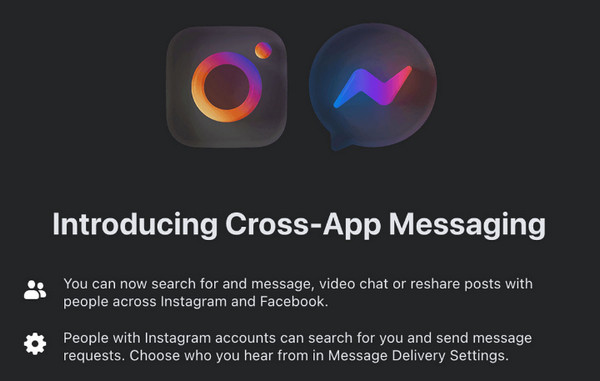
Unfortunately, Meta has already begun removing the mirror or cross-post messages ability for Instagram and Facebook Messenger since late 2023. Hence, if your apps are already updated to later versions, you may no longer be able to check the mirrored Facebook Messenger chats from Instagram. But perhaps you can try to retrieve deleted Facebook messages on Android with the above methods.
Part 4. Bonus Tip - FoneLab Android Data Recovery
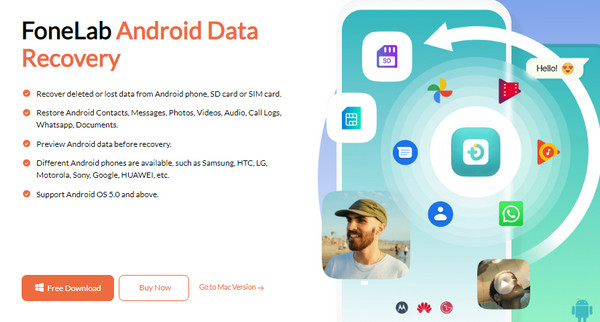
On the other hand, Instagram chats aren’t the only data you may want to recover from your device. If you want to perform an Android data recovery for your other files, here is FoneLab Android Data Recovery. It is a dedicated program designed to scan your device's internal storage for traces of deleted data, including messages, photos, videos, contacts, and more. Then, you will be free to recover your desired items through the function’s straightforward process.
Besides, FoneLab Android Data Recovery is not only designed for experienced users. Even if it’s your first time trying a recovery program, its user-friendly interface and comprehensive functions will have your back to perform the data recovery process smoothly. You will also enjoy its convenient features, like the search bar that allows you to find files more quickly and the preview feature that lets you see your deleted data before the deletion.
With FoneLab for Android, you will recover the lost/deleted iPhone data including photos, contacts, videos, files, call log and more data from your SD card or device.
- Recover photos, videos, contacts, WhatsApp, and more data with ease.
- Preview data before recovery.
- Android phone and SD card data are available.
Recognize the simplified operation below as a pattern to recover various data types on Android with FoneLab Android Data Recovery:
Step 1First, save FoneLab Android Data Recovery’s installation file. The Free Download button on its website will let you have it in your Downloads folder. Hence, set up the file to install the program. Once done, initialize its key interface on your desktop.
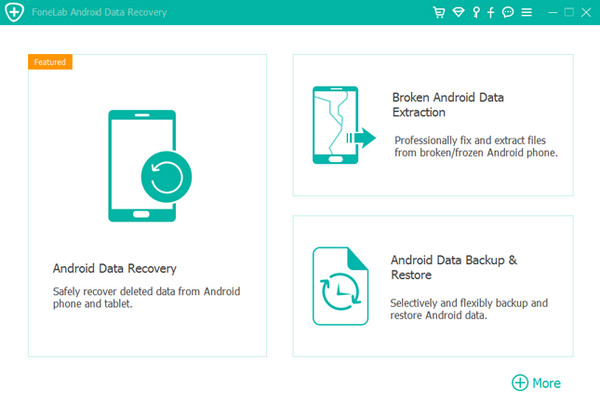
Step 2Select Android Data Recovery once the program’s key features are presented. Afterward, attach the ends of a USB cable to your Android device and computer to establish the connection. Then, when prompted, pick the data types you want to scan and view on the next interface.
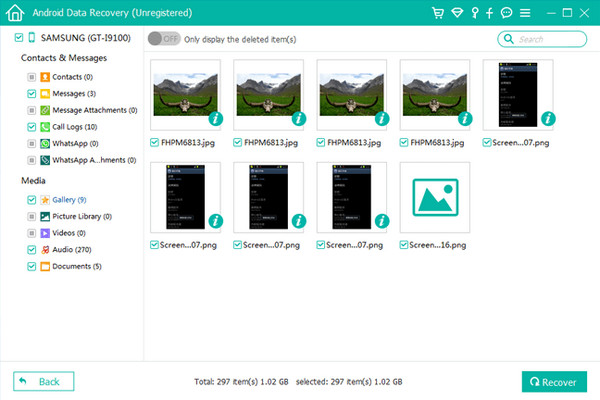
Step 3Afterward, the data categories will appear in the left column. Select each of them to view your deleted files and mark the ones you want to retrieve. Finally, hit Recover.
Part 5. FAQs about How to Recover Deleted Instagram Chats on Android
Will the Instagram chat be erased on the receiver’s device if I delete it?
No, it won’t. If you delete your Instagram chats on your account, it won’t affect the conversation on the receiver’s end. The messages will remain on their account or device.
Does Instagram have a Recently Deleted folder for chats?
No, it doesn’t. Unlike posts and stories, Instagram doesn’t offer a folder containing chats that have been deleted from the account.
Recovering deleted chats on Instagram can be challenging, but once you find a suitable method, like the suggestions above, a successful recovery will follow smoothly. Besides, FoneLab Android Data Recovery has been introduced to help you with the further recovery process for other data types.



