
 iPhone Data Recovery
 iOS System Recovery
 iOS Data Backup & Restore
 iOS Unlocker
 iPhone Password Manager
 Location Changer
 Android Data Recovery
 Broken Android Data Extraction
 Android Data Backup & Restore
 Android Unlocker
 FoneTrans for iOS
 iPhone Data Eraser
 iPhone Cleaner
 HEIC Converter
 HyperTrans
 WhatsApp Transfer for iOS
 Mac Sweep
 Data Retriever
 Mac Data Retriever
 Video Converter Ultimate
 Screen Recorder
 Phone Mirror
- Part 1. Backup Contacts on Android with Built-in Features
- Part 2. How to Backup Contacts on Android with FoneLab Android Data Backup & Restore
- Part 3. How to Backup Contacts on Android with Google Account
- Part 4. How to Backup Contacts on Android with Contacts App
- Part 5. FAQs about How to Backup Contacts on Android
How to Backup Contacts on Android in 4 Easy Approaches
 Updated by
 Contacts are special, like your emails and messaging IDs. These data offer easy communication for Android users and other devices to contact their relatives, friends, and more. They show the caller identification to know who you are calling or who is calling you.
However, this data type is prone to accidental deletion. It might be due to an upgrade of the phone, and they are saved to the old phone, which is the reason you cannot access them now. You can backup contacts on Android to avoid them from being lost. How? You can scroll below to discover the 4 quick ways.

Guide List
- Part 1. Backup Contacts on Android with Built-in Features
- Part 2. How to Backup Contacts on Android with FoneLab Android Data Backup & Restore
- Part 3. How to Backup Contacts on Android with Google Account
- Part 4. How to Backup Contacts on Android with Contacts App
- Part 5. FAQs about How to Backup Contacts on Android
Part 1. Backup Contacts on Android with Built-in Features
Every Android phone has its built-in backup features. This section will show you some of them with the table below. Please note that these built-in features depend on the version of your Android phone. Also, they almost have the same procedure. Please continue browsing below to see their procedure and description.
| Backup Feature | Android Phone Brand | Process |
| Samsung Smart Switch | Samsung | The guide on how to use the Samsung Smart Switch is Easy. Open it and connect to a PC or another phone. Then, choose the Backup button. Finally, follow the on-screen instructions to end the process. |
| Mi Cloud | Xiaomi, POCO, and Redmi | Open the Settings app. Then, select the Mi Account button at the top. Select the Mi Cloud button and enable the Contacts from the list. The backup process will immediately start. |
| vivoCloud | Vivo | Open the Settings application and tap the Account & Sync or Vivo account button at the top. Then, choose the Vivo Cloud button from the list. Finally, enable the Contacts button from the list to back them up. |
| Huawei Cloud | Huawei | Open the Settings app from the screen. After that, it will be opened immediately. Select the Huawei ID button and choose the Cloud option from the next screen. Later, turn on the Contacts section to back up your contacts. |
| HeyTap Cloud | Realme | Open the Settings app on your Realme. After that, choose the Realme Cloud or HeyTap Account button at the top. After that, select the Cloud Sync section and toggle on the Contacts slider to back them up. |
Part 2. How to Backup Contacts on Android with FoneLab Android Data Backup & Restore
Besides the built-in backup features of your Android phone, a third-party tool called FoneLab Android Data Backup & Restore should be considered! This tool can back up your contacts in a few clicks, in the same way as you restore them. It does not overwrite the old backups when you create a new one. It supports multiple famous Android phone brands, including HTC, Sony, Motorola, LG, and Google phones.
Backup and restore Android data to your computer easily.
- Backup and restore Android data to your computer easily.
- Preview data in detail before you restore data from backups.
- Backup and restore Android phone and SD card data Selectively.
This tool allows you to back up and restore specific data, without including the other data types. It includes contacts, messages, call logs, audio, videos, and more. Use the tool with the guidance on how to backup Android contacts.
Step 1Go to the main website of FoneLab Android Data Backup & Restore. After that, choose the Free Download button from the screen. After that, set up the downloaded file and set it up to install it. Finally, open it on your computer.

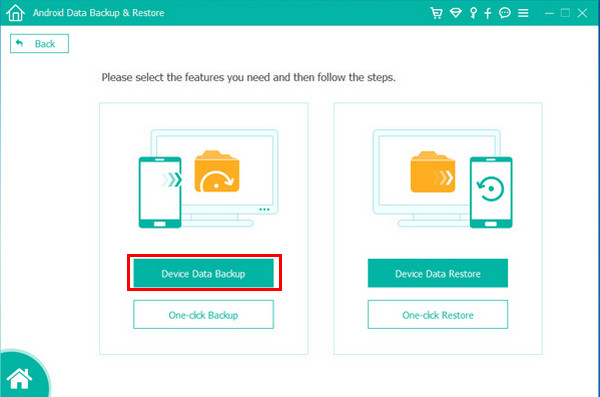
Step 2Select the Device Data Backup button on the left. Later, you will see the features related to the backup.
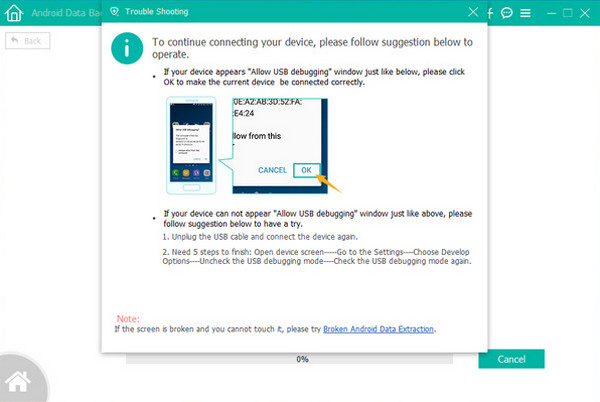
Step 3You are required to plug the Android phone into the computer. Use a USB cable and follow the on-screen instructions to enable the USB debugging mode on your Android phone. You must see the Android phone name on the screen.
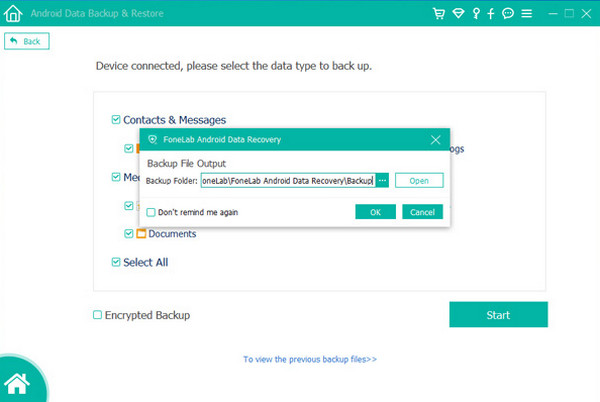
Step 4Check the box of Contacts at the top left. Then, select the destination folder of the mentioned data backup. Then, click the OK button in the small window. Later, select the Start button at the bottom right to start the backup process.
Part 3. How to Backup Contacts on Android with Google Account
Most Android phone brands support a Google account to access their free services. This service has a backup and restore feature that can be used for Oppo, Google phones, Vivo, and Samsung contacts backup. There are more Android phone brands it supports aside from the mentioned one. However, ensure that you have enough space on your Google account. If not, the backup procedure will not proceed. Additionally, it cannot back up only specific data because you are required to back up your entire content and settings. Use a Google account to back up your Android phone contacts with the instructions below.
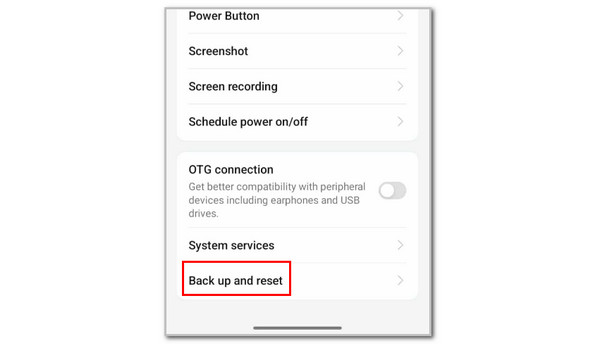
Step 1Open the Settings app on your Android phone and tap the Additional Settings button from the list. After that, choose the Back Up and Reset button at the bottom of the screen. A new interface will be prompted. Please select the Back Up & Migrate button at the top.
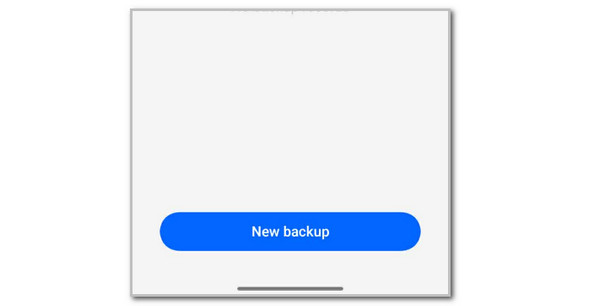
Step 2Please select the Local Backup button from the next screen. Then, tap the New Backup button at the bottom. Then, follow the on-screen instructions to start backing up your data.
Part 4. How to Backup Contacts on Android with Contacts App
The Contacts app on your Android phone is responsible for storing and managing your contacts. This app can be used to back up your contacts by exporting them to a VCF file. However, the contacts can only be exported individually. Please follow the steps on how to do that.
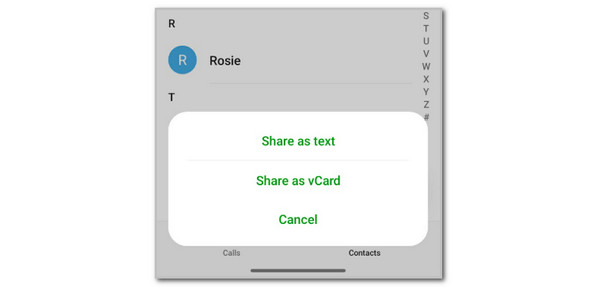
Open the Contacts app, and the list will appear on the screen. Select the contact you prefer to transfer. Then, tap and hold it to see more options. Finally, select the Share as vCard button. Choose the service where you want to back it up afterward.
Part 5. FAQs about How to Backup Contacts on Android
Are Google contacts automatically backed up?
Sadly, no. Google does not automatically back up your contacts. After signing in to a Google account, you need to back up your contacts manually. The detailed procedure is here, and you can follow it carefully.
How do I manually restore my contacts from an Android phone from Google backup?
Open the Settings app. After that, select the Google button from the list. Later, go to the Settings for Google Apps section and select the Google Contacts Sync button. Toggle on the Sync slider, and the contacts from your Google backup will be restored to your Android phone.
This article is all about how to backup contacts on Android. 4 of the quickest methods are here to guide you. FoneLab Android Data Backup & Restore is the best third-party tool among them. It can back up your Android phone contacts in a few clicks. Download it now to experience this process!



