
 iPhone Data Recovery
 iOS System Recovery
 iOS Data Backup & Restore
 iOS Unlocker
 iPhone Password Manager
 Location Changer
 Android Data Recovery
 Broken Android Data Extraction
 Android Data Backup & Restore
 Android Unlocker
 FoneTrans for iOS
 iPhone Data Eraser
 iPhone Cleaner
 HEIC Converter
 HyperTrans
 WhatsApp Transfer for iOS
 Mac Sweep
 Data Retriever
 Mac Data Retriever
 Video Converter Ultimate
 Screen Recorder
 Phone Mirror
- Part 1. How to Access Messages on iCloud via the Syncing Feature
- Part 2. How to Transfer iCloud Messages with FoneTrans for iOS
- Part 3. How to Restore iCloud Messages on iPhone/iPad
- Part 4. Apple Devices App/iTunes/Finder
- Part 5. Comparison Table of the Methods for Accessing iCloud Messages
- Part 6. FAQs about How to Access iCloud Messages
How to Access iCloud Messages in Proven Techniques
 Updated by
 There are multiple essential data types on your Apple devices. Messages are one of them, including iMessages and text messages. Thus, they can chat via messages easily with an internet connection. It is one of the main reason why Apple users stores them in iCloud. However, can you access iCloud across Apple devices?
In this post, you will learn how to access iCloud messages. You will see methods for your iPhone, iPad, and Mac. Additionally, some methods can help you transfer iCloud messages when accessing them from iCloud cannot be performed. Please see all these details as you scroll below.

Guide List
- Part 1. How to Access Messages on iCloud via the Syncing Feature
- Part 2. How to Transfer iCloud Messages with FoneTrans for iOS
- Part 3. How to Restore iCloud Messages on iPhone/iPad
- Part 4. Apple Devices App/iTunes/Finder
- Part 5. Comparison Table of the Methods for Accessing iCloud Messages
- Part 6. FAQs about How to Access iCloud Messages
Part 1. How to Access Messages on iCloud via the Syncing Feature
iCloud has a sync feature that lets you keep the data updated across your Apple devices. This feature requires the same Apple ID to access the same data from your devices, like messages, including iMessages and text messages. This procedure needs an internet connection, not a USB cable. Please follow the steps below to know how to access text messages on iCloud, including iMessages.
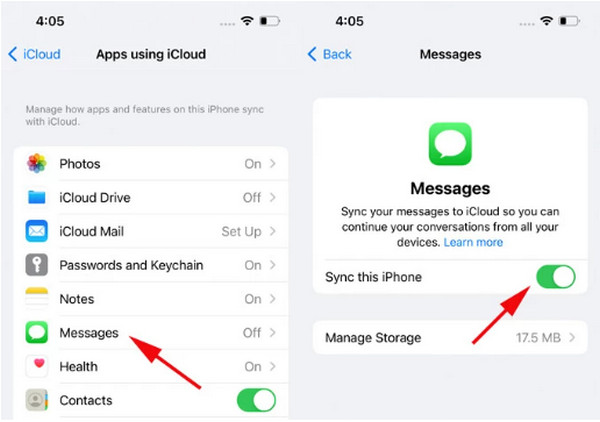
iPhone/iPad: iPhone and iPad has the same procedures for accessing the messages on iCloud. Open the Settings app on the mentioned devices. Tap the Apple ID account name at the top of the screen. Then, choose the iCloud button from the list. Tap the Messages button and toggle on the Sync This iPhone slider.
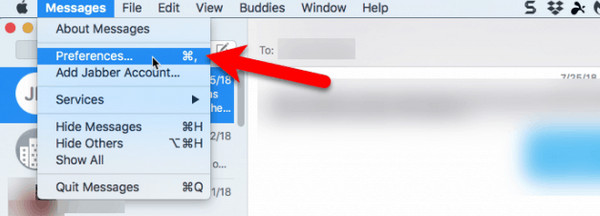
Mac: Open the Messages app on a Mac. After that, please select the Messages button at the top left. Later, choose the Settings or Preferences button from the drop-down options. Go to the iMessages tab and check the Enable Messages in iCloud section. Click the Sync Now button.
Part 2. How to Transfer iCloud Messages with FoneTrans for iOS
The sync feature’s primary aim is to transfer your iCloud messages across devices. You can access messages across devices with FoneTrans for iOS via transferring. This third-party tool is designed to transfer files across devices, including messages. You can also access iCloud photos on PC and Mac using it because it supports the mentioned data. The tool uses a USB connection for the transfer process. Additionally, this software allows you to experience a smooth and fast transfer process, which will not take much of your time. Please use the steps below to utilize the tool correctly.

With FoneTrans for iOS, you will enjoy freedom to transfer your data from iPhone to computer. You can not only transfer iPhone text messages to computer, but also photos, videos and contacts can be moved to PC easily.
- Transfer photos, videos, contacts, WhatsApp, and more data with ease.
- Preview data before transferring.
- iPhone, iPad and iPod touch are available.
Step 1Go to the website of FoneTrans for iOS. After that, select the Free Download button on the left side. The download process will start immediately. Set up the downloaded file and install it on your computer afterward.

Step 2Plug the iPhone or iPad into the computer using your USB cable. Later, the iPhone or iPad information will appear on the screen. Please click the Messages button on the left side of the screen. The tool will scan the available messages from your Apple device afterward.
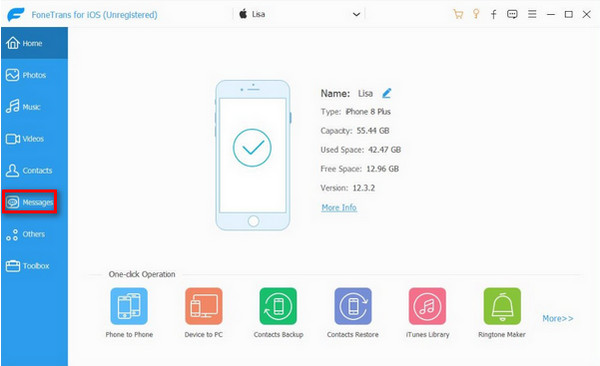
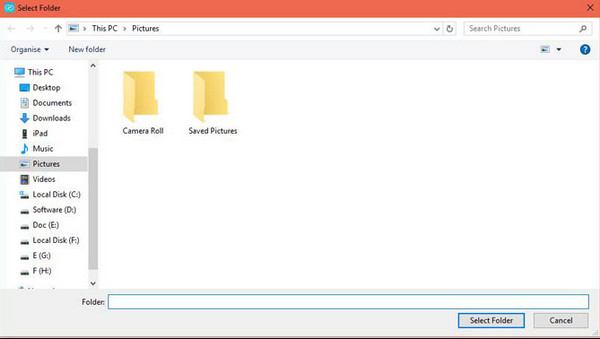
Step 3The results will appear on the screen. Please choose the messages you need to transfer from the screen. Please click the Computer or Phone button at the top. Select a device where you will transfer the messages. Choose a folder where to store them and click the Select Folder button.
Part 3. How to Restore iCloud Messages on iPhone/iPad
Besides the sync feature, you can also restore iCloud messages from backups. However, this procedure requires a factory reset on your iPhone or iPad. You need it as brand new if not. Please ensure that you have backed up your new data before you perform this procedure to avoid data loss. The steps for the iCloud restore process are available below.
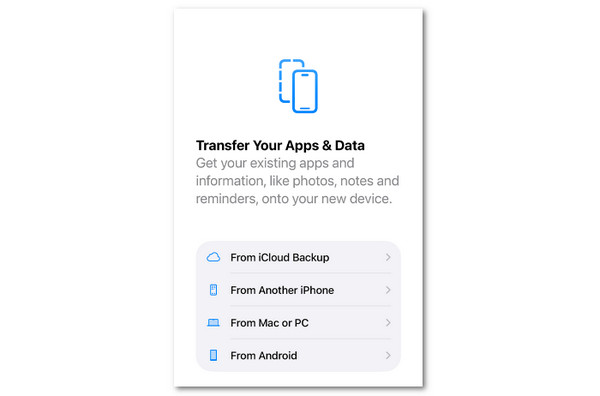
Open the Settings app and choose General. Later, tap Transfer or Reset iPhone. Select Erase All Content and Settings. Enter iPhone or iPad passcode. Set it up and stop on the Transfer Your Apps & Data. Choose From iCloud Backup and sign in to a account. Select a backup, and the restore process will start.
Part 4. Apple Devices App/iTunes/Finder
iTunes and Finder can also include messages from their backups. Apple Device on Windows, too! It only means that you can transfer your messages from a backup using them. However, you need to ensure that the encryption password of the backup is known. If not, you cannot proceed with the restore process. Please follow the steps below.
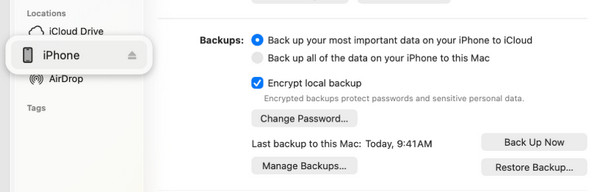
Open Finder and iTunes on your computer. After that, please plug the iPhone or iPad into the computer. Use a USB cable for the said procedure. Later, click the iPhone or iPad button on the left side of the screen. Then, select the Restore Backup button at the bottom right of the screen. Select the most relevant backup where the messages are included. Later, the restore process will start immediately.
Part 5. Comparison Table of the Methods for Accessing iCloud Messages
The methods to discover how to access iMessages on iCloud, including text messages, have the same requirements. In this section, we will show you the differences and similarities of the methods for transferring iCloud messages. Please see the table below.
| Method | Supported Data | Transfer Speed | Compatibility |
| FoneTrans for iOS | Photos, videos, messages, ringtones, contacts, voice memos, and more. | Fast | It may be downloaded on Mac and Windows. It can transfer data from computers and mobile phones. |
| iCloud | Photos, videos, contacts, and more. | It depends on the internet connection. | iPhone and iPad |
| iTunes and Finder | Music, photos, videos, ringtones, and more. | It depends on the file sizes. | iTunes is available on Windows and earlier versions of macOS. Finder is available on the latest versions of macOS. |
Part 6. FAQs about How to Access iCloud Messages
Why are iCloud messages not showing on Apple devices?
The messages will not show up in your iCloud if they are not synced. You might be signed in to a different iCloud account. Also, you may check the storage of your iCloud because it is probably full. A slow internet connection can also affect iCloud messages.
Why didn't all my messages restore from iCloud?
There might be an error in the backup procedure of the messages from iCloud. It is also possible that there is a server error from Apple. You can check this issue on their official website. Additionally, it could be due to bugs and glitches on your Apple device.
In conclusion, you can discover how to access messages on iCloud in this post. You can access them from your Apple devices. Additionally, you will see the easiest methods to transfer your iCloud messages across devices. FoneTrans for iOS is one of the methods. Besides transferring your iCloud messages, it can also process your photos, videos, contacts, and more data types. What are you waiting for? Download the tool now to explore it!



