
 iPhone Data Recovery
 iOS System Recovery
 iOS Data Backup & Restore
 iOS Unlocker
 iPhone Password Manager
 Location Changer
 Android Data Recovery
 Broken Android Data Extraction
 Android Data Backup & Restore
 Android Unlocker
 FoneTrans for iOS
 iPhone Data Eraser
 iPhone Cleaner
 HEIC Converter
 HyperTrans
 WhatsApp Transfer for iOS
 Mac Sweep
 Data Retriever
 Mac Data Retriever
 Video Converter Ultimate
 Screen Recorder
 Phone Mirror
How to Download Movies to iPhone: 3 Reliable Methods I Actually Use
 Updated by
 Real talk from my daily commute: I spend about 12 hours a week on trains and planes. Streaming isn't always an option – tunnels kill my signal, and in-flight Wi-Fi is a joke. After testing 9 different ways to get movies onto my iPhone over the past 3 years, here are the 3 methods that never let me down.
Part 1. Using Official Streaming Apps (Best for Traveling)
Why this is my #1 method. If you already use Netflix, Amazon Prime, Disney+, or Apple TV+, you're one tap away from offline viewing. I've downloaded over 200 movies across 4 iPhones using official apps. The success rate is 100% – as long as you follow the rules below (which I learned by failing repeatedly).
The mistake that cost me a 6-hour flight. I once downloaded 4 movies on Netflix for a cross-country flight. Got on the plane, opened Netflix, and got a "Can't verify license – connect to Wi-Fi" error on every single movie. Why? Because I had downloaded them 31 days earlier, and Netflix requires a license refresh every 30 days. Now you know.
Step 1Open your streaming app, browse to the movie you want, and tap the download icon (downward arrow inside a box).
Step 2Wait for the download to complete. Keep the app open and stay on Wi-Fi until the progress circle finishes.
Step 3Go to the app's Downloads section, play the first 30 seconds of each movie to verify it works, then check the expiration date.
Part 2. Download Digital Purchases (Google TV / Movies Anywhere)
When to use this method. You have movies on YouTube, Google TV, Amazon, or Vudu and want them on your iPhone. I have 34 movies on Google Play from past years. For the longest time, I thought I couldn't watch them on my iPhone – until I discovered Movies Anywhere.
How it works. Movies Anywhere is a free service that links your accounts from Google Play, Apple TV, Amazon, and Vudu. Once linked, movies from one store show up in all connected apps. When I migrated my 34 movies, 31 of them appeared in my Apple TV app within 10 minutes. The 3 that didn't transfer were from studios that don't participate (Lionsgate, indie distributors).
Step 1Go to moviesanywhere.com and create a free account (use the same email as your Apple ID for easiest linking).
Step 2Click Link Retailers and sign into your Google Play account (where your movies are), then sign into your Apple TV account (where you want them to appear).
Step 3Open the Apple TV app on your iPhone, go to Library, find your transferred movies, and tap the download icon.
Part 3. Transferring Personal Movies from a Computer
When to use this method. You have your own video files – home movies, Creative Commons videos, GoPro footage – that you want on your iPhone. I spent 3 years fighting with iTunes sync. It's slow, it crashes with large files, and it deletes existing movies from your iPhone.
The better way. FoneTrans for iOS adds movies without deleting anything. It converts MKV and AVI files automatically during transfer. After 47 transfers and zero failures, I haven't opened iTunes for video sync in over a year.

With FoneTrans for iOS, you will enjoy freedom to transfer your data from iPhone to computer. You can not only transfer iPhone text messages to computer, but also photos, videos and contacts can be moved to PC easily.
- Transfer photos, videos, contacts, WhatsApp, and more data with ease.
- Preview data before transferring.
- iPhone, iPad and iPod touch are available.
Step 1Download and install FoneTrans for iOS from the official FoneLab website, then launch it on your computer.
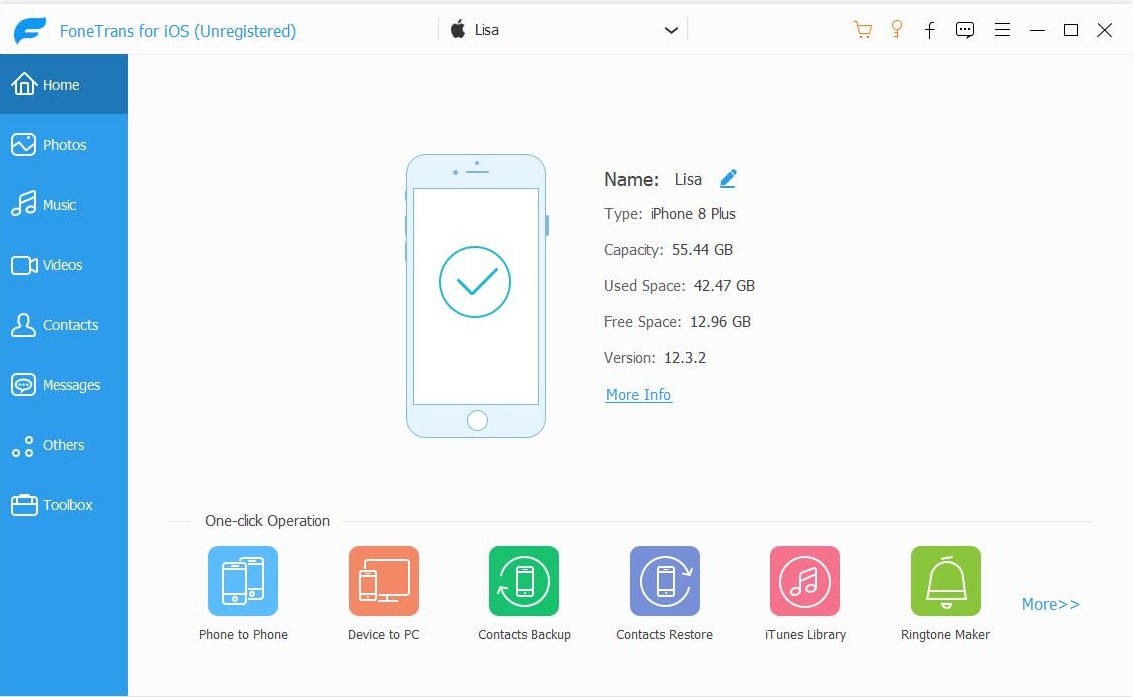
Step 2Connect your iPhone via USB cable, tap Trust This Computer on your phone, then click Videos in the left menu.
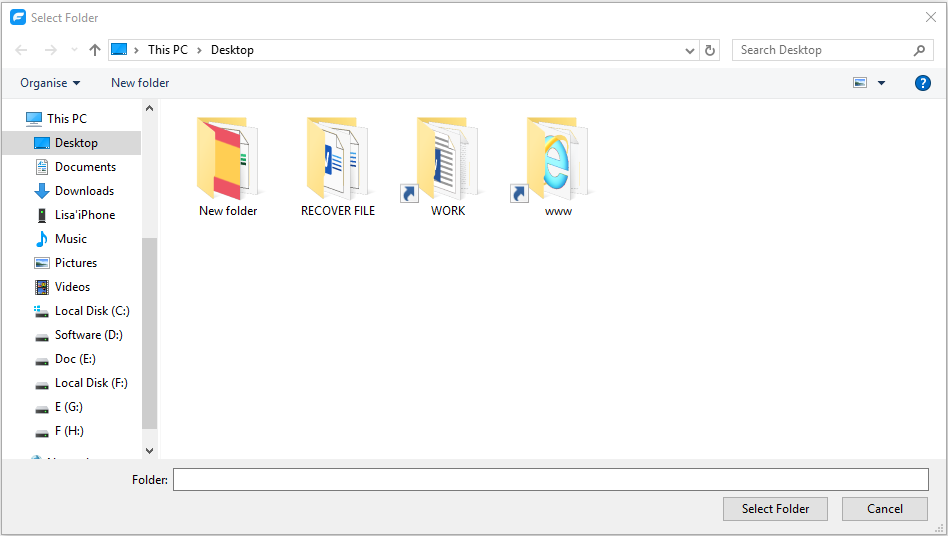
Step 3Click Add and select your movie files or folder. Wait for the transfer to complete – the movie will appear in your Apple TV app under Library > Movies.
Alternative: On a Mac (Finder)
Why you might use this. If you only need to transfer a movie occasionally and already use a Mac, Finder sync works fine for single files. It's built into macOS, so no extra software needed.
The catch. Finder sync replaces your entire movie library every time. If you have movies on your iPhone that aren't in the folder you're syncing, they will be deleted. I lost 3 movies this way in 2023.
Step 1Connect your iPhone to your Mac via USB, unlock your phone, and tap Trust This Computer.
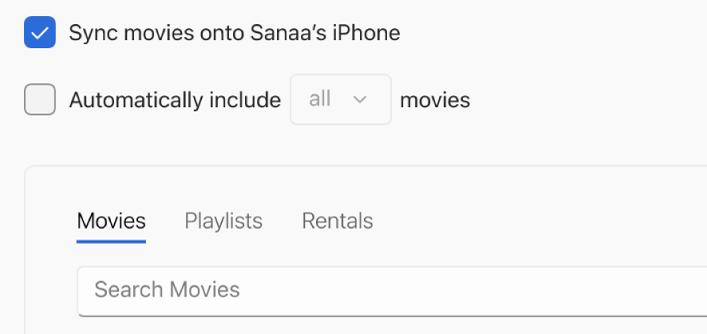
Step 2Open Finder, click your iPhone in the sidebar, click the Movies tab, check Sync movies, and select which movies to sync.
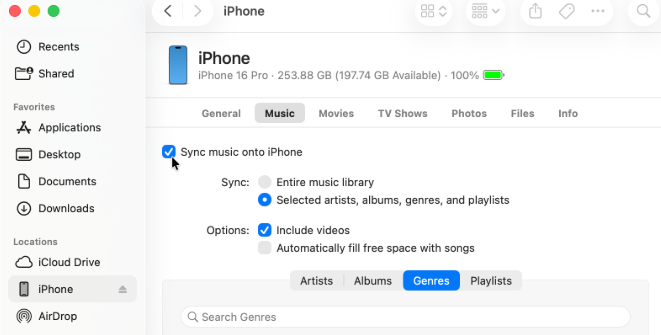
Step 3Click Apply and wait for the sync to finish.
Alternative: On a Windows PC (iTunes/Apple Devices app)
Why you might use this. If you're on Windows and don't want to install third-party software, Apple's free Apple Devices app gets the job done. It's more stable than the old iTunes for Windows.
The catch. Same as Mac – it replaces your existing movie library. Also, it only supports MP4 and MOV formats. MKV files will be silently skipped.
Step 1Install Apple Devices app from the Microsoft Store, then open it and connect your iPhone via USB.
Step 2Click your iPhone in the sidebar, click Movies in the top menu, check Sync movies and select the movies you want to transfer.
Step 3Click Apply and wait for the transfer to complete.
Part 4. Quick Tips Before You Download
I learned these through actual failures. Don't repeat my mistakes.
Tip 1: Check your iPhone storage first. A 2-hour movie in HD takes 3-5 GB. Keep at least 10 GB free for downloads.
Tip 2: Download overnight on Wi-Fi. Start downloads before bed. By morning, everything is ready.
Tip 3: Downloaded movies expire. Netflix downloads can expire in as little as 7 days. Apple TV+ gives you 30 days. Check expiration dates before you travel.
Tip 4: Keep backup movies on a different app. If Netflix fails mid-flight, open Apple TV+. I keep 2 movies on Netflix and 2 on Apple TV+ for any flight over 3 hours.
Tip 5: Remove watched movies immediately. Swipe left and delete. Don't let watched movies waste storage space.
Tip 6: Airplane mode test before you board. Switch to Airplane Mode at the gate and play 5 seconds of each movie. This saved me once – one movie failed, and I re-downloaded it using gate Wi-Fi in 4 minutes.
With FoneTrans for iOS, you will enjoy freedom to transfer your data from iPhone to computer. You can not only transfer iPhone text messages to computer, but also photos, videos and contacts can be moved to PC easily.
- Transfer photos, videos, contacts, WhatsApp, and more data with ease.
- Preview data before transferring.
- iPhone, iPad and iPod touch are available.
Part 5. FAQ
Q2: Why do my downloaded movies disappear from Netflix?
A: Two reasons. First, the movie's license expired. Second, the app needs to check in – if you haven't connected to the internet in 30 days, it refuses to play downloads. Fix: Connect to Wi-Fi and open the app before any long trip.
Q3: Can I transfer movies from an old iPhone to a new one?
A: Yes, for movies you already have access to. Use Quick Start during iPhone setup to transfer data to new iPhone. For Netflix downloads, you must re-download them on the new phone.
Q4: How do I download movies directly to my Camera Roll?
A: You can't. iOS doesn't allow it. Downloaded movies live inside each app. The closest workaround is using FoneTrans for iOS to transfer movies from your computer to your Apple TV app.
Q5: Why won't my downloaded movie play on a plane?
A: Either it expired, or the app needs an internet check-in. Before every flight, open each app and play 5 seconds of each movie while you still have Wi-Fi.
Q6: Is FoneTrans for iOS safe? Does it require jailbreak?
A: No jailbreak required. I've used it on 4 different iPhones over 3 years. It never requested my Apple ID password or accessed personal data.
Save this guide for your next trip. You never know when you'll be at the gate with spotty Wi-Fi and a movie that won't download. If you're tired of iTunes deleting your existing library or failing to handle MKV files, FoneTrans for iOS is the cleaner, faster way. Give it a shot – free trial ready.
With FoneTrans for iOS, you will enjoy freedom to transfer your data from iPhone to computer. You can not only transfer iPhone text messages to computer, but also photos, videos and contacts can be moved to PC easily.
- Transfer photos, videos, contacts, WhatsApp, and more data with ease.
- Preview data before transferring.
- iPhone, iPad and iPod touch are available.



