
 iPhone Data Recovery
 iOS System Recovery
 iOS Data Backup & Restore
 iOS Unlocker
 iPhone Password Manager
 Location Changer
 Android Data Recovery
 Broken Android Data Extraction
 Android Data Backup & Restore
 Android Unlocker
 FoneTrans for iOS
 iPhone Data Eraser
 iPhone Cleaner
 HEIC Converter
 HyperTrans
 WhatsApp Transfer for iOS
 Mac Sweep
 Data Retriever
 Mac Data Retriever
 Video Converter Ultimate
 Screen Recorder
 Phone Mirror
Why are My Messages Green When They Should Be Blue: Fix It in 6 Ways
 Updated by
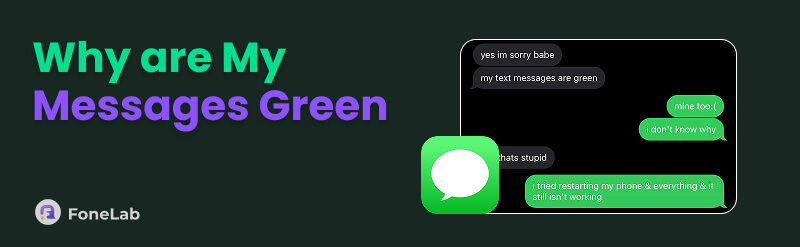
 Hi! I have decided to text my sister this morning. I asked her to buy me some snacks for our movie marathon later. Why are my messages green when they should be blue? I’m afraid that she did not receive my messages on her iPhone. I hope you can help me. Thank you!
If you are an iPhone user, you are used to seeing that your iMessage bubbles are blue. However, there are instances wherein the bubble turns green! But why? In this article, we will answer this question in detail. Additionally, it contains the 6 easy methods to fix it conveniently. Please continue browsing to see the complete information about the topic.

Guide List
Part 1. Why Are My Messages Green When They Should Be Blue
However, the bubble turns green in some specific conditions. Primarily, it happens when the recipient is using an Android or other non-Apple device. It is also possible that the iMessage feature is turned off on your iPhone, and you use SMS or MMS messaging. iMessage requires an internet connection. So, you should check if your internet connection is strong.
Additionally, the iMessage service is probably down. You can check on the official Apple System Status page. This issue rarely happens, but it is possible.
Part 2. How to Fix Messages Green When They Should Be Blue
The blue bubble on your messages indicates that you are using iMessage. It is the built-in secure messaging service offered by Apple. But if it turns green, there seems to be an issue. Fixing the green bubble that should be blue is a bit demanding. In this section, you will see the 6 easy methods to fix it. Please continue browsing to encounter them.
1. Verify iMessage Settings
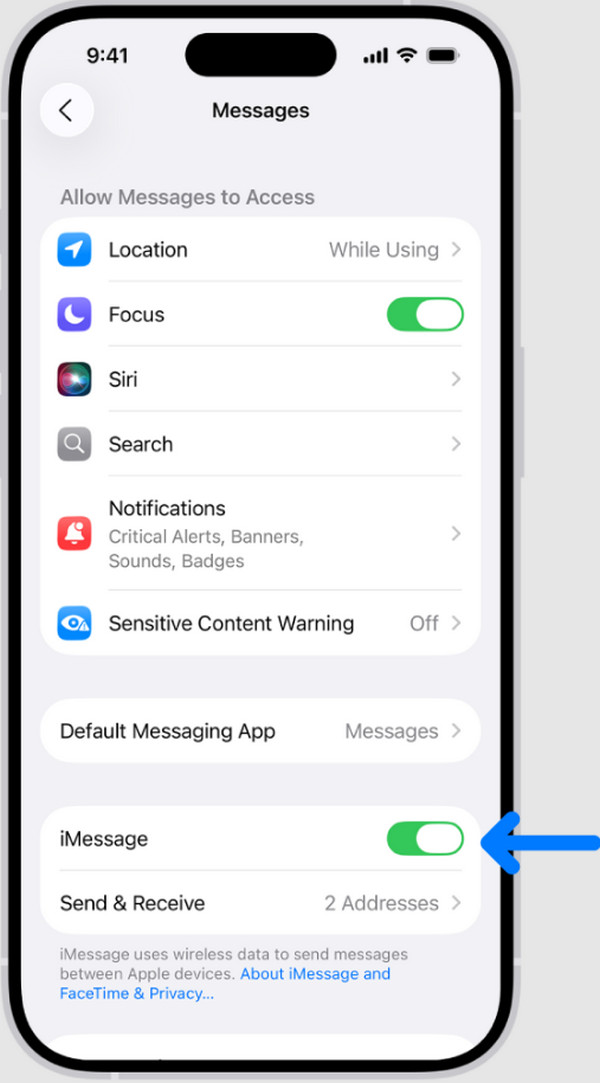
iMessage is the service responsible for sending text messages with a blue bubble. A turned-off iMessage feature causes a green one. The steps below will help you turn on the iMessage feature on your iPhone. Move on.
Open the Settings app on your iPhone. After that, tap the Apps button from the options list. Select the Messages app from the screen. Later, select the phone numbers and email addresses where you want to use the feature. Tap the Send & Receive button. Later, toggle on the iMessage slider to enable it.
2. Check and Reset Internet Settings
iMessages relies on the internet connection of your iPhone. If the bubble turns green, you might not have a strong internet connection. Also, there might be faulty settings for the network.
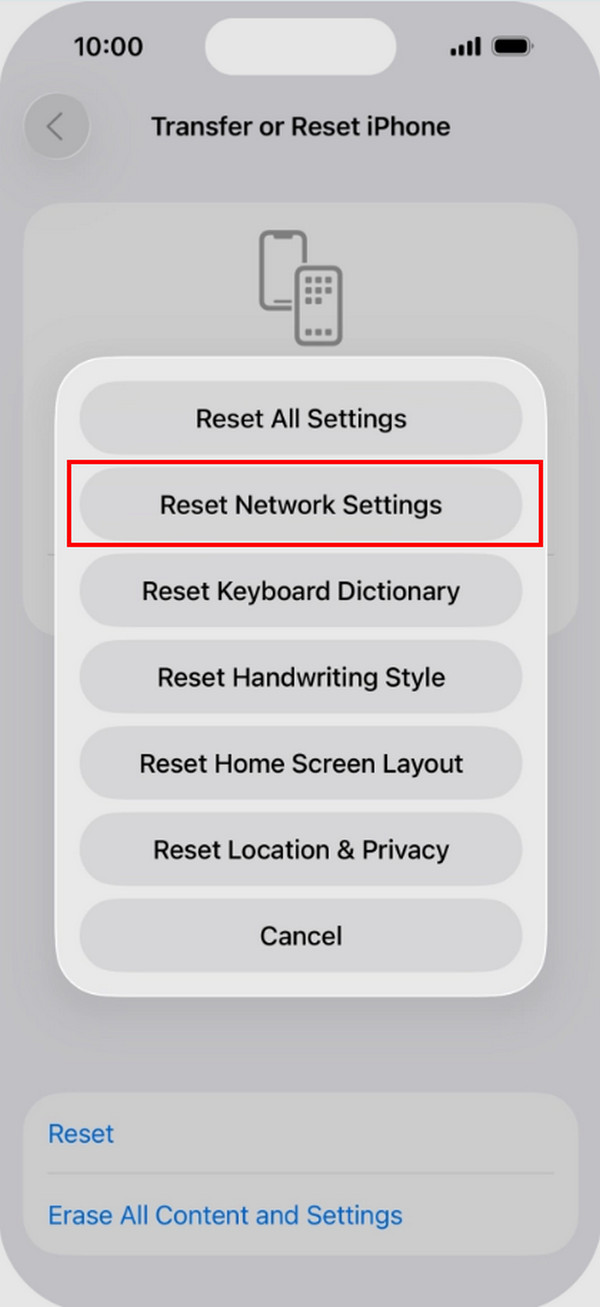
First, you should switch between cellular data and Wi-Fi. If it is still not working, you can try method 2. Reset network settings on iPhone with the steps below.
Open the iPhone Settings app. Then, tap the General button from the first interface. Tap the Transfer or Reset iPhone button at the bottom. Tap the Reset button. Next, select the Reset Network Settings button from the list.
3. Reboot iPhone
A simple system glitch can cause the iMessage issue. Rebooting your iPhone will help you fix the problem. This procedure can be learned with the steps below.
iPhone Without a Home Button: Press and hold Side and Volume Down. Release the buttons until the Power Off button is shown. Slide it to turn off the iPhone. Later, press and hold Side to turn on your iPhone again.
iPhone With a Home Button: Press and hold Side or Top. Release it when you see a Power Off slider. Slide it to turn off your iPhone. Turn it on again by pressing the Side until the Apple logo is shown.
4. Disabled Send as Text Messages
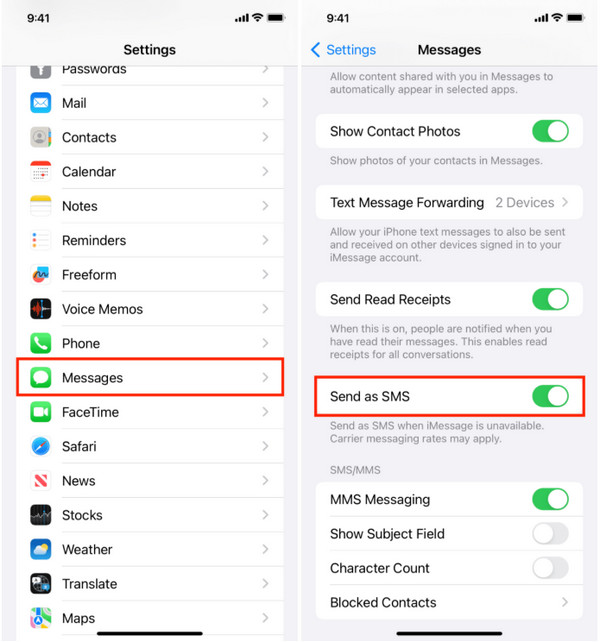
iPhone allows you to send text messages instead of iMessages using the Send as SMS feature. These settings can be turned off to send your iPhone messages using iMessages. See how below.
Open Settings and tap the Apps button from the list. Then, tap the Messages button to see more of its settings. Later, toggle off the Send as SMS slider to turn it off.
5. Update Your iOS
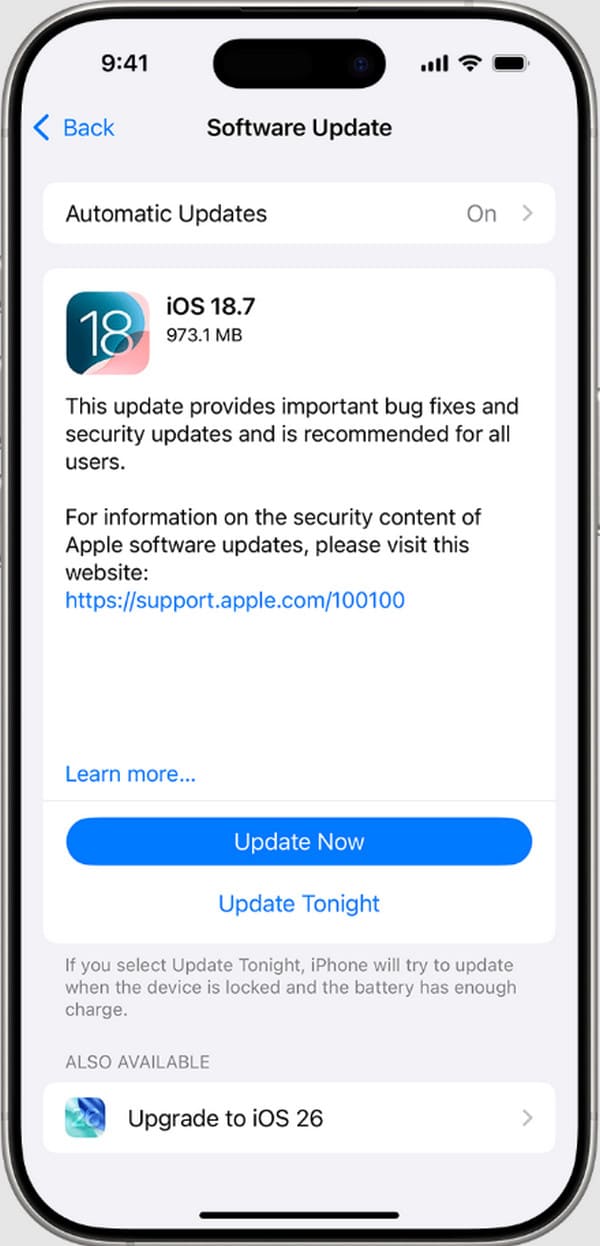
Apple releases an update occasionally for additional operations and features on your iPhone. These updates can fix issues on the device, including message issues, such as bugs and glitches in the system. Perform an iOS update with the steps below.
Access Settings and select the General button from the list. Then, tap the Software Update button on the screen. The iPhone will check if there is an available update for the iOS version. If there is any, please tap the Download and Install or Update Now button from the main interface to update the iOS version.
6. Use FoneLab iOS System Recovery
If the simple troubleshooting methods did not work, it is time to use FoneLab iOS System Recovery. This tool is designed to fix 50+ system issues on your iPhone. It supports the earlier and latest versions of iOS, including version 26. Its Advanced Mode feature can be used to fix more serious issues on your iPhone. Backups are needed in this process because they will delete the iPhone content and settings.

FoneLab enables you to fix iPhone/iPad/iPod from DFU mode, recovery mode, Apple logo, headphone mode, etc. to normal state without data loss.
- Fix disabled iOS system problems.
- Extract data from disabled iOS devices without data loss.
- It is safe and easy to use.
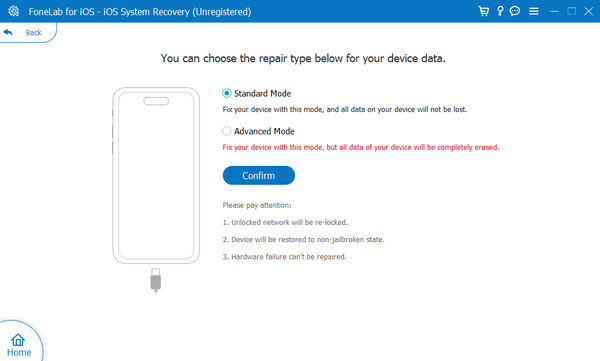
On the other hand, you can use the Standard Mode feature. It will fix minor issues on your iPhone without deleting the data and contents it contains. Use the tool with the steps below.
Step 1Step 1. Click the Free Download from the website. Then, set up the file to install it afterward. Later, open the tool. Finally, click the iOS System Recovery button to start the process.

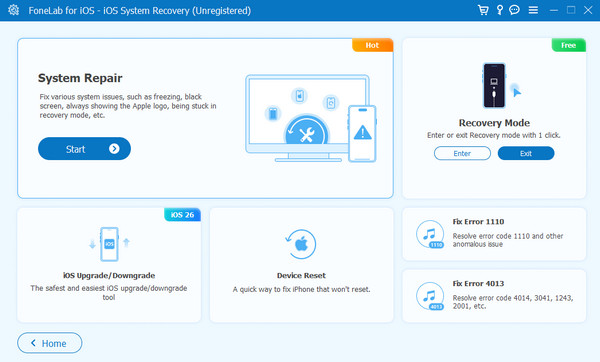
Step 2Step 2. The full features of the tool will be prompted. Please click the Start button at the top left to proceed with the next interface.
Step 3Step 3. Please select between Standard Mode and Advanced Mode. Then, plug your iPhone into your computer with a compatible USB cable. Later, click the Confirm button. Follow the on-screen instructions, and the fixing process will start.
Part 3. FAQs about Why Are My Messages Green When They Should Be Blue
Does a green message mean blocked?
No. A green message on your iPhone does not mean that you are blocked. However, some reports suggest that it is a sign, but there is no complete assurance of that. Some of the primary signs that someone has blocked you are when your calls go to voicemail or the text messages do not deliver at all.
What happens if the recipient doesn't have iMessage?
If the recipient doesn’t have iMessage, you will rely on SMS or MMS text messages. You cannot use iMessage to send messages because their device does not support it.
Why are my messages green when they should be blue? We hope that this article has answered the question clearly. Also, the easiest methods to fix it are included. FoneLab iOS System Recovery can be used if system issues are causing it. This tool can fix 50+ problems on your iPhone. Additionally, it can be used to upgrade or downgrade the iOS version on your iPhone. Download the tool to know more about its features!



