
 iPhone Data Recovery
 iOS System Recovery
 iOS Data Backup & Restore
 iOS Unlocker
 iPhone Password Manager
 Location Changer
 Android Data Recovery
 Broken Android Data Extraction
 Android Data Backup & Restore
 Android Unlocker
 FoneTrans for iOS
 iPhone Data Eraser
 iPhone Cleaner
 HEIC Converter
 HyperTrans
 WhatsApp Transfer for iOS
 Mac Sweep
 Data Retriever
 Mac Data Retriever
 Video Converter Ultimate
 Screen Recorder
 Phone Mirror
- Part 1. Transfer Data from Samsung to Samsung Using A USB Cable Directly
- Part 2. Transfer Data from Samsung to Samsung with FoneLab HyperTrans
- Part 3. Transfer Data from Samsung to Samsung via Smart Switch
- Part 4. Transfer Data from Samsung to Samsung via Samsung Cloud
- Part 5. Transfer Data from Samsung to Samsung via Google Drive
- Part 6. FAQs about How to Transfer Data from Samsung to Samsung
 Transfer Phone Data Now
Transfer Data From iPhone, Android, iOS, Computer to Anywhere without Any Loss.
- Transfer Data from One Micro SD Card to Another Android
- How to Transfer Pictures from One Phone to Another
- How to Transfer Photos from Old LG Phone to Computer
- How to Transfer Photos from an Old Samsung to Another Samsung
- Transfer Contacts from Samsung to iPhone
- Transfer Data from LG to Samsung
- Transfer Data from Old Tablet to New
- Transfer Files from Android to Android
- Transfer iCloud Photos to Android
- Transfer iPhone Notes to Android
- Transfer iTunes Music to Android
Efficient Guide on How to Transfer Samsung to Samsung
 Updated by
 Transfer data from Samsung to Samsung efficiently. Learning the content of this post will give you a seamless experience, eliminating the frustration of being unable to transfer your Samsung photos, messages, audio, contacts, and more to another device. Whether you have just upgraded to a new device or simply want to transfer, let the following parts be your solution.
Below, we will help you explore the most effective strategies from Samsung’s built-in transfer methods to the professional programs. Whether you want a wired or wireless transfer, it’s not a problem because both are available. That said, ensure that every precious or essential data you need finds its way to your chosen Samsung device quickly and securely.

Guide List
- Part 1. Transfer Data from Samsung to Samsung Using A USB Cable Directly
- Part 2. Transfer Data from Samsung to Samsung with FoneLab HyperTrans
- Part 3. Transfer Data from Samsung to Samsung via Smart Switch
- Part 4. Transfer Data from Samsung to Samsung via Samsung Cloud
- Part 5. Transfer Data from Samsung to Samsung via Google Drive
- Part 6. FAQs about How to Transfer Data from Samsung to Samsung
Part 1. Transfer Data from Samsung to Samsung Using A USB Cable Directly
When you need a fast, reliable transfer that doesn't depend on your Wi-Fi speed or data plan, a direct USB cable connection is the initial solution to try. It offers a stable, high-speed connection between your two Samsung devices, making it ideal for those who’d like to transfer data directly and without an internet connection. However, since it’s a manual transfer method, expect it not to have a specialized function for fast transfer. The duration of the process will depend on the size and quantity of your files.
Bear in mind the uncomplicated guide below for a direct Samsung data transfer using a USB cable:
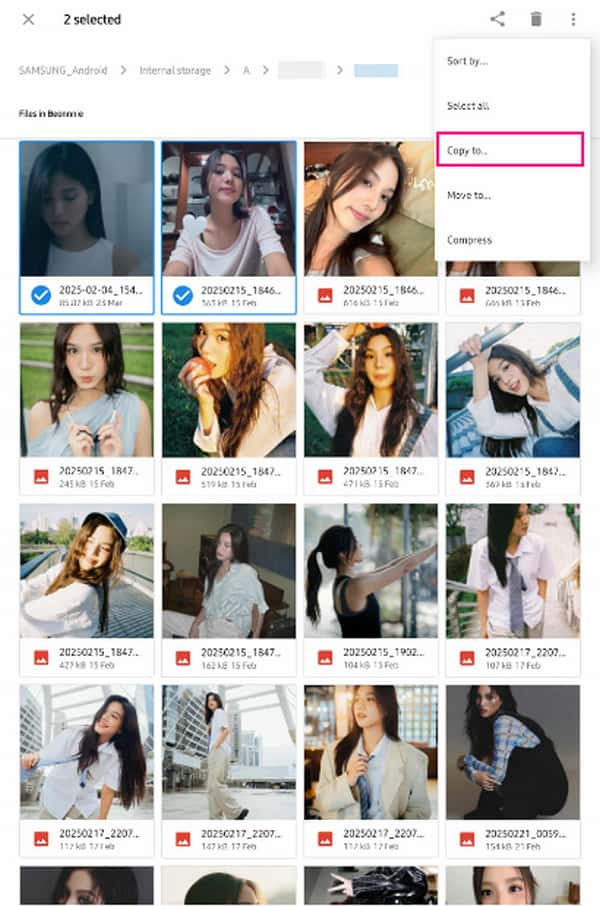
Step 1Attach a USB-C to USB-C cable to your Samsung devices. Once your receiver device asks for permission, tap Allow to let the sender device’s data be detected. Next, view the sender’s data through the Files app.
Step 2From there, you can open the folders to find the files you want to transfer. Mark them before tapping the three-dotted symbol on the upper left and choosing Copy to. Finally, head to the receiver device’s storage and hit Copy.
Part 2. Transfer Data from Samsung to Samsung with FoneLab HyperTrans
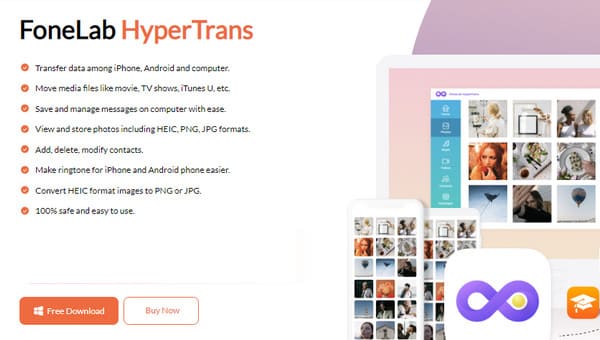
FoneLab HyperTrans is the way to go if you want the transfer to be specialized and professional. This program enables users to transfer their desired files between various devices, including Android, iOS, and computers. Thus, it will be among, if not the most, reliable tools that can help you transfer from one Samsung device to another. After all, it supports a diverse number of formats, such as videos, photos, contacts, music, messages, and more.
Meanwhile, another advantage of FoneLab HyperTrans is its organization. Unlike other transfer methods, it automatically classifies your data types, letting you find the files you intend to transfer more quickly. Aside from that, you will enjoy the bonus features it offers in the Toolbox section. You can use its Ringtone Maker, HEIC Converter, Contacts Backup, etc., anytime without having to go to another platform.
Transfer Data From iPhone, Android, iOS, Computer to Anywhere without Any Loss.
- Move Files between iPhone, iPad, iPod touch and Android.
- Import Files from iOS to iOS or from Android to Android.
- Move Files from iPhone/iPad/iPod/Android to Computer.
- Save Files from Computer to iPhone/iPad/iPod/Android.
Discern the trouble-free navigation below as a pattern of how to transfer from Samsung to Samsung with FoneLab HyperTrans:
Step 1Prioritize going to FoneLab HyperTrans’ website, and a Free Download button will instantly greet you. Click it for the transfer tool’s installer to be downloaded, automatically proceeding to your Downloads. From there, launch the file and follow the prompts. It will later lead you to the Start button, allowing you to initialize the program’s initial interface.
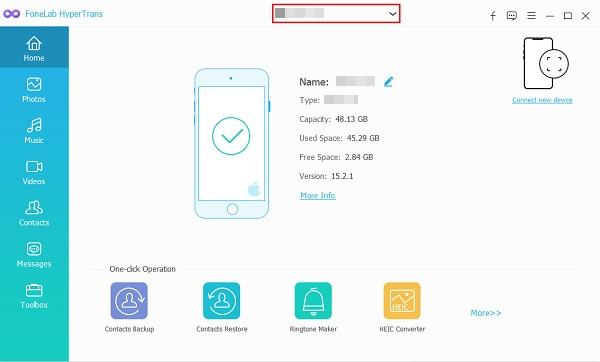
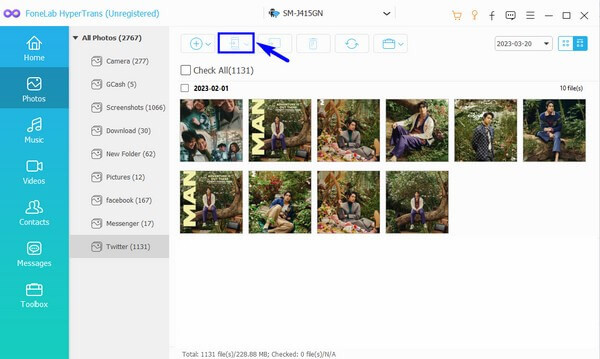
Step 2You must link both Samsung devices once the tool launches using USB cables. When the program detects them, navigate the on-screen instructions accordingly to let the program read and view your Samsung files. Once the device information appears on the interface, hit the tab in the upper center and pick your sender device from the list of connected devices.
Step 3Afterward, it’s time to choose a data type in the left column to view and find the files you wish to transfer. Since they are categorized, you can easily find them, so mark your desired data before proceeding to the mobile device tab on the upper portion of the screen. Then, opt for your receiver, a Samsung phone or tablet, to transfer the marked files seamlessly.
Part 3. Transfer Data from Samsung to Samsung via Smart Switch
On the other hand, Smart Switch would also be an excellent choice for those transferring to set up a new Samsung device. Samsung specifically developed it for that purpose, offering a user-friendly process to move everything from the older device to your new phone or tablet virtually. The formats it supports range from basic files, like media files, to contacts, text messages, calendar, device settings, etc. Another good thing is that Smart Switch allows you to connect your Samsung devices wired or wirelessly. Simply choose which is more convenient for you. Besides, it’s hassle-free to learn how to use Samsung Smart Switch.
Stick to the simplified directions below to perform a Samsung transfer to new phone via Smart Switch:
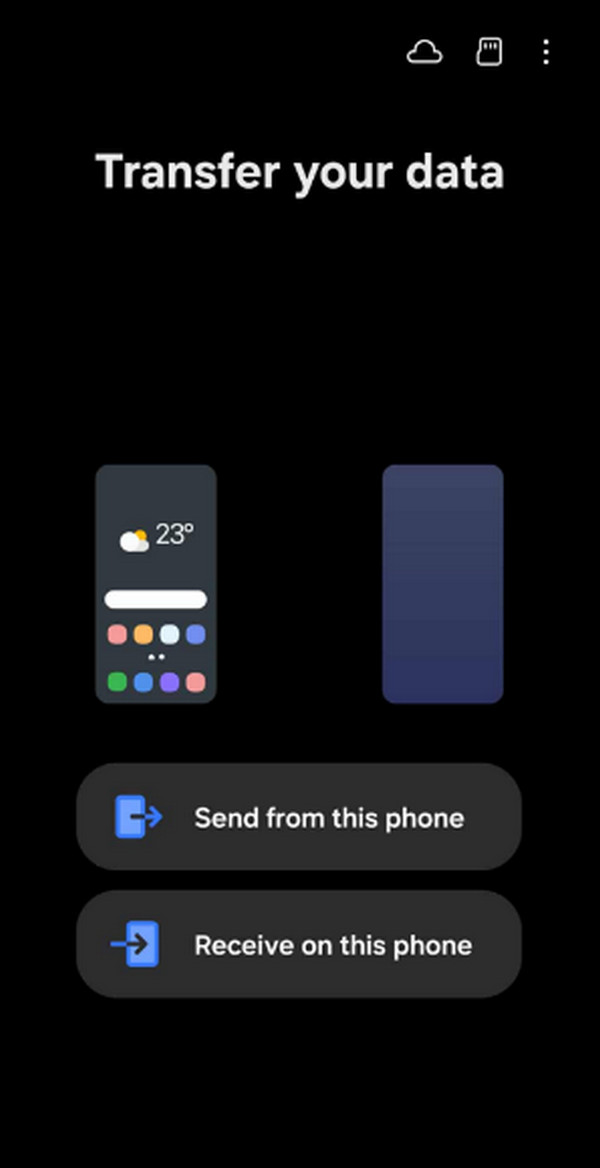
Step 1Launch the Samsung Switch app that is pre-installed on both your Samsung devices. Choose Send from this phone on the older device, while it’s Receive on this phone on the new one.
Step 2When asked, pick Wireless as the transfer method and select the data types you wish to transfer once they load. After that, opt for the Transfer button to move them.
Part 4. Transfer Data from Samsung to Samsung via Samsung Cloud
What if a direct device transfer is not working, or you simply don’t prefer it? If so, don’t be discouraged because methods for transferring data through storage platforms are still available. First is Samsung’s very own Cloud. As you may know, Samsung devices offer a built-in backup and restore feature through the Samsung Cloud service. You must only enable it on your sender device and perform the restoration using the same Samsung account on the receiver device. Then, your data will be transferred and available on your chosen Samsung phone or tablet in no time.
Imitate the painless operation below to grasp how to transfer data from Samsung to Samsung without Smart Switch via Samsung Cloud:
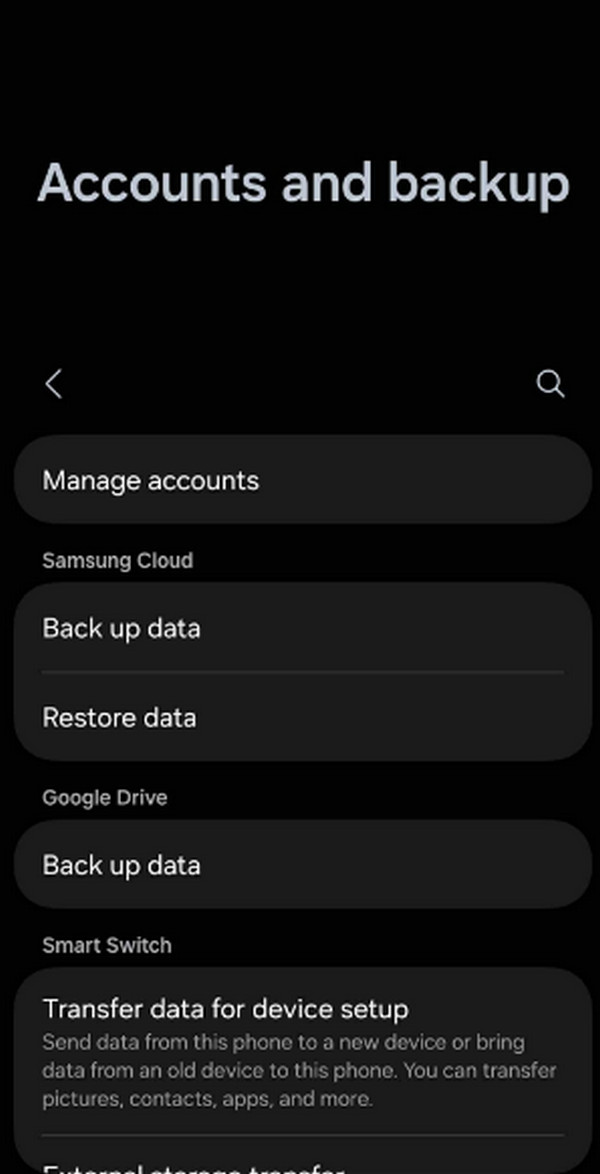
Step 1On your sender device’s Settings, find and select Accounts and backup. Then, under Samsung Cloud, select the Back up data option and toggle the data types you desire to transfer on the following screen. Once ready, hit Back up now to save them to your Samsung account.
Step 2Afterward, ensure you are logged into the same account on your receiver Samsung device. Perform the same process on Settings, but when you reach the Samsung Cloud section this time, choose Restore data to transfer and save your selected data to your receiving device.
Learning how to use Samsung Cloud is advantageous, especially if you often use Samsung devices. Feel free to rely on the guidelines above to master its function and steps.
Part 5. Transfer Data from Samsung to Samsung via Google Drive
Another storage platform that can help you move data from Samsung to Samsung is Google Drive. Unlike the others, this method can be done through uploading and downloading data. Simply upload the files you wish to transfer to your Google Drive account on the sending device, then view and download them on the receiving device by logging into the same account. As you can see, it is simpler to understand, even though it may be more procedural than the other transfer methods.
Accept the convenient task below for a Samsung transfer via Google Drive:
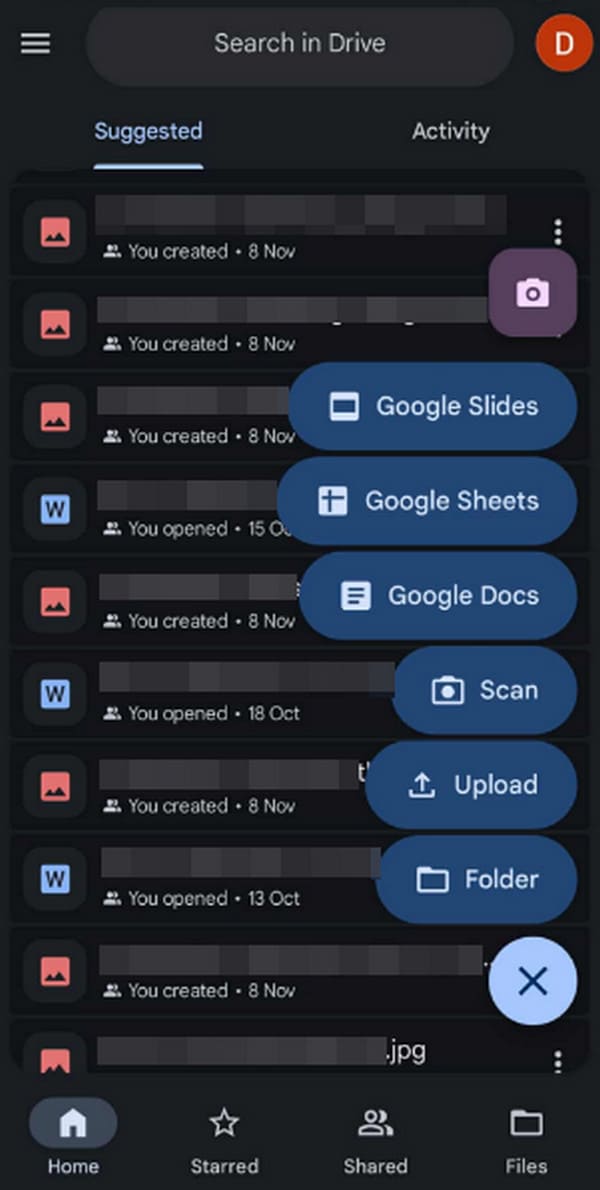
Step 1Initialize the Google Drive app using your sending device, then hit the Plus symbol on the lower right and tap Upload. Once prompted, choose and upload the files you plan to transfer.
Step 2Once uploaded, use your receiving device to log into the same Google Drive account. Your chosen files will then be available, so mark them and opt for the Download button to transfer.
However, a disadvantage you must know is that the process may take longer than the other transfer techniques, as it solely relies on your internet connection. So, if you decide to choose Google Drive, ensure you are linked to a stable and secure network for a seamless transfer to Samsung.
Part 6. FAQs about How to Transfer Data from Samsung to Samsung
Does Samsung Smart Switch transfer everything?
No, it doesn’t, but it can transfer the majority of your Samsung device content. As mentioned earlier, this includes contacts, photos, call logs, messages, videos, music files, and more.
How long does the transfer take for Samsung to Samsung?
It depends on the size and quantity of your data. It can take only a minute or even seconds if you only have a few small files to transfer. However, it will take longer for numerous large files.
Transferring from your Samsung device to another is much easier than transferring to other devices using the proper methods. If you want an overall convenient solution, don’t be reluctant to learn and install FoneLab HyperTrans, as it supports numerous data types that others can’t transfer and works for multiple devices.



