
 iPhone Data Recovery
 iOS System Recovery
 iOS Data Backup & Restore
 iOS Unlocker
 iPhone Password Manager
 Location Changer
 Android Data Recovery
 Broken Android Data Extraction
 Android Data Backup & Restore
 Android Unlocker
 FoneTrans for iOS
 iPhone Data Eraser
 iPhone Cleaner
 HEIC Converter
 HyperTrans
 WhatsApp Transfer for iOS
 Mac Sweep
 Data Retriever
 Mac Data Retriever
 Video Converter Ultimate
 Screen Recorder
 Phone Mirror
- Part 1. How to Transfer Data from Samsung to iPhone via Samsung Smart Switch
- Part 2. How to Transfer Samsung to iPhone via Move to iOS
- Part 3. How to Transfer from Samsung to iPhone Using iCloud
- Part 4. Transfer Data from Samsung to iPhone Using Google Drive
- Part 5. Transfer Data from Samsung to iPhone with FoneLab HyperTrans
- Part 6. Transfer Data from Samsung to iPhone with USB Cable
- Part 7. FAQs about How to Transfer Data from Samsung to iPhone
 Transfer Phone Data Now
Transfer Data From iPhone, Android, iOS, Computer to Anywhere without Any Loss.
- Transfer Data from One Micro SD Card to Another Android
- How to Transfer Pictures from One Phone to Another
- How to Transfer Photos from Old LG Phone to Computer
- How to Transfer Photos from an Old Samsung to Another Samsung
- Transfer Contacts from Samsung to iPhone
- Transfer Data from LG to Samsung
- Transfer Data from Old Tablet to New
- Transfer Files from Android to Android
- Transfer iCloud Photos to Android
- Transfer iPhone Notes to Android
- Transfer iTunes Music to Android
How to Transfer Samsung to iPhone Data in 6 Dependable Ways
 Updated by
 The Samsung phone and the iPhone have different operating systems. Some wonder if it is possible to transfer data from your Samsung phone to an iPhone. The good news is that it is possible! This article will show you the 6 easy methods for the transfer process. What are you waiting for? Scroll below to discover and use them!

Guide List
- Part 1. How to Transfer Data from Samsung to iPhone via Samsung Smart Switch
- Part 2. How to Transfer Samsung to iPhone via Move to iOS
- Part 3. How to Transfer from Samsung to iPhone Using iCloud
- Part 4. Transfer Data from Samsung to iPhone Using Google Drive
- Part 5. Transfer Data from Samsung to iPhone with FoneLab HyperTrans
- Part 6. Transfer Data from Samsung to iPhone with USB Cable
- Part 7. FAQs about How to Transfer Data from Samsung to iPhone
Part 1. How to Transfer Data from Samsung to iPhone via Samsung Smart Switch
Samsung Smart Switch is a free service that is commonly used to transfer data from one Samsung phone to another or other devices. The question is: Is it possible to use it to transfer Samsung data to an iPhone? Yes, it is! The free service supports complex compatibility with different devices for a smooth transfer procedure. However, transferring the Samsung phone data to an iPhone requires a USB connection. How to use Samsung Smart Switch to transfer Samsung to iPhone? We recommend that you use the steps below.
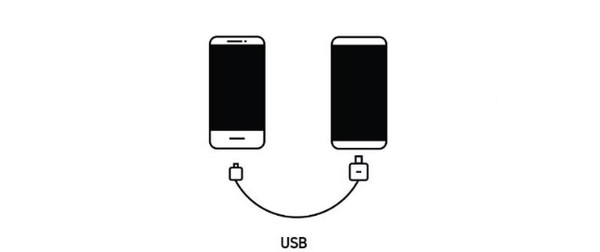
Step 1Plug the Samsung phone and iPhone into a USB cable and adaptor. Then, open the Samsung Smart Switch on your mobile phone. On your Samsung phone, select Send from This Phone and tap Cable. On your iPhone, tap Receive on This Phone and choose Cable.
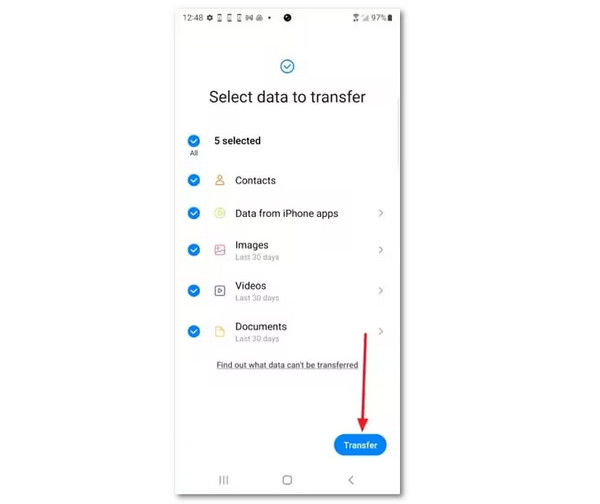
Step 2Select between Everything or Custom. Select all the data you prefer to transfer. Then, tap Next or Transfer from the screen. Please follow the on-screen steps to start transferring the Samsung phone data to your iPhone.
Part 2. How to Transfer Samsung to iPhone via Move to iOS
Move to iOS is a feature on Apple devices, particularly the iPhone, which offers a wireless transfer from other devices. It can also transfer through a USB cable, but the mentioned one is the most used. However, this app requires professional skills for the demanding procedure it offers. Also, ensure that you have a strong internet connection, especially if you will transfer multiple files. Additionally, you can only transfer data from your Samsung phone to an iPhone during the initial setup. Please imitate the steps below to transfer data from Samsung to iPhone using Move to iOS.
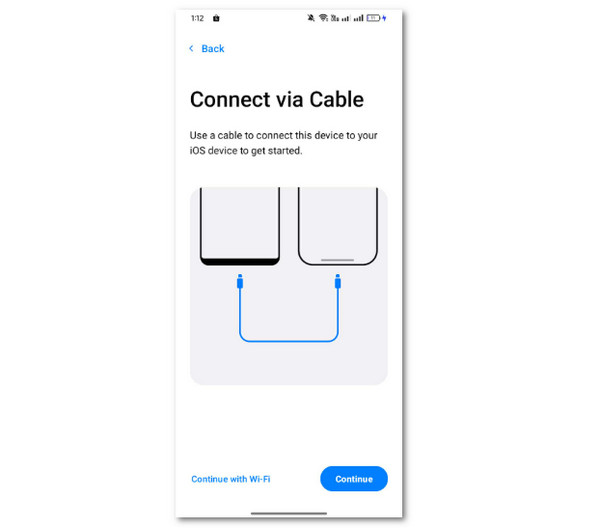
Step 1On your Samsung phone, please download Move to iOS. After that, set up the app, depending on the requirements and permissions it asks for. Please tap the Continue or Continue with Wi-Fi button at the bottom left afterward.
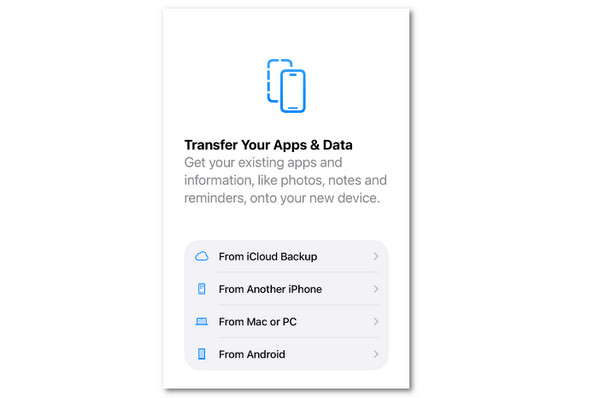
Step 2Set up the iPhone and choose From Android from the Transfer Your Apps & Data screen. Enter the needed code that will appear on the iPhone screen using the Move to iOS app from your Android phone. The transfer process will start immediately.
Part 3. How to Transfer from Samsung to iPhone Using iCloud
iCloud is known as a cloud-based storage for iPhone. Did you know that you can also transfer Samsung data to your iPhone using it? The steps below will help you do that.
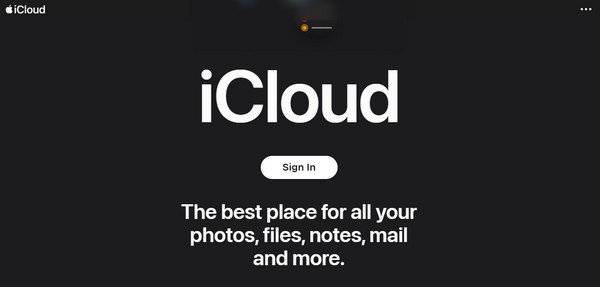
Visit the iCloud website. Then, select Sign In and encode your Apple ID. Select iCloud Drive and import all the data you prefer to transfer. On your iPhone, tap Settings and select your account name. Select iCloud and choose iCloud Drive. Enable it to sync the files.
Part 4. Transfer Data from Samsung to iPhone Using Google Drive
If iPhone has iCloud, Samsung phones have Google. This cloud-based account has free services, like Google Drive. This service allows you to store your data from different devices, due to its complex supported operating systems. It is accessible to web browsers because it has a website. Also, it can be accessed through its app version. Use Google Drive to transfer Samsung phone data to your iPhone with the instructions below.
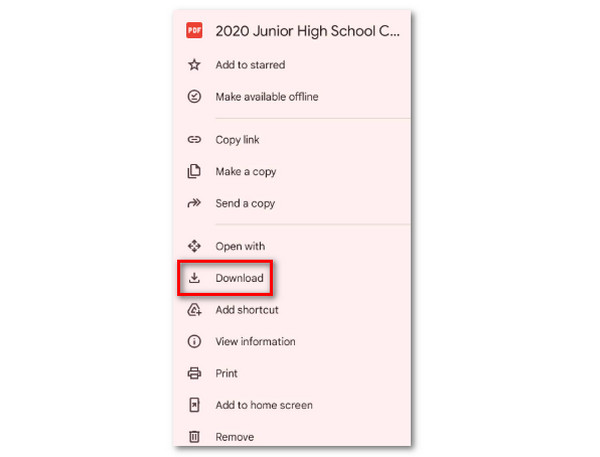
Open Google Drive on your Samsung phone. Tap Plus and choose the files you want to transfer to import them. Then, open Google Drive on your iPhone and sign in with the same account. Locate the files and tap Three Dots. Tap Download afterward.
Part 5. Transfer Data from Samsung to iPhone with FoneLab HyperTrans
Transferring your Samsung data to your iPhone can also be done with a third-party tool, like FoneLab HyperTrans. This tool also supports transfer to your iPad and PC. It supports multiple data types, including music, photos, videos, contacts, and more. This tool does not require professional skills. Do you want to know how the tool works? The steps below will lead the process.
Transfer Data From iPhone, Android, iOS, Computer to Anywhere without Any Loss.
- Move Files between iPhone, iPad, iPod touch and Android.
- Import Files from iOS to iOS or from Android to Android.
- Move Files from iPhone/iPad/iPod/Android to Computer.
- Save Files from Computer to iPhone/iPad/iPod/Android.
Step 1Click Free Download to download the tool. Set up, install, and open it afterward.

Step 2Plug the Samsung phone and iPhone into the computer. Choose Samsung and select the files to transfer.
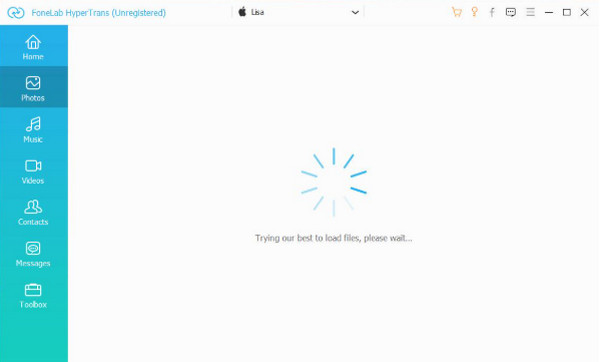
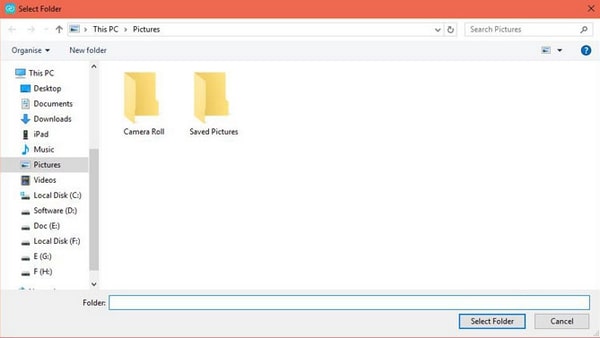
Step 3Click Phone at the top and select iPhone. Choose a folder and tick Select Folder to start the process.
Part 6. Transfer Data from Samsung to iPhone with USB Cable
A USB cable or adaptor can also be used to transfer Samsung phone data to your iPhone. You will need a computer for this process. However, this method is the slowest among all on the list in this article. The transfer process depends on the file size and the quality of the data types. Also, there are limited file types you can transfer. You can only move videos, photos, documents, and audio. The steps below are the best guide to transferring Samsung phone data to iPhone via USB cable.
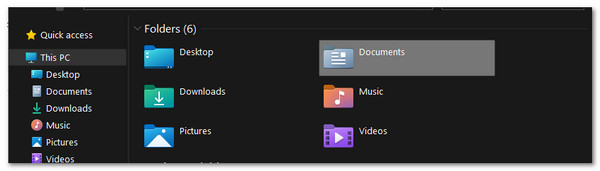
Plug the Samsung phone and iPhone into the computer using a USB cable. Then, select the Samsung phone on the left and copy the files you want to transfer. After that, please go to the iPhone location where you want to transfer them. Finally, paste the files into the folder to start the transfer process.
Part 7. FAQs about How to Transfer Data from Samsung to iPhone
How to transfer eSIM from iPhone to Samsung?
Delete the eSIM first on your iPhone. Go to Settings and tap Cellular. Select eSIM to remove and tap Remove Cellular Plan. Get a new QR code for an eSIM from your carrier. On Samsung, go to Settings. Tap Connections and SIM Manager. Select Add eSIM and choose Scan from QR Code. Follow the on-screen instructions to complete the process.
How to transfer Samsung Notes to iPhone?
Go to the Notes app on your Samsung phone. Then, select the notes you want to transfer. Then, tap the Share option and choose the email options. Type your email and send it to the account where you want to transfer them. Access the email from your iPhone afterward.
All in all, this article guides you on how to transfer from Samsung to iPhone. 6 methods are in this post to help you with the transfer process. FoneLab HyperTrans is the best way if you are looking for a third-party tool that can transfer data from a Samsung to an iPhone in just a few clicks. Download the tool now for a better experience!



