
 iPhone Data Recovery
 iOS System Recovery
 iOS Data Backup & Restore
 iOS Unlocker
 iPhone Password Manager
 Location Changer
 Android Data Recovery
 Broken Android Data Extraction
 Android Data Backup & Restore
 Android Unlocker
 FoneTrans for iOS
 iPhone Data Eraser
 iPhone Cleaner
 HEIC Converter
 HyperTrans
 WhatsApp Transfer for iOS
 Mac Sweep
 Data Retriever
 Mac Data Retriever
 Video Converter Ultimate
 Screen Recorder
 Phone Mirror
- Part 1. How to Transfer Files from Android to Mac via iCloud
- Part 2. Transfer Files from Android to Mac Using Google Drive
- Part 3. Transfer Files from Android to Mac Using Android File Transfer
- Part 4. File Transfer from Android to Mac Using Bluetooth
- Part 5. Transfer Files from Android to PC with FoneLab HyperTrans
- Part 6. FAQs about How to Transfer Files from Android to Mac
 Transfer Phone Data Now
Transfer Data From iPhone, Android, iOS, Computer to Anywhere without Any Loss.
- Transfer Data from One Micro SD Card to Another Android
- How to Transfer Pictures from One Phone to Another
- How to Transfer Photos from Old LG Phone to Computer
- How to Transfer Photos from an Old Samsung to Another Samsung
- Transfer Contacts from Samsung to iPhone
- Transfer Data from LG to Samsung
- Transfer Data from Old Tablet to New
- Transfer Files from Android to Android
- Transfer iCloud Photos to Android
- Transfer iPhone Notes to Android
- Transfer iTunes Music to Android
File Transfer from Android to Mac in 4 Proven and Tested Ways
 Updated by
 An Android phone and a Mac do not have the same operating system. Some think that it is hard to transfer files in this state. That’s not true! There are multiple ways to transfer your Android phone files to your Mac easily. In fact, this article has the 4 best methods on how to transfer files from Android to Mac. Kindly browse this entire article to see the complete information about them.

Guide List
- Part 1. How to Transfer Files from Android to Mac via iCloud
- Part 2. Transfer Files from Android to Mac Using Google Drive
- Part 3. Transfer Files from Android to Mac Using Android File Transfer
- Part 4. File Transfer from Android to Mac Using Bluetooth
- Part 5. Transfer Files from Android to PC with FoneLab HyperTrans
- Part 6. FAQs about How to Transfer Files from Android to Mac
Part 1. How to Transfer Files from Android to Mac via iCloud
We might all be aware that Android phones do not support iCloud as their built-in account that offers multiple free services, unlike Apple devices. Did you know that you can still transfer files from Android to Mac? It is by visiting the online website of the mentioned cloud-based storage. Unlike Apple devices, it has a limitation on the data types you can transfer by importing them.
Also, ensure that the Apple ID used on the Mac is the same as the account you will use to import the files using your Android phone. Please perform the steps below to transfer photos from your Android to Mac using iCloud.
Step 1On your Android phone, please search for the main website of iCloud. After that, tap the Sign In button on the first interface. Enter the Apple ID account credentials on the next screen. Tap the Drive button on the screen. Tap the Plus option at the top right corner and import the files you want to transfer from your Android phone to a Mac.

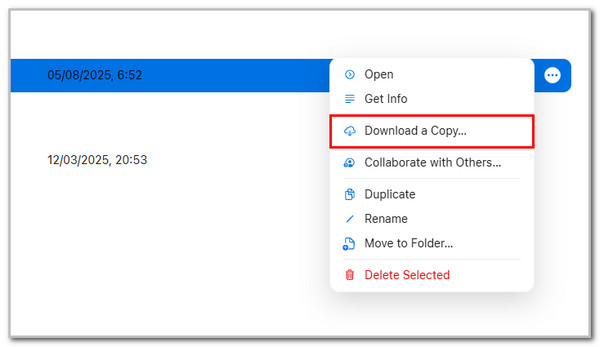
Step 2On your Mac, search for the iCloud website. Perform the previous steps that were done from the Android phone. Ensure that you use the same iCloud account from the website. Then, click the Drive button. Select the files you prefer to transfer and click the Three Dots button. Finally, click the Download a Copy button from the list.
Part 2. Transfer Files from Android to Mac Using Google Drive
Google is the primary account that can be used for multiple Android phones. The good thing about it is that it offers numerous free services and apps from the mentioned mobile phone. Google Drive is one of them. This service helps you transfer files from Android to Mac wirelessly.
However, it can only transfer limited data types, including photos and videos. Additionally, Google Drive is known for privacy concerns due to Google's technical access to your data. It is recommended not to import sensitive data from the service. Kindly scroll below to see the steps for this process.
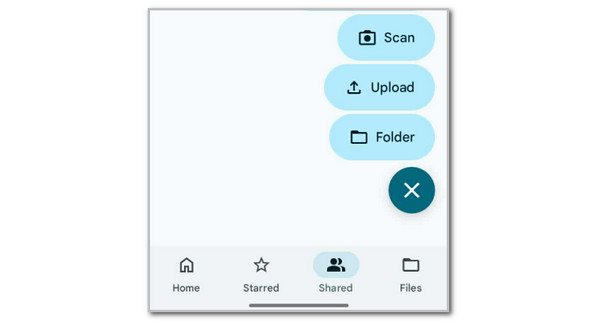
Step 1Open the Google Drive application on the Android phone where the files you want to transfer are stored. Then, select the Files button at the bottom right corner of the main interface. After that, tap the Plus button at the bottom right and select the Upload button. Please select the files you prefer to transfer, and they will be imported to Google Drive.
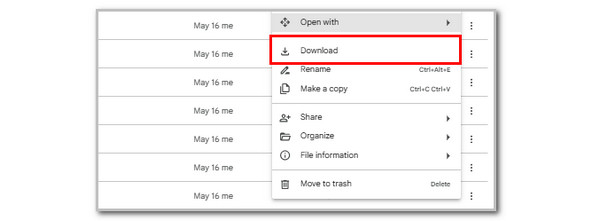
Step 2Please go to your Mac and search for the Google Drive website. You only need to sign in to the same account used with the Google Drive app. After that, you will see the recently stored data from your account. Look for the files you want to store on your Mac and click the Three Dots button. Finally, click the Download button on the screen to download them.
Part 3. Transfer Files from Android to Mac Using Android File Transfer
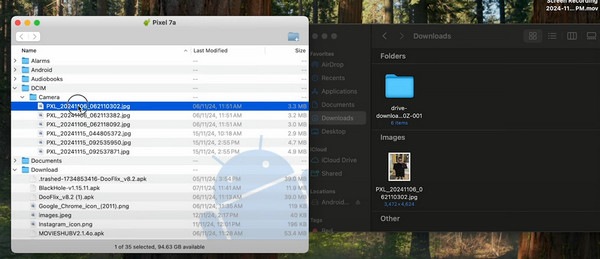
Android File Transfer on Mac is a tool that can transfer your Android phone files to a Mac through a USB cable. It has an intuitive interface that is best for novices. Other users use it as an efficient file management program for their Android phone files using their Mac. This tool can transfer most of your files from your Android phone, like pictures, videos, contacts, and other data types. Since it uses a USB cable for the transfer process, it only means that you do not need to use the internet connection on your Mac or Android phone.
However, this tool does not have an official website where you can get it. You need to carefully perform the Android File Transfer on Mac download from a trusted website. The steps are about the procedure of the mentioned tool.
Step 1Open your Mac and search for the website that offers the Android File Transfer program. After that, click the Free Download button on the screen. After that, set up and launch the tool on your Mac. Click the Get Started button on the first screen.

Step 2Plug your Android phone into the Mac. On your Android phone, you will see multiple options for the transferring method using the USB cable. Please click the File Transfer/Android Auto button. Enter the Android phone passcode to authenticate. Please click the data types folder on the screen.
Step 3Select the files you want to transfer. After that, please open Finder and drag and drop the files into it to transfer them to your Mac. Safely unplug your Android phone from the Mac afterward.
Part 4. File Transfer from Android to Mac Using Bluetooth
Bluetooth is a built-in transfer feature that can be found in multiple devices, such as your Android phone and Mac. Every Bluetooth device is compatible with every other Bluetooth device. It only means that you do not need to download a third-party tool or app. However, this feature is considered one of the methods that is slow when transferring files from one device to another, like an Android phone and a Mac. Perform the file transfer from Android to Mac with Bluetooth using the steps below.
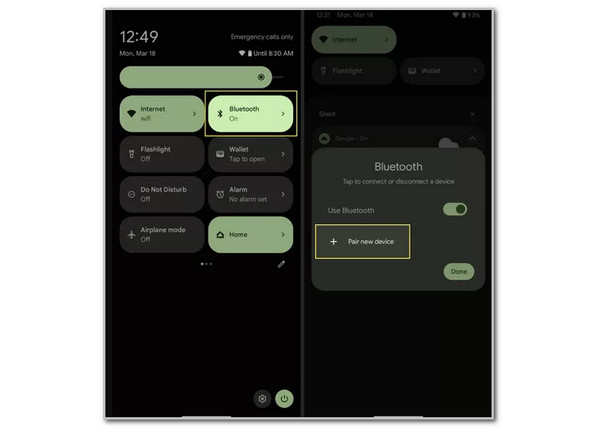
Step 1First, open the Bluetooth on your Mac and Android phone. On your Android phone, long-press the Bluetooth feature from the Notification Center. Then, tap the Pair New Device button on the screen. Tap the Mac name from the Available Devices section. After that, click the Connect button at the bottom right of the small window that will appear on your Mac.
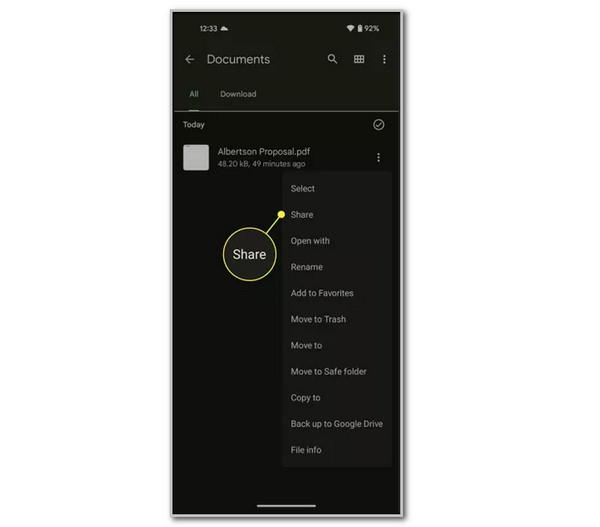
Step 2Please locate the files you prefer to transfer to your Mac from the Files app. Then, long-press the files and tap the Share button on the screen. Later, the options for the sharing transfer will appear on the screen. Tap the Bluetooth button and select the Mac name as the receiver. The transfer process will start afterward.
Part 5. Transfer Files from Android to PC with FoneLab HyperTrans
You can also transfer your Android phone files to your PC! This procedure is possible with the help of FoneLab HyperTrans. This tool can transfer different data types from your Android phone to your PC. It includes contacts, videos, photos, and more. You can also use it to transfer files from your iPad and iPhone. Please take the steps below as your guide on how to use this tool to transfer files from Android to PC.
Transfer Data From iPhone, Android, iOS, Computer to Anywhere without Any Loss.
- Move Files between iPhone, iPad, iPod touch and Android.
- Import Files from iOS to iOS or from Android to Android.
- Move Files from iPhone/iPad/iPod/Android to Computer.
- Save Files from Computer to iPhone/iPad/iPod/Android.
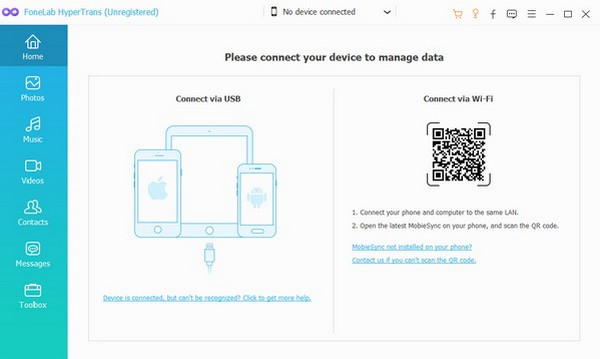
Step 1Click Free Download to set up and install the tool. Then, you will see its first screen.

Step 2Plug the Android phone into the PC using a USB cable. You may also scan the QR code and use MobieSync. Click your desired data types afterward.
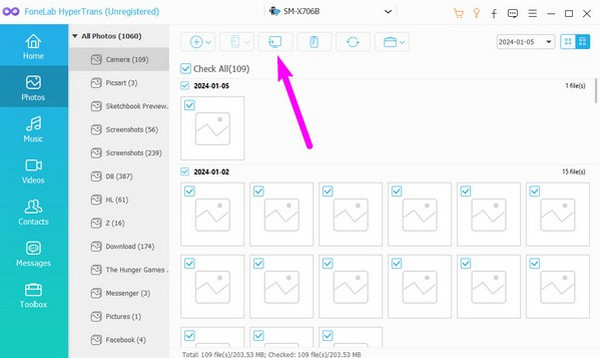
Step 3The results will appear on the screen. Select the data you want to transfer. Finally, click Computer to start the transfer process.
Part 6. FAQs about How to Transfer Files from Android to Mac
How to fix Android File Transfer on Mac not working?
The Android File Transfer tool requires a USB connection to function. There might be faulty settings from the USB connection. Also, you should check for hardware problems in the USB, Android phone, and Mac. Unplug and plug the Android phone afterward to fix the issue. Alternatively, replace the USB cable.
How to transfer large files easily?
Larger file transfer makes the process consume much time. We recommend that you use FoneLab HyperTrans if you transfer files from your Android phone, iPhone, or iPad to your PC. It can transfer multiple files in one process in a few minutes.
This article gives the 4 leading guides on how to transfer files from Android to Mac. FoneLab HyperTrans is also introduced as a bonus tip to transfer data from an Android phone to a PC. Download the tool to experience its outstanding transfer process from your Android phone to your PC!



