
 iPhone Data Recovery
 iOS System Recovery
 iOS Data Backup & Restore
 iOS Unlocker
 iPhone Password Manager
 Location Changer
 Android Data Recovery
 Broken Android Data Extraction
 Android Data Backup & Restore
 Android Unlocker
 FoneTrans for iOS
 iPhone Data Eraser
 iPhone Cleaner
 HEIC Converter
 HyperTrans
 WhatsApp Transfer for iOS
 Mac Sweep
 Data Retriever
 Mac Data Retriever
 Video Converter Ultimate
 Screen Recorder
 Phone Mirror
 Transfer Phone Data Now
Transfer Data From iPhone, Android, iOS, Computer to Anywhere without Any Loss.
- Transfer Data from One Micro SD Card to Another Android
- How to Transfer Pictures from One Phone to Another
- How to Transfer Photos from Old LG Phone to Computer
- How to Transfer Photos from an Old Samsung to Another Samsung
- Transfer Contacts from Samsung to iPhone
- Transfer Data from LG to Samsung
- Transfer Data from Old Tablet to New
- Transfer Files from Android to Android
- Transfer iCloud Photos to Android
- Transfer iPhone Notes to Android
- Transfer iTunes Music to Android
4 Best Android File Transfer Processes to Consider
 Updated by
 The Android phone can store hundreds or thousands of files on its storage, regardless of how small it is. Users commonly use Android phones to store their files due to the complex data types they support. However, the storage is not enough to store huge file sizes, especially for the old versions. So, Android phone users decide to transfer files from their devices to free up storage space.
4 Android file transfer methods are discussed in this article that you can choose for transferring files from your Android phone to other devices. Scroll below to discover and select the one you find the most convenient.

Guide List
Part 1. Best Android File Transfer - FoneLab HyperTrans
The best Android File Transfer tool is FoneLab HyperTrans. It is a third-party tool that can easily transfer your Android phone files to another Android phone, iPhone, iPad, or PC. This program is best for beginners because it only contains a simple interface and features for transferring Android phone files.
Transfer Data From iPhone, Android, iOS, Computer to Anywhere without Any Loss.
- Move Files between iPhone, iPad, iPod touch and Android.
- Import Files from iOS to iOS or from Android to Android.
- Move Files from iPhone/iPad/iPod/Android to Computer.
- Save Files from Computer to iPhone/iPad/iPod/Android.
Messages, contacts, photos, videos, and music are some of the data types it supports. It uses a USB connection to connect the Android phone to the PC or other devices. This way, you will not rely on the strength of the internet connection. The steps below will help you know how to use this tool.
Step 1Go to the main website of FoneLab HyperTrans. After that, select the Free Download button from the main screen. Then, locate the downloaded file and set it up, depending on the required permissions. Install and open the tool on your PC to start the process of transferring your Android phone files to different devices.

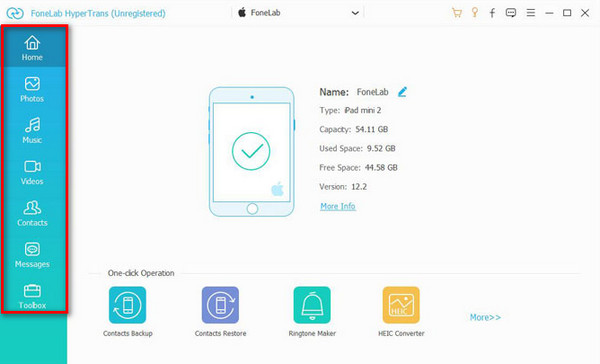
Step 2Get a USB cable and ensure that you plug the Android phone into it carefully. Also, if you transfer the Android files to an iPad or an iPhone, you need to plug them in with the same process. Then, please select the data type you wish to transfer on the left side of the main interface. The tool will scan the available ones from your Android phone.
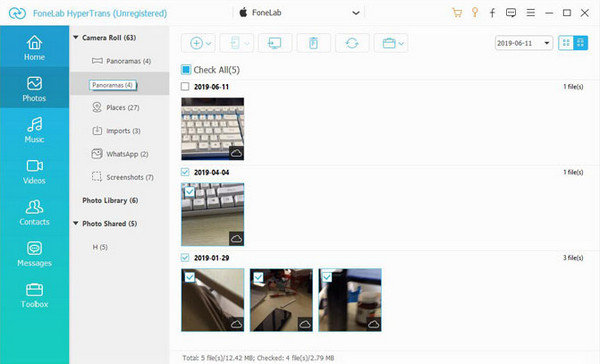
Step 3The results will be prompted on the next screen. They will be prompted immediately after the scanning process of the tool. They will also be classified with the tool’s folder. Please select the data you wish to transfer before you move it to the other device.
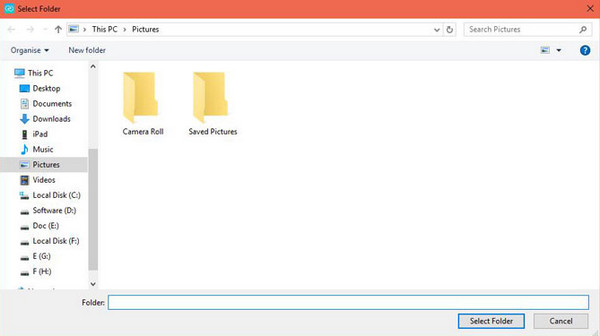
Step 4Now, select the Phone or Computer button at the top. It depends on where you want to transfer the Android phone files. The computer album will appear afterward, asking you where to store the Android phone files you transfer. Choose your desired folder and click the Select Folder to start transferring them.
Part 2. Quick Share App for Windows
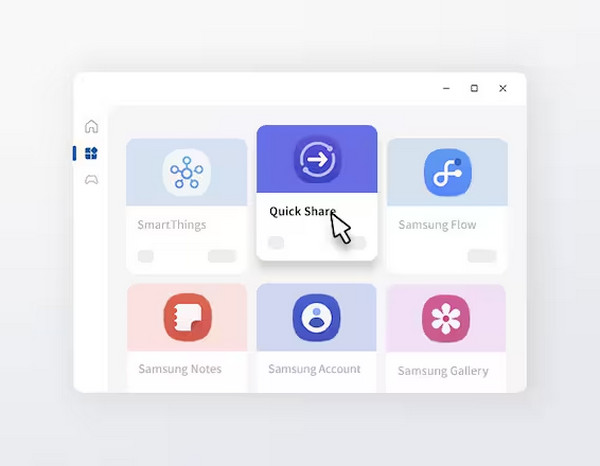
Quick Share is a free transfer service for most data types on your Android phone. It has a file transfer mode on Android that allows you to transfer files from Android to PC wirelessly. It is known for its good speed for the transfer process, regardless of the file size you move. However, it has high hardware and driver requirements. It means that it is not recommended for users who have older versions. Also, some users do not want to use it because everyone might discover you, and anyone can send files to you. Lastly, it requires you to put the devices nearby due to the limitations on the distance. The steps to use Quick Share for Windows are shown below.
Step 1Ensure that you have Quick Share downloaded on your PC. After that, please go to the data you prefer to transfer from your Android phone. Select all of them at once, and more options will be prompted at the bottom of the main interface. Please choose the Share button in the center. Please select the Quick Share button from the options list.
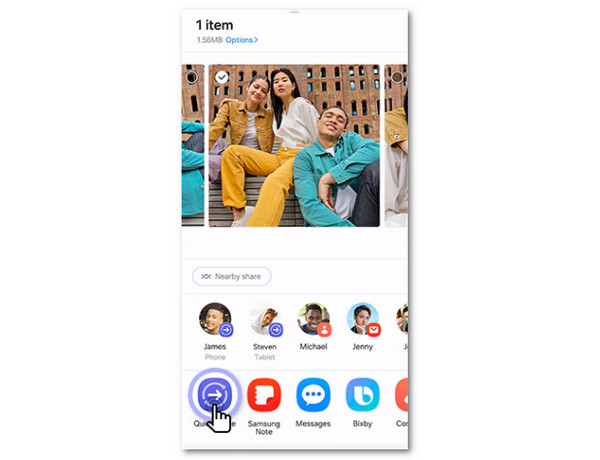
Step 2The Quick Share interface will appear on your Android phone. After that, please choose the PC name from the Share to My Devices section at the top left of the interface. Alternatively, you can also click the QR Code button at the top right of the small window. You can use the code to scan it to devices that support it for the future transfer process.
Step 3Please open the Quick Share program on your PC. After that, a small window will appear on your Windows. Please select the Accept button on the screen to allow the files to be accepted by the device. The transfer process will start immediately. You only need to wait for it to be completed.
Part 3. Android File Transfer for Mac
An Android phone has an Android USB File Transfer feature. In fact, this feature is commonly used to transfer photos from Android to Mac. Besides photos, this feature can transfer your music, documents, videos, and other data types. It only requires you to have a USB cable for the process and to allow the proper permissions to activate it. However, this method is the slowest among all the transfer procedures in this post. The larger the files you transfer, the longer the time for the interval of the process. Do you want to use this feature? Please refer to the most detailed steps below to learn how to use it.
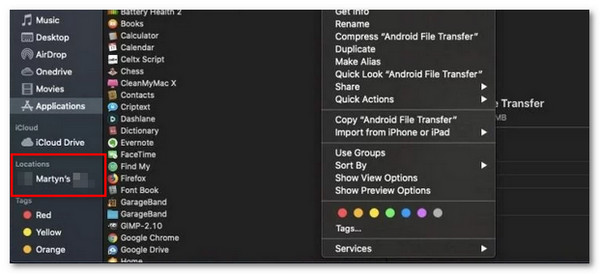
Step 1Get a USB cable and plug the Android phone into the computer. Then, select the Android File Transfer from the Android phone to get the correct function. After that, open the Finder tool on your Mac, and you should see the Android phone name on the left side of the main interface. Click it afterward.
Step 2Select the files you need to transfer. Then, copy and paste them to the Mac folder to move them.
Part 4. Online Android File Transfer
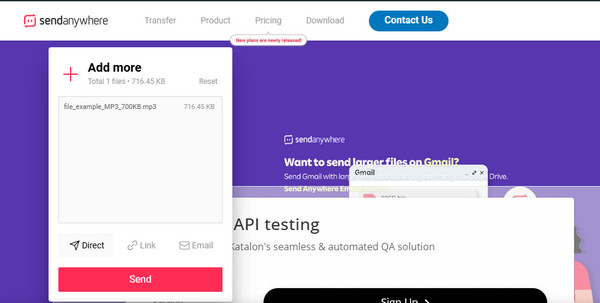
There are tools that do not require an Android file transfer download anymore. The primary reason is that you can use them online because they do not have a desktop or app version. You only need to visit their websites to use them, like Send Anywhere. This online program has a simple interface that is best for beginners. However, it is not recommended for professionals due to the limited features it supports.
Additionally, this tool supports limited data types. It can only transfer audio, videos, and photos. Other data types that are not supported will fail to import. Please discover how the online tool works to transfer your Android phone files to other devices with the steps below.
Step 1Search for the main website of Send Anywhere. After that, you will see its main features on the screen. Please ensure that you did not accidentally click the advertisements on the screen to avoid confusion. Then, click the Plus button at the top left of the screen. This way, the computer album will appear on the screen. Select the files you want to transfer afterward.
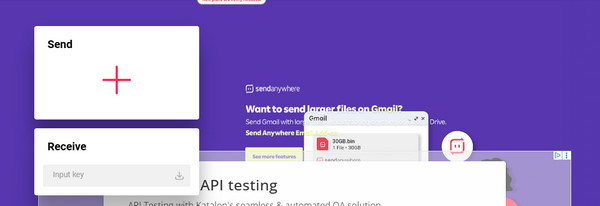
Step 2The files will be found in the small window. Please choose where you want to transfer the Android phone files. Later, please click the Send button at the bottom of the screen. The transfer procedure will start afterward.
Part 5. Comparison of Android File Transfer Methods
The Android file transfer modes from the previous sections are indeed convenient. Here are their summarized details for your quick browsing experience. Please see the table below for your reference.
| Android File Transfer Mode | Classification | Supported Platforms/Data Types | Connection Type | Effectivity |
| FoneLab HyperTrans | This tool uses a direct wired transfer to transfer data from Android to different devices, like iPhone, iPad, another Android phone, and a PC. | Windows/ music, photos, videos, contacts, messages, and more. | USB cable | The tool has a high success rate in transferring your data types. |
| Quick Share for Windows | The program uses a brand-specific wireless transfer, depending on the brand of your Android phone. | The software is only available on your Windows computers. Also, requires the Quick Share app version to be complete. It only supports limited data types, such as photos and videos. | The software requires a Bluetooth and Wi-Fi connection to be used properly. Without them, the transfer process will be impossible. | This service has a moderate effectiveness due to performance issues with the Windows version. |
| Built-in Android File Transfer on Android Phone with Finder | This feature requires you to use a direct wired transfer to move the Android phone files to your Mac. | This third-party tool can be used on almost all Android phone versions and Macs. However, it only supports videos, audio, and photos for the transfer process. | The tool only requires a USB connection to function, and the Finder tool on your Mac. | This method has a low success rate because some files sometimes fail to be transferred due to a slow process. |
| Send Anywhere | This tool is available to your Android phone, PC, iPad, and other devices that have a web browser. | This tool is accessible online. However, it only supports limited files, including photos, videos, and audio. | This tool requires a Wi-Fi connection to make it function properly. | The effectiveness of this online tool depends on your internet connection. |
Part 6. FAQs about Android File Transfer
Why is USB Android File Transfer not working?
The USB Android File Transfer feature works with the USB cable. If it is not working, you can check for any damage to the cable. If there’s any, it is recommended to replace it immediately. Also, this procedure requires a setup or permission from your Android phone. Check the necessary permissions from the Android phone if that’s the case.
What does Android File Transfer Could Not Connect to Device mean?
This issue is commonly seen with the feature due to faulty Android phone settings. Additionally, there are instances wherein the Android phone experiences a software glitch. You only need to unplug and plug the USB cable to fix this.
The Android file transfer apps or programs are in this post. We hope that you choose the best for transferring your Android phone files to other devices. FoneLab HyperTrans is a third-party tool that can help you transfer Android files to your iPhone, iPad, PC, and another Android phone. How flexible, right? Download the tool on your computer now!



