
 iPhone Data Recovery
 iOS System Recovery
 iOS Data Backup & Restore
 iOS Unlocker
 iPhone Password Manager
 Location Changer
 Android Data Recovery
 Broken Android Data Extraction
 Android Data Backup & Restore
 Android Unlocker
 FoneTrans for iOS
 iPhone Data Eraser
 iPhone Cleaner
 HEIC Converter
 HyperTrans
 WhatsApp Transfer for iOS
 Mac Sweep
 Data Retriever
 Mac Data Retriever
 Video Converter Ultimate
 Screen Recorder
 Phone Mirror
- Part 1. How to Reset iPhone When Screen is Frozen in Recovery Mode
- Part 2. Try iCloud Find My to Reset iPhone When Screen is Frozen
- Part 3. How to Reset iPhone with Frozen Screen via FoneLab iOS System Recovery
- Part 4. Comparison of Solutions for Resetting iPhone When Screen is Frozen
- Part 5. FAQs about How to Reset iPhone When Screen is Frozen
Efficient Guide on How to Reset iPhone When Screen is Frozen
 Updated by
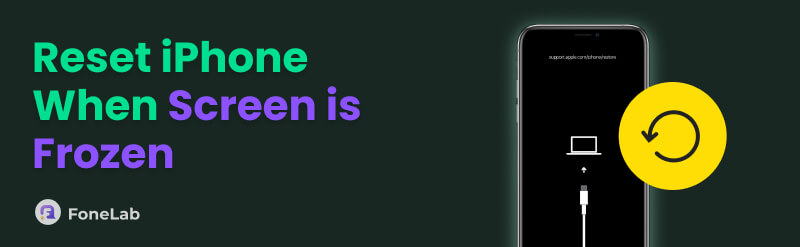
 Do you need to determine how to reset iPhone when frozen? If so, no worries because this is not a unique experience. A frozen screen where taps go unanswered, and swipes lead nowhere is a common yet frustrating experience for iPhone and other device users. Hence, before you decide on a costly repair or replacement, consider resolving this issue by yourself first with the professional yet accessible solutions in the following sections.
We understand how frustrating it is to have a device with a frozen screen because, aside from the hassle it causes to your digital life, it also prevents you from resolving the problem easily. But the good news is that it’s still possible to reset your iPhone when its screen is frozen. All you must do is choose the most suitable solutions from the provided reset options below. That said, continue browsing each part to reset your iPhone with a frozen screen safely.

Guide List
- Part 1. How to Reset iPhone When Screen is Frozen in Recovery Mode
- Part 2. Try iCloud Find My to Reset iPhone When Screen is Frozen
- Part 3. How to Reset iPhone with Frozen Screen via FoneLab iOS System Recovery
- Part 4. Comparison of Solutions for Resetting iPhone When Screen is Frozen
- Part 5. FAQs about How to Reset iPhone When Screen is Frozen
Part 1. How to Reset iPhone When Screen is Frozen in Recovery Mode
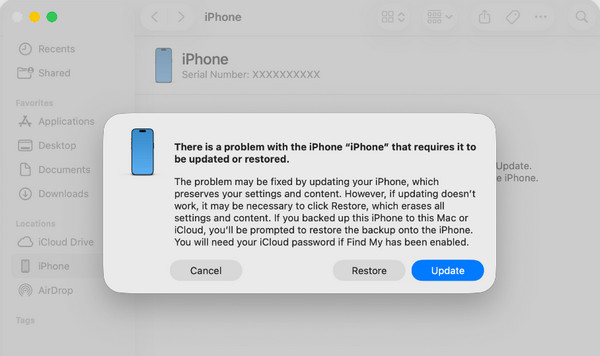
Apple’s official troubleshooting process for iPhone and its other devices is Recovery mode. It is a failsafe state built into the iPhone's software, designed to fix problems when the standard operating system is too corrupted or unstable to boot normally. So, if your screen is frozen and you’d like to perform a reset, simply put iPhone in Recovery mode and follow the process, which will be discussed in a few. Meanwhile, please know that iTunes, Apple Devices or Finder on a computer will be needed.
Yes, that’s right! Either program is necessary when fixing issues on the device via Recovery mode. Just check which one is available on your computer, since not all can be accessed on the version you have. If you use a later version of macOS, Finder will be readily available since it is built in. Then, you will be able to access iTunes on Windows and older macOS.
Bear in mind the uncomplicated directions below to grasp how to reset iPhone when screen is frozen in Recovery mode:
Step 1First, launch the available program, whether iTunes or Finder, on your desktop. Once ready, attach a Lightning cable to establish a connection, then enter Recovery mode.
On an iPhone without a Home key: Press the Volume Up key, then the Volume Down key quickly on your iPhone. Then, press the Power key a few seconds longer until the device boots to Recovery mode.
On an iPhone with a Home key: Simultaneously long-press your iPhone’s Power and Home keys. A few seconds later, your screen will present the Recovery mode.
Step 2Once in Recovery mode, a dialogue box with a Restore option will be on the program screen. Choose it and let the prompts lead you to the repair and reset process.
Part 2. Try iCloud Find My to Reset iPhone When Screen is Frozen
iCloud’s Find My feature is another solution for resetting an iPhone with a frozen screen. Like the last part, it will help you reset and erase everything on the device while simultaneously fixing the frozen screen problem. Since Find My iPhone is activated by default on the device, you no longer have to navigate the screen. You can go directly to iCloud’s official site and use the account registered to your iPhone. The necessary options will then be available, letting you erase the device safely.
Take to heart the painless task below to determine how to reset frozen iPhone using iCloud’s Find My:
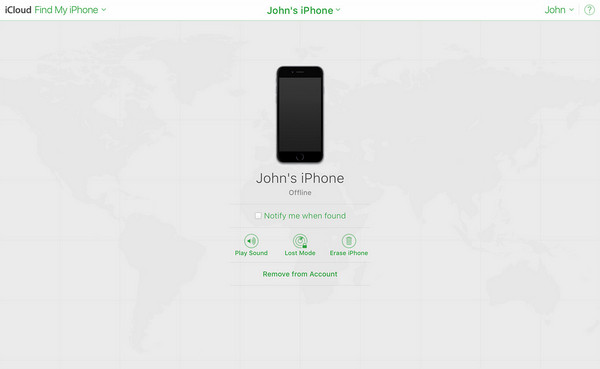
Step 1On your computer’s trusted browser, access iCloud’s site and, as mentioned, use the account registered to your iPhone to log in. After that, open the Find My section.
Step 2You will see a tab at the top of the page, so click it to reveal your devices. From there, select your iPhone with a frozen screen, then hit Erase iPhone on the following page.
As mentioned, the Find My feature is enabled by default on Apple devices. However, some users turn it off for various reasons, like faster battery draining. If you have also deactivated it, unfortunately, this won’t be a suitable method. Aside from that, a stable internet connection on both your computer and iPhone is necessary for a smooth reset procedure.
Part 3. How to Reset iPhone with Frozen Screen via FoneLab iOS System Recovery
Last but definitely not least, FoneLab iOS System Recovery is a powerful tool created to address system malfunctions, like a frozen screen. The program functions by establishing a direct link to the iPhone, allowing it to attempt repairs on the iOS system to resolve the freeze and other issues on the device. During the process, the reset will also be handled by the program, providing you with a fixed and clean iPhone afterward. Besides, it caters to all users.
Unlike other professional fixes, you don’t need to be knowledgeable about technicalities or have prior information about system recovery programs. FoneLab iOS System Recovery’s interface and features are designed for novice and experienced users to maneuver easily, even at first use. Other than that, you can take advantage of the tool not only now, but also later for other device issues, such as an iPhone stuck on a black loading screen, can’t turn on, etc.

FoneLab enables you to fix iPhone/iPad/iPod from DFU mode, recovery mode, Apple logo, headphone mode, etc. to normal state without data loss.
- Fix disabled iOS system problems.
- Extract data from disabled iOS devices without data loss.
- It is safe and easy to use.
Distinguish the user-friendly operation below as a model of how to reset iPhone when frozen via FoneLab iOS System Recovery:
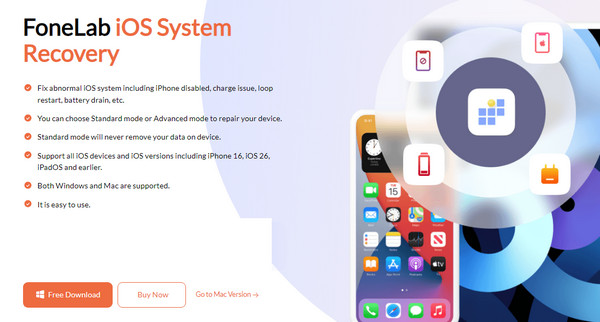
Step 1Begin by selecting Free Download on the FoneLab iOS System Recovery page. This move will save the installer in your Downloads, so double-click it from there to set up and install the program. Once you start and present its interface, pick iOS System Recovery.
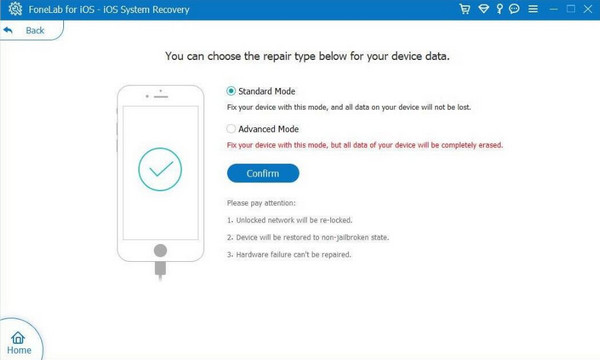
Step 2You will be required to attach your iPhone afterward with a Lightning cable. Then, pick a repair type, whether the Standard that doesn’t erase data or the Advanced Mode that wipes everything, before hitting Confirm below. Later, optimize the on-screen guide leading you to enter Recovery mode. It won’t then be long before it prompts you to reset and resolve your iPhone’s frozen screen issue.
Part 4. Comparison of Solutions for Resetting iPhone When Screen is Frozen
| Solutions | Recovery Mode | iCloud Find My | FoneLab iOS System Recovery |
| Primary Goal | Fix software corruption and restore device functionality via a clean iOS install. | Remotely erases a malfunctioning device. | Repair the operating system to resolve the freeze and other device issues. |
| Key Requirement | A computer and a USB cable. | Pre-enabled Find My feature and internet. | A computer, a USB cable, and the program. |
| Ease of Use | Good | Very Good | Excellent |
| Internet Required | Yes | Yes | No |
| Erases Data | Yes | Yes | No |
Part 5. FAQs about How to Reset iPhone When Screen is Frozen
Can I reset my iPhone with a frozen screen without a computer?
Yes, you can. Use iCloud’s Find My feature, discussed in Part 2, but instead of a computer, use your spare mobile device’s browser. The steps will only be the same.
Will I lose all my frozen iPhone’s data after resetting?
Yes, you will. Once you reset the iPhone, everything it contains will be cleared, including the issues or corrupted data that may have caused the device screen to freeze.
These are only some of the few solutions for resetting an iPhone with a frozen screen, but we guarantee that they are the most professional and reliable ones you can try. Besides, FoneLab iOS System Recovery is also provided for your other concerns later.



