
 iPhone Data Recovery
 iOS System Recovery
 iOS Data Backup & Restore
 iOS Unlocker
 iPhone Password Manager
 Location Changer
 Android Data Recovery
 Broken Android Data Extraction
 Android Data Backup & Restore
 Android Unlocker
 FoneTrans for iOS
 iPhone Data Eraser
 iPhone Cleaner
 HEIC Converter
 HyperTrans
 WhatsApp Transfer for iOS
 Mac Sweep
 Data Retriever
 Mac Data Retriever
 Video Converter Ultimate
 Screen Recorder
 Phone Mirror
How to Force Restart iPad Properly to Fix Significant Issues
 Updated by
 The iPad is an excellent device for performing multiple tasks. It can manage these tasks due to the larger screen it offers compared to mobile phones. However, numerous tasks sometimes cause the iPad screen to freeze. It happens when you do not notice that there are multiple open apps or too many web pages, which the iPad system cannot manage anymore.
Unfortunately, if you are one of them and do not know the proper way to force restart it, this article is here to assist you in doing that. Force restart iPad with this post by scrolling below.


Guide List
Part 1. How to Force Restart iPad Correctly
A force restart is different if you want to reboot iPad. Rebooting the iPad requires you to toggle the slider off on the screen. A force restart does not require you to do that. You will only use the physical buttons it supports. These procedures are the most confusing for some users.
However, force restarting the iPad is demanding. It requires professional skills to be completed due to the combination of buttons required. Please note that force restarting the iPad depends on the model of your iPad. There are with and without Home buttons. Follow the steps below accordingly, based on your iPad model.
1. Force Restart iPad Without Home Button
Most of the latest versions of iPad has no Home button. They usually use the AssissTive Touch to operate the other activities that can be done with the Home button. This method is more demanding compared to the iPad versions with a Home button. Please be careful in this process because it might lead to other operations on your iPad. Please follow the physical button combinations below for a successful process.
Press the Volume button that is close to the Top physical button. Then, release it quickly. Please press and release the Volume button that is far from the Top button. After that, please press and hold the Top physical button until the device restarts. Ensure that the Apple logo is seen. If it is not appearing, you can retry the process until it is completed.
2. Force Restart iPad With Home Button
On the other hand, iPad with Home buttons also exist. Most of them are earlier versions of iPad. These models have a quicker and easier process in force restarting the iPad. You only need to use two buttons in the process. The steps below will help you know how to do that.
Please press the Top and Home physical buttons on the iPad. Please keep holding the buttons until the Apple logo appears. Then, some of the iPad users experience that it is not working. You only need to perform the combination again until you complete it.
Part 2. What to Do When You Can't Force Restart iPad
However, some iPad users experience issues where they cannot force restart the iPad. One primary reason is a broken physical button. If that’s the case, you only need to make an appointment for a repair. What if the physical buttons are not the issue? We got you! In this section, you will see the 2 leading ways to fix an iPad when you cannot force restart it. Continue scrolling below to discover them.
1. Update or Restore iPad in Recovery Mode
Besides the force restart, recovery mode is another operation that can be performed on your iPad by using only its physical buttons. This procedure also requires professional skills due to the demanding combinations to enter the iPad into recovery mode. Also, this procedure requires you to have a computer to access iTunes or Finder. It is to update or restore the iPad to fix the issues.
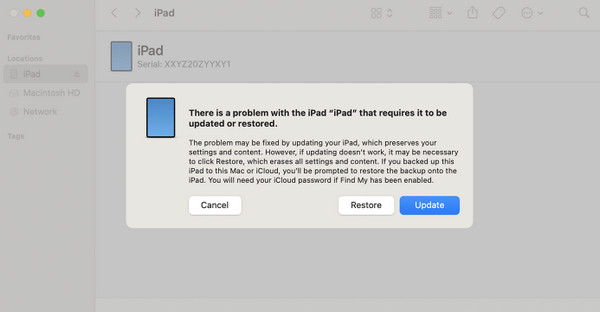
You can update and restore the iPad with recovery mode. If you update it, the iPadOS will be reinstalled on your iPad. Also, the data will keep intact and they will not be modified or deleted. Additionally, it fixes simple issues on the system. On the other hand, restoring the iPad will erase everything on the mentioned device. It fixes major issues on your iPad. Please note that Activation Lock will be enabled. Imitate the steps below to enter iPad recovery mode and fix the issues by restoring or updating it.
Step 1Enter iPad in recovery mode. To do that, for iPad without Home, press and release Volume near the Top. Press and release Volume far from Top. Press and hold Top. For iPad with Home, press and hold Top and Home. Release the buttons when the Computer screen is shown.
Step 2Open Finder or iTunes on your computer. Then, a small window will appear on the main interface if there are scanned issues on your iPad. Please click the Update or Restore button on the screen to start fixing your iPad issues.
2. FoneLab iOS System Recovery
FoneLab iOS System Recovery is another tool that can be a replacement for the iPad force restart operation when your device is not working correctly. This tool is designed for fixing minor and major issues on your iPad and other Apple devices, including your iPhone. Some of the problems it can fix on your iPad are software-related issues only.

FoneLab enables you to fix iPhone/iPad/iPod from DFU mode, recovery mode, Apple logo, headphone mode, etc. to normal state without data loss.
- Fix disabled iOS system problems.
- Extract data from disabled iOS devices without data loss.
- It is safe and easy to use.
It is a third-party tool that can fix these issues in a few clicks. The reason is that it has a simple interface and features that are best for beginners. Also, it supports the earlier and latest versions of iPadOS. Follow the steps below to fix minor and major issues.
Step 1Please get the latest version of FoneLab iOS System Recovery. To do that, please click the Free Download option on its main website and set up the tool on your computer. You will be required to install it, and it will be automatically launched afterward.

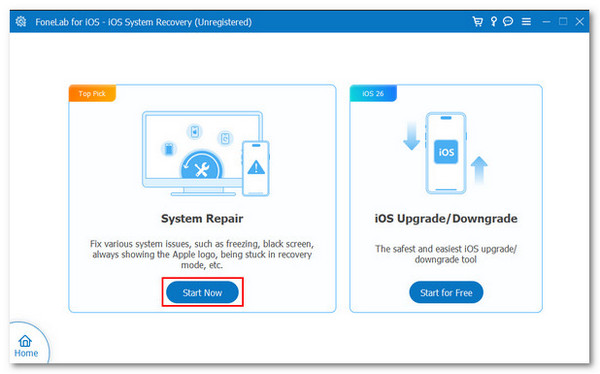
Step 2Click the System Repair button on the left. Select the Start Now button to start the process.
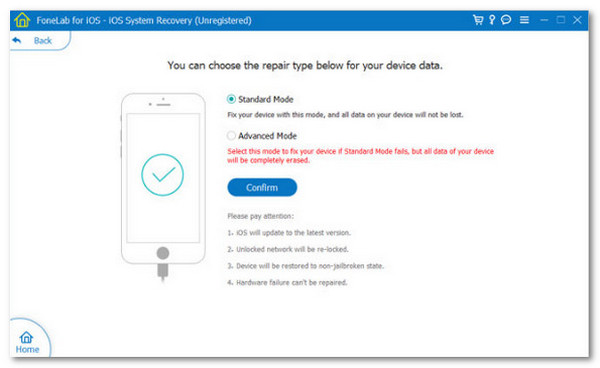
Step 3You will see the 2 main functions of the tool on your screen. Please choose the Standard Mode or the Advanced Mode from the screen. You will see their primary operations under their name. Please read them carefully before choosing the best result.
Step 4Please click the Confirm button after choosing the best mode for you. Then, you will be required to plug the iPad into the computer. Follow the on-screen instructions for a successful plugging process. The software will start to fix the iPad issues afterward.
Comparison of 3 Options
The 3 options as an alternative to the iPad force restart are indeed helpful. They have distinct and massive differences you should know for quick browsing. Kindly scroll below to know some of their similarities and differences from the table below for your convenience.
| Method | Ease of Use | Effectivity | When to Use |
| Force Restart iPad | Hard, especially if you do not have background in technical processes. | Low. It happens when the iPad is disabled or locked out. | It is commonly used for major iPad issues. However, it cannot be used when the iPad is disabled or locked out. |
| Update or Restore iPad in Recovery Mode | Hard | High | It is usually used when there is a massive issue on the iPad system, like lagging, crashing, or a frozen screen. However, it requires a computer for the procedure to be completed. |
| FoneLab iOS System Recovery | Easy | High | This tool can be used with minor and major issues on your iPhone. It is the best choice for fixing the device to a computer because it only requires a wired connection to function. |
Part 3. FAQs about Force Restart iPad
Does hard reset remove everything?
A hard reset is another reset mode on your iPad. It is different from a force restart. A had reset will delete everything on your iPad. It will bring back your iPad to its default settings like how you bought it from the store. The reset mode is commonly used when the iPad faces major issues.
What are the risks of force restart?
Force restart is indeed helpful to your iPhone, iPad, and other devices. However, repeated force restart on your iPad or other devices can lead to issues. Your iPad data can be corrupted, especially if the system of the device is busy. Also, the unsaved work on your iPad will be deleted.
The iPad force restart is a beneficial procedure to help you fix multiple issues. The proper method is listed in this post. The leading 3 procedures to help you fix an iPad that cannot perform a force restart are also listed. FoneLab iOS System Recovery is here. Download the tool on your computer to experience it!



