
 iPhone Data Recovery
 iOS System Recovery
 iOS Data Backup & Restore
 iOS Unlocker
 iPhone Password Manager
 Location Changer
 Android Data Recovery
 Broken Android Data Extraction
 Android Data Backup & Restore
 Android Unlocker
 FoneTrans for iOS
 iPhone Data Eraser
 iPhone Cleaner
 HEIC Converter
 HyperTrans
 WhatsApp Transfer for iOS
 Mac Sweep
 Data Retriever
 Mac Data Retriever
 Video Converter Ultimate
 Screen Recorder
 Phone Mirror
- Part 1. How to Delete Photos on Mac with Photos App
- Part 2. How to Delete Photos on Mac with Recently Deleted Album
- Part 3. How to Delete Photos on Mac with iCloud
- Part 4. How to Delete Photos on Mac with FoneLab Mac Sweep
- Part 5. Comparison Table of Methods to Delete Photos on Mac
- Part 6. FAQs about How to Delete Photos on Mac
- Empty Trash
- Delete Mail App
- Clear Cache on Mac
- Get More Storage on Mac
- Make Chrome Use Less RAM
- Where is Disk Utility on Mac
- Check History on Mac
- Control + Alt + Delete on Mac
- Check Memory on Mac
- Check History on Mac
- Delete An App on Mac
- Clear Cache Chrome on Mac
- Check Storage on Mac
- Clear Browser Cache on Mac
- Delete Favorite on Mac
- Check RAM on Mac
- Delete Browsing History on Mac
How to Delete Photos on Mac in 4 Trusted Techniques
 Updated by
 Mac is commonly used to edit and store pictures due to its ample storage and editing features compared to other Apple devices, like the iPhone and iPad. However, some photos are not important, and they only take up a lot of the storage on your Mac. If that’s the case, you can delete them to save up storage. This way, you can store more images in the future.
How to delete photos on Mac? This article will show you the 4 easy ways to delete the mentioned data types on your Mac (MacBook included). You can use its built-in programs, backup service, or third-party tool. Kindly scroll below to know more information.


Guide List
- Part 1. How to Delete Photos on Mac with Photos App
- Part 2. How to Delete Photos on Mac with Recently Deleted Album
- Part 3. How to Delete Photos on Mac with iCloud
- Part 4. How to Delete Photos on Mac with FoneLab Mac Sweep
- Part 5. Comparison Table of Methods to Delete Photos on Mac
- Part 6. FAQs about How to Delete Photos on Mac
Part 1. How to Delete Photos on Mac with Photos App
The Photos app on your Mac is responsible for holding the recently stored images. It organizes them based on their time and date of creation. This app stores all the photos that have been downloaded or made from other programs on the mentioned Apple device. It only means that most of the pictures stored on your Mac are present in the app.
On the other hand, the Photos app allows you to delete multiple photos on Mac. It is one of the most convenient operations it can offer. You can also delete the images individually. How to delete photos on Mac? The steps can be seen below.
Open the Photos app on your Mac. After that, you will see the recently stored photos on your Mac. Please go to the Photos section at the top left. Then, please select the folder where you store the images. Later, please select the photos you want to delete. Then, press Delete key on your keyboard. A small window will be prompted, and you need to click the Delete button to confirm the deletion of your photos.

Part 2. How to Delete Photos on Mac with Recently Deleted Album
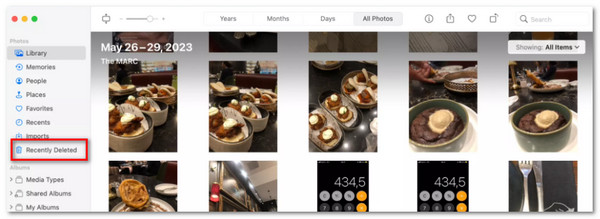
After deleting the images from your Mac Photos app, they will not be permanently deleted. They will be stored from the Recently Deleted folder. This folder stores the deleted images for 30 days. If you still have the photos from the folder, you need to delete them to eliminate them from the Mac permanently. How to delete photos on Mac? The steps are available below.
Open the Photos app on your Mac. After that, please select the Recently Deleted folder on the left side of the screen or the Photos section. The recently deleted pictures will appear on the screen. Please select the images you want to delete and click the Delete button. Confirm the action afterward from the small window.
Part 3. How to Delete Photos on Mac with iCloud
You might be aware that the photos on Mac can be stored on iCloud, especially when they are synced or backed up. In this case, you can delete the images from the mentioned cloud service. Other users report that a full Photos app on their Mac experiences lagging issues. Do not worry. You can use the iCloud website to delete the images from your Mac. The steps on how to do this are posted below.
Step 1Open one of your web browsers on your Mac and search for iCloud. After that, you will be asked to sign in to your account. Please click Sign In button in the center and enter the associated Apple ID account for the photos. Enter the correct credentials to sign in afterward.

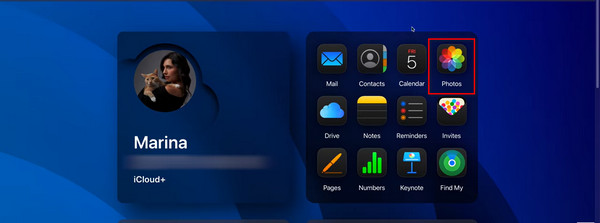
Step 2The supported data types that can be stored on iCloud will be revealed. Please select the Photos button on the right, and the stored images from the account will be shown. Select the photos you want to delete using your cursor and click the Trash button at the top right. Finally, click Delete button at the bottom right of the small window to confirm the process.
Part 4. How to Delete Photos on Mac with FoneLab Mac Sweep
FoneLab Mac Sweep is a third-party tool that can delete your photos on Mac, including duplicate ones. It also allows you to delete apps on Mac, large files, junk files, and more to free up space on your Mac. This tool also lets you see the status of your Mac's performance. You can also hide and encrypt your files with this tool. The steps below will help you use the tool.

With FoneLab Mac Sweep, you will Clear system, email, photo, iTunes junk files to free up space on Mac.
- Manage similar photos and dulplicate files.
- Show you the detailed status of Mac with ease.
- Empty trash bin to get more storage.
Step 1Download the tool by clicking Free Download button. Set up, install, and launch the tool.

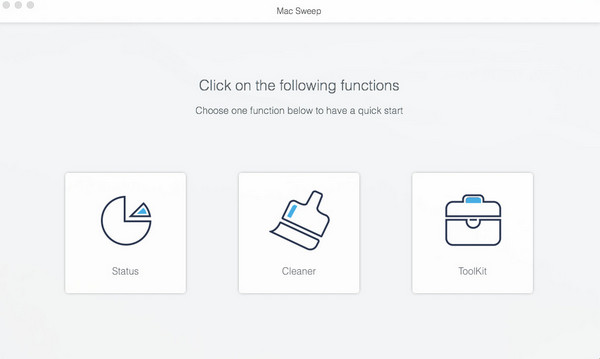
Step 2The supported features will appear. Please click the Cleaner button from the main screen.
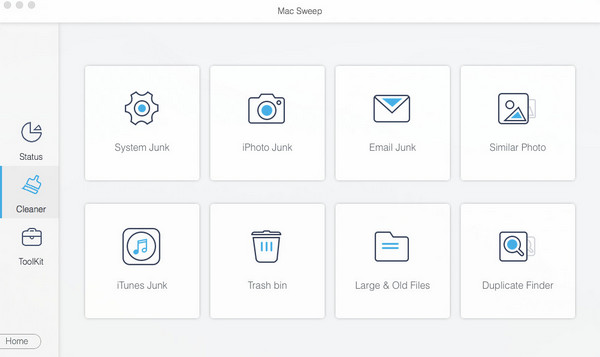
Step 3Click the Similar Photos button at the top right. Then, click the View button and select the images you need to delete. Click the Clean button afterward.
Part 5. Comparison Table of Methods to Delete Photos on Mac
| Method | Scope Deletion | Recoverability | How Long Until Permanently Deleted |
| Photos App | It deleted the local photos in the library. | You can retrieve the images from the Recently Deleted folder. | Immediately deleted from the library. |
| Recently Deleted Folder | It holds the deleted pictures from the Photos app. | You can recover the files in the folder for 30 to 40 days. | 30 days. |
| iCloud | It deletes the photos from all synced devices. | You can recover the images from the Recently Deleted folder of iCloud if synced. | 30 days if synced. |
| FoneLab Mac Sweep | It deleted the Mac photos, including the duplicate ones. | The tool will permanently delete the photos from your Mac. | Immediately |
Part 6. FAQs about How to Delete Photos on Mac
How to delete photos from MacBook?
The procedures are the same as deleting the images on your Mac. Try the methods in this post to delete photos.
Why are my photos not deleting from my Mac?
They might be synced with an iCloud account. Additionally, it is also possible that the images are corrupted.
Where is the hidden folder for photos on a Mac?
Open Photos app on your Mac and select the Library button from the sidebar. After that, select the View button, and more options will appear. Please click the Show Hidden Photo Album button. Later, go to the Utilities button and choose the Hidden button from the sidebar.
All in all, you will know how to delete photos on Mac with this post. You may use the Photos app, the Recently Deleted folder, iCloud, and the best third-party tool, FoneLab Mac Sweep, for the mentioned deletion process. Additionally, the mentioned tool can clear junk files, large files, check the status on your Mac, and more. You may download the tool on your Mac to explore the supported features it offers.



