
 iPhone Data Recovery
 iOS System Recovery
 iOS Data Backup & Restore
 iOS Unlocker
 iPhone Password Manager
 Location Changer
 Android Data Recovery
 Broken Android Data Extraction
 Android Data Backup & Restore
 Android Unlocker
 FoneTrans for iOS
 iPhone Data Eraser
 iPhone Cleaner
 HEIC Converter
 HyperTrans
 WhatsApp Transfer for iOS
 Mac Sweep
 Data Retriever
 Mac Data Retriever
 Video Converter Ultimate
 Screen Recorder
 Phone Mirror
- Part 1. How to Access iCloud Photos on PC/Mac Using Browsers
- Part 2. How to Access iCloud Photos by Syncing
- Part 3. How to Access Photos on iCloud through iCloud Program on PC
- Part 4. How to Access and Transfer Photos from iCloud with FoneLab HyperTrans
- Part 5. FAQs about How to Access Your iCloud Photos
 Transfer Phone Data Now
Transfer Data From iPhone, Android, iOS, Computer to Anywhere without Any Loss.
- Transfer Data from One Micro SD Card to Another Android
- How to Transfer Pictures from One Phone to Another
- How to Transfer Photos from Old LG Phone to Computer
- How to Transfer Photos from an Old Samsung to Another Samsung
- Transfer Contacts from Samsung to iPhone
- Transfer Data from LG to Samsung
- Transfer Data from Old Tablet to New
- Transfer Files from Android to Android
- Transfer iCloud Photos to Android
- Transfer iPhone Notes to Android
- Transfer iTunes Music to Android
How to Access Photos on iCloud in 3 Top Pick Techniques
 Updated by
 iCloud is the default account that can be added to your Mac, iPhone, and iPad. These Apple devices can store different data types in iCloud. Photos are one of the most stored types of data in the mentioned account. Apple users do this for backup, accessibility, and more.
How to access iCloud photos on iPhone, iPad, Mac, and PC? This article has 3 easy and quick procedures to help you access the iCloud pictures on the mentioned devices. Their complete information can be seen from the list that this post contains.

Guide List
- Part 1. How to Access iCloud Photos on PC/Mac Using Browsers
- Part 2. How to Access iCloud Photos by Syncing
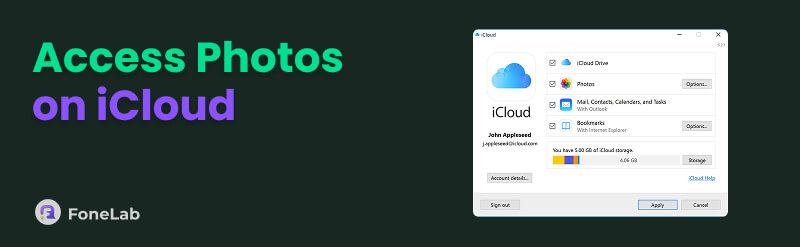
- Part 3. How to Access Photos on iCloud through iCloud Program on PC
- Part 4. How to Access and Transfer Photos from iCloud with FoneLab HyperTrans
- Part 5. FAQs about How to Access Your iCloud Photos
Part 1. How to Access iCloud Photos on PC/Mac Using Browsers
iCloud enables you to access your photos on your PC, iPad, iPhone, Mac, Android phone, and other devices that have a browser. iCloud allows you to do that using the website it offers. This website will enable you to view and download photos that are stored in the account. Also, it is protected by Apple’s encryption and two authentication. It only means that your iCloud photos and data are indeed safe.
However, this website does not allow offline access due to the need for an internet connection. Also, it cannot restore the full Apple device backups directly. It is one of the limitations it possesses. The guide on how to access iCloud photos on Android, iPhone, iPad, Mac, and PC is shown below.
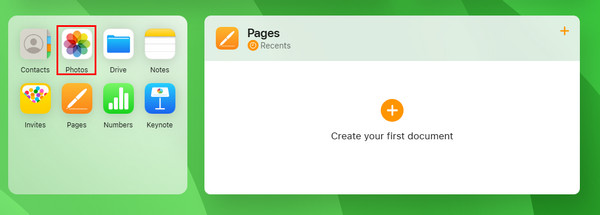
Step 1Search for the iCloud website after opening your favorite web browser on your device. Then, select the Sign In button at the center of the screen. After that, please enter your iCloud account from the screen to sign in.

Step 2The supported data types and features will appear on the screen. Please choose the Photos or Drive button. After that, you can access iCloud images from the account.
Part 2. How to Access iCloud Photos by Syncing
You can sync your iCloud photos to access them on different devices. However, this procedure is primarily applicable to Apple devices. You only need the same Apple ID to sync the images from your iCloud to your Apple devices. Follow the steps below.
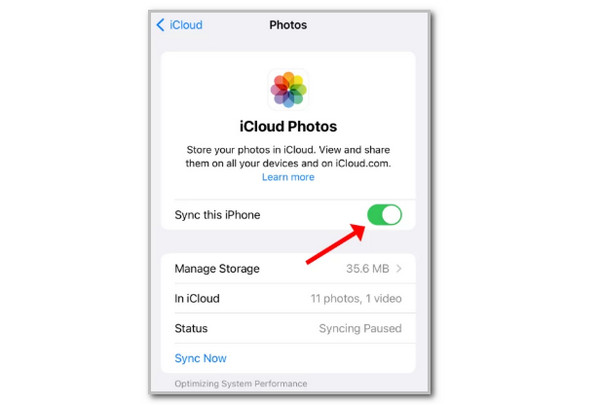
On iPhone/iPad: Go to the Settings application and tap the account name at the top. Then, select iCloud from the options list. Later, choose the Photos button and tap the Sync This iPhone button from the list to sync the photos from your iPhone or iPad.
Note: The iPhone and iPad procedures are the same procedure and buttons to operate for syncing the iCloud images.
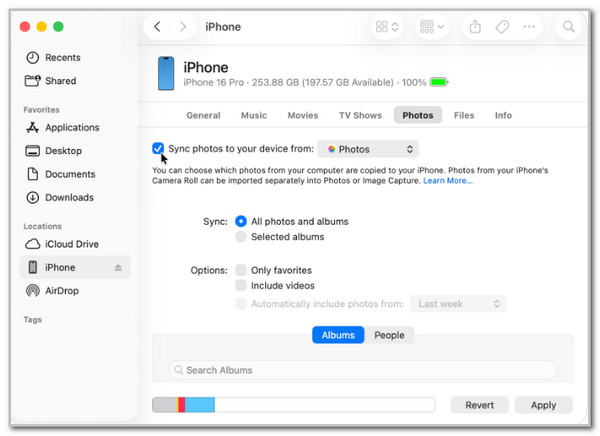
On Mac: Open Finder or iTunes. Then, plug the iPhone into the Mac. Then, select Photos on the right. Check Sync Photos to Your Device From box. Choose the photos you need to sync. Finally, click the Apply at the bottom right of the screen.
Part 3. How to Access Photos on iCloud through iCloud Program on PC
iCloud is known as an Apple device account. Did you know that Windows computers can download the iCloud program? This program is called iCloud for Windows. However, some individuals do not want to use this program due to the performance issues it has, especially with large files and a weak internet connection. Also, editing or organizing the photos can be complex in this program due to its interface. Furthermore, the large backups can consume a large bandwidth on your computer. How to access iCloud photos on PC? Use iCloud for Windows below.
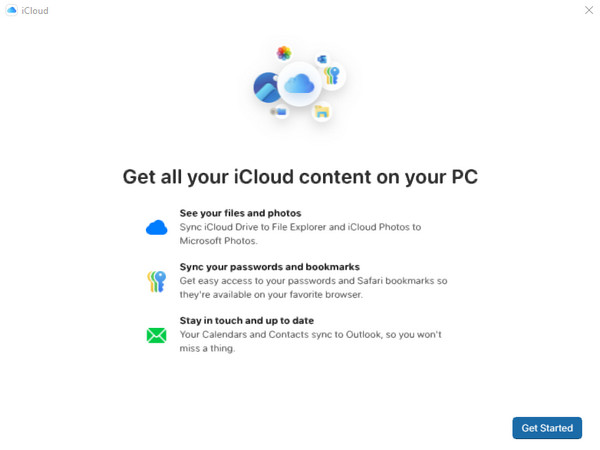
Step 1Download iCloud for Windows on your PC from the Microsoft Store. After that, open it and click the Get Started button on the screen.
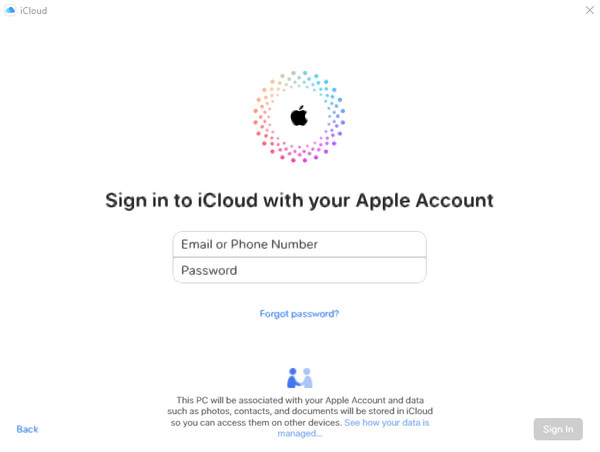
Step 2Enter the email or phone number, including the Apple ID password. After that, click the Sign In at the bottom right to sign in.
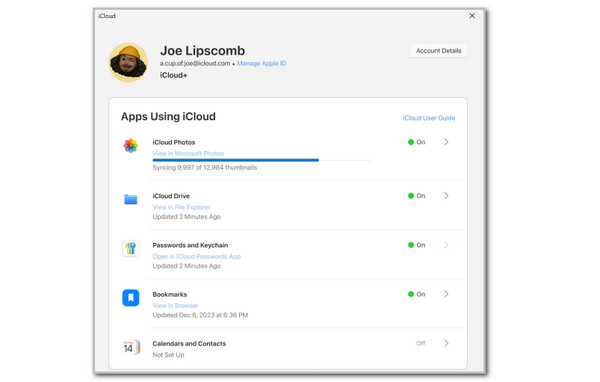
Step 3Go to the Apps Using iCloud from the screen. Then, turn on the iCloud Photos button to sync it. Click the Finish Setup button as the final step.
Part 4. How to Access and Transfer Photos from iCloud with FoneLab HyperTrans
iCloud can help you access your photos from different devices. FoneLab HyperTrans can also help you with that by transferring them across devices. It includes iPhone, iPad, PC, and Android phones. This tool can store pictures, including HEIC, PNG, and JPG formats. It can also help you convert HEIC image formats to JPG and PNG.
Transfer Data From iPhone, Android, iOS, Computer to Anywhere without Any Loss.
- Move Files between iPhone, iPad, iPod touch and Android.
- Import Files from iOS to iOS or from Android to Android.
- Move Files from iPhone/iPad/iPod/Android to Computer.
- Save Files from Computer to iPhone/iPad/iPod/Android.
Furthermore, there is nothing to worry about your image files. This tool is 100% safe to use for both professionals and novices. This tool also allows you to view photos on iCloud that are stored on your device. Besides photos, this tool can also transfer contacts, messages, videos, and music. It depends on the target device where you transfer them. Be professional in using the tool with the steps below.
Step 1Click Free Download on the main website of the tool. Then, set up, install, and launch it to start the process. Later, plug the device into the computer using a USB cable. You must see the information on the screen, indicating that the plugging procedure is completed.
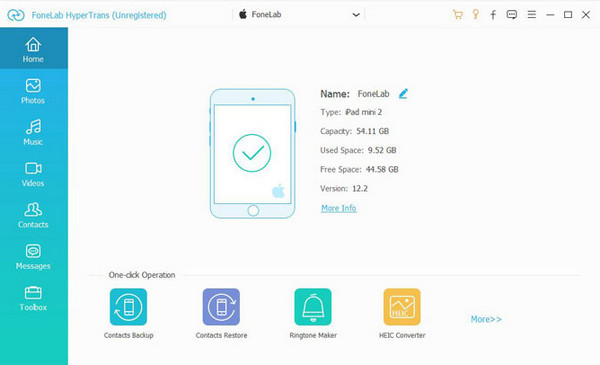
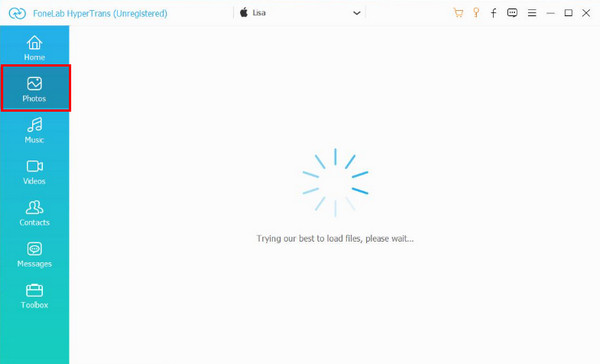
Step 2Ensure that the photos are saved to iCloud Photos to be able to access and transfer them. Please select the Photos button on the left. Then, the tool will start to scan the available pictures from the device. Please wait for the scanning procedure to be finished.
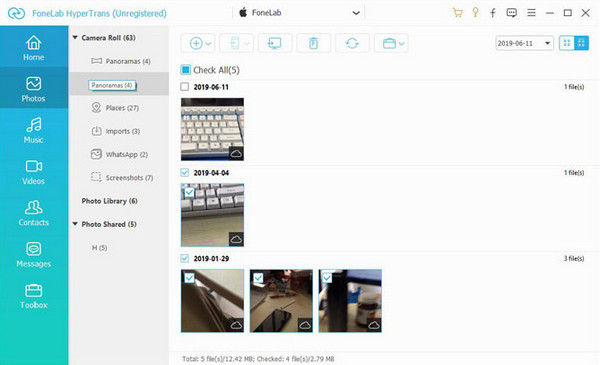
Step 3The photos scanned will appear on the next screen. Please select the images you want to transfer afterward. Then, please click the Computer or Phone button at the top, depending on the device where you want to transfer them. Then, follow the next procedure to complete the transfer process.
Part 5. FAQs about How to Access Your iCloud Photos
Does deleting photos on iPhone delete them from iCloud?
The photos deleted from your iPhone will not be deleted from iCloud, even though there is an iCloud account signed in to your iPhone. They will only be deleted from the iCloud account if they are synced.
What happens if my iCloud storage is full?
Multiple operations will be stopped if the iCloud storage is full. The automatic backups for the iPhone will fail. Also, the new photos and videos stored on your iPhone will stay on it. You cannot also upload new files to the mentioned account, unless you upgrade your plan.
This article is all about how to access iCloud photos on Mac, PC, iPhone, and iPad. It lists the 3 quick procedures for accessing the images from the mentioned account. FoneLab HyperTrans is also here to help. It can transfer your photos across devices, such as iPhone, iPad, PC, and Android phones. Get it on your computer and start learning its procedures!



