
 iPhone Data Recovery
 iOS System Recovery
 iOS Data Backup & Restore
 iOS Unlocker
 iPhone Password Manager
 Location Changer
 Android Data Recovery
 Broken Android Data Extraction
 Android Data Backup & Restore
 Android Unlocker
 FoneTrans for iOS
 iPhone Data Eraser
 iPhone Cleaner
 HEIC Converter
 HyperTrans
 WhatsApp Transfer for iOS
 Mac Sweep
 Data Retriever
 Mac Data Retriever
 Video Converter Ultimate
 Screen Recorder
 Phone Mirror
- Empty Trash
- Delete Mail App
- Clear Cache on Mac
- Get More Storage on Mac
- Make Chrome Use Less RAM
- Where is Disk Utility on Mac
- Check History on Mac
- Control + Alt + Delete on Mac
- Check Memory on Mac
- Check History on Mac
- Delete An App on Mac
- Clear Cache Chrome on Mac
- Check Storage on Mac
- Clear Browser Cache on Mac
- Delete Favorite on Mac
- Check RAM on Mac
- Delete Browsing History on Mac
How to Wipe a Windows Computer & macOS
 Updated by
It's always frightening to perform a manual reboot or completely wipe a computer clean, because a single mistake during the process can cause an irreversible problem. However, that is only true if you don’t know how to do it. Wiping a computer resets it, so it is important to have your files backed up. In this guide, we'll show you how to completely wipe a computer clean on macOS and Windows devices in simple steps, using each built-in reboot setting and an alternative computer-cleaning tool.


Guide List
Part 1. How to Wipe a Windows Computer
Before wiping your Windows computer, back up any important files, because doing so resets it to its factory settings. Below is a list of options for Windows users to choose from when resetting their Windows computer.
| Options | Description |
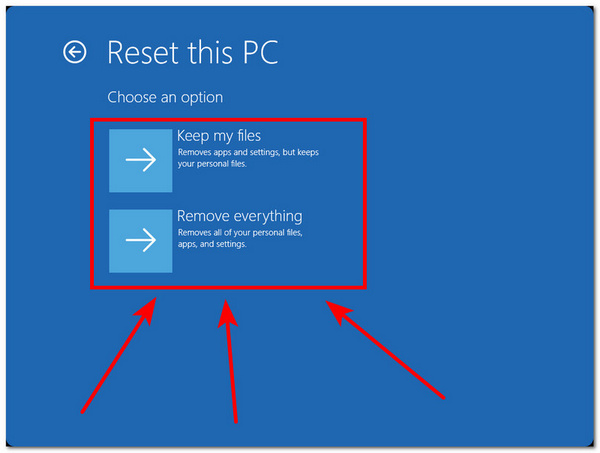
| Keep My Files | Also known as the Refresh option, it keeps personal files intact while removing software and settings. It removes the software and settings but keeps user data, documents, and photos. |
| Remove Everything | Also known as the Reset option, it removes all the user's personal files, software, and settings. |
| Cloud Download | This option downloads a fresh copy of Windows from the cloud to ensure that the computer gets the latest version. |
| Local Reinstall | It uses files already on the computer, so it works without an internet connection. |
How to Reset PC from Settings
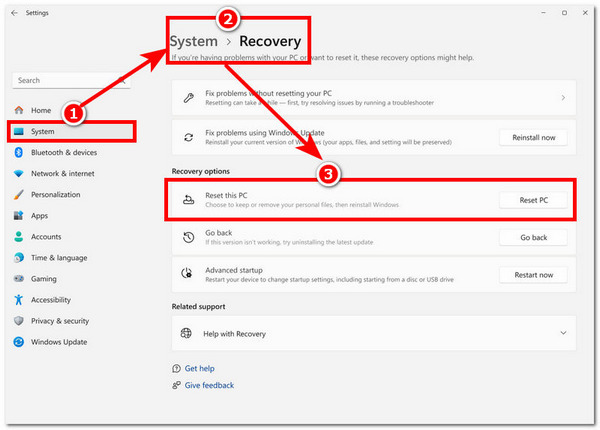
Step 1Open Settings on your Windows computer.
Step 2From there, go to System, then proceed to Recovery.
Step 3In Recovery settings, go to Recovery Options, then click Reset PC.
How to Reset PC via Windows Recovery Environment
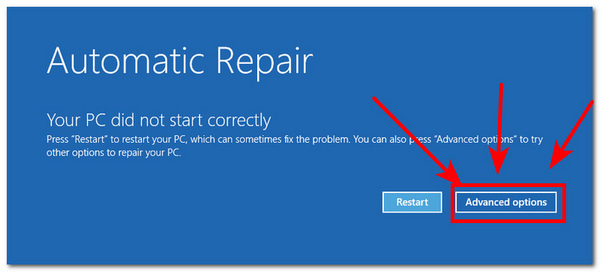
Step 1Access your Windows Recovery Environment by turning on your Windows device. Once the Windows logo appears on your screen, hold the power button until your computer shuts down.
Step 2Then power on your device again and repeat the process at least 3 times until the Automatic Repair screen appears. To access the Windows Recovery Environment, click on Advanced Options to proceed.
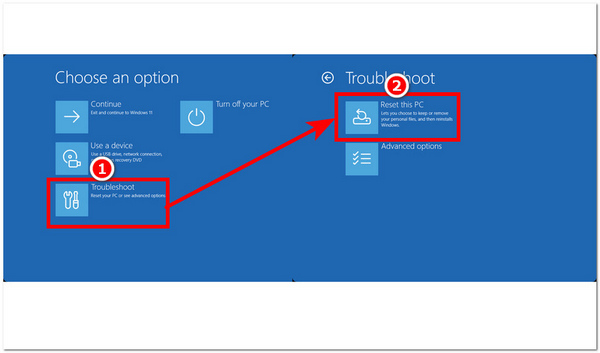
Step 3Once you are in your Windows Recovery Environment, select Troubleshoot > Reset this PC.
Step 4From there, choose the reset option you want to use on your Windows Computer, and the reset starts automatically.
Part 2. How to Wipe a macOS Computer
When it comes to wiping a Mac, you can either reset your macOS device completely, erasing all content and settings, or reset it through Disk Utility without restoring it to its factory settings. Before you reset your macOS device, be sure to back up your data files.
How to Erase All Content and Settings on macOS
Step 1Open your macOS System Settings by clicking the Apple menu logo in the corner of your screen.
Step 2From your macOS System Settings, click the General option in the sidebar, and in General Settings, locate and click the Transfer or Reset option to proceed.
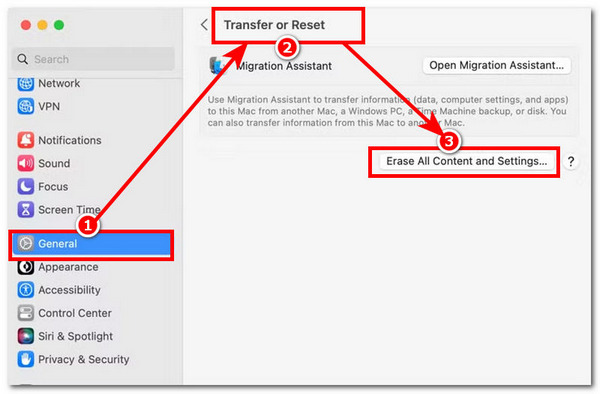
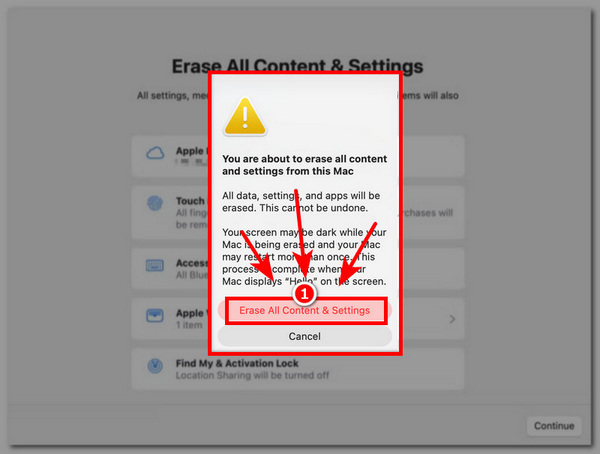
Step 3Click on Erase All Content and Settings. An on-screen window will pop up, prompting you to enter your login credentials to proceed. Follow the on-screen instructions, then click Erase All Content & Settings once more to start erasing your Mac.
How to Use the Erase Features of Disk Utility
Before doing the steps below, make sure your macOS device is completely shut down and that you have a file and data backup.
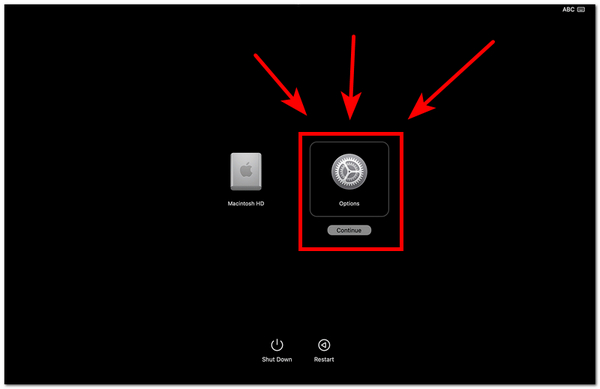
Step 1Press and hold the Power button until the Option window appears on the screen. Once the Option icon appears, click it to continue.
Step 2After clicking the Option menu, a list of utilities from macOS Recovery will appear on your screen. From there, click on Disk Utility to continue.
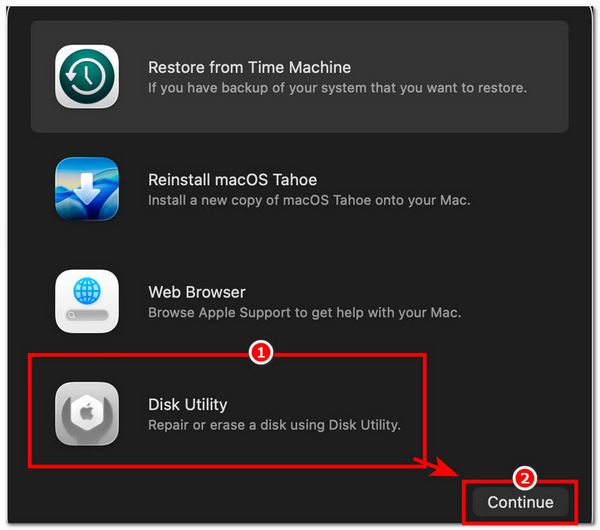
Step 3To erase your macOS device without resetting it to factory settings, select the volume named Macintosh HD, then click the Erase button.
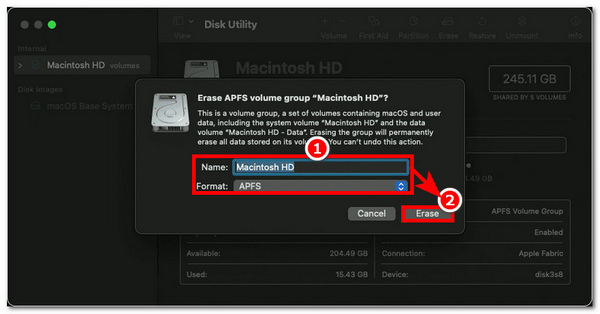
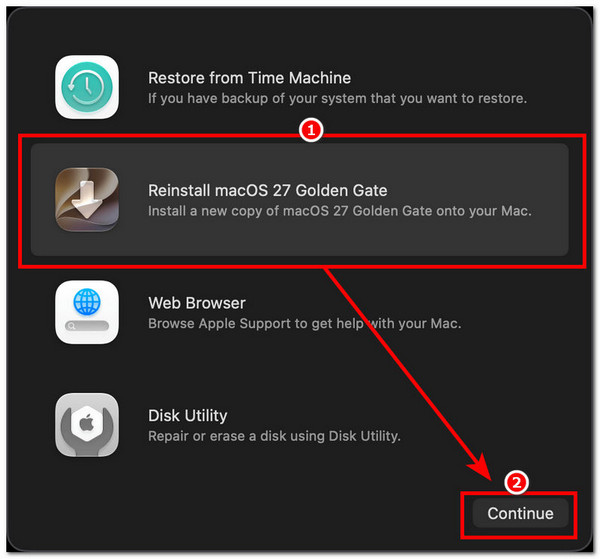
Step 4After clicking the Erase button, you will have to enter your Apple account information to confirm your choices. After that, your macOS device will restart and reactivate. Reinstall macOS from the Utilities window to continue and finish the process.
Part 3. How to Use an Alternative Computer Cleaner for Mac
Now that you have learned the default way to wipe a computer (macOS and Windows) through their built-in system settings, you may still find the whole process quite difficult and be scared to do it. An alternative computer cleaner, especially for macOS devices like the FoneLab Mac Sweep, comes in handy.

With FoneLab Mac Sweep, you will Clear system, email, photo, iTunes junk files to free up space on Mac.
- Manage similar photos and dulplicate files.
- Show you the detailed status of Mac with ease.
- Empty trash bin to get more storage.
FoneLab Mac Sweep is a lightweight software cleaner that deep-scans a user's macOS device and removes duplicate files, unwanted system photos, cache, downloaded files, and any unnecessary files that take up storage space on the user's Mac, all with a single click. This tool also cleans up Mac devices by first showing your Mac's status at a glance, and it can encrypt, hide, and compress files.
Recommended Product: FoneLab Mac Sweep
Step 1Download and install the FoneLab Mac Sweep software tool from there.
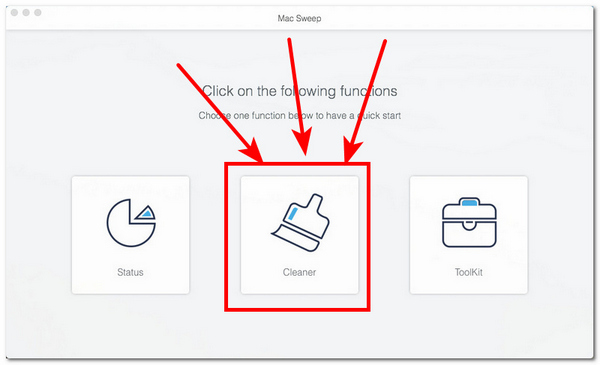
Step 2Once the installation is complete, open the tool and, from its main interface, click on the Cleaner option to proceed.
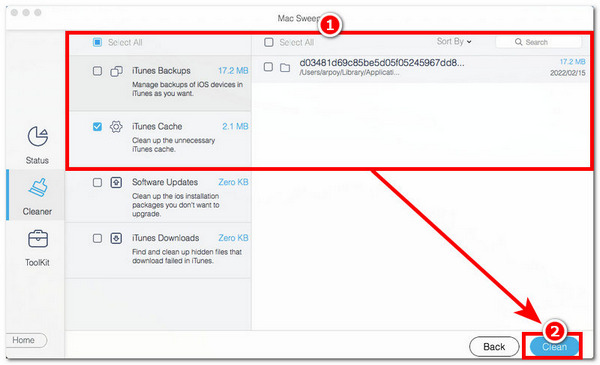
Step 3Choose the area you want FoneLab Mac Sweep to scan and clean. Once you have selected the specific area you want to clean on your macOS device, click the Scan button.
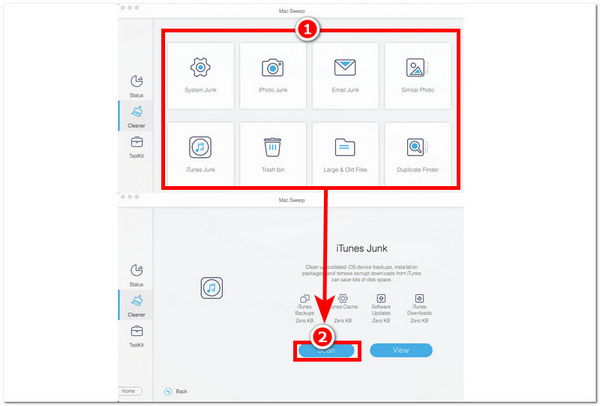
Step 4After the tool has finished scanning your Mac, it lists all the unnecessary files it found. You can remove them by checking each one and clicking the Clean button.
Part 4. FAQs about How to Wipe a Computer on Windows and macOS
What is the difference between resetting and wiping a computer?
Resetting restores the operating system to its factory state, while wiping removes your data, applications, and settings without reinstalling the OS.
Can I wipe a computer without reinstalling the operating system?
Yes, you can wipe your computer's data without reinstalling the operating system. This can be done either by cleaning only the computer's data files using a third-party tool, or by manually deleting the user data files on the computer.
This guide shows that both Mac and Windows have a built-in way to wipe a computer before recycling through the system settings. This guide demonstrates how Windows users can wipe their device clean using the System Settings method and the Windows Recovery Environment, and how macOS users can wipe their device through its Disk Utility settings, erasing all content and settings from their system settings, and using a lightweight, easy-to-use macOS cleaner tool.


