
 iPhone Data Recovery
 iOS System Recovery
 iOS Data Backup & Restore
 iOS Unlocker
 iPhone Password Manager
 Location Changer
 Android Data Recovery
 Broken Android Data Extraction
 Android Data Backup & Restore
 Android Unlocker
 FoneTrans for iOS
 iPhone Data Eraser
 iPhone Cleaner
 HEIC Converter
 HyperTrans
 WhatsApp Transfer for iOS
 Mac Sweep
 Data Retriever
 Mac Data Retriever
 Video Converter Ultimate
 Screen Recorder
 Phone Mirror
- Part 1. Android Transfer to New Phone via Samsung Smart Switch
- Part 2. Android Transfer to New Phone Using Google Drive
- Part 3. Android Transfer to New Phone Using Google Account
- Part 4. Android Transfer to New Phone with FoneLab HyperTrans
- Part 5. Android Transfer to New Phone via USB Cable
- Part 6. Android Transfer to New Phone via Bluetooth
- Part 7. FAQs about Android Transfer to New iPhone
 Transfer Phone Data Now
Transfer Data From iPhone, Android, iOS, Computer to Anywhere without Any Loss.
- Transfer Data from One Micro SD Card to Another Android
- How to Transfer Pictures from One Phone to Another
- How to Transfer Photos from Old LG Phone to Computer
- How to Transfer Photos from an Old Samsung to Another Samsung
- Transfer Contacts from Samsung to iPhone
- Transfer Data from LG to Samsung
- Transfer Data from Old Tablet to New
- Transfer Files from Android to Android
- Transfer iCloud Photos to Android
- Transfer iPhone Notes to Android
- Transfer iTunes Music to Android
6 Eminent Techniques to Transfer Data to New Android Phone
 Updated by
 How do I transfer everything from my old Android to my new Android? It’s been a while since I last used a transfer method, since the need for it never really occurred. Now that I've got a new Android phone and need to transfer files, I feel completely clueless. Could someone please provide me with some effective solutions? It would be greatly appreciated. Thank you!
Getting a new Android phone is exciting, but the thought of transferring data can be a headache, especially if you are not yet familiar with any transfer method. Luckily, you have come across the most helpful guide containing essential details and step-by-step instructions for the eminent techniques in moving various data to a new Android phone. Browse them and you will seamlessly enjoy your desired files on your new device without complication.

Guide List
- Part 1. Android Transfer to New Phone via Samsung Smart Switch
- Part 2. Android Transfer to New Phone Using Google Drive
- Part 3. Android Transfer to New Phone Using Google Account
- Part 4. Android Transfer to New Phone with FoneLab HyperTrans
- Part 5. Android Transfer to New Phone via USB Cable
- Part 6. Android Transfer to New Phone via Bluetooth
- Part 7. FAQs about Android Transfer to New iPhone
Part 1. Android Transfer to New Phone via Samsung Smart Switch
If you're moving from one Samsung phone to another, the Samsung Smart Switch method is among, or arguably the most efficient, option available. This built-in method goes beyond simply copying photos and contacts. If it’s your first time discovering Smart Switch, its core advantage lies in its deep integration with Samsung. Thus, you won’t have to perform any installation, and it even allows you to transfer a wide array of data that other methods often leave behind.
Note the trouble-free guide below to transfer data to new Android by learning how to use Samsung Smart Switch:
Step 1On both your old and new devices, launch Smart Switch. You must then choose Receive from this phone on the old phone and Send on this phone on the new one.
Step 2Next, abide by the prompts to link the devices successfully, and when asked, choose the data types you intend to transfer. Finally, opt for the Transfer selection.

Aside from Smart Switch from Samsung, other transfer strategies are also available if you use another phone brand. Clone Phone is available for OPPO and realme users, Mi Mover for Xiaomi, Redmi, and POCO, EasyShare for vivo, and more.
Part 2. Android Transfer to New Phone Using Google Drive
Meanwhile, Google Drive can also help you transfer from an Android to a new phone. However, unlike the usual transfer methods, it won’t move your data from one device to another directly. It will be on the Google Drive app through uploading and downloading. Don’t worry, though. The procedure won’t be complex since the platform’s design is easy to understand. You must only ensure a reliable internet connection, as it is necessary for the transfer.
Go along with the easy task below to determine how to transfer data to new Android using Google Drive:
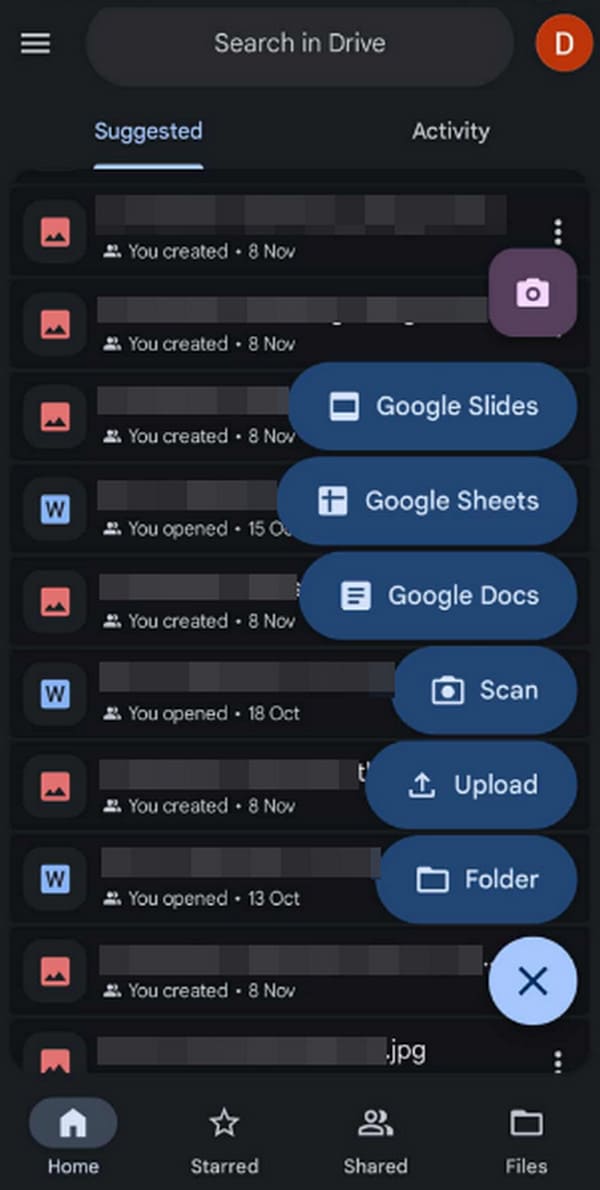
Step 1Open Google Drive on your devices and ensure they are logged into the same account.
Step 2On your older device, tap the + symbol, then Upload to import your desired files to the platform. Afterward, they will also appear on the new device, so download them accordingly.
Part 3. Android Transfer to New Phone Using Google Account
Aside from Google Drive, Google also has a backup and restore function that you can use with your Google account. Like the previous strategy, the transfer will heavily rely on an internet connection, so linking your device to a stable network, whether WiFi or mobile data, is necessary. The process will also be on the Settings app, eliminating the need to visit another platform. It is straightforward, allowing you to understand easily; however, you won’t get to pick the files individually, as the entire data type will be transferred.
Accept the simplified directions below to transfer to new Android phone using your Google account:
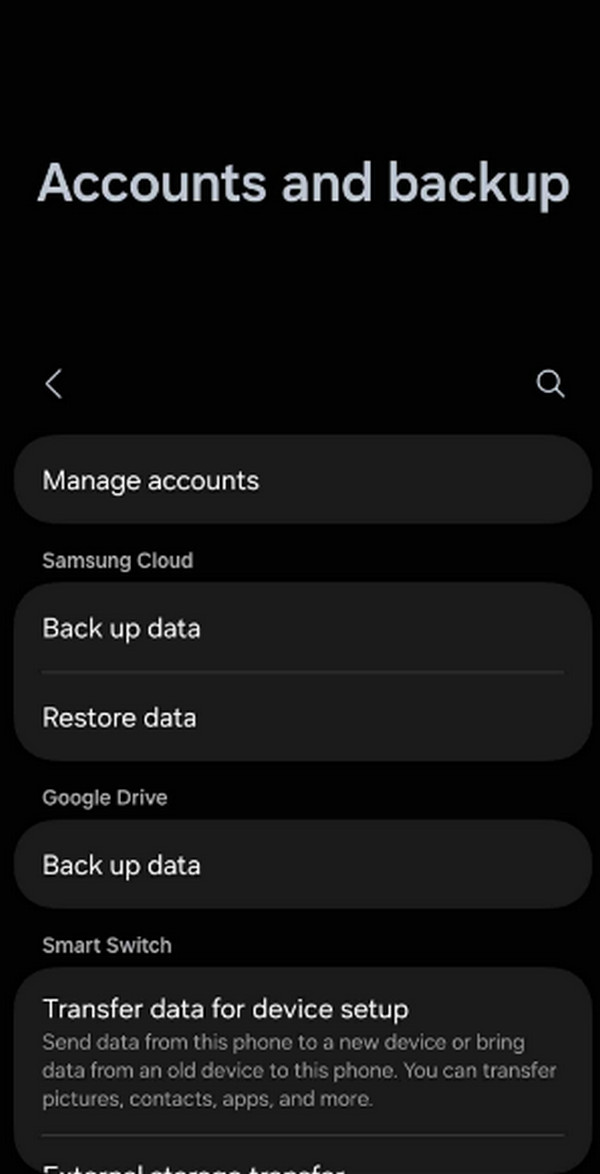
Step 1On your old phone’s Settings, select Accounts and backup, then Back up data under the Google Drive section. Next, manage your desired data and hit Back up now.
Step 2Once ready, go to the same section on the new phone’s Settings. Then, opt for the restoration option to transfer your data.
Part 4. Android Transfer to New Phone with FoneLab HyperTrans
You must also not miss FoneLab HyperTrans if you want an effortless yet professional transfer method for your new devices. Developers especially created it to make the transfer process between various devices, whether Android, iOS, or computers, convenient. Yes, that’s right. Although it transfers efficiently, you can still rely on its intuitive interface and simple procedure to move your Android data to a new phone without complication. Hence, don’t hesitate to trust it for transferring your music files, photos, messages, videos, contacts, and more.
Transfer Data From iPhone, Android, iOS, Computer to Anywhere without Any Loss.
- Move Files between iPhone, iPad, iPod touch and Android.
- Import Files from iOS to iOS or from Android to Android.
- Move Files from iPhone/iPad/iPod/Android to Computer.
- Save Files from Computer to iPhone/iPad/iPod/Android.
Comprehend the simple steps below as a model for an Android transfer to new phone process with FoneLab HyperTrans:
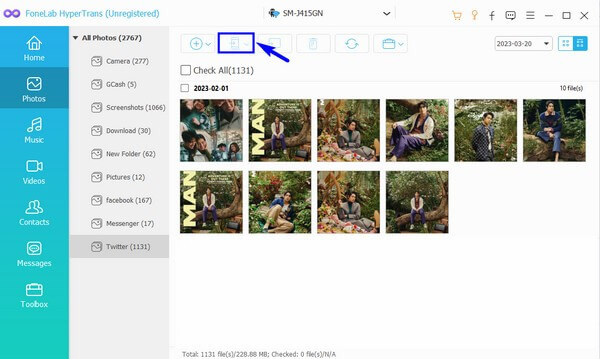
Step 1Save FoneLab HyperTrans’ installer through its website’s Free Download tab, then launch it for the installation. Afterward, initialize the program and link your old and new devices via USB cables. Once detected, hit the upper tab and click your older phone.

Step 2Next, pick from the data types in the left section to view and mark your desired data from the older device. Once satisfied, transfer them by clicking the mobile device symbol on the upper part and selecting the new phone’s name.
Part 5. Android Transfer to New Phone via USB Cable
A USB cable is also helpful in transferring Android data to a new phone. All you must do is attach your old and new devices to the computer, and once the computer reads your data, it will allow you to copy and paste your chosen files accordingly.
Mimic the user-friendly procedure below to grasp how to transfer to new Android phone via USB cable:
Step 1Using USB cables, link the sender and receiver devices to the computer and view the older device’s data first. From there, mark and copy the items you wish to transfer.
Step 2Once copied, proceed to the new phone and paste the files into your desired folder or location.

Afterward, this method can even help you transfer music from computer to iPhone or other devices. Not only music files, but also photos, documents, videos, and more.
Part 6. Android Transfer to New Phone via Bluetooth
Meanwhile, a classic method, Bluetooth, for transferring data is still as effective today as it was before. It will directly transfer from your Android to the new phone, but you must also expect some disadvantages. For instance, this method won’t be as advanced as the others; thus, the process will be slower, especially for larger files. The supported data are also more limited.
Follow the comprehensible process below to transfer data to new Android phone via Bluetooth:
Step 1Turn on Bluetooth on your old and new phones, then head to the older one’s Files or Gallery app to choose your desired data.
Step 2Next, opt for the Share option and choose Bluetooth as the mode of transfer. Then, select the new phone’s name when it appears in the choices to transfer the files.
Part 7. FAQs about Android Transfer to New iPhone
Can I use Smart Switch without a Samsung phone?
Unfortunately, you can’t. You can only use it if at least one of the devices is a Samsung, but it’s not possible if both are non-Samsung devices.
Can I transfer from my Android to a new iOS device?
Yes, you can. Many of the strategies above work, even for iOS devices, including FoneLab HyperTrans, so try it to transfer seamlessly.
Switching to a new device has now become convenient, thanks to the many transfer methods from different platforms. But most of all, we suggest you install and leave it to a professional like FoneLab HyperTrans, as it is the most secure and reliable. That said, install it now!



