
 iPhone Data Recovery
 iOS System Recovery
 iOS Data Backup & Restore
 iOS Unlocker
 iPhone Password Manager
 Location Changer
 Android Data Recovery
 Broken Android Data Extraction
 Android Data Backup & Restore
 Android Unlocker
 FoneTrans for iOS
 iPhone Data Eraser
 iPhone Cleaner
 HEIC Converter
 HyperTrans
 WhatsApp Transfer for iOS
 Mac Sweep
 Data Retriever
 Mac Data Retriever
 Video Converter Ultimate
 Screen Recorder
 Phone Mirror
- Part 1. Transfer Files from Android to PC Using USB Cable
- Part 2. How to Transfer Files from Android to PC with FoneLab HyperTrans
- Part 3. Transfer Files from Android to PC via Dropbox
- Part 4. Transfer Files from Android to PC Wireless via Quick Share
- Part 5. Transfer Files from Android to PC via Email
- Part 6. Transfer Files from Android to PC by Bluetooth
- Part 7. FAQs about How to Transfer Files from Android to PC
 Transfer Phone Data Now
Transfer Data From iPhone, Android, iOS, Computer to Anywhere without Any Loss.
- Transfer Data from One Micro SD Card to Another Android
- How to Transfer Pictures from One Phone to Another
- How to Transfer Photos from Old LG Phone to Computer
- How to Transfer Photos from an Old Samsung to Another Samsung
- Transfer Contacts from Samsung to iPhone
- Transfer Data from LG to Samsung
- Transfer Data from Old Tablet to New
- Transfer Files from Android to Android
- Transfer iCloud Photos to Android
- Transfer iPhone Notes to Android
- Transfer iTunes Music to Android
How to Transfer Files from Android to PC in 6 Leading Ways
 Updated by
 An Android phone is commonly used to store files because it is handy. You can bring it anywhere and access your files immediately. However, its storage space is limited, depending on its model. Transferring the Android files to a PC is ideal to free up your storage. Do you want to give it a try? You can transfer files from Android to PC easily. You only need to perform the proper ways to execute it, such as the 6 easy techniques in this post. Kindly continue reading it to discover this information.


Guide List
- Part 1. Transfer Files from Android to PC Using USB Cable
- Part 2. How to Transfer Files from Android to PC with FoneLab HyperTrans
- Part 3. Transfer Files from Android to PC via Dropbox
- Part 4. Transfer Files from Android to PC Wireless via Quick Share
- Part 5. Transfer Files from Android to PC via Email
- Part 6. Transfer Files from Android to PC by Bluetooth
- Part 7. FAQs about How to Transfer Files from Android to PC
Part 1. Transfer Files from Android to PC Using USB Cable
The USB connection transfer is almost the primary method used by Android users how to transfer photos from Android to computer. However, some individuals do not prefer using it due to the physical requirements. You need to correct the cable for your Android and PC because it might cause incompatibility when incorrect. Additionally, this procedure is slower compared to the wireless transfer, which can be used for transferring Android files to a PC. Transfer files from Android to PC using USB cable with the steps below.
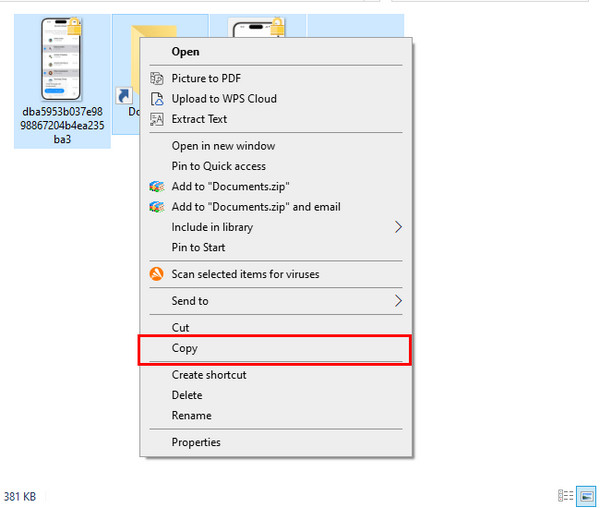
Step 1Plug the Android phone into the PC using a USB cable. Then, allow all the permissions required to enable the PC to recognize the Android phone. After that, open the File Explorer and click the Android phone name from the location or path on the left. Locate the files you prefer to transfer and right-click. Select the Copy button from the small window that will appear afterward.
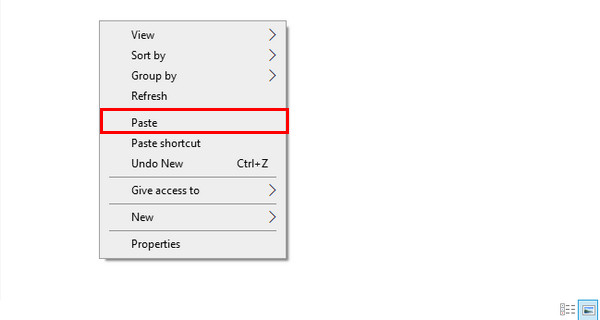
Step 2Next, go to the folder or location of the PC. This way, you can choose the folder where you may store the file that will be transferred. Right-click on the space, and more options will be shown. Please click the Paste button. Finally, unplug the Android phone from the PC.
Part 2. How to Transfer Files from Android to PC with FoneLab HyperTrans
Besides the USB connection, a third-party tool, like FoneLab HyperTrans, can also help to transfer your Android files to a PC. This tool allows you to transfer multiple data types, such as photos, music, messages, contacts, and videos. The good thing about this software is that it can also add, delete, and modify some of your files, like contacts. Besides Android phones and PC, this tool can also transfer your files from iPhone and iPad. Transfer files from Android to PC with this tool using the guide below.
Transfer Data From iPhone, Android, iOS, Computer to Anywhere without Any Loss.
- Move Files between iPhone, iPad, iPod touch and Android.
- Import Files from iOS to iOS or from Android to Android.
- Move Files from iPhone/iPad/iPod/Android to Computer.
- Save Files from Computer to iPhone/iPad/iPod/Android.
Step 1Download FoneLab HyperTrans from its main website. After that, set up the file from the PC to launch it. Then, the first screen will require you to plug the Android phone into the PC. Get a USB cable and connect the device.

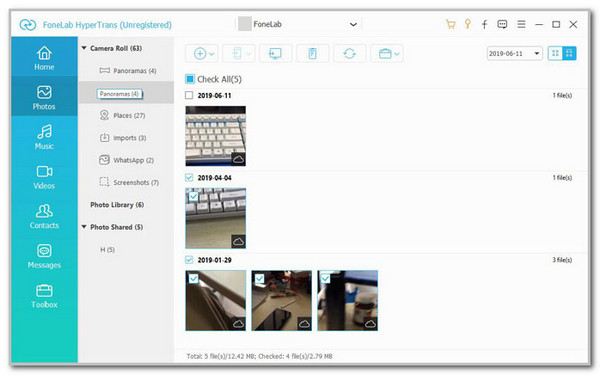
Step 2Select the data types you prefer to transfer. You can click the Photos, Music, Messages, Contacts, and Videos buttons. Then, the tool will scan the available files from the Android phone. Select the files you want to transfer. Then, click the Computer button at the top of the main interface.
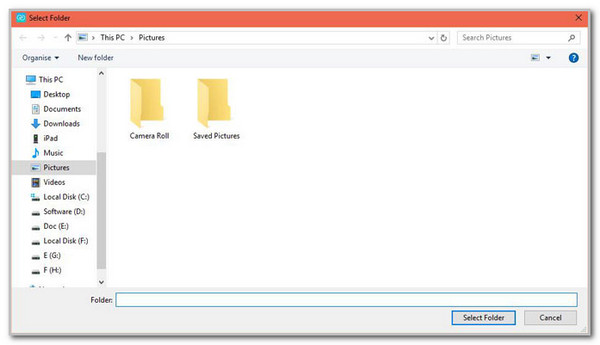
Step 3The tool will require you to choose the PC folder where you want to store the files. Please select your desired folder and click the Select Folder button to start transferring your files.
Part 3. Transfer Files from Android to PC via Dropbox
Dropbox is a program that enables you to store and manage your files across devices. It can be used on the Android phone, PC, Mac, iPhone, and iPad. It can be used as a program, app, or online. It can be used to transfer your Android phone files to a PC by importing and downloading them. Please imitate the steps below to learn how.
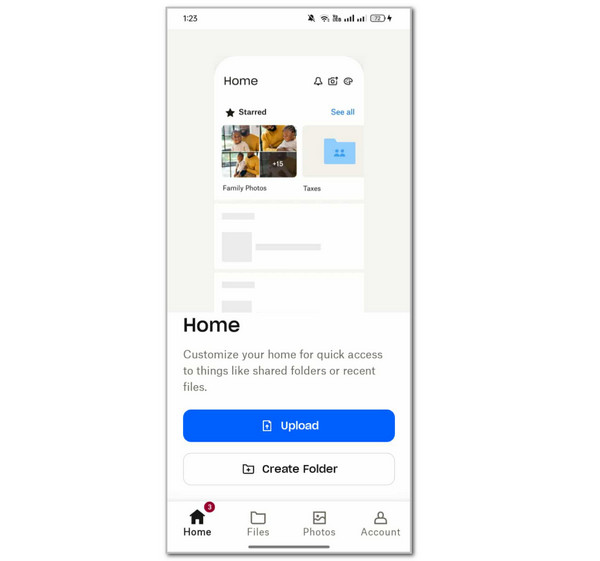
Step 1Download Dropbox on your Android phone. After that, sign up or sign in to your Dropbox account. After that, please tap the Continue button to sign in. Tap the Home button at the bottom left and tap the Upload or Create Folder button. Then, choose the files you want to transfer to import them.
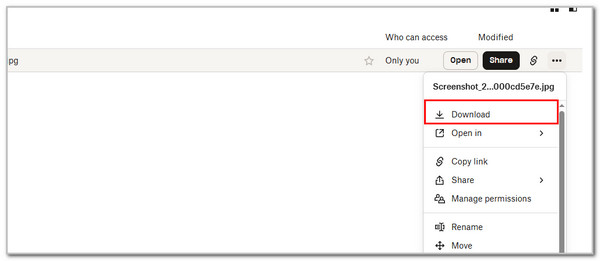
Step 2On your PC, search for the main website of Dropbox. After that, click the Login button at the top right and sign in to the account you used from the Android phone. Locate the files you want to transfer and click the Three Dots button for the files. Finally, click the Download button.
Part 4. Transfer Files from Android to PC Wireless via Quick Share
Quick Share is a transfer tool that is commonly used to transfer data between different Android phones, including Samsung and Oppo. However, it is not accessible to all Android phone brands and models. It transfers your Android files to a PC wirelessly. Please use Quick Share in transferring your Android phone files to a PC below.
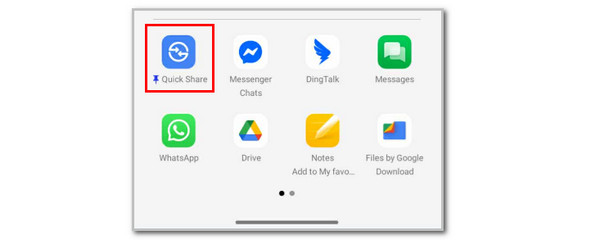
Step 1Go to the Files app on your Android phone. Then, long-press the files you want to transfer. Tap the Three Dots option and tap the Share button. Later, tap the Quick Share button to proceed.
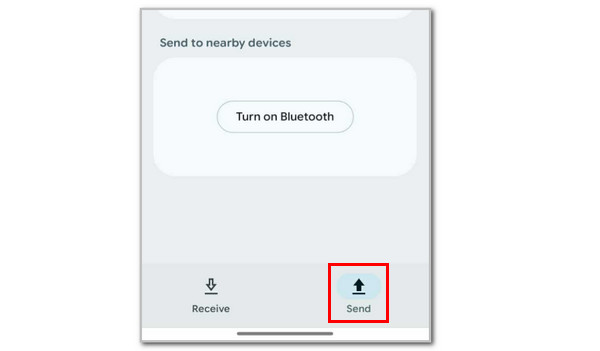
Step 2Tap the Send option at the bottom right of the screen. Later, install Quick Share on your PC. Sign in with the same account. After that, please receive the files from your PC to start the transfer procedure.
Part 5. Transfer Files from Android to PC via Email
Sending the files via email can also transfer your Android files to a PC. The reason is that you can download the attachments of the emails. However, the method has limited supported data types that it can send. This feature can also be your guide on how to transfer data from Android to iPhone. Please follow the steps below to send and download files from emails to transfer them from your Android phone to your PC.
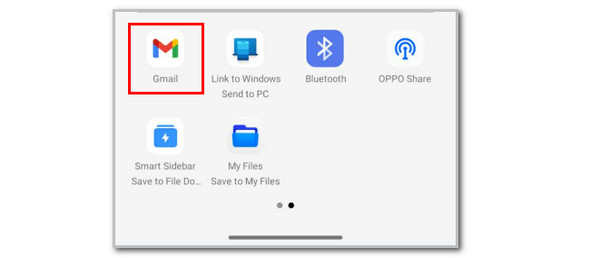
Step 1Locate the files you prefer to transfer from your Android phone in the Files app. After that, please select the Three Dots button and choose the Gmail button. Set the recipient as you by typing your email. Tap the Send button to start sending the email.
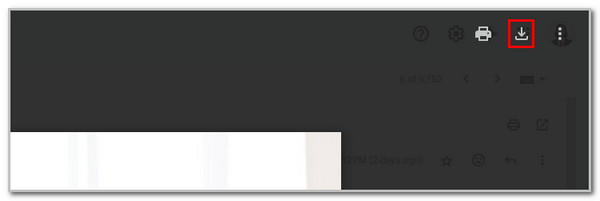
Step 2On your PC, please search for the Gmail website. Then, locate the email containing the files. After that, please choose the Download button from the files to transfer them to your PC.
Part 6. Transfer Files from Android to PC by Bluetooth
Bluetooth is last on the list because it is the least used method. The reason is that not all PCs have a built-in Bluetooth, especially the earlier versions of Windows. Additionally, the transfer procedure is slower than a USB connection. It is a bit inconvenient and time-consuming, right? Anyway, please follow the steps below to transfer files from Android to PC wireless via Bluetooth.
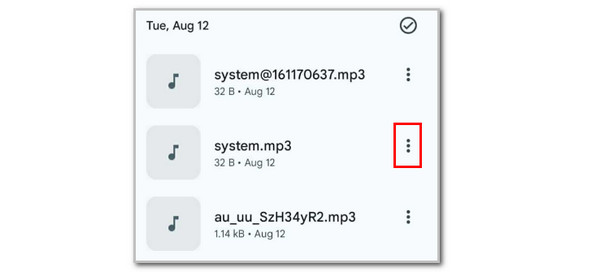
Step 1On your Android phone, unlock it and swipe down the Notification Center. After that, tap the Bluetooth button to turn it on. Then, go to the Files app and locate the file you prefer to transfer. Next, please tap the Three Dots button and tap the Share button.
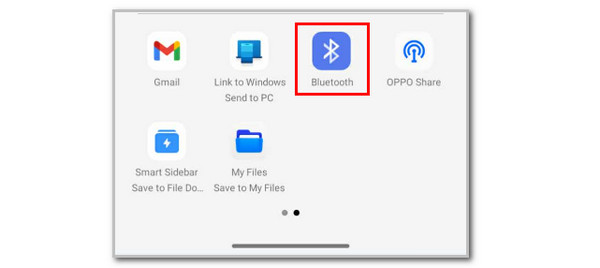
Step 2Tap the Bluetooth button at the bottom. On your PC, turn on the Bluetooth feature by tapping the Notification button at the bottom right. Then, select the PC Bluetooth name from the list. After that, the transfer procedure will start immediately.
Part 7. FAQs about How to Transfer Files from Android to PC
Can you transfer files from PC to Android?
This procedure is the reverse of the main topic of this article. The best way to transfer the files from your PC to Android is using a USB cable. You can also use their Bluetooth feature. However, not all PCs have a built-in Bluetooth. Alternatively, you can use FoneLab HyperTrans.
Why is the USB transfer not working?
The USB transfer will not work if there are hardware problems on your PC or Android phone. Also, it could be broken parts of the USB that will be used for the transfer process. Finally, the Developer Options might not be turned on, and you only need to turn them on.
This article is all about Android file transfer on Windows. 6 of the best procedures are listed as your references. FoneLab HyperTrans is included in the processes. This tool can also transfer files from your iPhone and iPad, besides PC and Android. Download the tool now to explore it more!



