
 iPhone Data Recovery
 iOS System Recovery
 iOS Data Backup & Restore
 iOS Unlocker
 iPhone Password Manager
 Location Changer
 Android Data Recovery
 Broken Android Data Extraction
 Android Data Backup & Restore
 Android Unlocker
 FoneTrans for iOS
 iPhone Data Eraser
 iPhone Cleaner
 HEIC Converter
 HyperTrans
 WhatsApp Transfer for iOS
 Mac Sweep
 Data Retriever
 Mac Data Retriever
 Video Converter Ultimate
 Screen Recorder
 Phone Mirror
 Transfer Phone Data Now
Transfer Data From iPhone, Android, iOS, Computer to Anywhere without Any Loss.
- Transfer Data from One Micro SD Card to Another Android
- How to Transfer Pictures from One Phone to Another
- How to Transfer Photos from Old LG Phone to Computer
- How to Transfer Photos from an Old Samsung to Another Samsung
- Transfer Contacts from Samsung to iPhone
- Transfer Data from LG to Samsung
- Transfer Data from Old Tablet to New
- Transfer Files from Android to Android
- Transfer iCloud Photos to Android
- Transfer iPhone Notes to Android
- Transfer iTunes Music to Android
Prominent File Manager Android with A Walkthrough Guide
 Updated by
 Do you want to utilize the best Android file manager on your device? In an ecosystem where our smartphones have become central storage for work documents, personal media, and other essential files, learning file managers is no longer a choice but a necessity. After all, having organized folders allows you to navigate through your files more efficiently, whether by finding, moving, or deleting them to optimize the Android device’s storage.
That said, let the following sections walk you through the most prominent file managers available on Android. Feel free to learn their functions and unique capabilities to optimize their use on your device. Whether you’re a new or regular Android user, it is never too late to start organizing and taking complete control of your files on the device. Thus, dive into the information below.

Guide List
Part 1. My Files by Samsung
For millions of Android users, the journey into file management begins not with a download, but a built-in app. If you notice, every device offers a default app for managing files, and for Samsung device users, My Files is the available one you can optimize. It is just the perfect app for anyone who’d like to start organizing and gain complete control of their files. It also doesn’t matter if you’re a new Android user because its easy functions and comprehensive interface design are enough to help you understand and navigate the file-managing process smoothly.
Check the details below to learn the features of the Android file manager app by Samsung, My Files:
- • Perform file management operations like browsing, moving, copying, sharing, and renaming files and folders.
- • Automatically sorts files into categories: Images, Videos, Audio files, Documents, Downloads, and Installation files. Also, by storage location: Internal storage, SD card, USB drive for easy access.
- • Offers a built-in storage analysis function, showing details of your storage space usage.
- • A search icon that allows you to find files by name, type, or time frame.
- • A Recycle bin containing the files that have been recently deleted from the device.
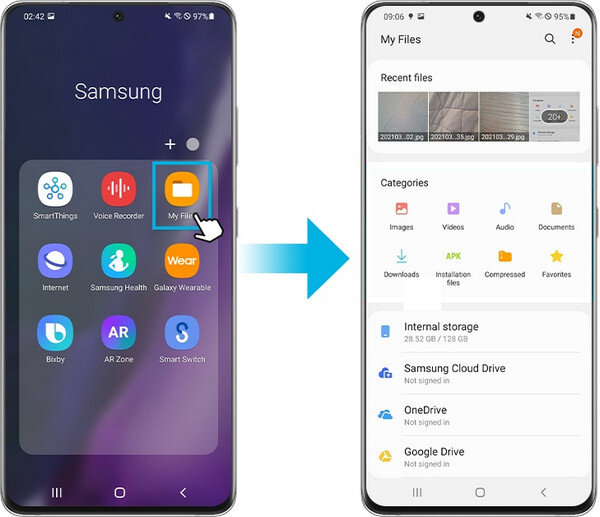
Since Samsung has its own file-managing app, My Files, you must wonder if other brands have it as well. The answer is that yes, some have their own file managers, but some also don’t. For instance, Xiaomi, Redmi, and POCO provide File Manager, and Sony has its own Files app.
Part 2. Files by Google
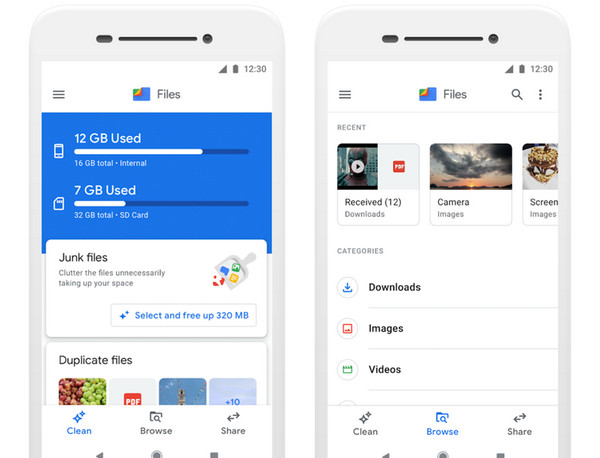
Other than the brands’ built-in file management apps, you will likely find a separate Files app on your Android device. Google develops it, and since Google offers numerous pre-installed tools on Android devices, it is no longer surprising that among them is a file management app. That said, if your Android brand doesn’t have a built-in file manager, Files by Google is the perfect alternative you can use. After all, some brands already offer it as their default app. Like the last file management tool, Google designed it to cater to all users, ensuring an intuitive design and simple options.
Dive into the information below to determine the file manager app Android, Files’ features by Google:
- • Files are efficiently organized into categories like Images, Videos, Audio, and Documents.
- • Innovative cleaning functions that can clear junk and temp app cache files, delete duplicate files and old screenshots, uninstall unused apps, erase large files, etc.
- • A password-protected safe folder to which you can contain sensitive or private files.
Part 3. Android File Transfer
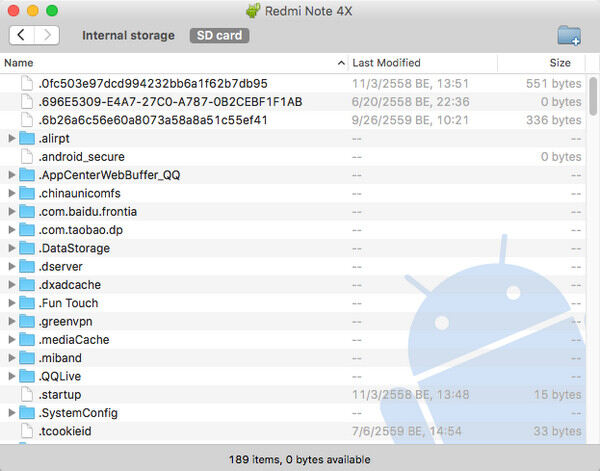
Managing your files on your Android device may already be enough, but what if you need to move some of them to your Mac later? Unfortunately, all devices’ storage is limited, and not everyone has the privilege to own an SD card. Hence, transferring to your Mac might be the best way to save space or even manage the data more efficiently. Besides, this can also serve as your backup in case you suddenly lose the files on your Android. That said, learn the Android File Transfer program, as it would be an effective tool to show you an example of transferring photos from Android to Mac.
Understand the hassle-free task below to transfer files from an Android to a Mac via Android File Transfer:
Step 1Search for Android File Transfer on your browser and download its files to install the program on your Mac. Afterward, launch it and attach your Android via a USB cable.
Step 2Once detected, tap the notification on the device and choose File Transfer. Your data will then pop up on the Mac screen. So, find and select the files you wish to transfer before right-clicking and opting for Copy. Finally, see your Mac storage and right-click to pick Paste for transfer.
Part 4. FoneLab HyperTrans
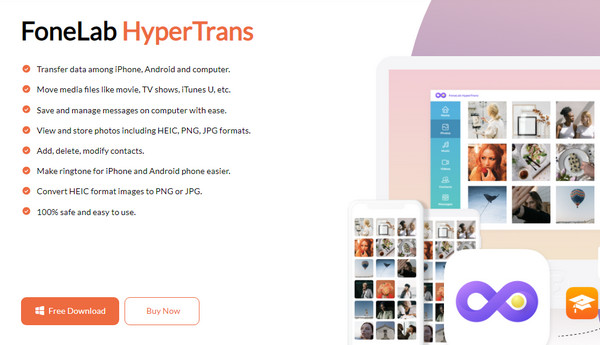
Meanwhile, for Windows users, of course, you know that a USB cable can help you transfer Android data with limited data types. If you want more, FoneLab HyperTrans is here to tend to your transfer needs. It works with almost all Android devices, so feel free to use it any time you need to move files from your device to a PC or vice versa. The program supports several data types and not only the basic ones; thus, you will be able to transfer contacts, photos, documents, videos, music files, and more, in different formats. It also doesn’t require significant storage, as it only takes up a small space.
Want to hear another advantage? FoneLab HyperTrans isn’t only for Android users. If you own an iPhone or other iOS devices, it will also be available to help you, as it supports transferring between Android, iOS, and computers. On the other hand, the transfer process will let you have complete control of your files since you can view and choose them individually. That said, we can guarantee that this is your best shot to transfer files from Android to PC.
Transfer Data From iPhone, Android, iOS, Computer to Anywhere without Any Loss.
- Move Files between iPhone, iPad, iPod touch and Android.
- Import Files from iOS to iOS or from Android to Android.
- Move Files from iPhone/iPad/iPod/Android to Computer.
- Save Files from Computer to iPhone/iPad/iPod/Android.
Follow the user-friendly steps below to transfer your files from Android to PC with FoneLab HyperTrans:
Step 1FoneLab HyperTrans’s installer is downloadable by ticking Free Download on its site. Your computer will automatically save the file to your Downloads, so access it from there and use it for the installation. It will be quick until you can launch the newly-installed program. Associate your Android with a USB cable afterward, then click the device in the top tab.
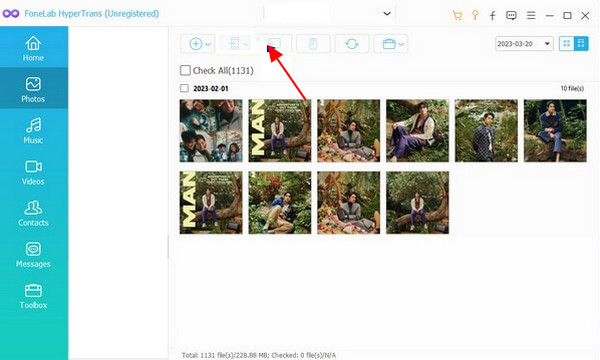
Step 2Once ready, feel free to choose from the data types in the left section to find the specific file you want to transfer. As mentioned, Photos, Music, Contacts, Messages, etc., are available. After seeing your desired data, mark them and click the computer symbol on the upper portion to transfer.
Part 5. FAQs about Android File Manager
Where is file manager on Android?
Any Android or other device’s file management app is usually just on the Home screen, allowing you to find it by simply browsing the displayed apps. But if you want to locate it faster, use the search field on the upper or lower part of the screen and enter the name of the app.
Do Android file management apps support all formats?
Unfortunately, no. File management apps don’t support every format for different data types. They usually support standard formats for each type, such as JPG for photos, MP4 for videos, and more.
As you can see, managing and transferring files on Android devices is far from complicated. As long as you have the proper guidelines, your management process will be fine. Besides, you will be able to move your files anytime with the help of tools like FoneLab HyperTrans, so install it now.



