
 iPhone Data Recovery
 iOS System Recovery
 iOS Data Backup & Restore
 iOS Unlocker
 iPhone Password Manager
 Location Changer
 Android Data Recovery
 Broken Android Data Extraction
 Android Data Backup & Restore
 Android Unlocker
 FoneTrans for iOS
 iPhone Data Eraser
 iPhone Cleaner
 HEIC Converter
 HyperTrans
 WhatsApp Transfer for iOS
 Mac Sweep
 Data Retriever
 Mac Data Retriever
 Video Converter Ultimate
 Screen Recorder
 Phone Mirror
- Part 1. Transfer Data from iPhone to Android via Android Switch
- Part 2. Transfer Data from iPhone to Android Using Google Drive
- Part 3. Transfer Data from iPhone to Android Using iCloud Drive
- Part 4. Transfer Data from iPhone to Android via Samsung Smart Switch
- Part 5. Transfer Data from iPhone to Android with FoneLab HyperTrans
- Part 6. Transfer Data from iPhone to Android via USB Cable
- Part 7. FAQs about How to Transfer Data from iPhone to Android
 Transfer Phone Data Now
Transfer Data From iPhone, Android, iOS, Computer to Anywhere without Any Loss.
- Transfer Data from One Micro SD Card to Another Android
- How to Transfer Pictures from One Phone to Another
- How to Transfer Photos from Old LG Phone to Computer
- How to Transfer Photos from an Old Samsung to Another Samsung
- Transfer Contacts from Samsung to iPhone
- Transfer Data from LG to Samsung
- Transfer Data from Old Tablet to New
- Transfer Files from Android to Android
- Transfer iCloud Photos to Android
- Transfer iPhone Notes to Android
- Transfer iTunes Music to Android
Outstanding Guide on How to Transfer iPhone to Android
 Updated by
 If you wonder if you can transfer data from iPhone to Android, the answer is yes. You might think it’s impossible at first glance because of the Apple ecosystem’s exclusivity, but if you dig deeper, numerous transfer methods are actually available. Hence, you no longer need to fret when there’s a need to move files or switch from an iPhone to Android.
We will explore each of the strategies for transferring images, documents, messages, videos, contacts, music files, and other data types from your iPhone to your Android in the following sections, so don’t go away and keep browsing below. Whether you prefer to rely on the devices’ specialized transfer apps, a professional program, or other alternatives, this article is for you.

Guide List
- Part 1. Transfer Data from iPhone to Android via Android Switch
- Part 2. Transfer Data from iPhone to Android Using Google Drive
- Part 3. Transfer Data from iPhone to Android Using iCloud Drive
- Part 4. Transfer Data from iPhone to Android via Samsung Smart Switch
- Part 5. Transfer Data from iPhone to Android with FoneLab HyperTrans
- Part 6. Transfer Data from iPhone to Android via USB Cable
- Part 7. FAQs about How to Transfer Data from iPhone to Android
Part 1. Transfer Data from iPhone to Android via Android Switch
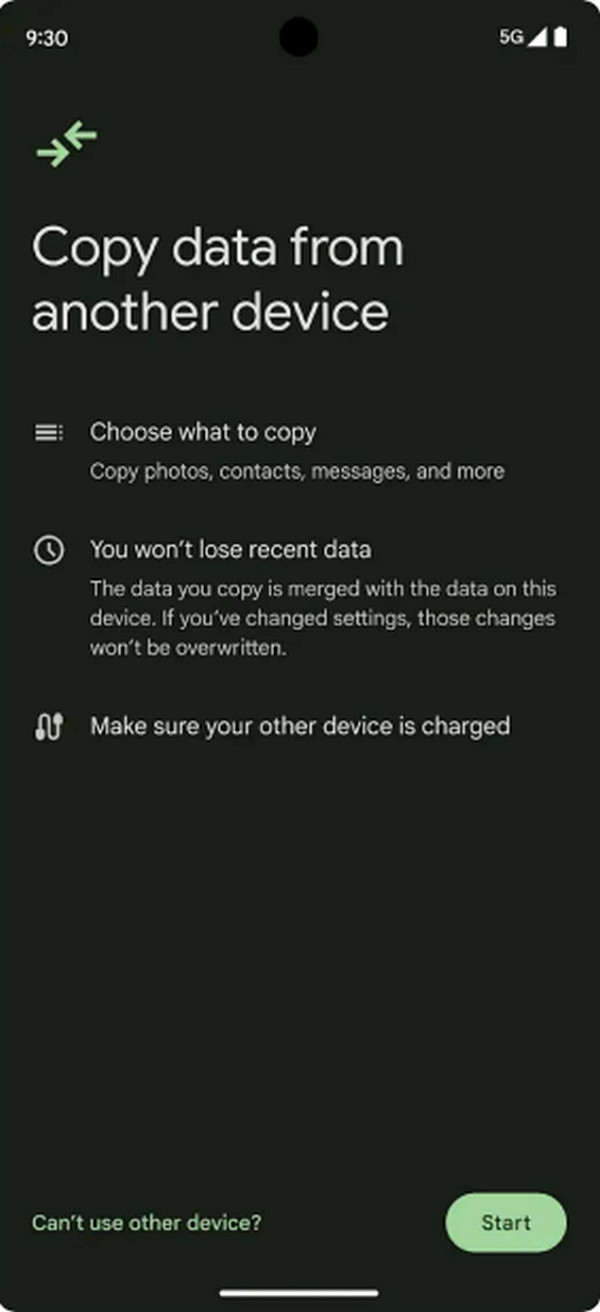
The Android Switch app is the initial choice if your primary purpose is to switch from being an iPhone user to an Android user. It is among the many apps that Google developed, ensuring a reliable and secure performance. It can help you move various data, including videos, photos, contacts, calendar events, and more from your iPhone to a brand new Android, even without a cable. However, this method will transfer the entire data type, so it won’t be convenient if you only have to move one or a few files.
Observe the secure procedure below to perform an iPhone to Android transfer via Android Switch:
Step 1Turn your new Android device on and hit Start to begin setting it up. Once asked, link it to a reliable internet network. Afterward, install and open Android Switch on the iPhone.
Step 2Ensure the iPhone and Android are near each other for detection purposes. When ready, prompts will guide you through the next steps, so follow along to transfer your iPhone data to your Android.
Part 2. Transfer Data from iPhone to Android Using Google Drive
Uploading and downloading the data you intend to transfer with Google Drive will also help you achieve your goal. Since it is a storage service, you can store your iPhone files on the platform, and once imported, use the same account on your Android to access your data and download it to save offline. This method has among the most comprehensible procedures, as it only involves manual upload and download steps without technicalities or other complications.
Adhere to the straightforward navigation below to grasp how to transfer data from iPhone to Android wirelessly using Google Drive:
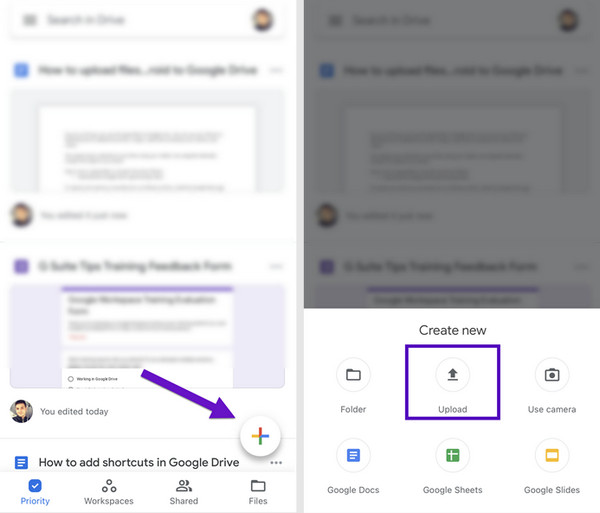
Step 1Acquire Google Drive using your iPhone, then sign in to the same account you use on your receiver Android device. You will then see a Plus symbol on the lower part, so opt for it and tap Upload to view and select your files to transfer.
Step 2After uploading, switch to your Android device and open the Google Drive app. Since you used the same account to upload, the files you have chosen will be available on your Android. Therefore, mark your desired items and choose the Download selection.
Part 3. Transfer Data from iPhone to Android Using iCloud Drive
iCloud Drive is another storage service you can use to transfer files or other data from your iPhone to your Android device. Hence, the process has a similarity with the previous technique, which is uploading and downloading your chosen files to transfer. However, the Cloud Drive app isn’t available for Android users, giving you no choice but to use your browser instead. Don’t worry, though. The iCloud website is accessible and offers a user-oriented design.
Conform to the unexacting directions below to learn how to transfer from iPhone to Android using iCloud Drive:
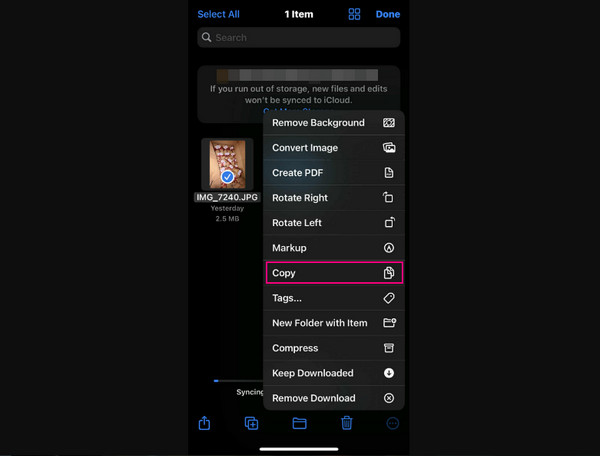
Step 1Access the Files app with your iPhone to find the items you wish to transfer. Next, select them and pick Copy from the options. Once prompted, select iCloud Drive as your destination folder.
Step 2After that, enter a mobile browser on your Android to view the iCloud website and log into the same account on your iPhone. Later, navigate to the iCloud Drive section to see the files you just uploaded. Finally, mark the files you will transfer and pick Download to save them to your Android.
Besides moving data from an iPhone to an Android, iCloud can also be used to transfer iPhone to iPhone with its different features and services.
Part 4. Transfer Data from iPhone to Android via Samsung Smart Switch
Meanwhile, some device brands provide their own built-in transfer service, and the most popular one you may often hear is Samsung’s Smart Switch. Like the Android Switch app, it is best used when switching from an iPhone to an Android, but this time, it must be Samsung-branded. This transfer app is available on the App Store; thus, you won’t have problems accessing it. But also like Android Switch, you won’t be able to transfer files individually since the transfer would be by data type.
Emulate the simplified task below to learn how to use Samsung Smart Switch to transfer from iPhone to Android via Samsung Smart Switch:
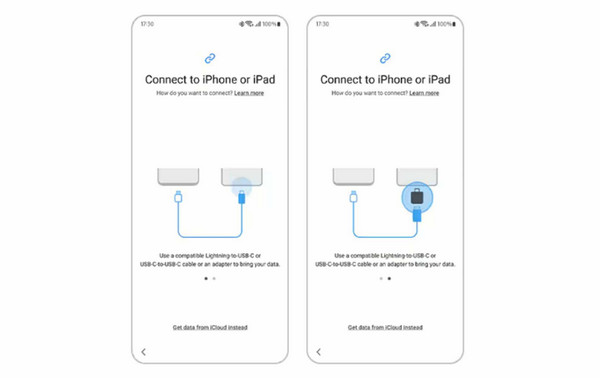
Step 1Install and initialize Smart Switch on your iPhone, then start your new Android phone. Following that, select iPhone or iPad when you’re asked to set up using another device.
Step 2Then, set it up and attach the devices through a USB-C cable. Once the connection is ready, mark the data types you will transfer before hitting Transfer at the bottom.
If you don’t use Samsung, see what app your phone brand offers. For Xiaomi, Redmi, and POCO phone users, you can use the Mi Mover or Xiaomi Share app. Meanwhile, OPPO and realme phones offer the Clone Phone. HUAWEI has the HUAWEI Phone Clone, and vivo has EasyShare.
Part 5. Transfer Data from iPhone to Android with FoneLab HyperTrans
Would you prefer a more professional approach? If so, FoneLab HyperTrans is the solution you need. Often, it is more convenient to transfer directly between devices without the help of a computer or other devices. But with this tool, we guarantee your transfer experience will be much more hassle-free, thanks to its beginner-friendly interface, advantageous features, and seamless performance.
FoneLab HyperTrans can transfer between iOS, Android, and computers. Thus, all you must do is link your devices to the program, and it will organize your files by data type. This will make it easier for you to find and mark your desired files to transfer. Meanwhile, various data types are supported by this program, such as contacts, music files, photos, messages, videos, and more.
Transfer Data From iPhone, Android, iOS, Computer to Anywhere without Any Loss.
- Move Files between iPhone, iPad, iPod touch and Android.
- Import Files from iOS to iOS or from Android to Android.
- Move Files from iPhone/iPad/iPod/Android to Computer.
- Save Files from Computer to iPhone/iPad/iPod/Android.
Take in the easy navigation below as a pattern of how to transfer data from iPhone to Android with FoneLab HyperTrans:
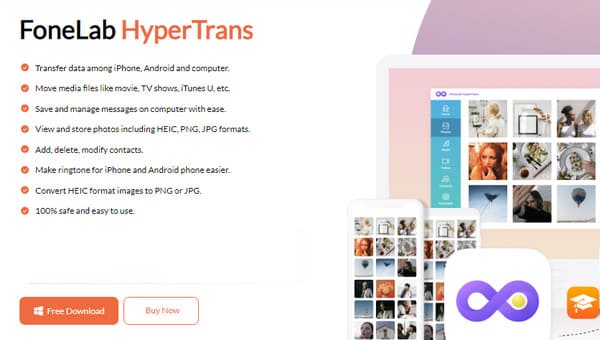
Step 1Install FoneLab HyperTrans using the installer that will be downloaded when you click Free Download on the program’s primary website. When ready, tick Start and link your iPhone and Android via USB and Lightning cables. Later, hit the top tab and choose your iPhone name.
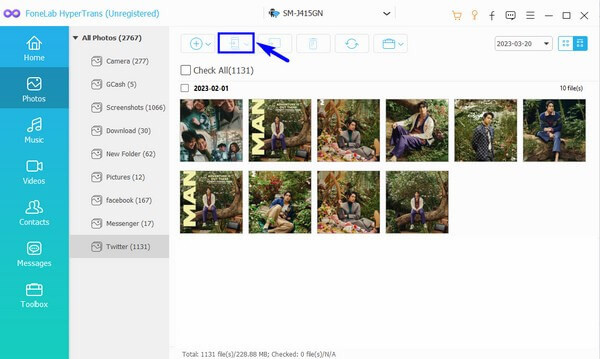
Step 2You can then start viewing your iPhone files by clicking the data types on the left interface. For instance, you have chosen Photos. Skim the images that will be displayed to mark the ones you intend to transfer. Lastly, go for the mobile device tab above and pick your Android to transfer.
Part 6. Transfer Data from iPhone to Android via USB Cable
Another technique for your devices is a manual transfer using USB cables. If you have already experienced attaching one of your devices to a computer, you may already know how this allows you to view and manage your data. Hence, attaching both your iPhone and Android will let you manage and move files accordingly. You must only ensure to allow the connection when asked on the devices to let the program read your data on the computer. However, only limited data types are supported, including basic media files and documents.
Be guided by the stress-free steps below to transfer iPhone to Android via USB cable:
Step 1Use the USB cables to attach the iPhone and Android device to your computer, and once detected, choose to open and display your iPhone data first. Next, browse the folders to find your desired files, then select them.
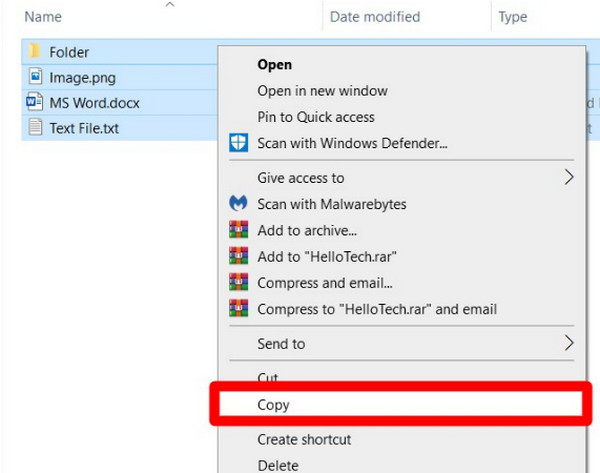
Step 2Afterward, right-click and pick Copy before proceeding to your iPhone storage on the computer. From there, choose or create a folder to which you will save the files. Finally, right-click and hit Paste.
Part 7. FAQs about How to Transfer Data from iPhone to Android
Which method is the fastest to transfer from my iPhone to my Android?
FoneLab HyperTrans is the fastest method we can suggest. Although it requires a computer, its organized interface will help you find your files more quickly, and it will directly move them to your Android.
How to transfer videos from iPhone to Android without losing quality?
You may use any of the transfer techniques above to transfer your videos, as transferring doesn’t specifically affect the data quality.
After learning the transfer strategies for iPhone and Android above, you will never have to worry about moving your data between your devices, especially when you have a professional choice, FoneLab HyperTrans. Therefore, manage its installation anytime.



