
 iPhone Data Recovery
 iOS System Recovery
 iOS Data Backup & Restore
 iOS Unlocker
 iPhone Password Manager
 Location Changer
 Android Data Recovery
 Broken Android Data Extraction
 Android Data Backup & Restore
 Android Unlocker
 FoneTrans for iOS
 iPhone Data Eraser
 iPhone Cleaner
 HEIC Converter
 HyperTrans
 WhatsApp Transfer for iOS
 Mac Sweep
 Data Retriever
 Mac Data Retriever
 Video Converter Ultimate
 Screen Recorder
 Phone Mirror
- Autofill Password on iPhone
- Change Outlook Password on iPhone
- Change AOL Password oni Phone
- Forgot Notes Password on iPhone
- Email Password on iPhone
- Voicemail Password on iPhone
- Change Instagram Password on iPhone
- Change NetFlix Password on iPhone
- Change Facebook Password on iPhone
- Password Protect Photos on iPhone
- Password Generator on iPhone
- Wi-Fi Password on iPhone
- Change Yahoo Password on iPhone
- Change Gmail Password on iPhone
- Share Wi-Fi Password on iPhone
Powerful Methods to Find Passwords on iPhone Smoothly
 Updated by
 Hi! I want my passwords on iPhone. How to find and view my saved passwords on this device? Thanks!
Are you wondering where to find passwords on iPhone? If so, you have reached the perfect post to guide you. As you may know, a forgotten password is among the common problems for almost anyone with an account or device. That’s why developers prepared various ways to address this concern, providing built-in features and professional tools to help users find their passwords.
Therefore, if you have previously logged into an account, whether on social media or a specific website, on your iPhone, but have forgotten its password, a suitable solution will be available to help. We assembled the official and most reliable strategies for finding passwords on the iPhone in the following sections, so skim each to determine the most appropriate one you can use.

Guide List
Part 1. How to Find Passwords on iPhone with Built-in Features
The initial methods for finding passwords on the iPhone are its built-in features. If you’re unaware, Apple has designated specific locations on the device where you can view your saved passwords. We provided their information and process below, so check them out.
Option 1. On Settings App
The iPhone’s Settings app is the first thing you can check to find and view the passwords saved on the device. It offers a Passwords section that only requires your Face ID or Touch ID to open and see its content without a problem. The credentials of the accounts you used on your websites and apps will be available as long as you allowed them to be saved when you were prompted the first time you logged in. Just note that the Autofill Passwords & Passkeys feature must have also been turned on beforehand. Don’t worry, though. It is activated by default, so if you didn’t turn it off, the feature will let you save and find the passwords.
Abide by the stress-free directions below to determine how to see saved passwords on iPhone Settings app:
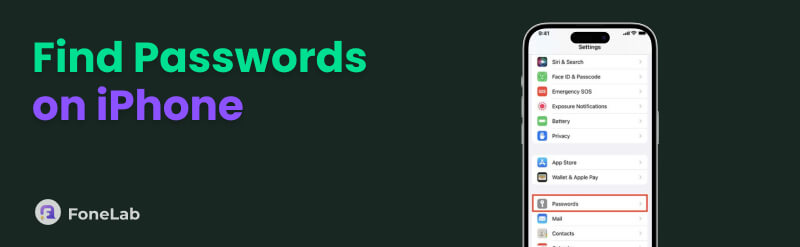
Step 1View the Settings app’s interface on the iPhone and scroll down to select Passwords.
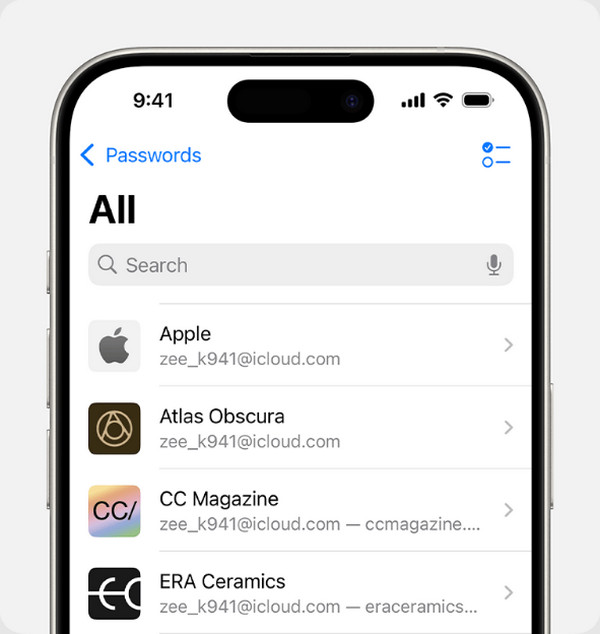
Step 2Use your Face ID or Touch ID once the screen asks, and afterward, the saved account credentials will be presented. So, tap the one you need to find and view the password.
Option 2. On Passwords App
Meanwhile, the Passwords app works the same way as the previous one, saving your account credentials through the Autofill Passwords & Passkeys feature. The primary difference is that instead of having a section on Settings, it has its own app you can open directly to view the saved passwords on your iPhone. Like before, it will only require authentication, and the apps will quickly show you the password or credential you want to find as long as you have saved it beforehand.
Act under the untroubled procedure below to view saved passwords on your iPhone Passwords app:
Step 1Initialize the Passwords app and unlock it using your Face ID, Touch ID, or passcode. Afterward, choose a category, whether All, Passkeys, Codes, etc., on the main interface.
Step 2Your saved credentials will appear next; thus, find and choose the one you want from there to view and manage the password.
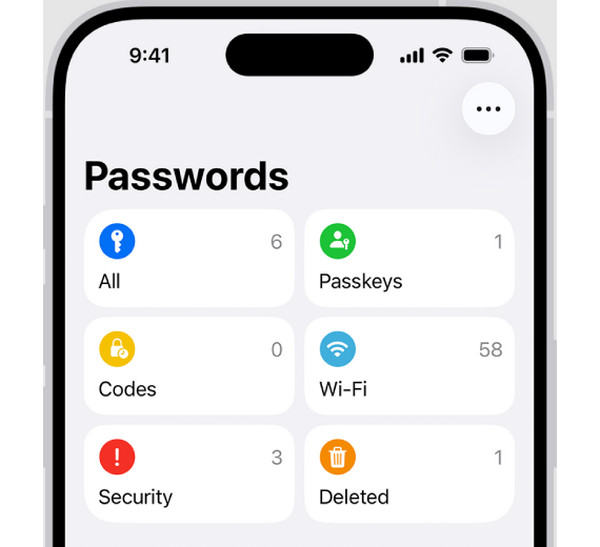
Various passwords can be found in these sections. You can also check Apple ID password if you have saved it when the autofill feature previously prompted you on the browser. However, know that the Passwords app is only on iPhones running iOS 18 or later.
Option 3. Using Siri
As you know, Siri is a voice-activated virtual assistant that understands and performs commands on the iPhone. So, if you order it to view a saved password on your device, the feature will quickly present it once you verify your identity. All you must do is ensure the feature is activated in Settings, and afterward, you will be free to use Siri, commanding it to show your desired password.
Follow the unchallenging guide below to find the saved passwords on iPhone using Siri:
Step 1Turn Siri on first by opening Settings and tapping Siri or Apple Intelligence & Siri. Afterward, enable it accordingly.
Step 2Once the feature is on, say “Hey Siri” to activate it. Then, say something like, “Show my password” to prompt Siri to display your desired password.
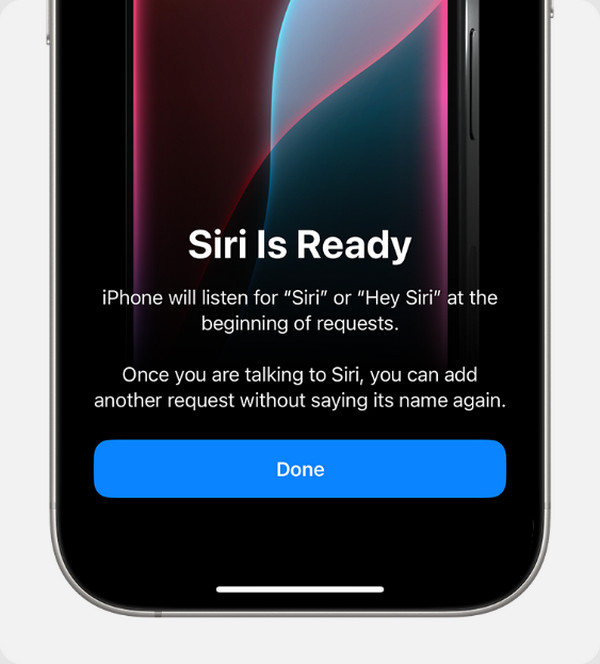
Depending on your iOS version, Siri will present the Passwords or Settings app’s interface on your iPhone screen once you command it. If the device runs iOS 18 or later, Passwords will be launched while Settings will be on iOS 12 through iOS 17.
Part 2. View Saved Passwords on iPhone Using FoneLab iPhone Password Manager
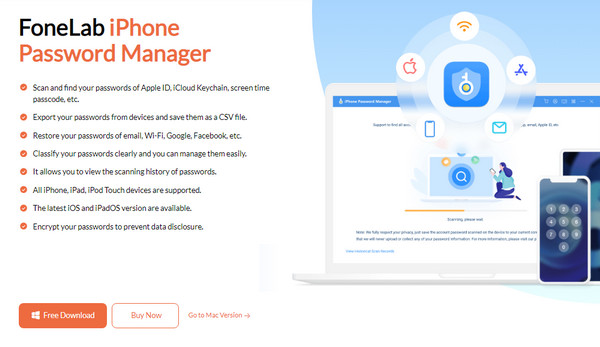
On the other hand, a well-known iPhone password manager can also be installed if you prefer a professional yet easy method. FoneLab iPhone Password Manager is a desktop program that can easily help you read the passwords you previously used on your iPhone, presenting them afterward on its interface. It supports several types of passwords, such as Apple ID, screen time passcode, email, WiFi, Google, social media accounts, and more.
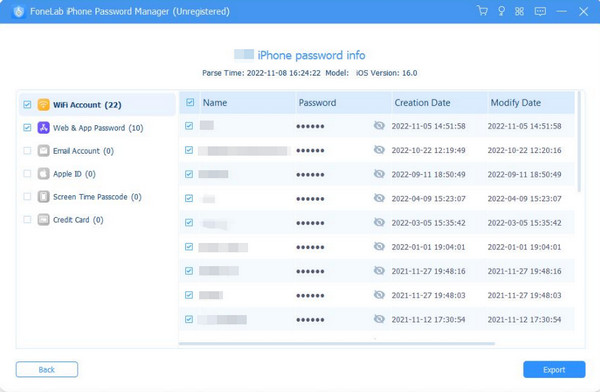
Another thing you will love about FoneLab iPhone Password Manager is that it categorizes your passwords, making them easy to find and manage. You can even export and save them as a CSV file so you can view them every time you forget. Besides, nearly all iOS versions are supported by the program, and it can also be used for iPod Touch and iPad models.

FoneLab iPhone Password Manager enables you to scan, view, and classify and more for iPhone, iPad or iPod Touch.
- Scan passwords on iPhone, iPad or iPod touch.
- Export your passwords from devices and save them as a CSV file.
- Restore your passwords of email, Wi-Fi, Google, Facebook, etc.
Recognize the safe instructions below to view your passwords on iPhone using FoneLab iPhone Password Manager:
Step 1Download the tool’s installer on the FoneLab iPhone Password Manager’s website by clicking Free Download. After that, set it up and finish the installation. You can then start the program when done. Next, hit Start on the initial interface and link your iPhone through a Lightning cable.
Step 2For your protection, you must enter or create your iTunes backup password before clicking the Enter Password button. When everything is set, your iPhone passwords will be displayed. Find the one you need accordingly and select the eye symbol next to it to view the password.
Part 3. Comparison of Password Finders on iPhone
| Features | Settings and Password App | Siri | FoneLab iPhone Password Manager |
| Source | Native (Apple) | Native (Apple) | Third-party Program |
| Cross-Platform | Apple Only | Apple Only | Extracts to Windows/Mac |
| Security | Highest | High | High |
| Ease of Use | Very Good | Very Good | Excellent |
| Saved Passwords Required | Yes | Yes | No |
| Scans Device Passwords | No | No | Yes |
Part 4. FAQs about How to See Saved Passwords on iPhone
Can I manage passwords on iPhone after finding them?
Yes, you can. Once you find your desired password, you will be able to manage it by deleting or updating it accordingly. FoneLab iPhone Password Manager is strongly recommended for you.
What if I didn’t save any passwords on my iPhone?
If you didn’t save the password on your iPhone using autofill, you won’t be able to view it with the built-in methods. Hence, use FoneLab iPhone Password Manager to scan and view your passwords on iPhone instead, as it doesn’t demand many requirements.
Forgetting a password you once used on your iPhone is no longer a critical problem because of the specialized password management features and programs available. Don’t miss them, especially FoneLab iPhone Password Manager, as it will be a significant advantage to your device.



