
 iPhone Data Recovery
 iOS System Recovery
 iOS Data Backup & Restore
 iOS Unlocker
 iPhone Password Manager
 Location Changer
 Android Data Recovery
 Broken Android Data Extraction
 Android Data Backup & Restore
 Android Unlocker
 FoneTrans for iOS
 iPhone Data Eraser
 iPhone Cleaner
 HEIC Converter
 HyperTrans
 WhatsApp Transfer for iOS
 Mac Sweep
 Data Retriever
 Mac Data Retriever
 Video Converter Ultimate
 Screen Recorder
 Phone Mirror
 Transfer Phone Data Now
Transfer Data From iPhone, Android, iOS, Computer to Anywhere without Any Loss.
- Transfer Data from One Micro SD Card to Another Android
- How to Transfer Pictures from One Phone to Another
- How to Transfer Photos from Old LG Phone to Computer
- How to Transfer Photos from an Old Samsung to Another Samsung
- Transfer Contacts from Samsung to iPhone
- Transfer Data from LG to Samsung
- Transfer Data from Old Tablet to New
- Transfer Files from Android to Android
- Transfer iCloud Photos to Android
- Transfer iPhone Notes to Android
- Transfer iTunes Music to Android
How to Hide Pictures on Android in 3 Proven and Tested Ways
 Updated by
 We take pictures on our Android phones for documentation, cherishing moments, and more. Have you experienced someone borrowing your Android phone and browsing your photos? That will be unnecessary, especially if you have private pictures from work, school, or personal life.
If that’s the case, you might want to know how to hide pictures on Android. This article has got your back! It lists down the 3 proven and tested ways to conceal your Android phone photos in a few seconds only. The bonus third-party tool that can transfer your Android phone photos to different devices is also here. Then you can delete and hide them from your Android. Kindly scroll below to discover these helpful methods.

Guide List
Part 1. How to Hide Photos on Android with Google Photos
Google Photos is one of the free services that Google offers for your Android phone and other supported devices. Its primary function is to help you manage, back up, and restore your Android phone photos. This free service has a Locked Folder feature that allows you to hide your Android phone pictures. Its procedure is simple because it only requires you to tap a few times.
Ensure that you have a Google account to use this application. Also, the Locked Folder feature is not enabled automatically. You are required to set it up first. Commonly, the password for this feature is your lock screen password. If someone knows your Android phone's lock screen, they can also open this folder. Understand how to use this feature below.
Step 1Open Google Photos on your Android phone. After that, sign in to the Google account where the photos exist. Then, tap the Photos button at the bottom left corner of the main interface. Then, all of the stored images in the app will be shown.
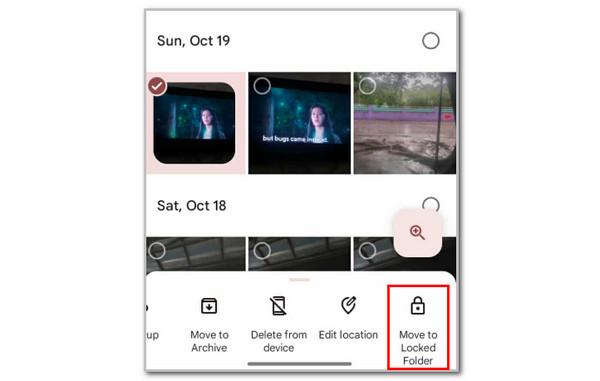
Step 2Locate the photos you want to hide. Then, long-press one of the images, and you can select more by tapping them. More options will appear at the bottom. Please swipe to the left and select the Move to Locked Folder button.
Part 2. How to Hide Pictures on Android via Native Features
Every Android phone brand has its native features for hiding its pictures. In this section, we will show you how to use them on some Android phone brands.
| Android Phone Brand | Feature | Process |
| Samsung | Secure Folder | Open Secure Folder. Tap Three Dots and select Add Files. Choose Images and select the files. Tap Done. |
| Xiaomi | Hidden Album | Open Gallery. Tap the Album and rename it. Select photos to hide and tap Move. Long-press the album and tap Hide. |
| Vivo | File Safe | Open Files. Select photos to hide and tap Three Dots. Select Move to Safe Folder and tap Move to confirm. |
Part 3. How to Hide Photos on Android Using My Files App
Another built-in app that can hide your Android phone photos is My Files, using its Private Safe feature. This is an application that organizes the files on your Android phone based on their data types. This way, you can easily locate them from your Android phone. However, this tool is not also activated automatically. You are required to set up the Private Safe feature and set a password. This is way safer compared to Google Photos, which only uses the Android phone lock screen password.
However, you cannot use it to discover how to hide photos on iPhone. It is not available on the said device. Alternatively, you can use the Files app from your iPhone. Use My Files to hide your pictures with the steps below.
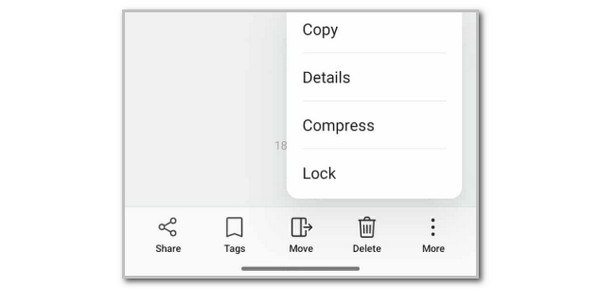
Open the My Files application on your Android phone. After that, please tap the Photos button at the top left. Then, choose the photos you prefer to hide. Tap the Move button at the bottom. Later, select the Lock button, and it will move them to the Private Safe feature. If the feature is not yet set up, you need to add a password first.
Part 4. How to Transfer and Delete Android Photos with FoneLab HyperTrans
Besides hiding your photos from your Android phone, you may also transfer and delete them. It could be to your PC, iPhone, and more. FoneLab HyperTrans can help with this matter. It can transfer your photos from your Android phone to other devices. Photos are not the only supported data types. It can also transfer contacts, music, videos, and messages, depending on your devices.
Transfer Data From iPhone, Android, iOS, Computer to Anywhere without Any Loss.
- Move Files between iPhone, iPad, iPod touch and Android.
- Import Files from iOS to iOS or from Android to Android.
- Move Files from iPhone/iPad/iPod/Android to Computer.
- Save Files from Computer to iPhone/iPad/iPod/Android.
Additionally, it can convert HEIC format to PNG or JPG image formats. Most especially, this tool is 100% safe for transferring your Android phone photos. It will never modify or delete them after the transfer process. Discover how to use this tool to transfer photos.
Step 1Go to the main website that FoneLab HyperTrans offers. After that, click the Free Download button on the screen. Then, please set up the downloaded file, install it, and launch it afterward.

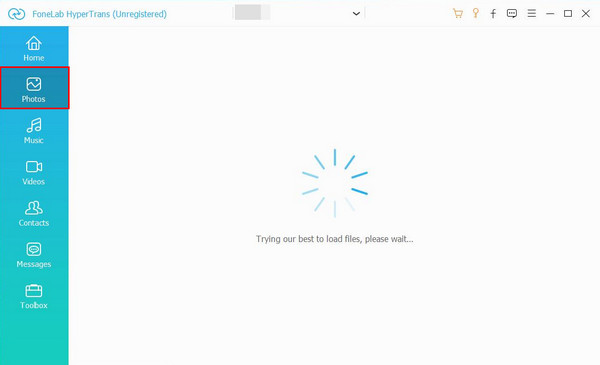
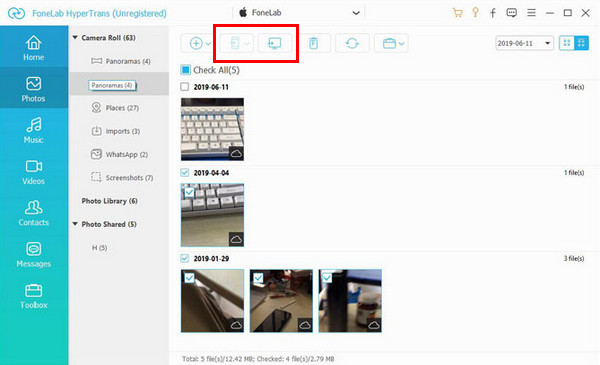
Step 2Plug an Android phone into the computer and the other device into the computer. Then, follow the on-screen steps to connect them successfully. Later, select the Photos button on the left side of the screen. This way, the tool will scan the available photos on your Android phone.
Step 3The results will be displayed on a next screen. Please select the pictures you want to transfer. Then, click the Computer or Phone button at the top. Then, select the path where you want to move the pictures from your Android phone. Follow the on-screen instructions to complete the process.
Part 5. FAQs about How to Hide Photos on Android
Can I lock the gallery in Android?
By default, there is no built-in feature or tool that can lock the gallery on your Android phone. To make this procedure possible, you can download applications from the Google Play Store. Secure Folder and Locked Folder are the most used ones.
Can hidden photos get leaked?
Yes. Hidden photos can still be leaked. However, it depends on how you hide or store them on your Android phone. It happens when the album used is not entirely private, someone has access to your Android phone passcode, and more.
All in all, this article has guided you on how to hide pictures on Android. The 3 best ways for hiding your photos on the mentioned device are posted. Also, FoneLab HyperTrans is posted to help you transfer your Android phone's pictures across devices. Do you want to know more about this tool? Download it now on your computer!



