Register and Activate
To access the full range of features available in FoneLab iOS Unlocker, you must first register and activate a VIP membership. Follow the steps outlined below:
1Download and launch the latest version of the software. Click the Log in button located in the top menu.
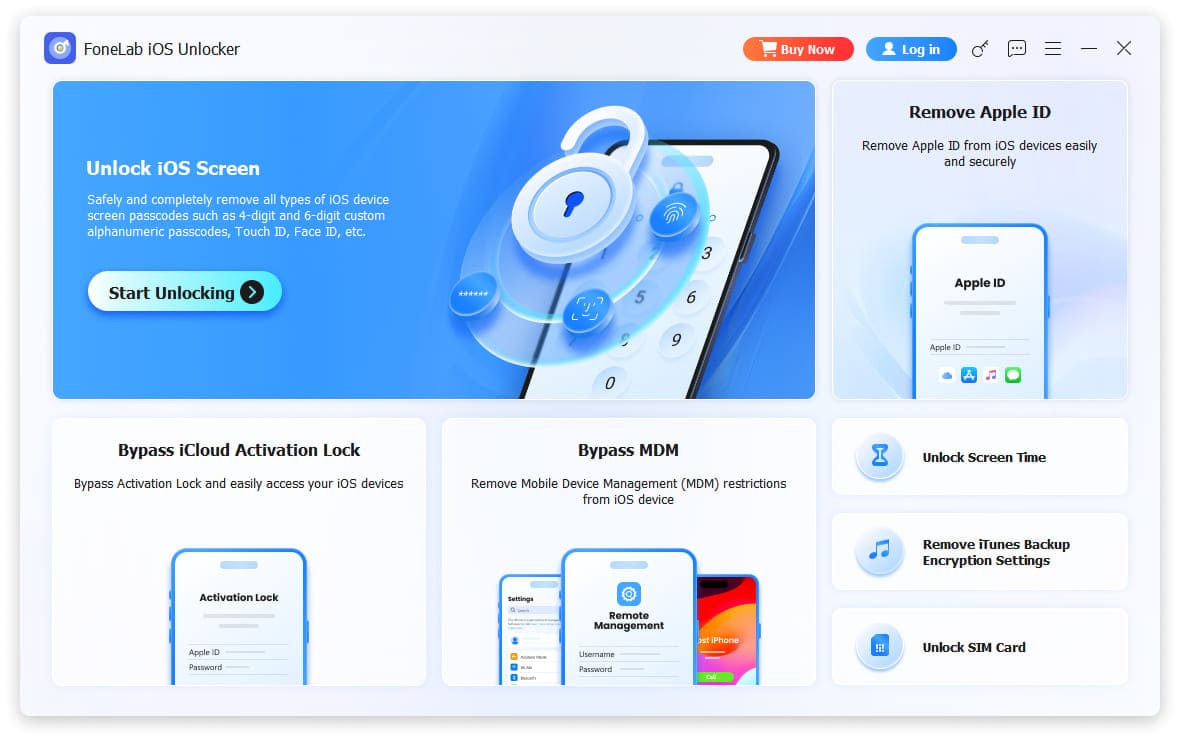
2Enter the email address associated with your purchase, and then click Log in to activate your benefits.
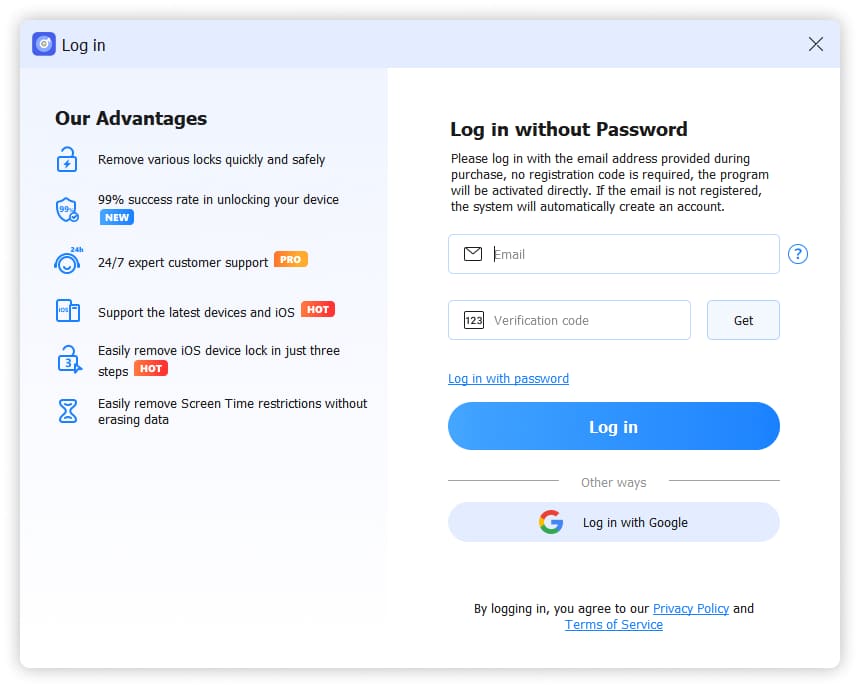
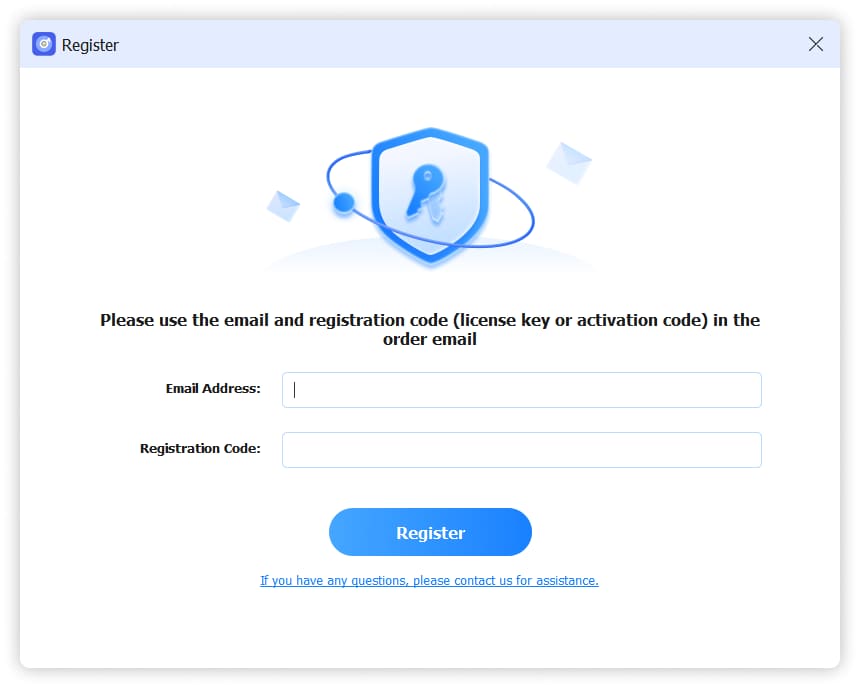
3The benefits linked to your membership and registration code will be automatically updated and sent to your email account. If you have received a new registration code, click the Key button on the program interface after logging in. Then enter your email address and the new registration code to proceed.
1. Unlock iOS Screen
Notes:
- 1. Deleting your lock screen password will result in the loss of all data.
- 2. Your device will be updated to the latest version of iOS.
1Choose Unlock iOS Screen and connect device to computer with the USB cable.
2Then you will be asked to enter recovery mode. Choose iPhone, iPad or iPod Touch at the top-left corner and select your specific model from the list. Detailed operations will be displayed on the screen.
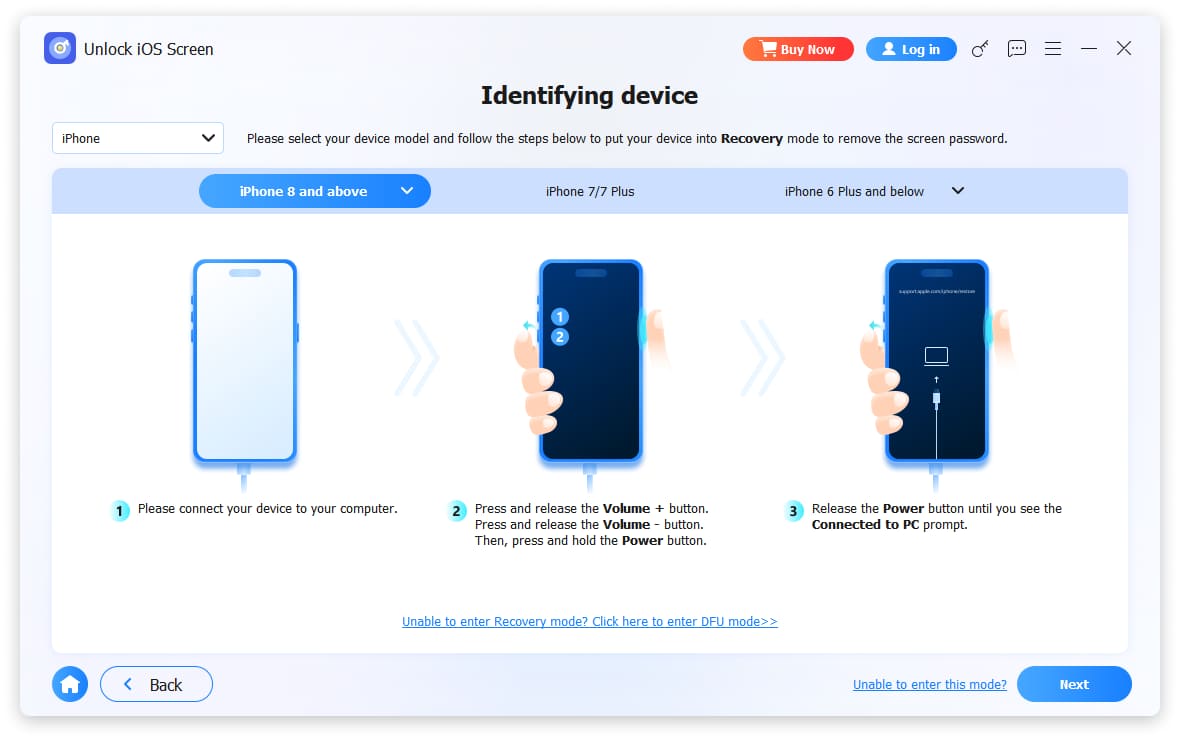
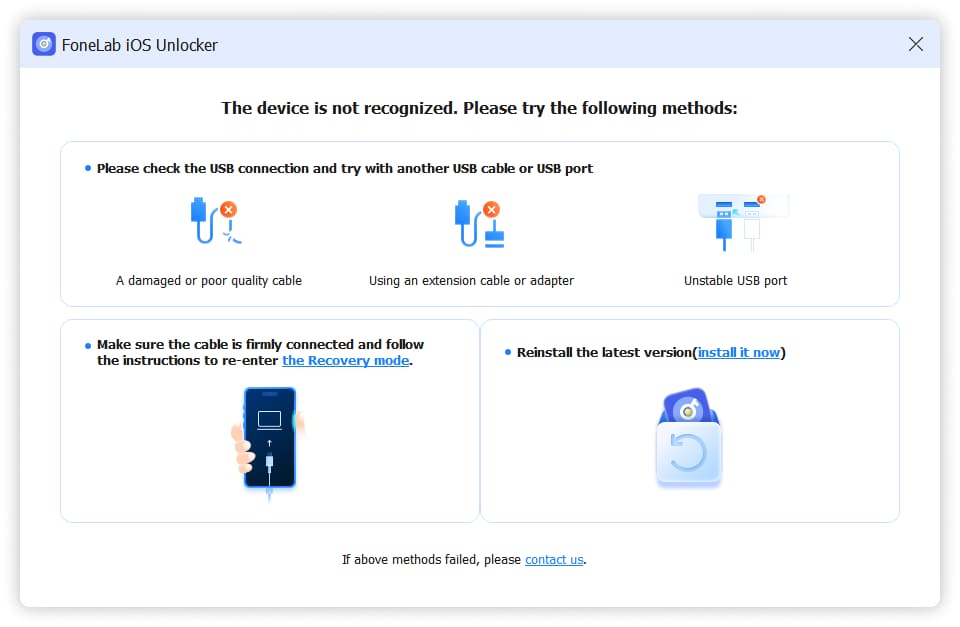
Click the Unable to enter this mode button at the bottom right if you failed to do this. It will show you that you can try another USB cable, re-install the program or re-enter recovery mode to fix it.
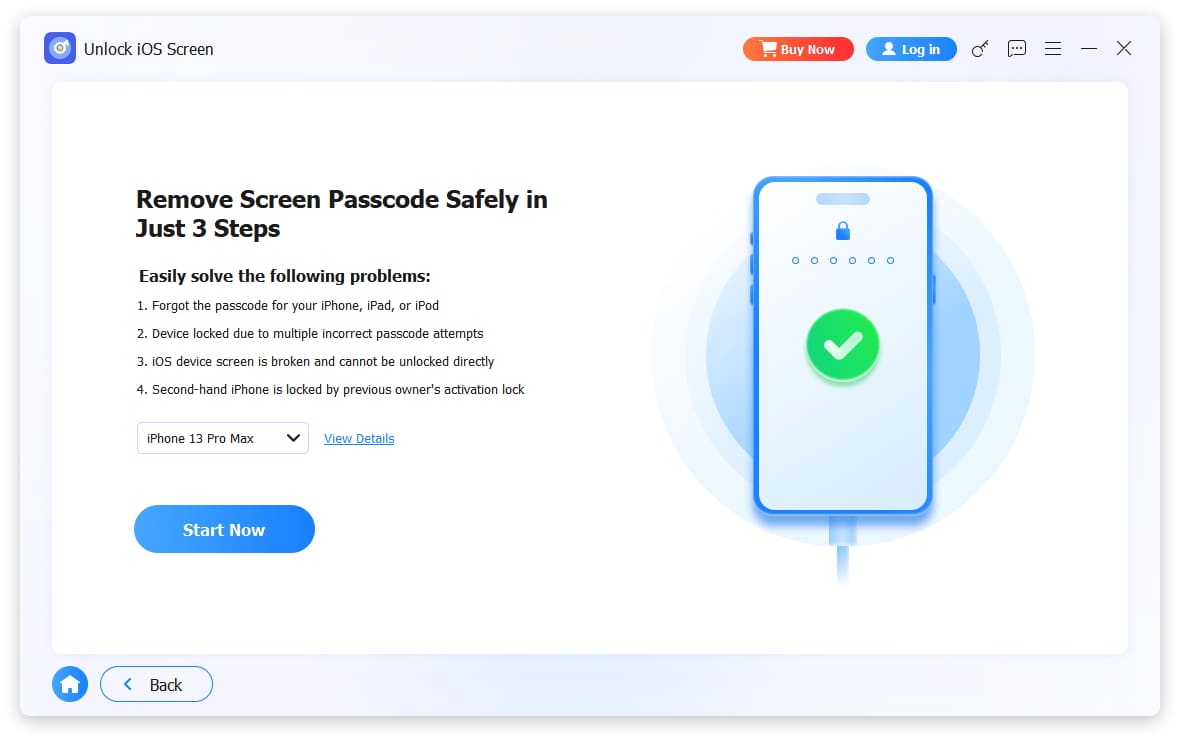
3Confirm your iPhone information and click Start Now button to download the firmware.
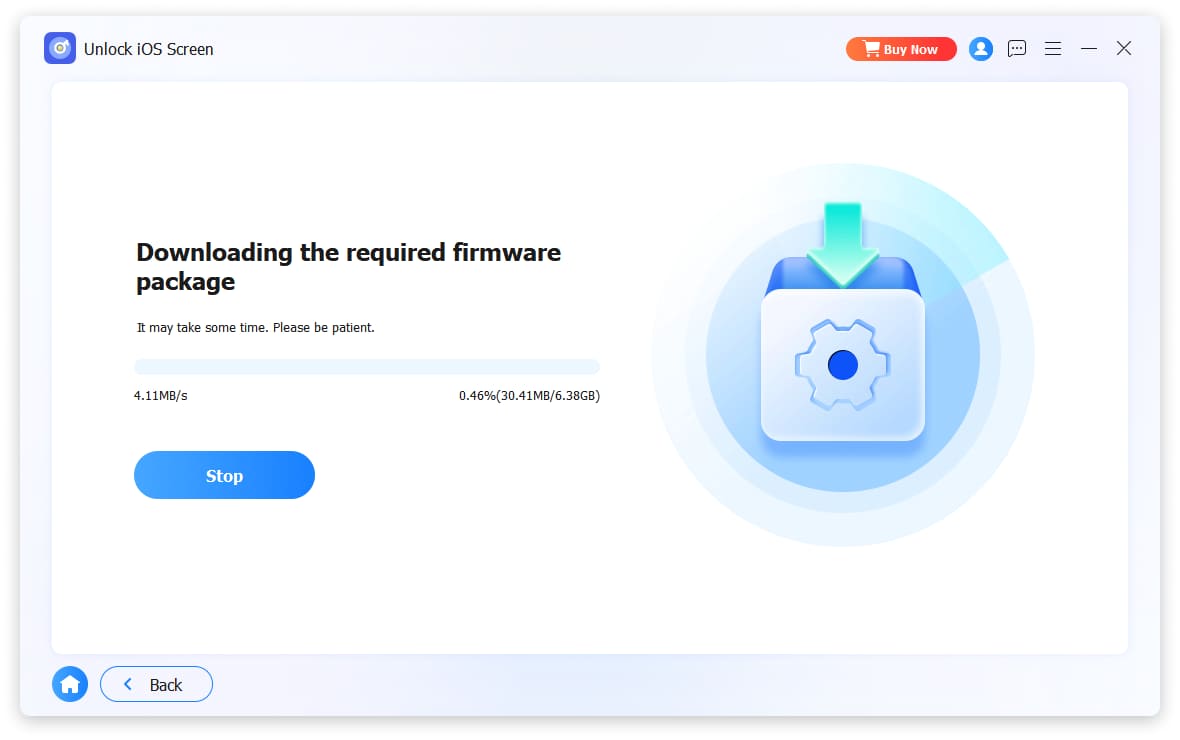
4Wait for a while and it will download firmware package for your device.
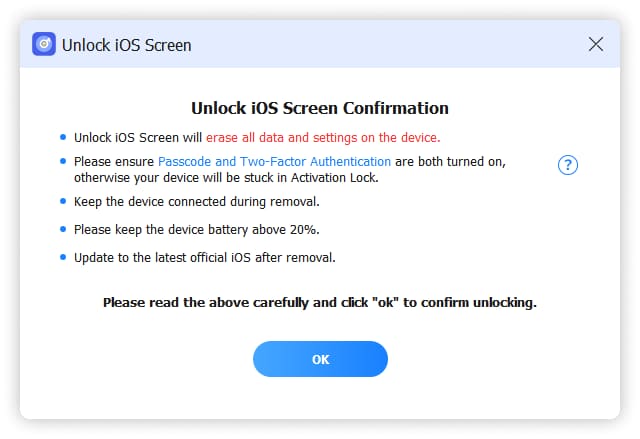
5Read the notes carefully and click OK > Confirm Again button to confirm unlocking.
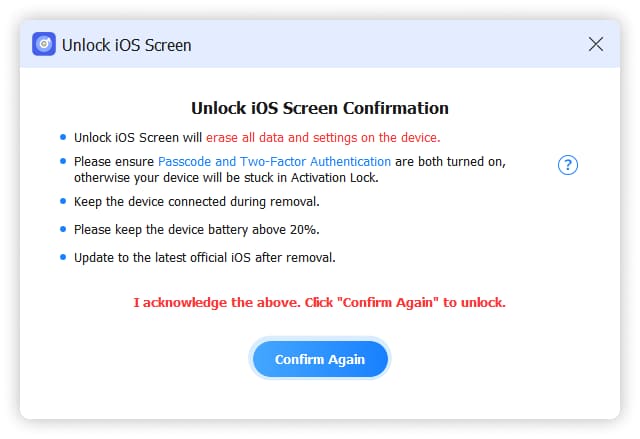
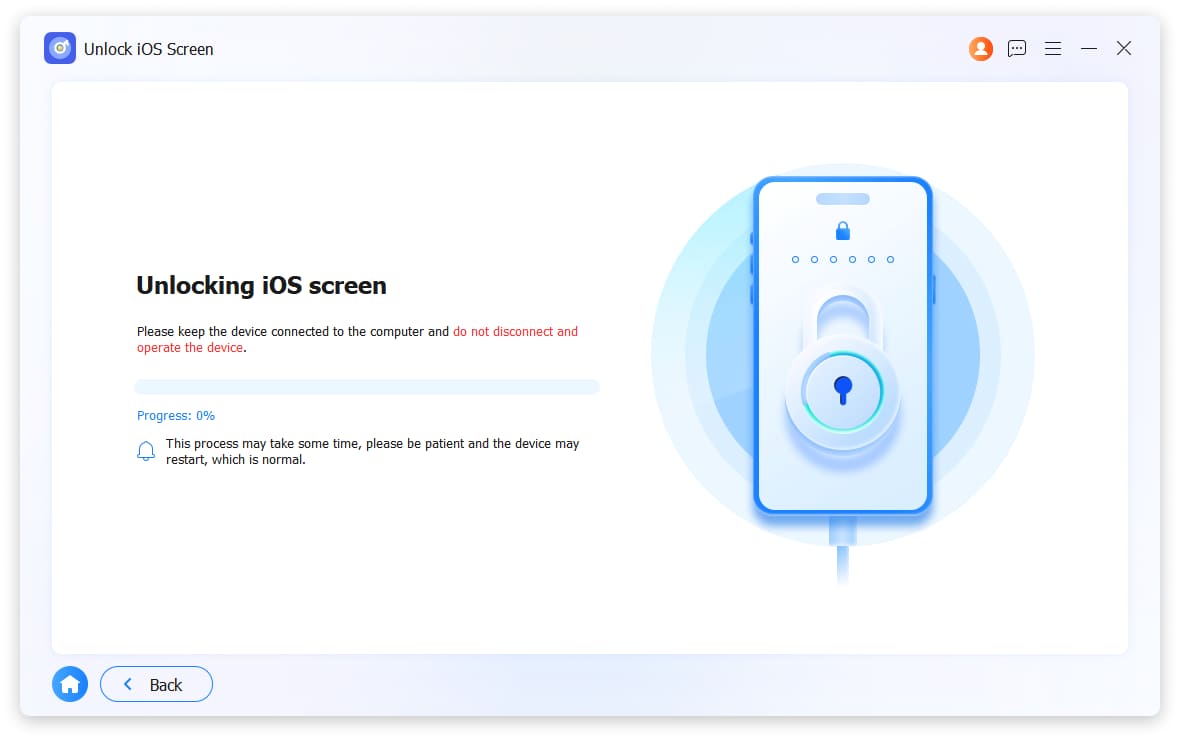
6It will begin to unlock your screen. Please DO NOT disconnect your device during the procedure.
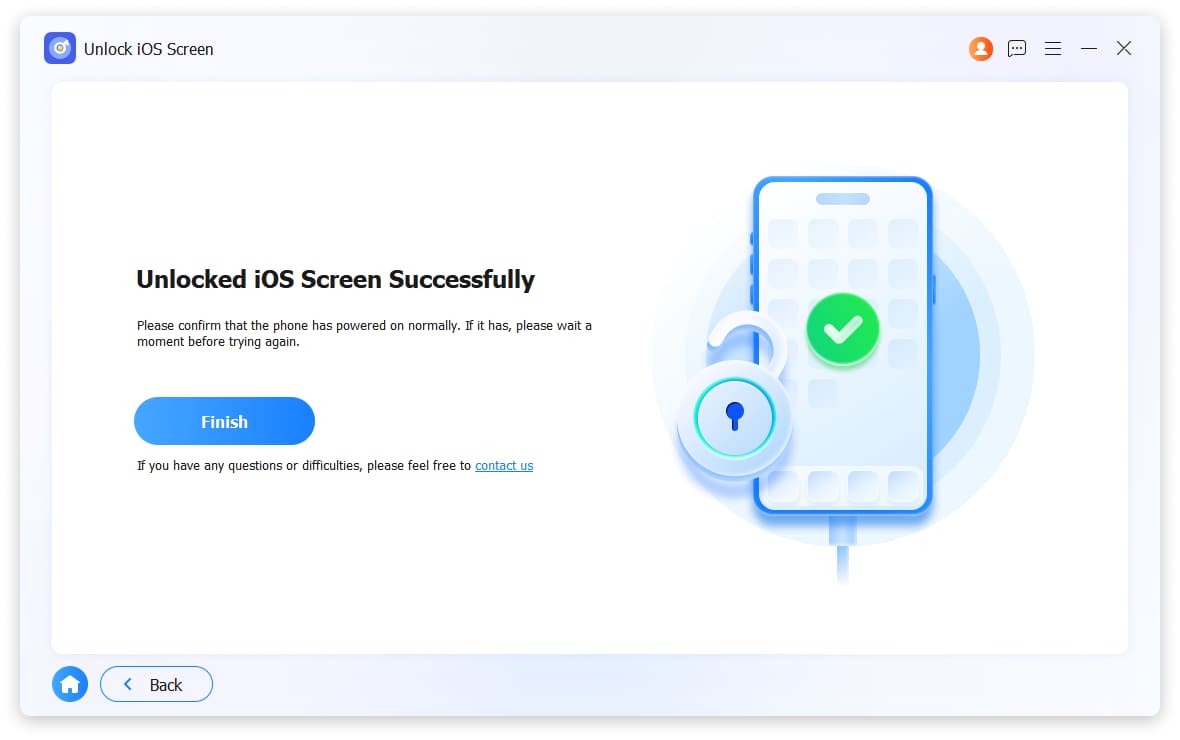
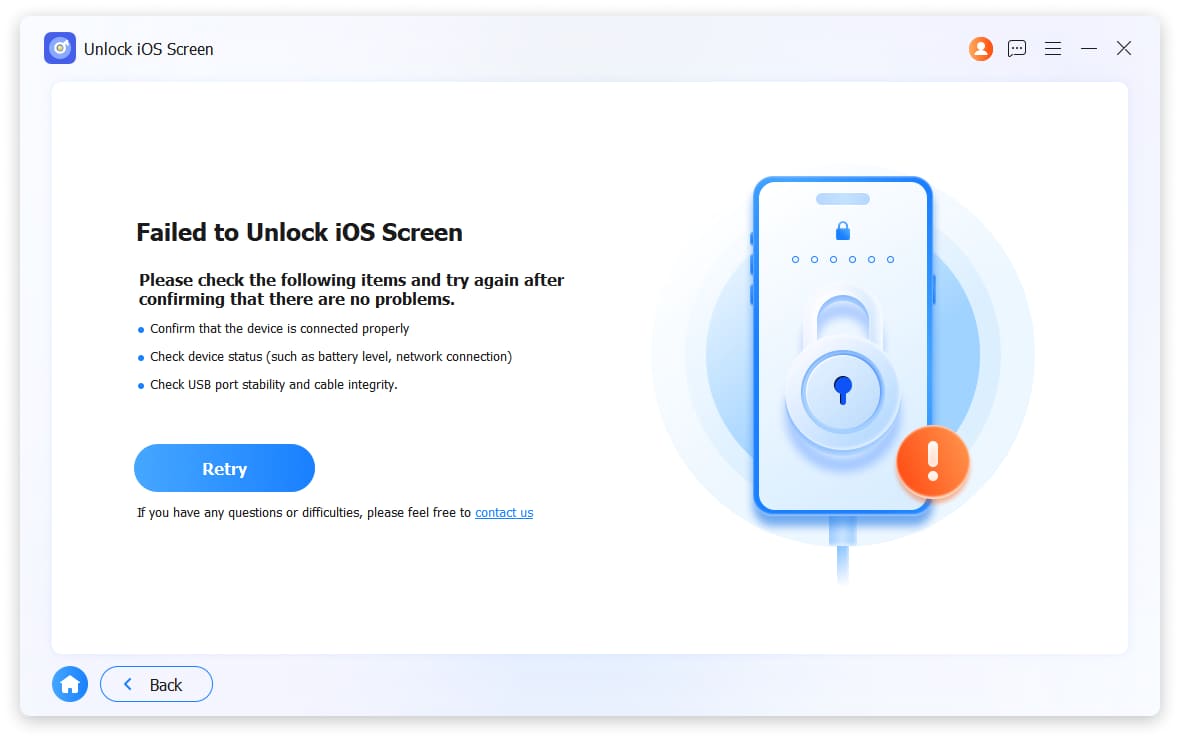
Please click Retry button if it fail to unlock iOS screen.
2. Remove Apple ID
Notes:
- 1. Removing your Apple ID will erase all data on the device.
- 2. Please ensure your device remains connected throughout the process.
- 3. Do not perform a full erase of content and settings, as this will permanently link the device to the original Apple ID.
- 4. Avoid using iTunes to update or restore the device, otherwise it may become permanently locked to the original Apple ID.
1Choose Remove Apple ID and connect device to computer with the USB cable.
2Click the Start Now button to begin.
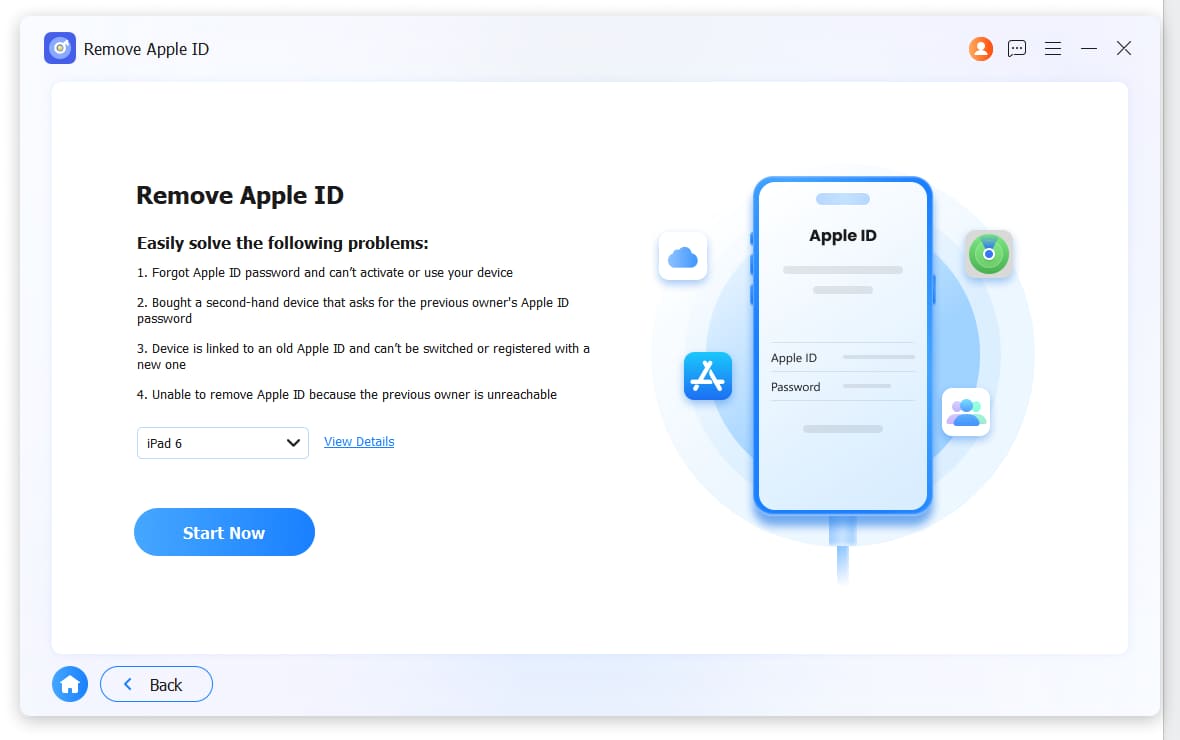
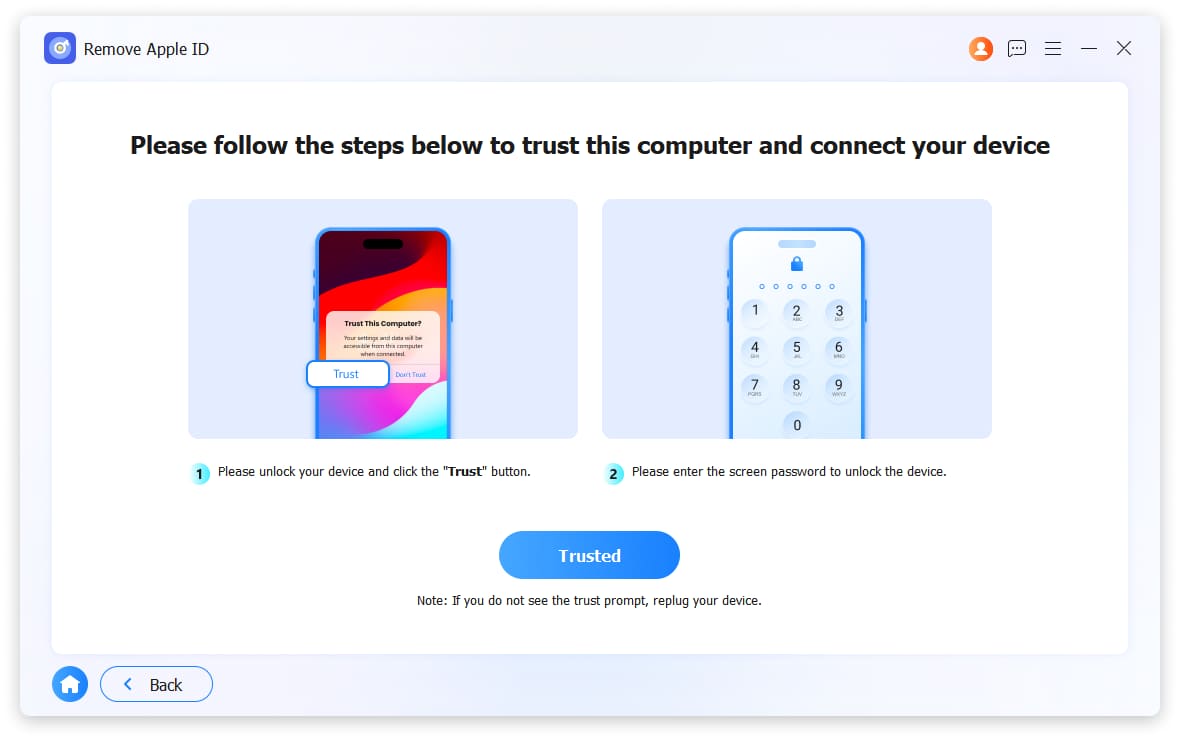
3Tap Trust on device and enter the screen passcode.
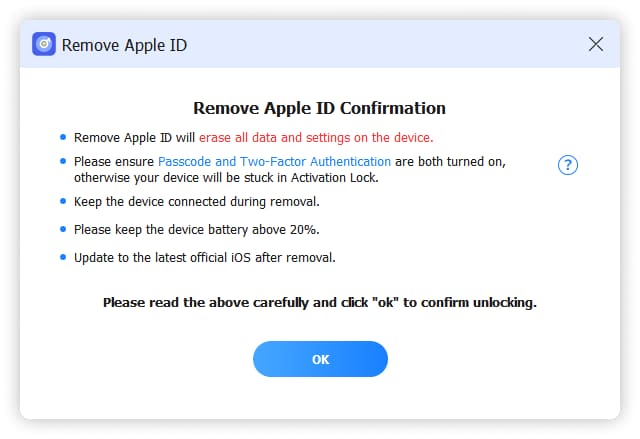
4First check whether Find My feature is enabled. It not, it will begin removing Apple ID. And your data will not be removed.
When turned on, you need to enable Two-Factor Authentication.
If it is not enabled, please open Settings > your Apple ID > Password & Security > Two-Factor Authentication, and turn it ON. Once enabled, return to the program and tap OK to confirm. Please note that your data will be erased.
5Click Confirm Again for Apple ID removal.
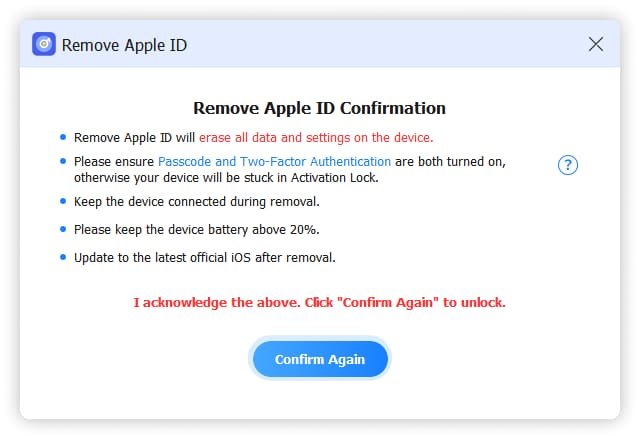
6Keep device connected during the Apple ID removal.
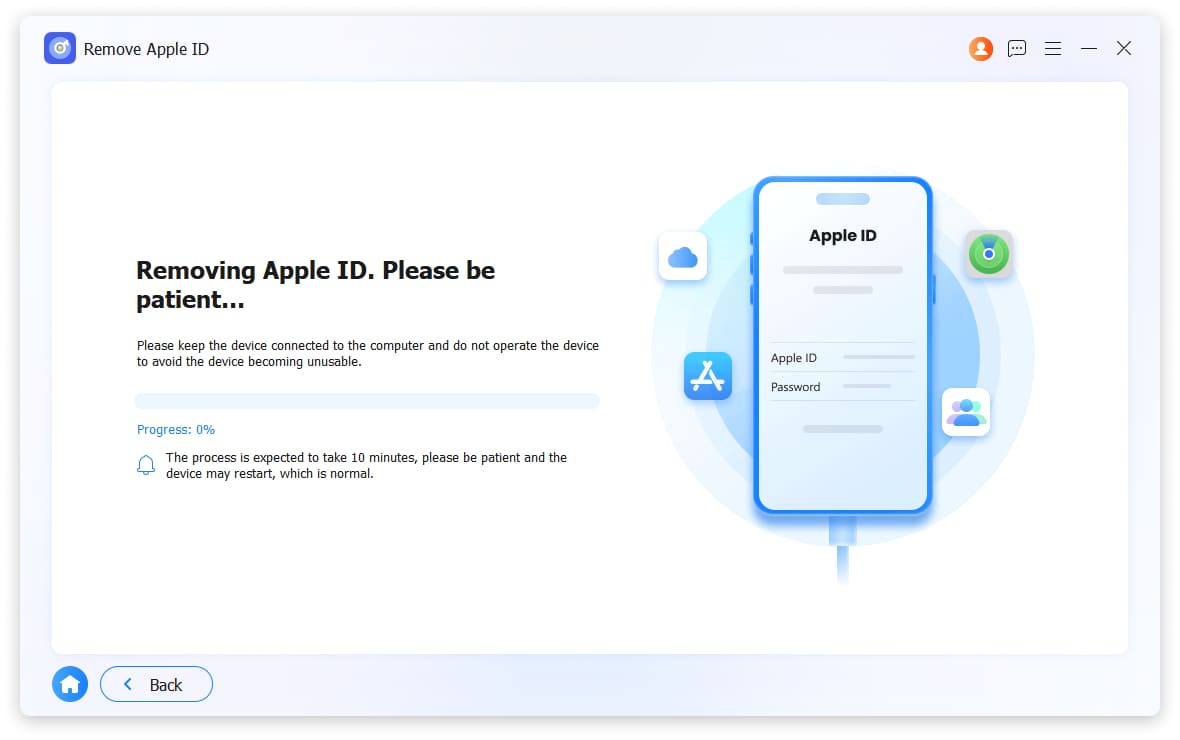
7It will show you when it remove Apple ID successfully.
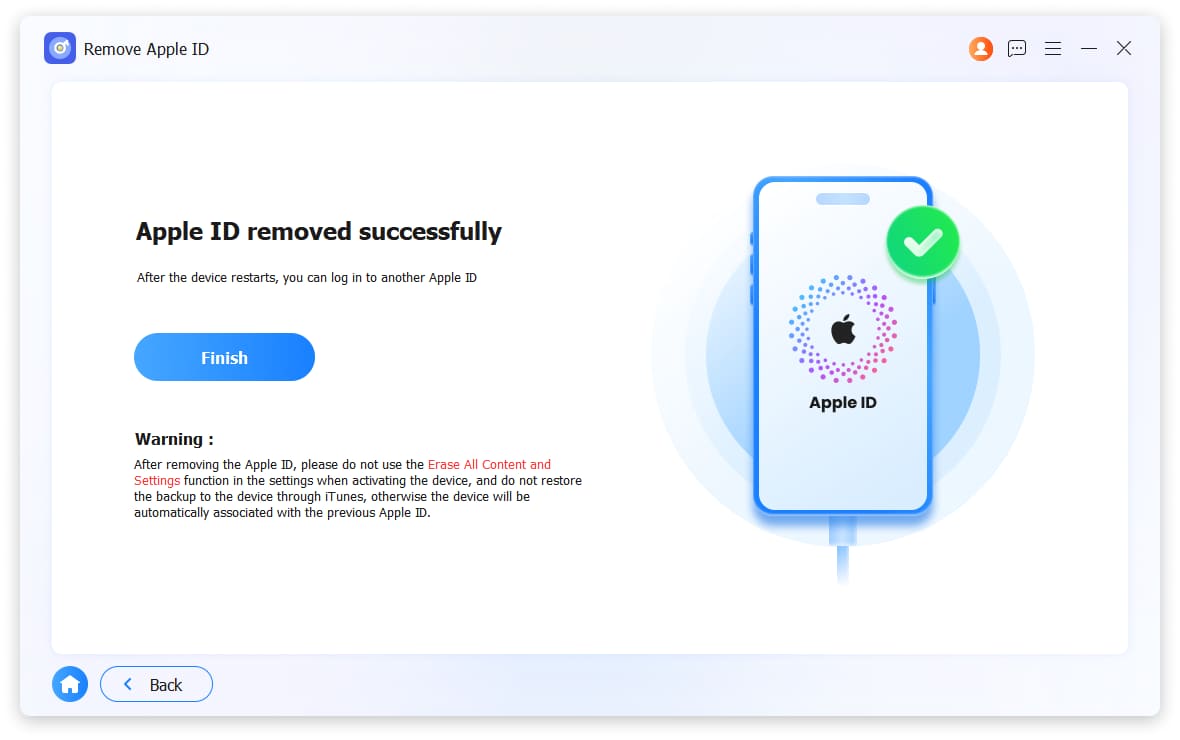
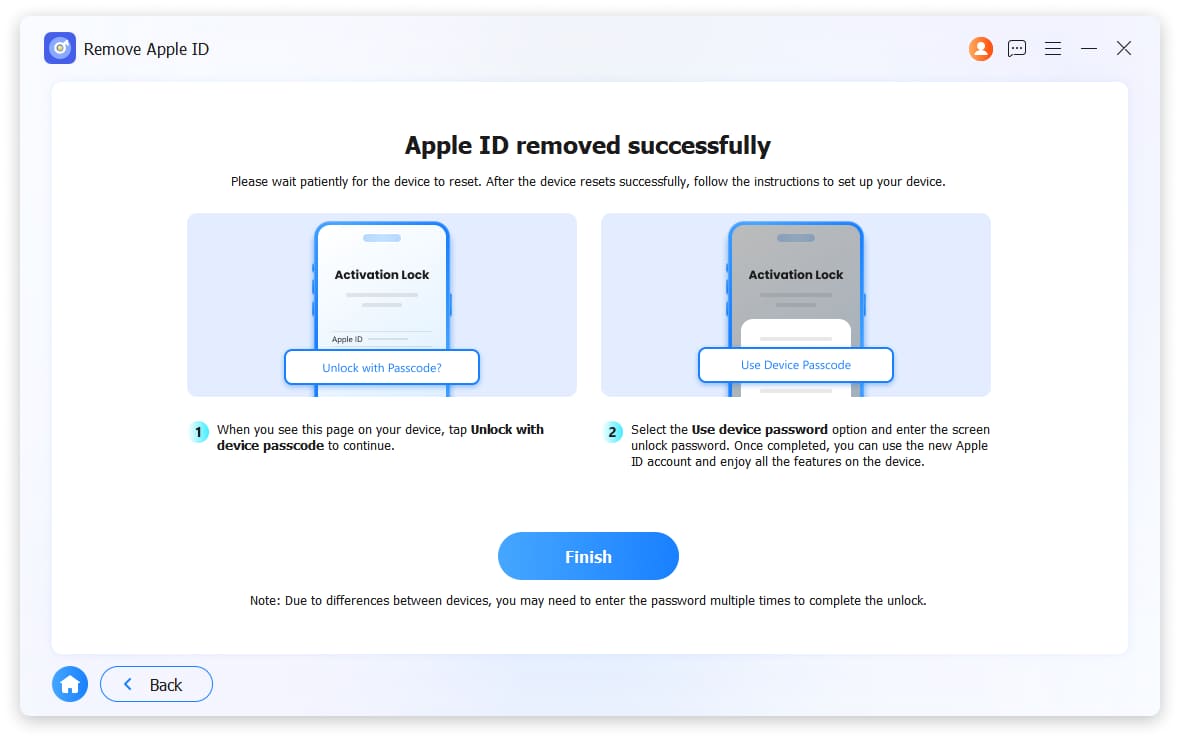
8You need to choose Use device password to use a new Apple ID after that.
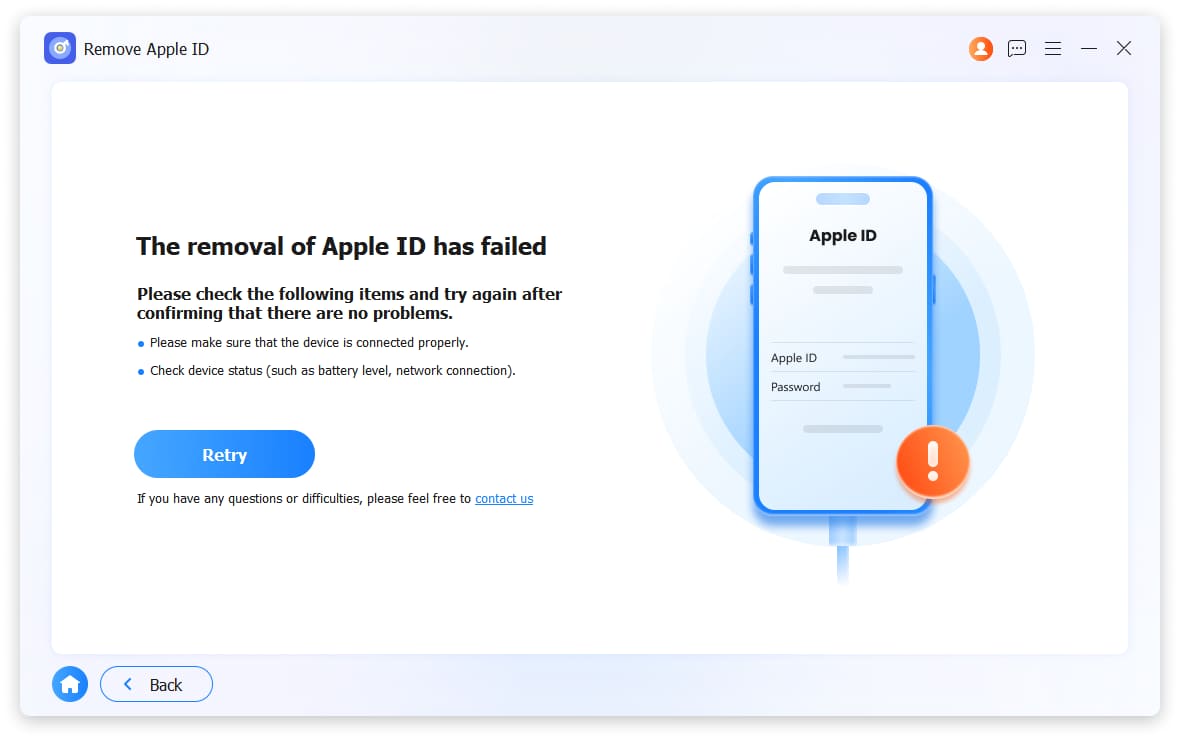
Click Retry if it failed to remove your Apple ID.
3. Bypass iCloud Activation Lock
Notes:
- 1. Activation Lock is only supported on iPhone 6 to iPhone X, iPad mini4 to iPad Air 2, iPod Touch (7th generation) running version 12.0 to 17.7.10.
- 2. If your device runs normally, try Remove Apple ID feature instead.
- 3. You need to jailbreak your device to process it.
1Choose Bypass iCloud Activation Lock and connect iPhone to computer with the USB cable.
2Choose Start Now button.
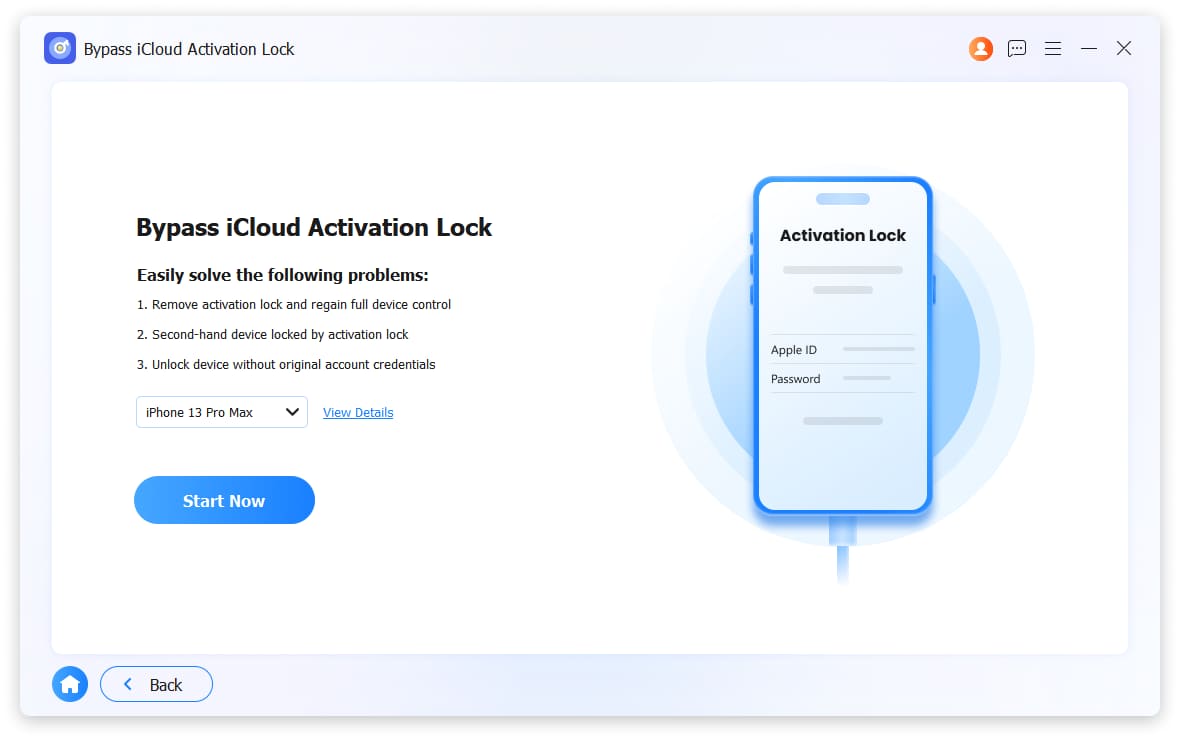
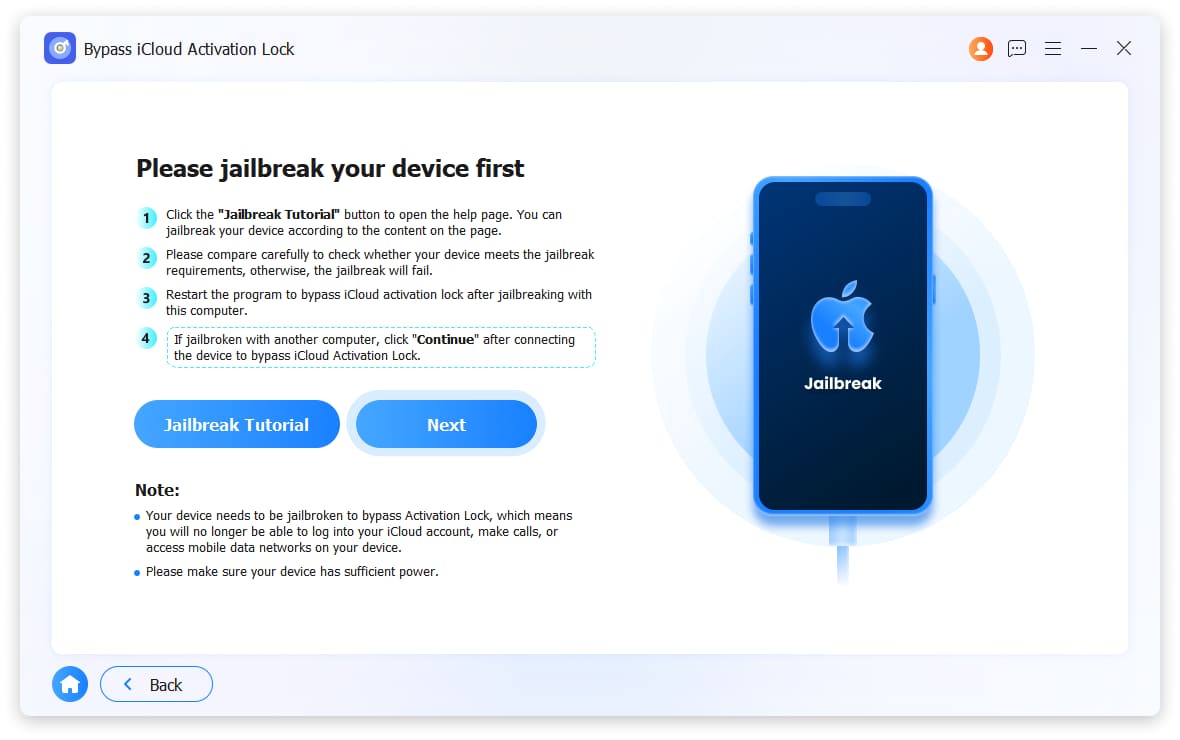
3It will ask you to jailbreak your device. Click the Jailbreak Tutorial button and follow the steps. Then restart the progtram and repeat the steps to move on. If you have jailbroken your device with another computer, click Next button.
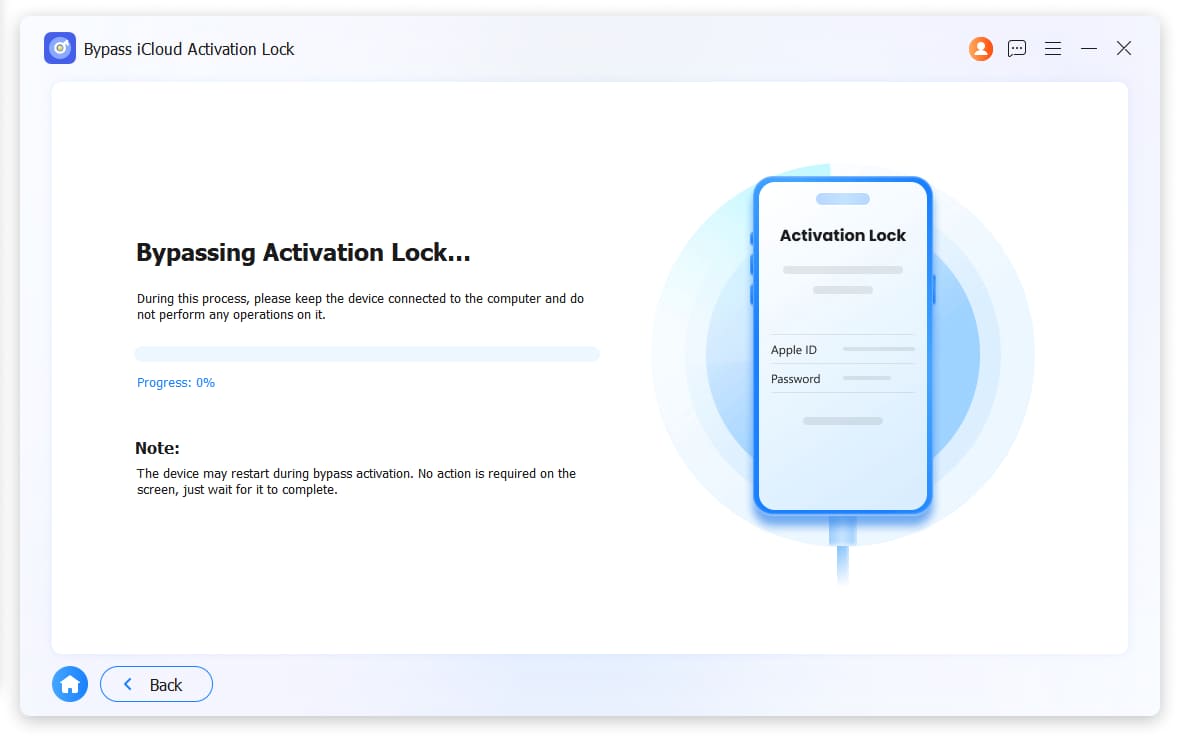
4It will begin to bypass iCloud activation lock.
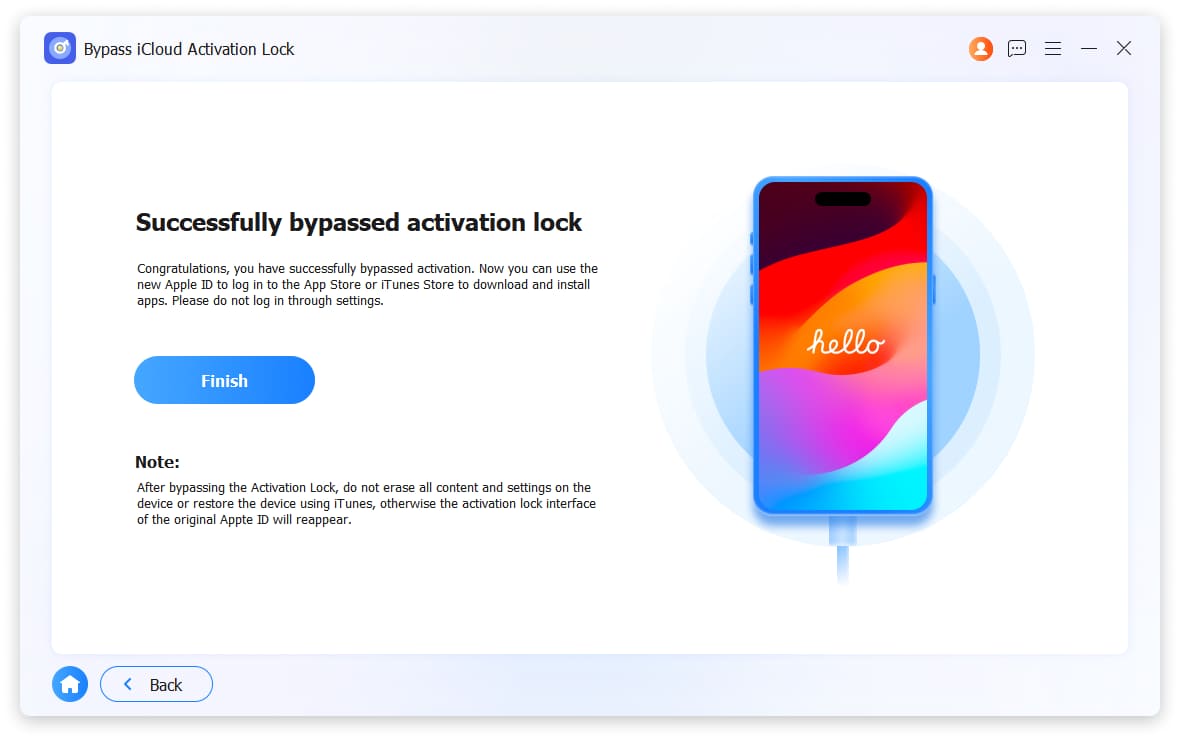
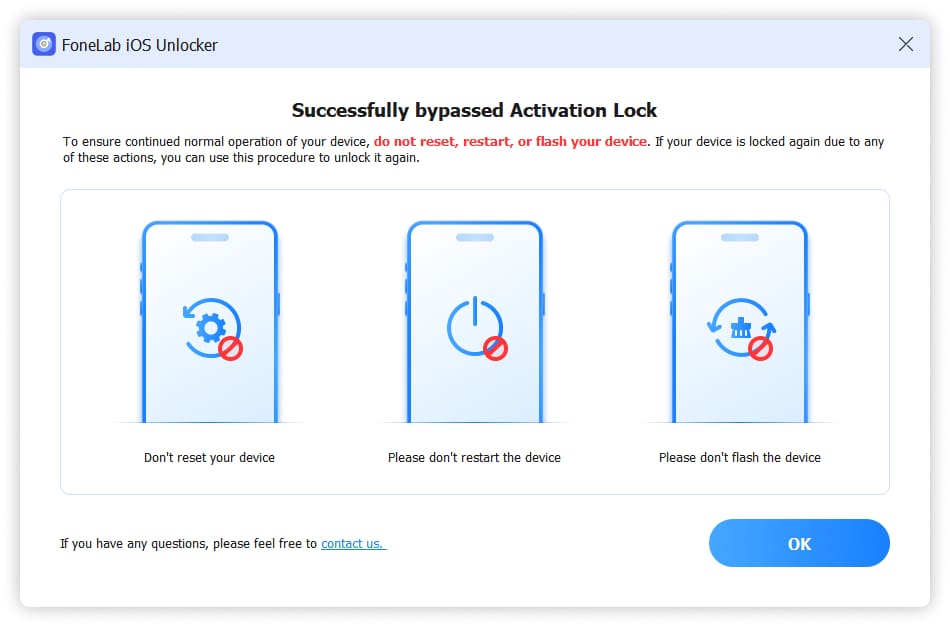
Please do not reset, restart or flash your device to ensure continued normal using. You can use our program to unlock your device again f it is locked again.
4. Bypass MDM
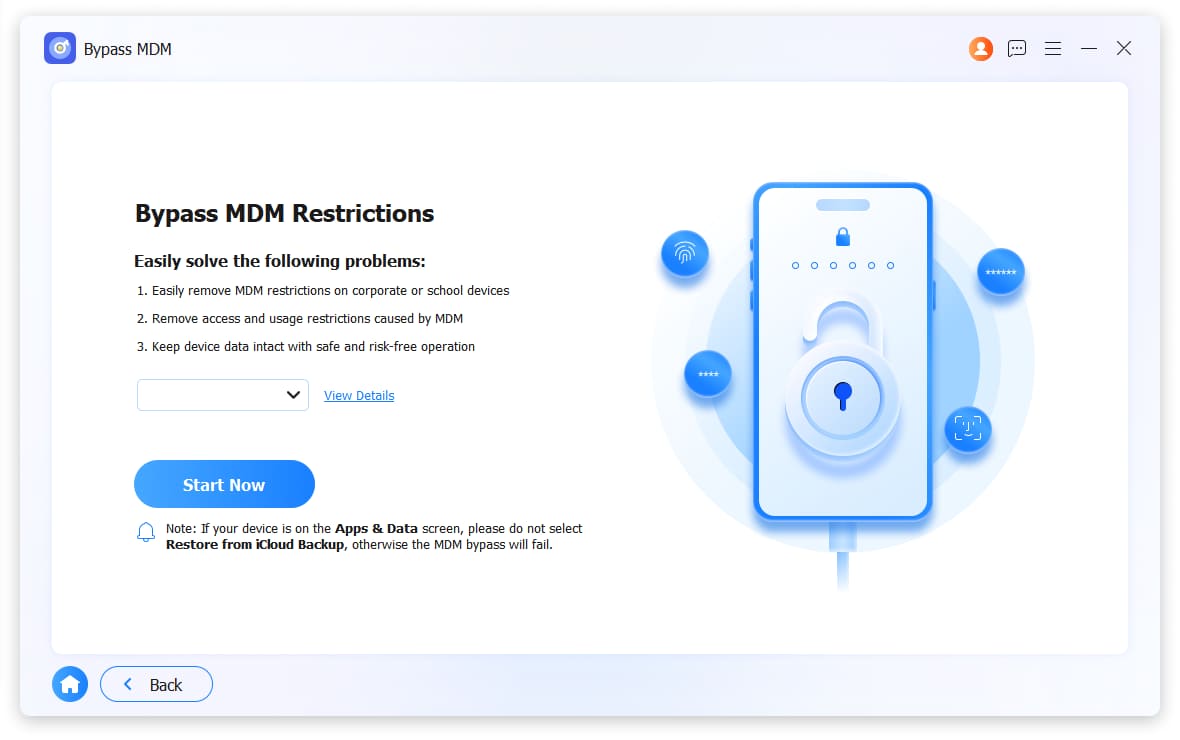
1Connect device and click Bypass MDM.
2Click Start Now button.
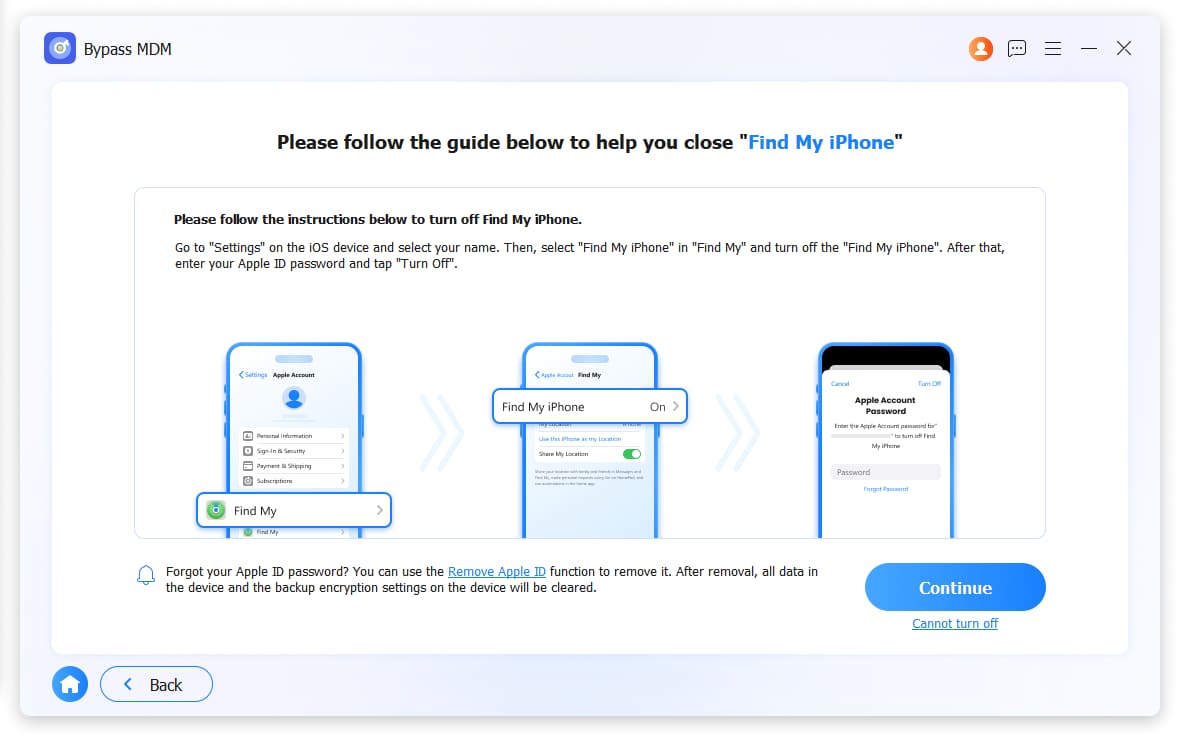
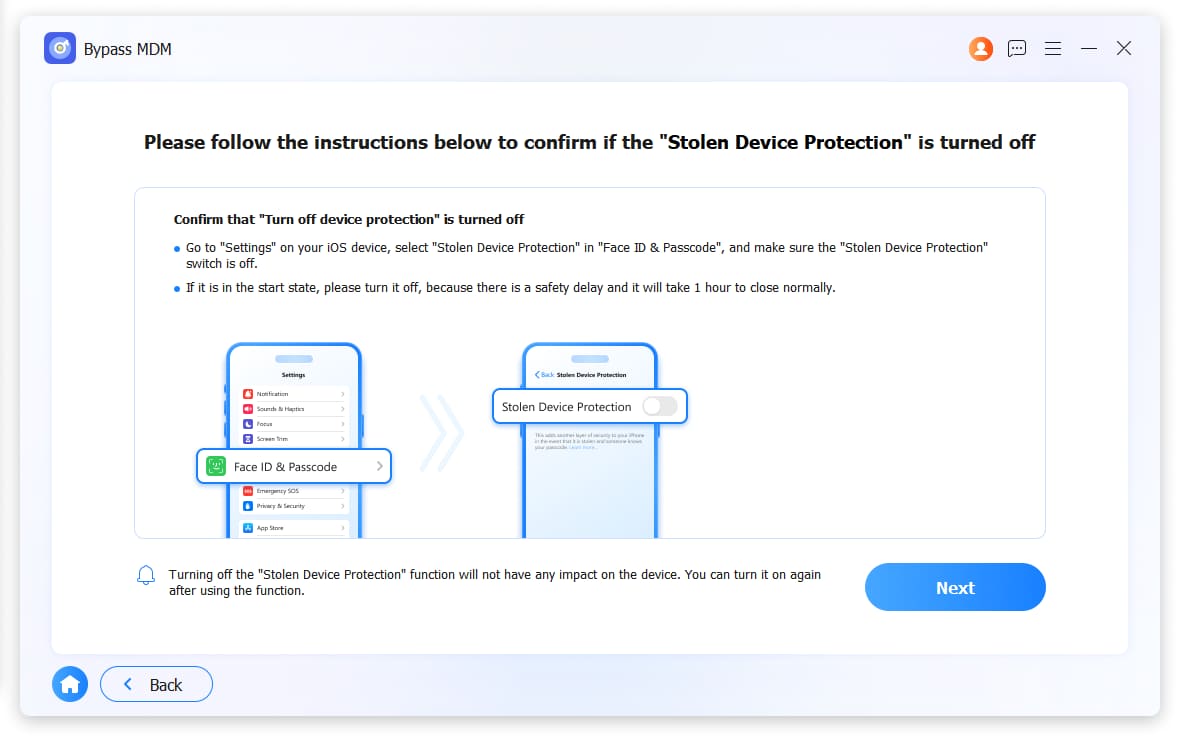
3It might ask you turn off stolen device protection or Find My feature on your device accordingly.
4Click OK > Confirm Again button to restart your device.
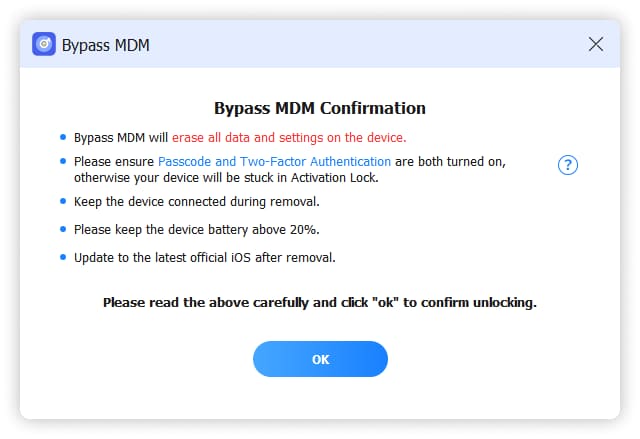
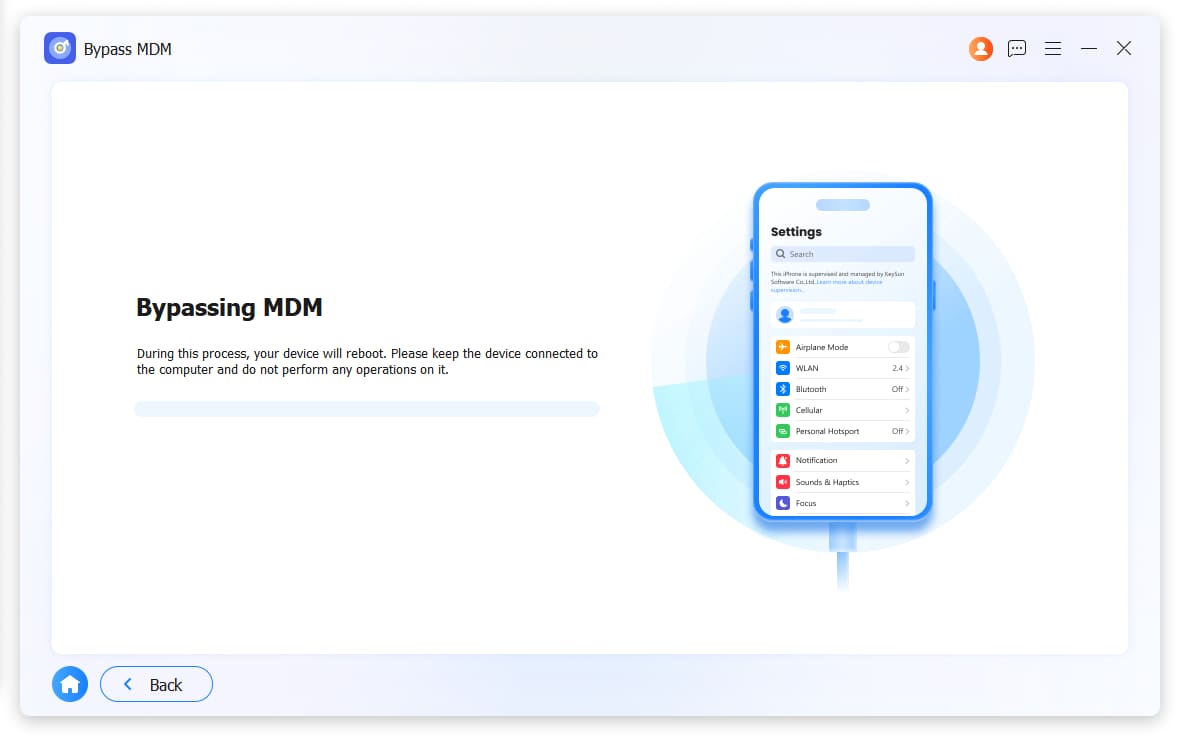
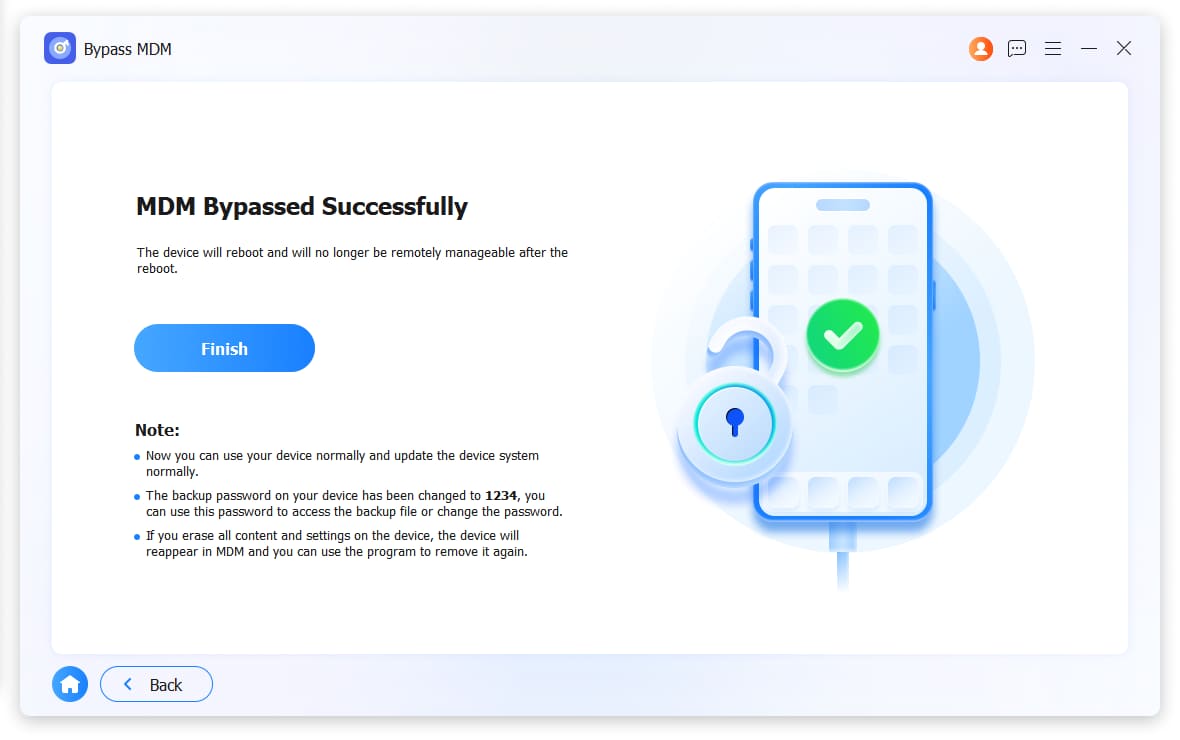
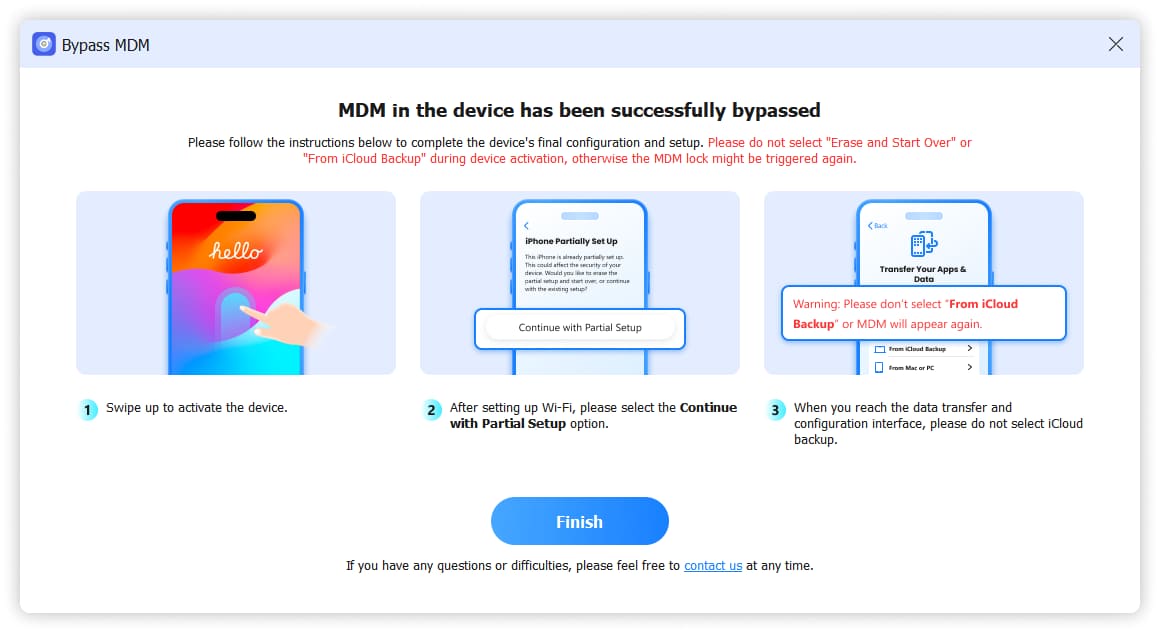
5It will begin to remove MDM from your device. Please don't choose restore from iCloud backup when setting up your device.
5. Unlock Screen Time
Notes:
- 1. iTunes must be installed on your computer to properly scan your device. Please ensure you have the latest version of iTunes.
- 2. To remove the Screen Time passcode, you must first disable Find My iPhone/iPad.
- 3. After unlocking the Screen Time passcode, you will need to reconfigure your device without losing any data.
1Choose Unlock Screen Time and connect device to computer with the USB cable.
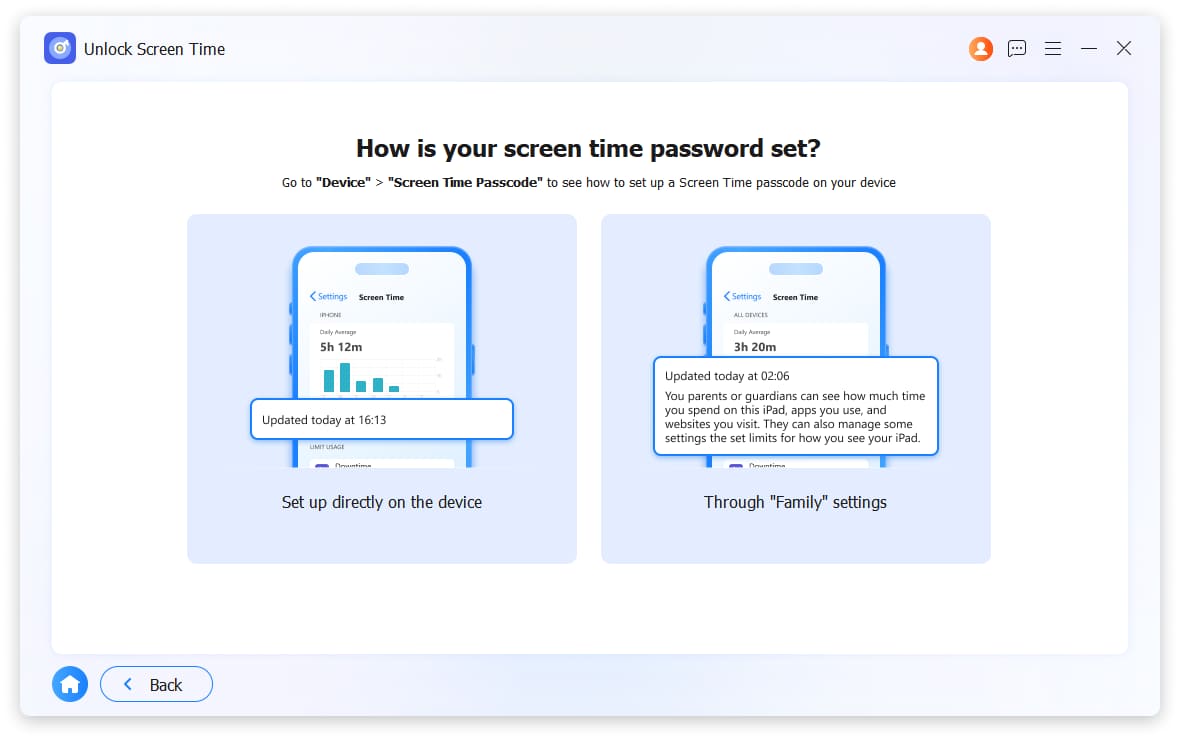
2Choose How is your screen time password set from Set up directly on the device or Through Family settings.
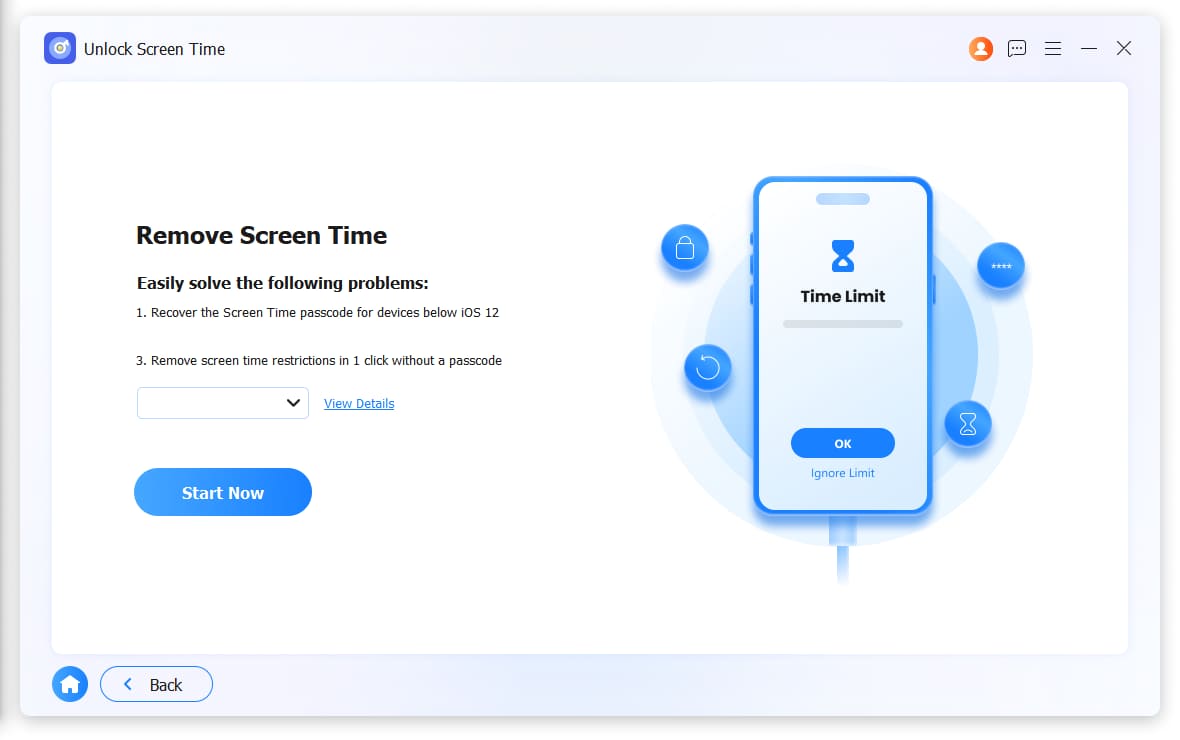
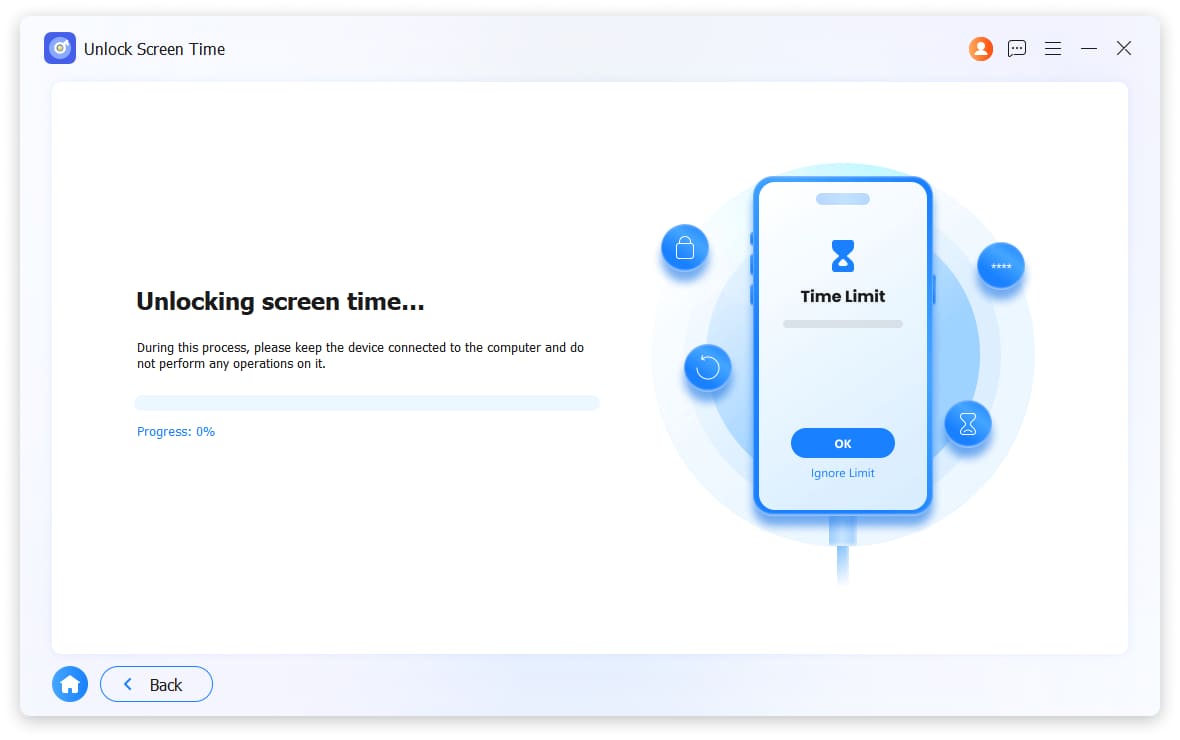
3Click Start Now buttoon to remove the Screen Time passcode.
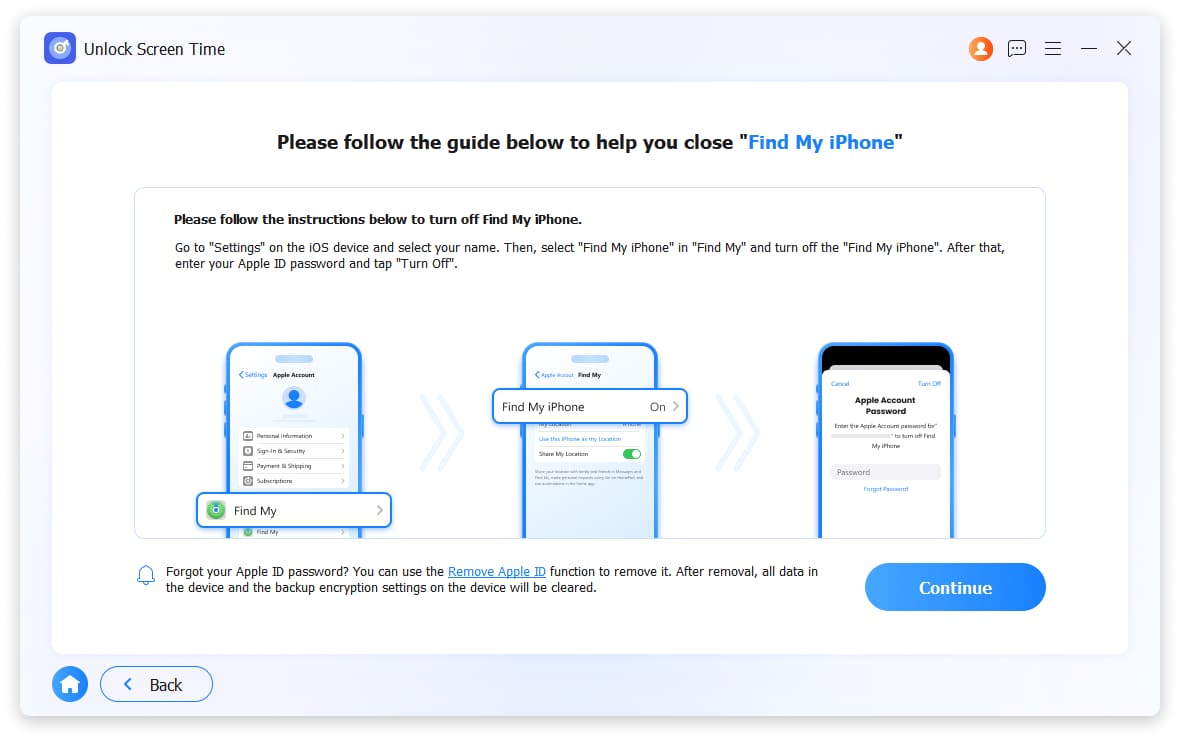
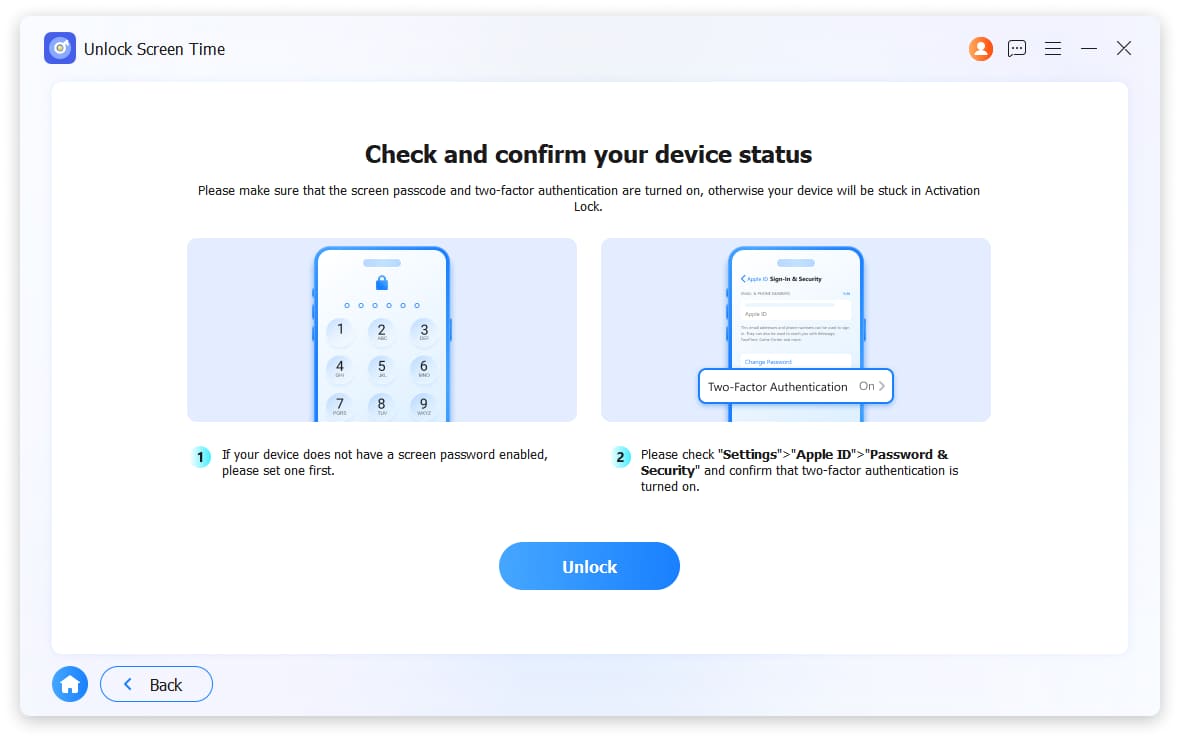
4You will be asked to turn off Find My feature if you have enabled it on your device. And you need to turn on two-factor authentication. Then click Continue or Unlock button to move on.
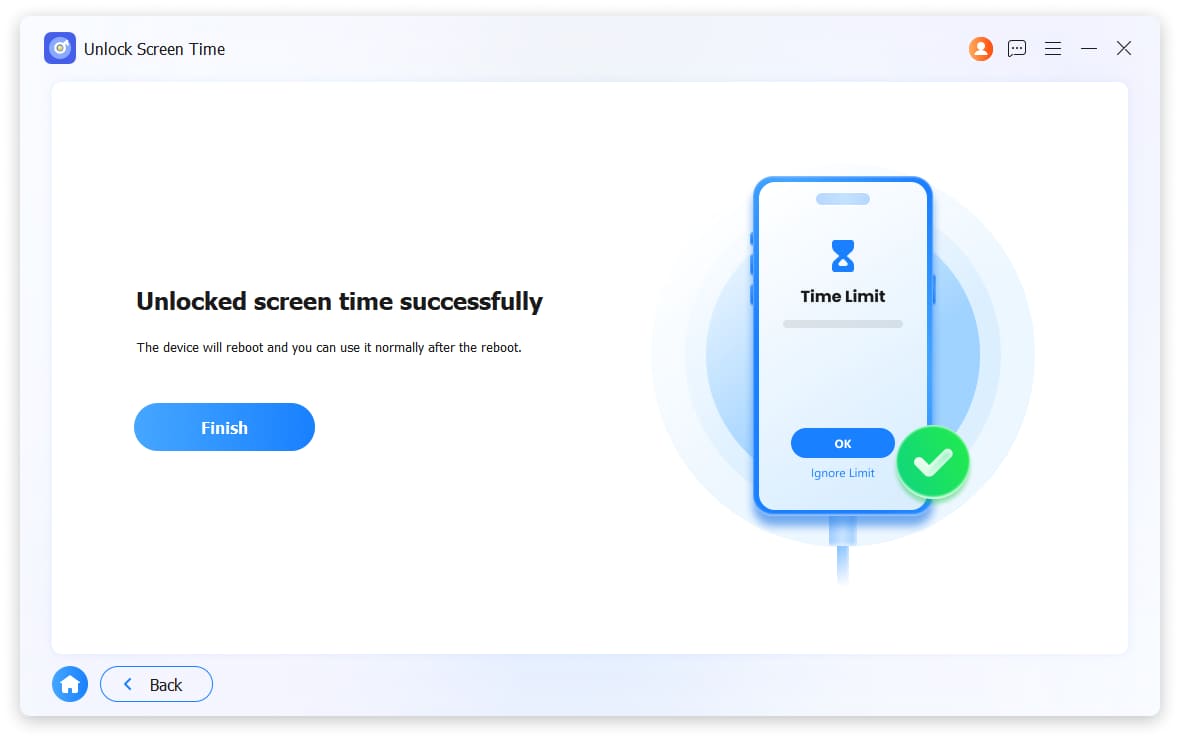
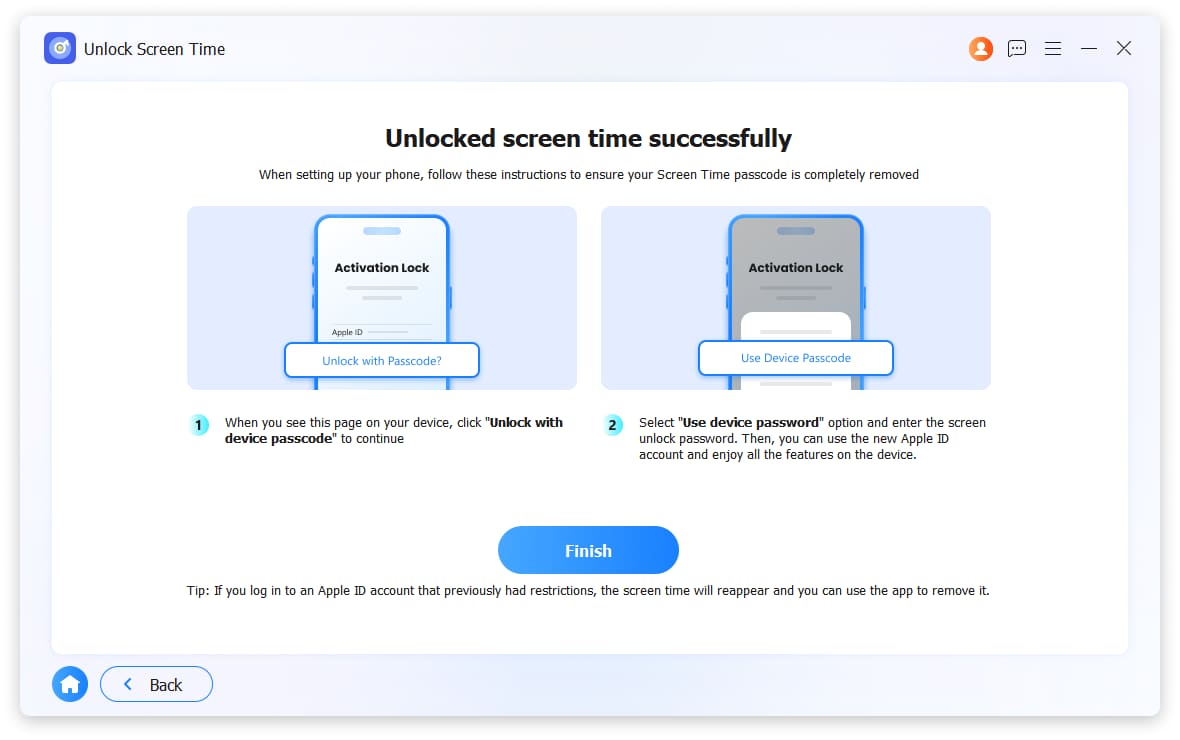
5After waiting for a while, the Screen Time passcode will be removed. Then re-set up your device and choose Use dveice passcode.
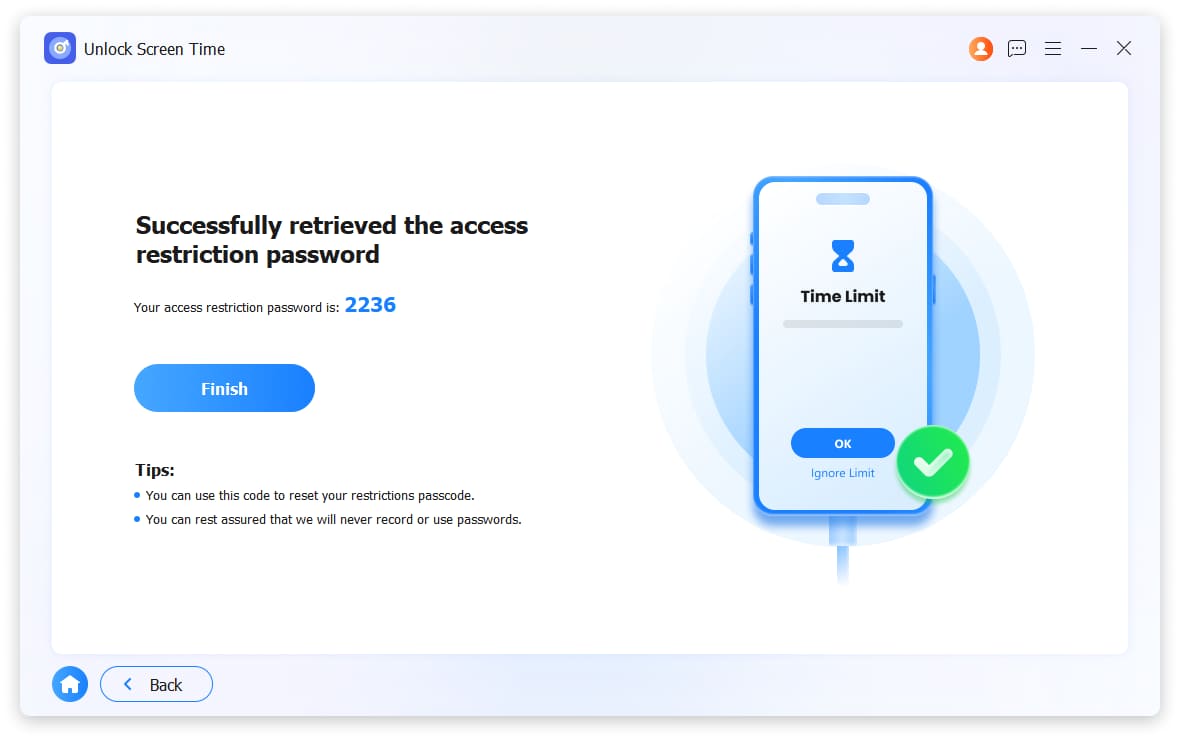
Your screen time passcode will be retrieved if your device is runnning version earlier 12. You can use it to reset your restrictions passcode.
6. Remove iTunes Backup Encryption Settings
Notes:
- 1. After completing the removal process, password restrictions for managing backups and changing passwords in iTunes will no longer apply.
- 2. Any existing encrypted local backups in iTunes will remain intact and unaltered if encryption was enabled prior to starting password removal.
- 3. To proceed with password removal, please ensure that Find My iPhone/iPad is turned off beforehand.
- 4. To avoid potential errors, please refrain from opening or using iTunes throughout the entire process.
- 5. Make sure your iOS device is unlocked and connected to the computer to adjust all necessary settings.
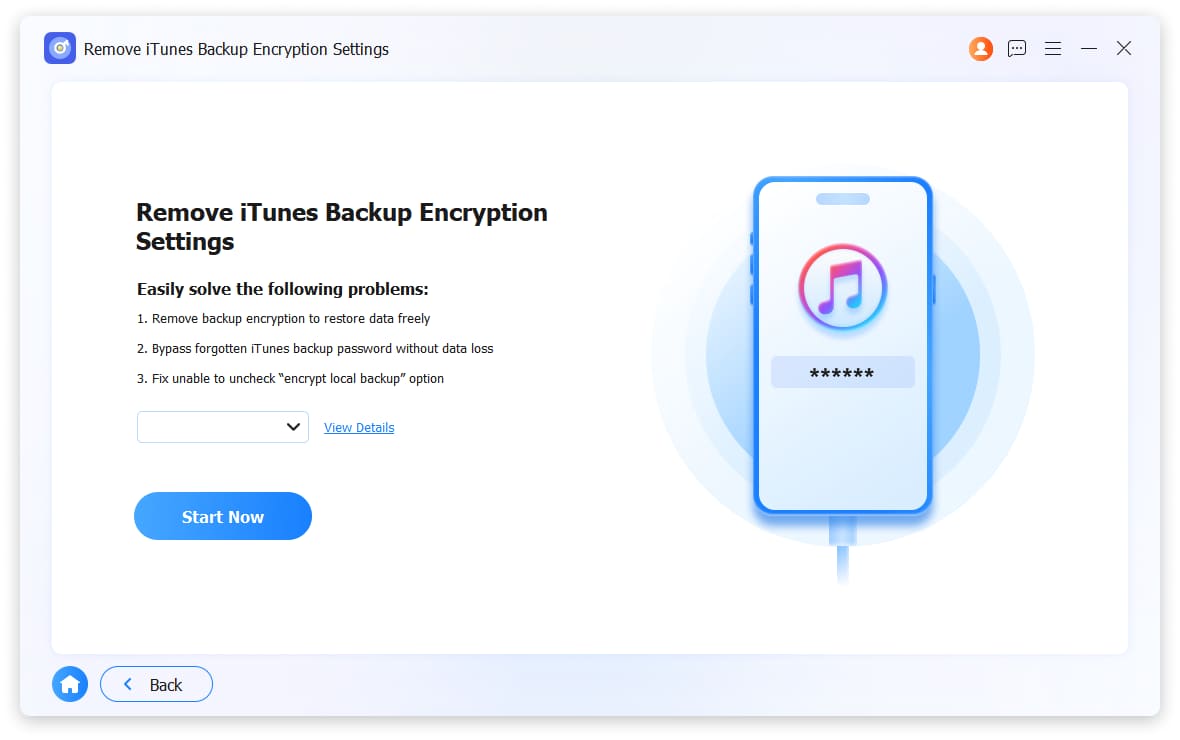
1Choose Remove iTunes Backup Encryption Settings and connect device to computer with the USB cable.
2Choose Start Now button to begin.
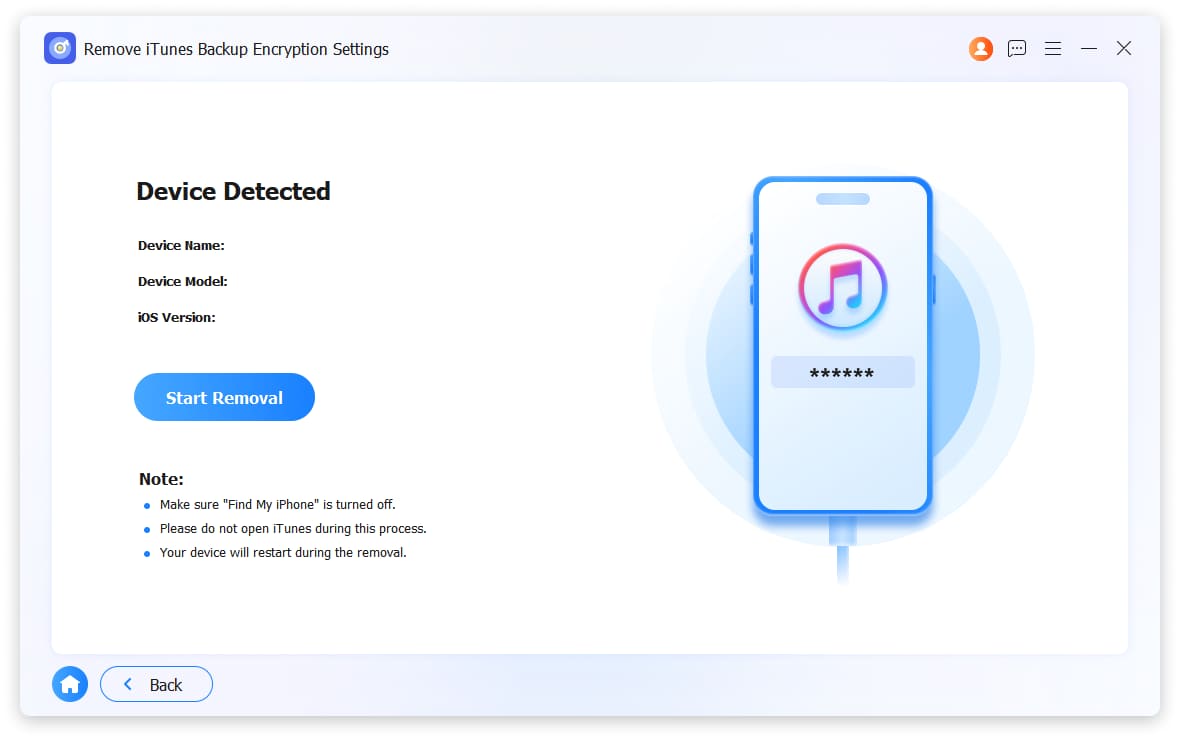
3It will show you device info after detected. Click Start Removal.
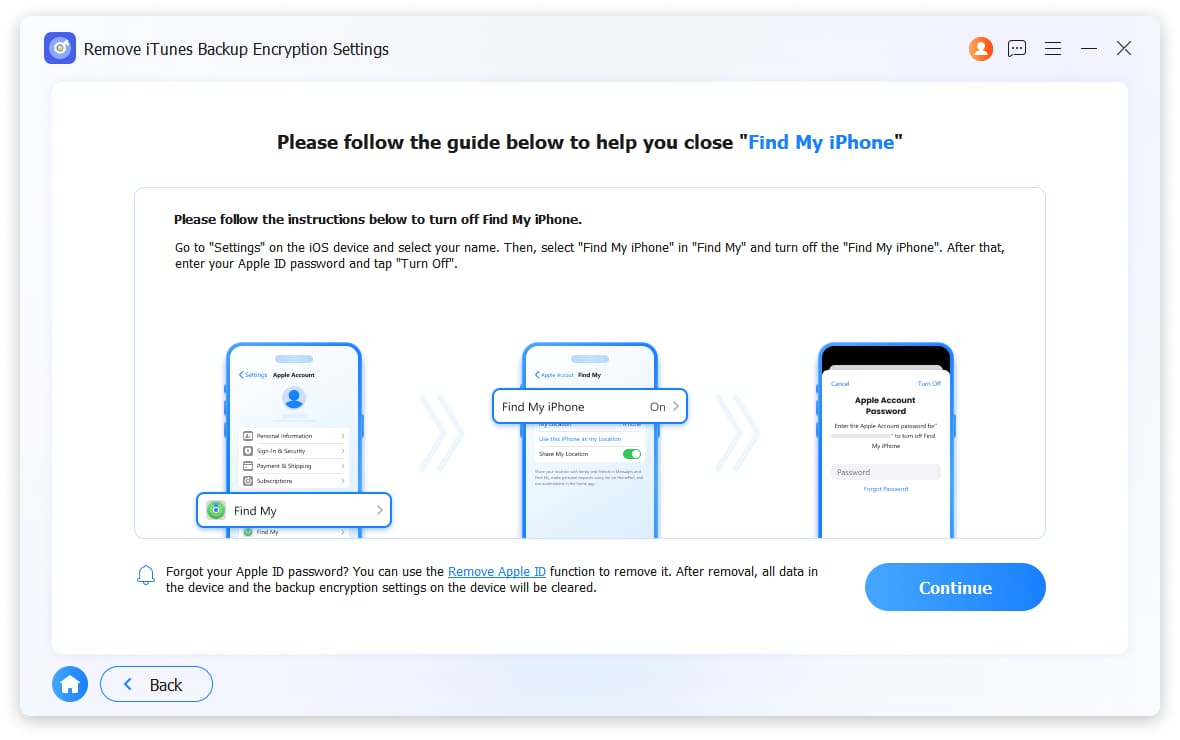
4You will be asked to turn off Find My feature if you have enabled it on your device. Then click Continue button to move on.
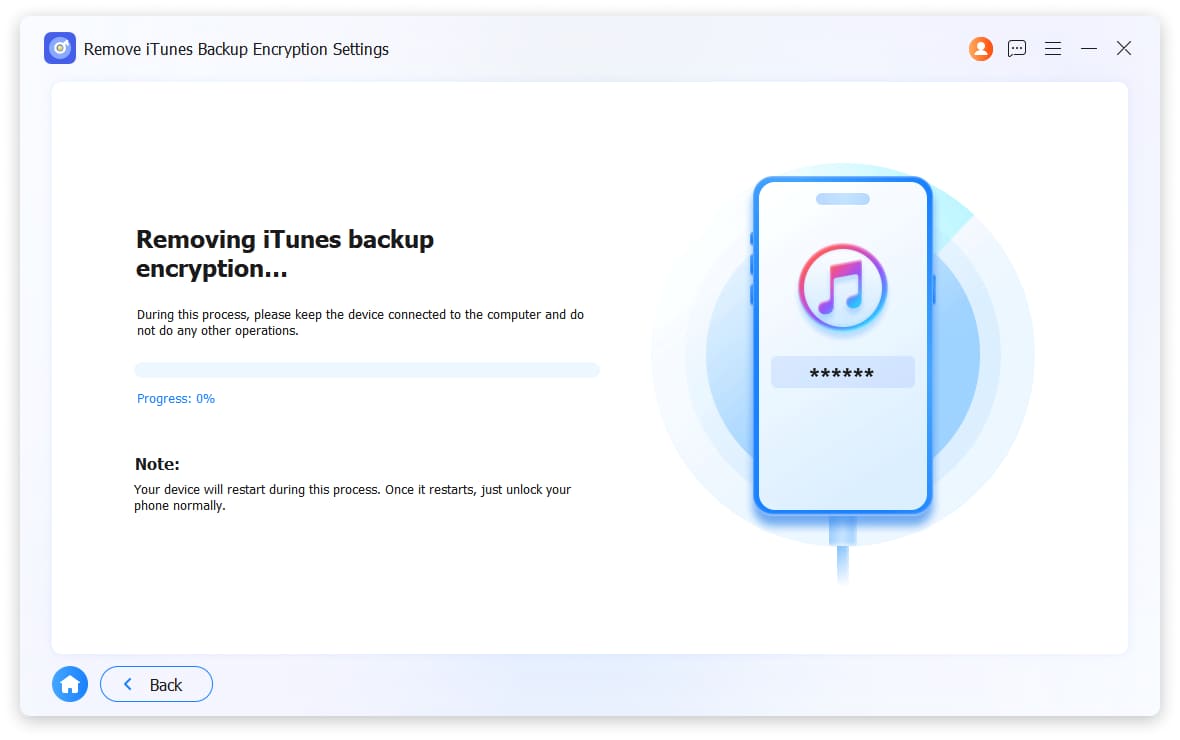
5After waiting for a while, the iTunes Backup Encryption Settings will be removed.
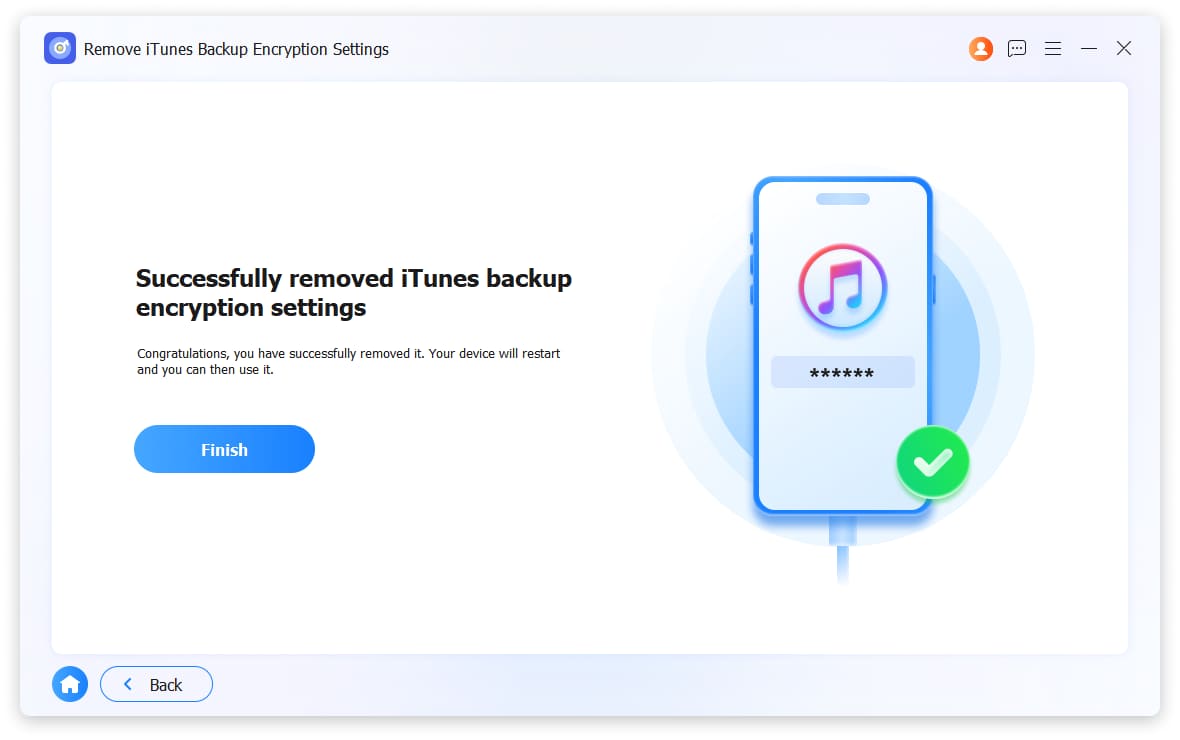
Your iTunes backup passcode will be retrieved if your device is runnning version earlier 11.4. Otherwise, it will be removed directly.
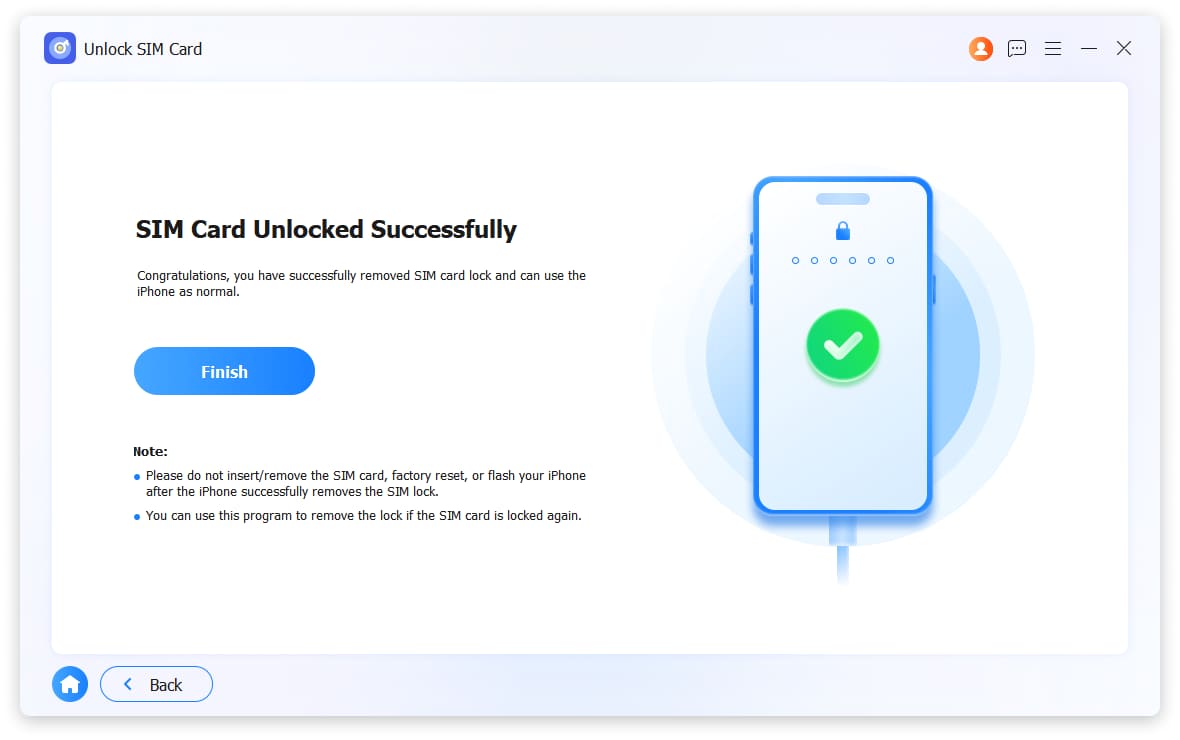
7. Unlock SIM Card
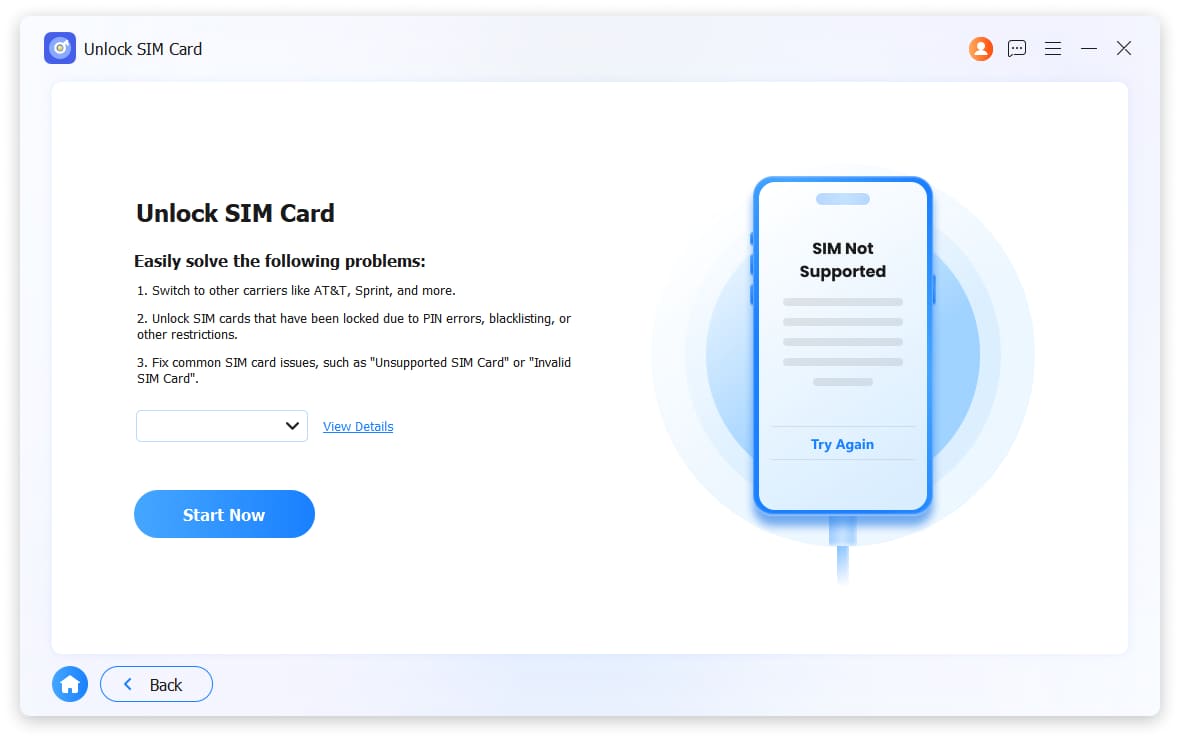
1Choose Unlock SIM Card and connect device to computer with the USB cable.
2Choose Start Now button on the interface.
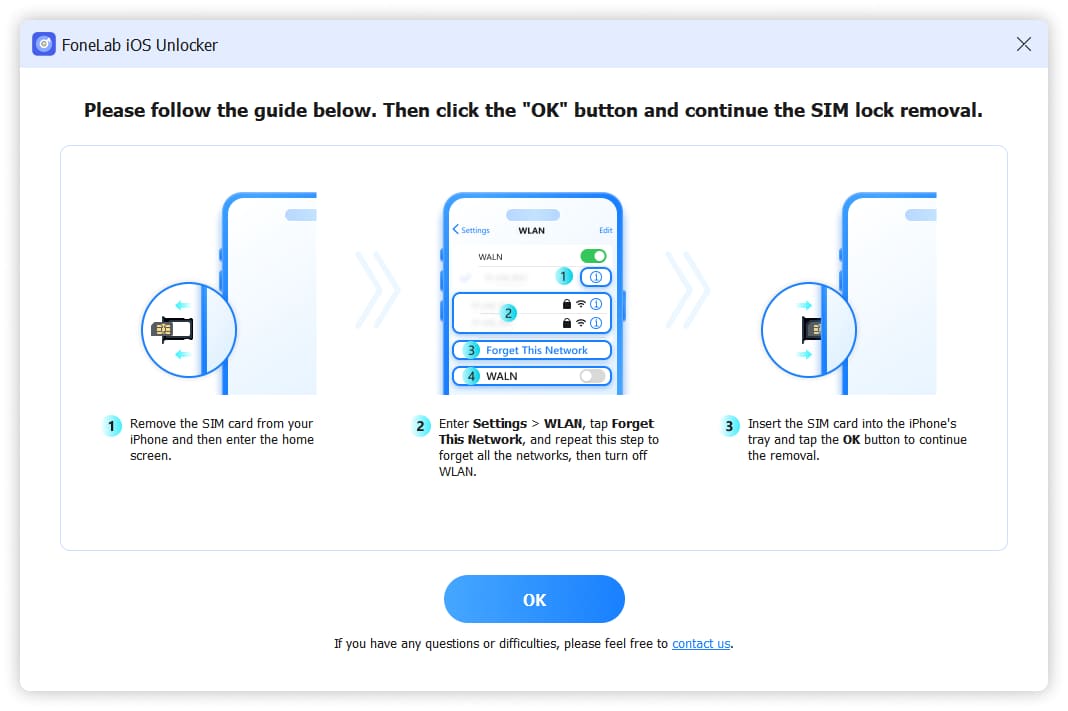
3Follow the given steps to forget Wi-Fi on your device. And click OK on the program interface.
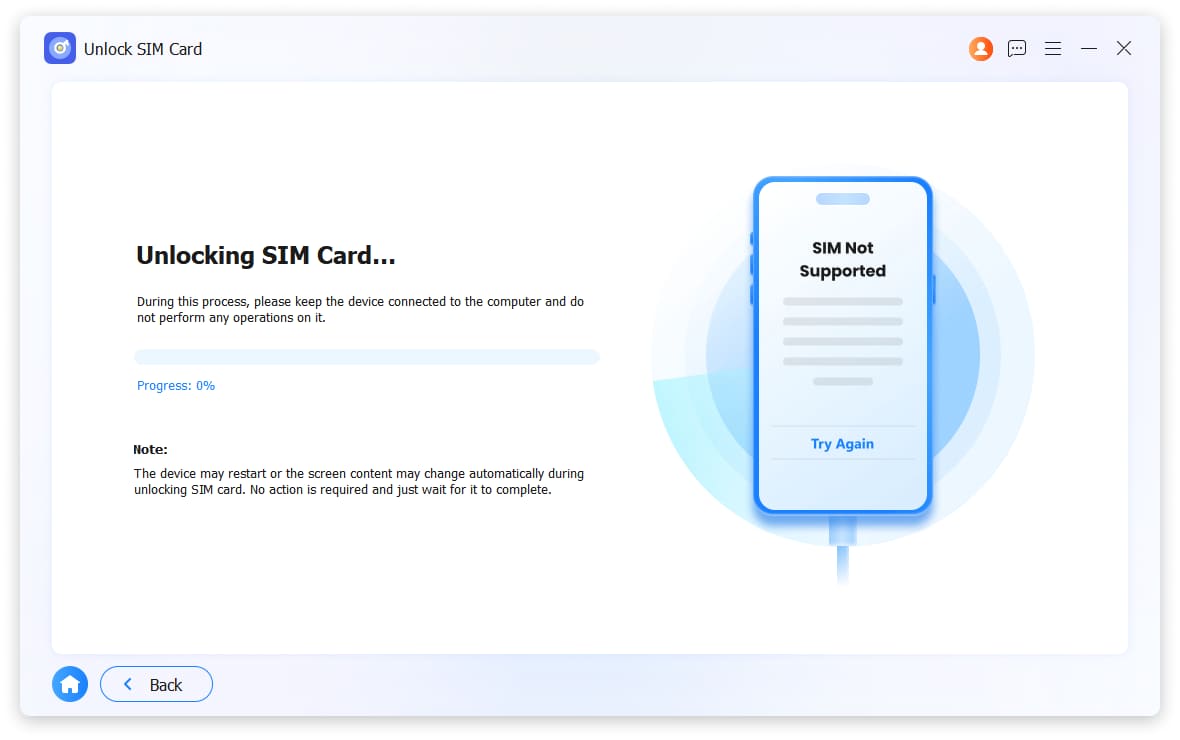
4Just wait a while, SIM card locks will be removed.

 iPhone Data Recovery
 iOS System Recovery
 iOS Data Backup & Restore
 iOS Unlocker
 iPhone Password Manager
 Location Changer
 Android Data Recovery
 Broken Android Data Extraction
 Android Data Backup & Restore
 Android Unlocker
 FoneTrans for iOS
 iPhone Data Eraser
 iPhone Cleaner
 HEIC Converter
 HyperTrans
 WhatsApp Transfer for iOS
 Mac Sweep
 Data Retriever
 Mac Data Retriever
 Video Converter Ultimate
 Screen Recorder
 Phone Mirror


