Register
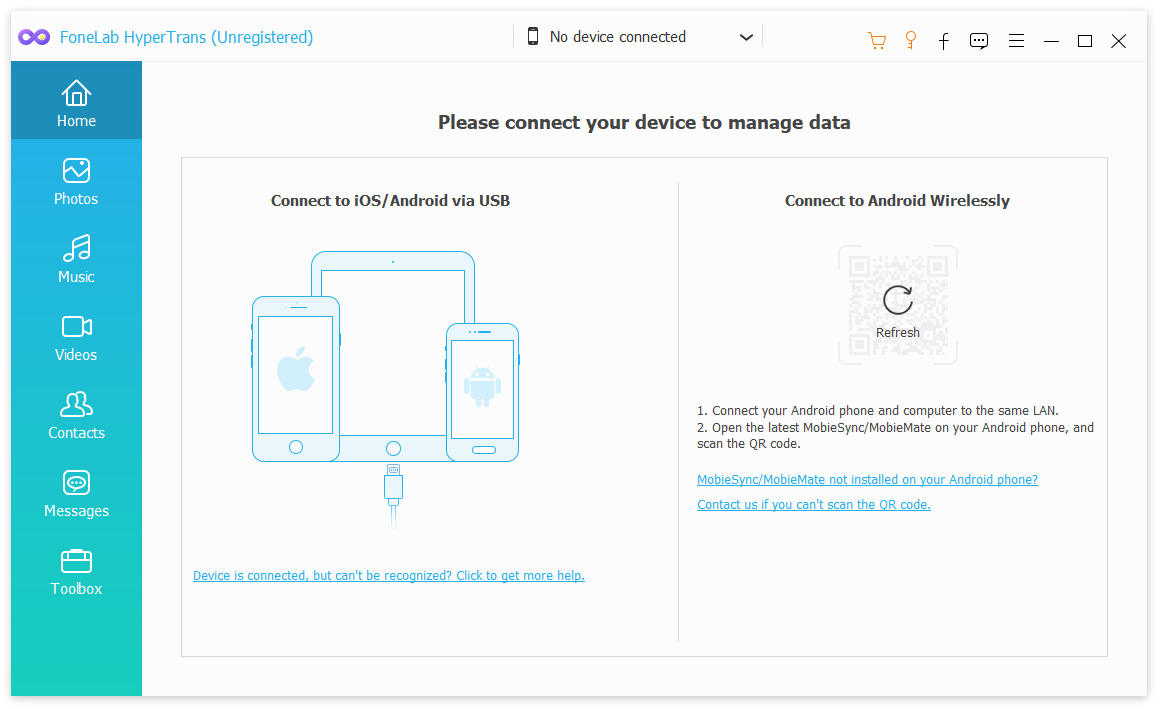
1Click the Key icon on the top-right corner.
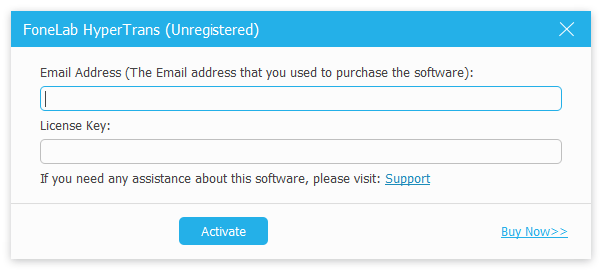
2Enter the email and register code in the box.
Photos
1Import photos
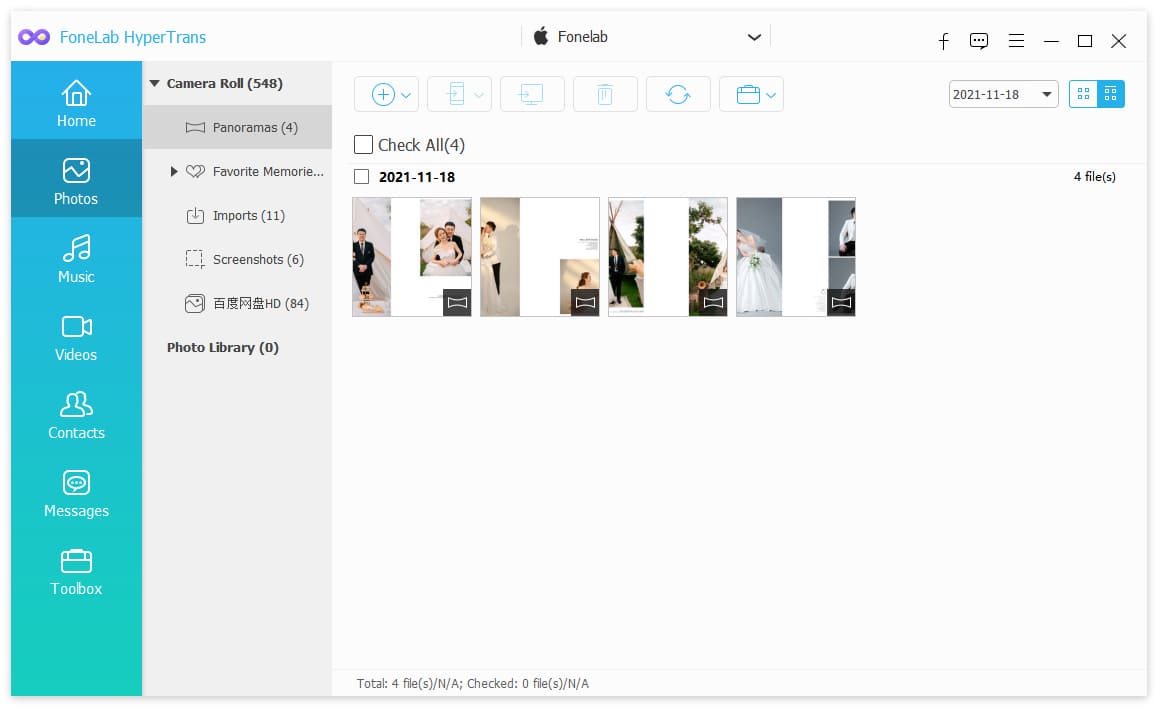
Choose Photos tab on the left. Then click the plus icon on the top of the right section. Select your desired items after that.
2Export photos
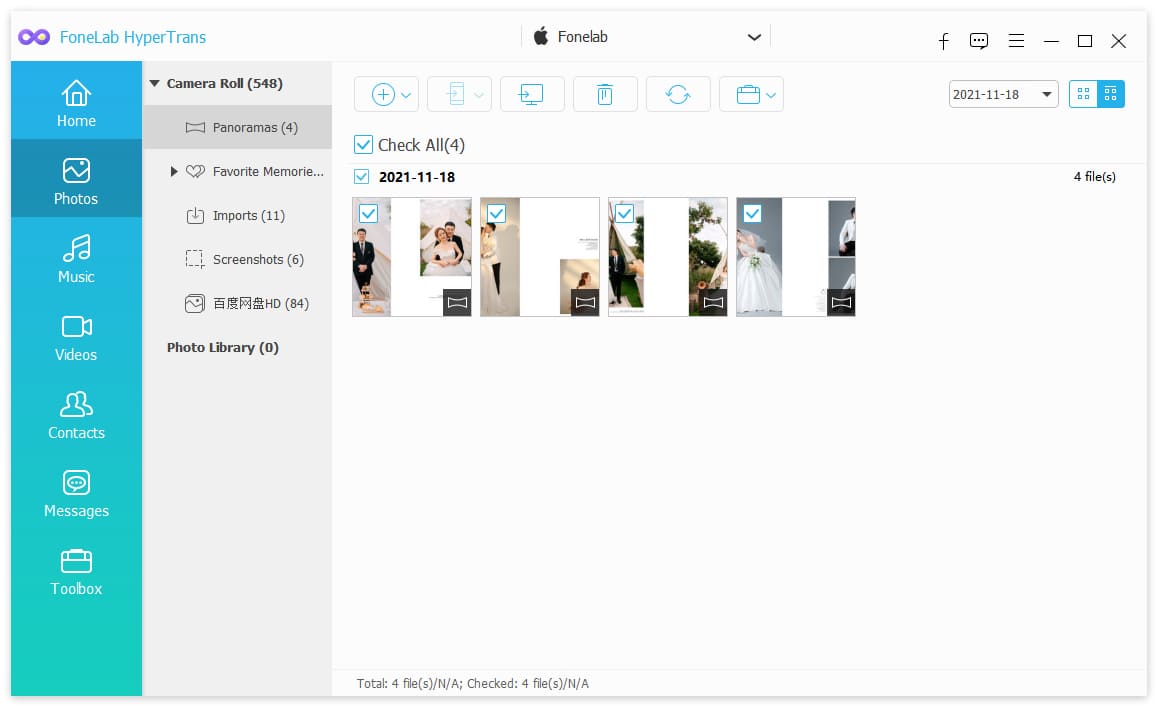
Choose photos after scanning, check the boxes of the items you want to export, click the export to device or export to computer icon.
3Delete photos
Choose photos after scanning, check the boxes of the items you want to export, click the delete icon.
4Create/Rename/Delete Album
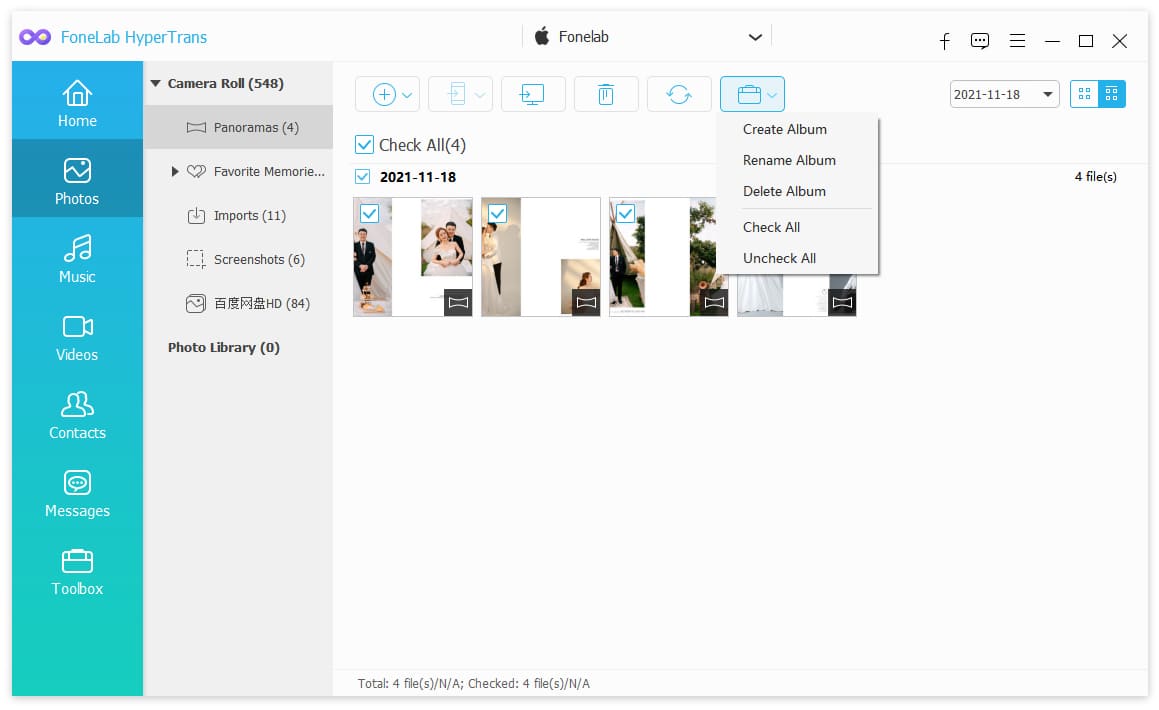
Select album on the left side, right-click to choose Create Album, Rename Album or Delete Album. Alternatively, click the more icon on the top and choose the function accordingly.
Music
1Import music
Choose Music tab on the left. Then click the plus icon on the top of the right section. Or click the Add Item on the right. Select your desired items after that.
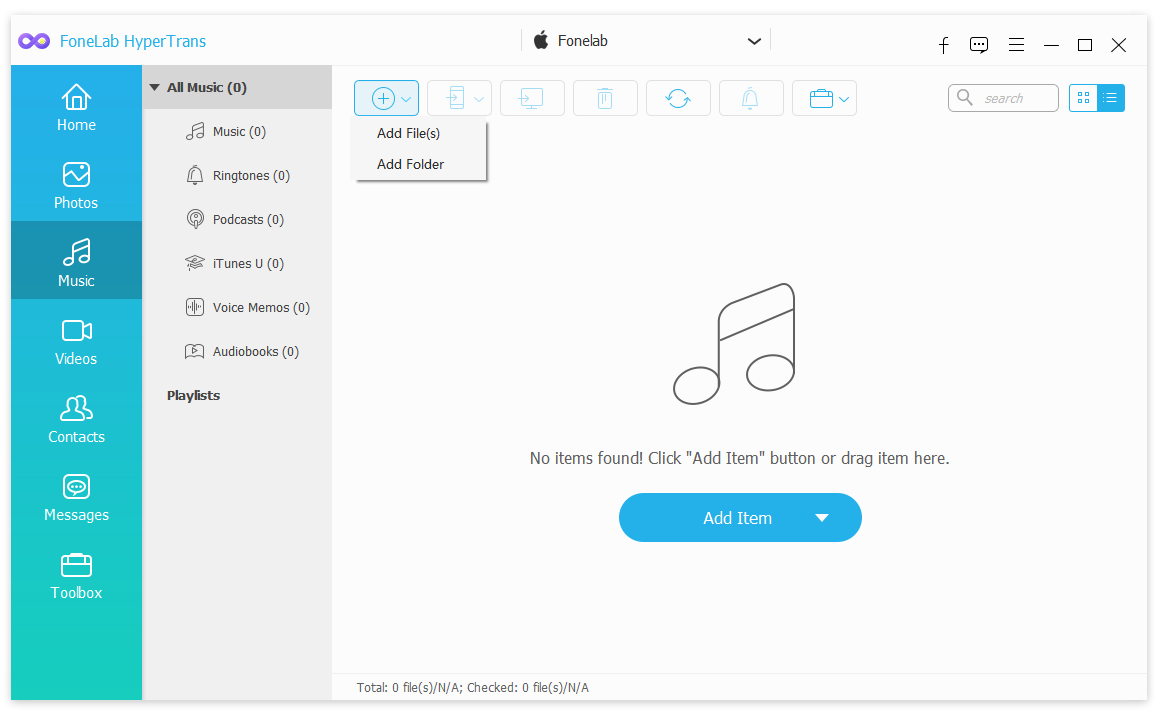
2Export music
Choose music after scanning, check the boxes of the items you want to export, click the export to device or export to computer icon.
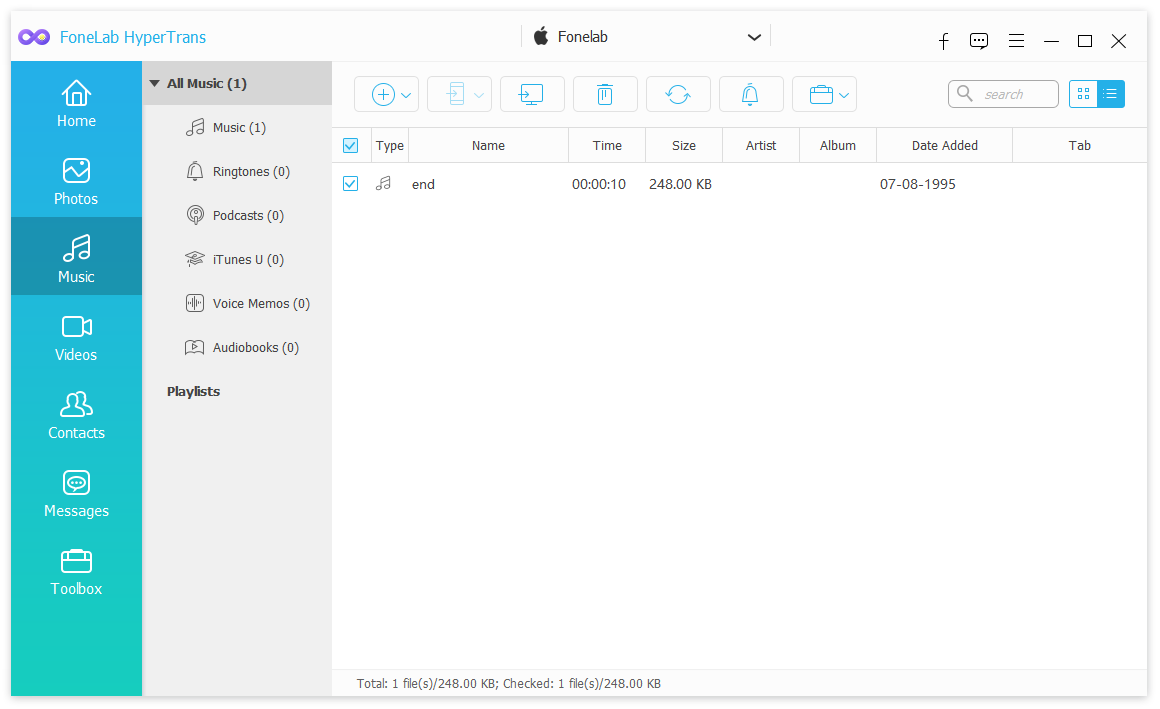
3Delete music
Choose music after scanning, check the boxes of the items you want to export, click the delete icon.
4Ringtone maker
Choose music and click ringtone icon. Adjust it and export your ringtone.
5Play music
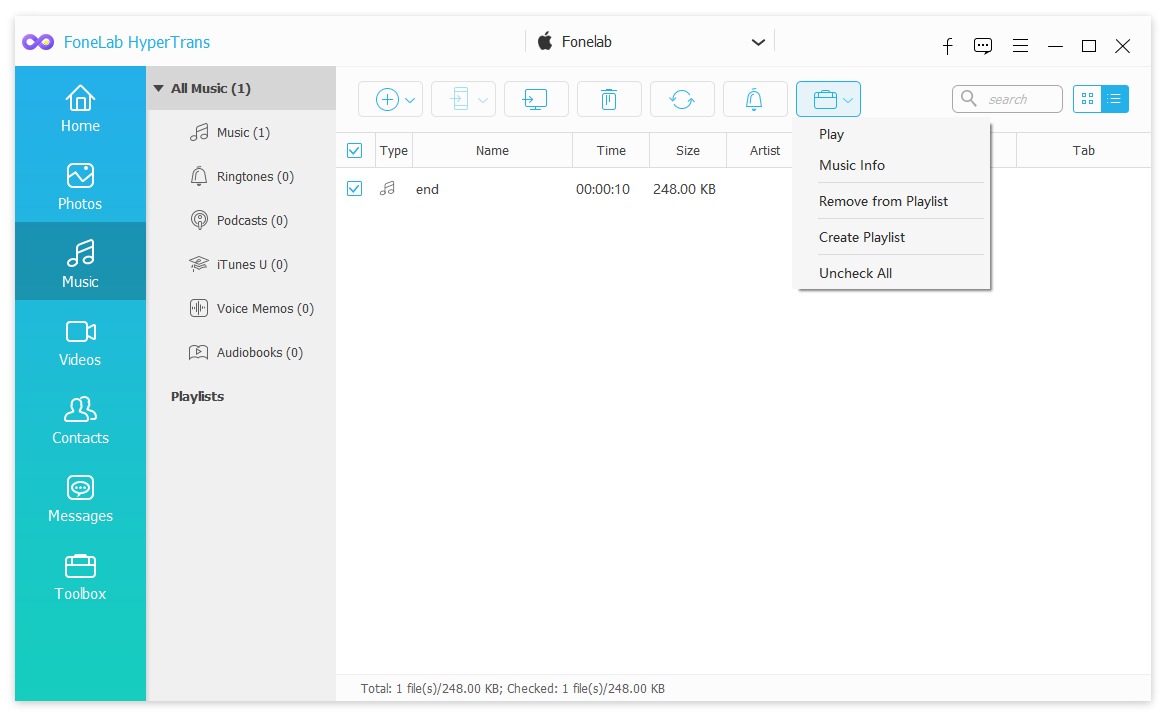
Select your music file and click more icon. Click Play button.
6Check music info
Select your music file and click more icon. Click Music info button.
7Remove music from playlist
Select your music file and click more icon. Click Remove from playlist button.
8Create playlist
Select your music file and click more icon. Click Create playlist button.
Videos
1Import videos
Choose Videos tab on the left. Then click the plus icon on the top of the right section. Select your desired items after that.
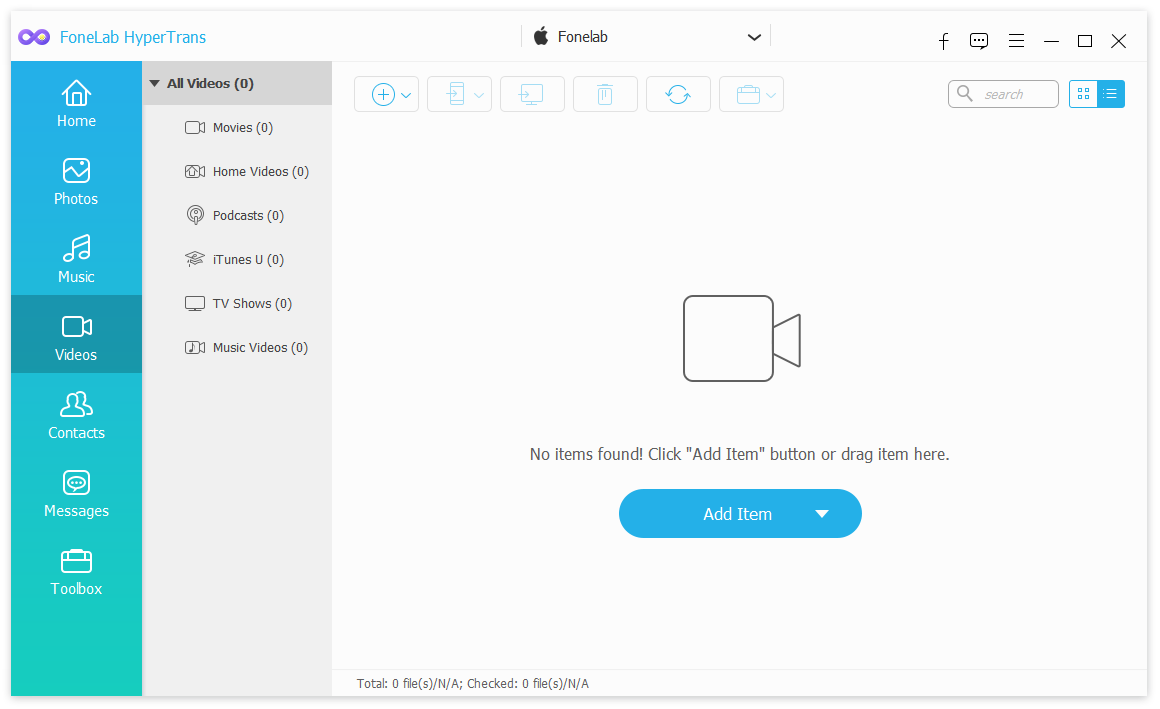
2Export videos
Choose videos after scanning, check the boxes of the items you want to export, click the export to device or export to computer icon.
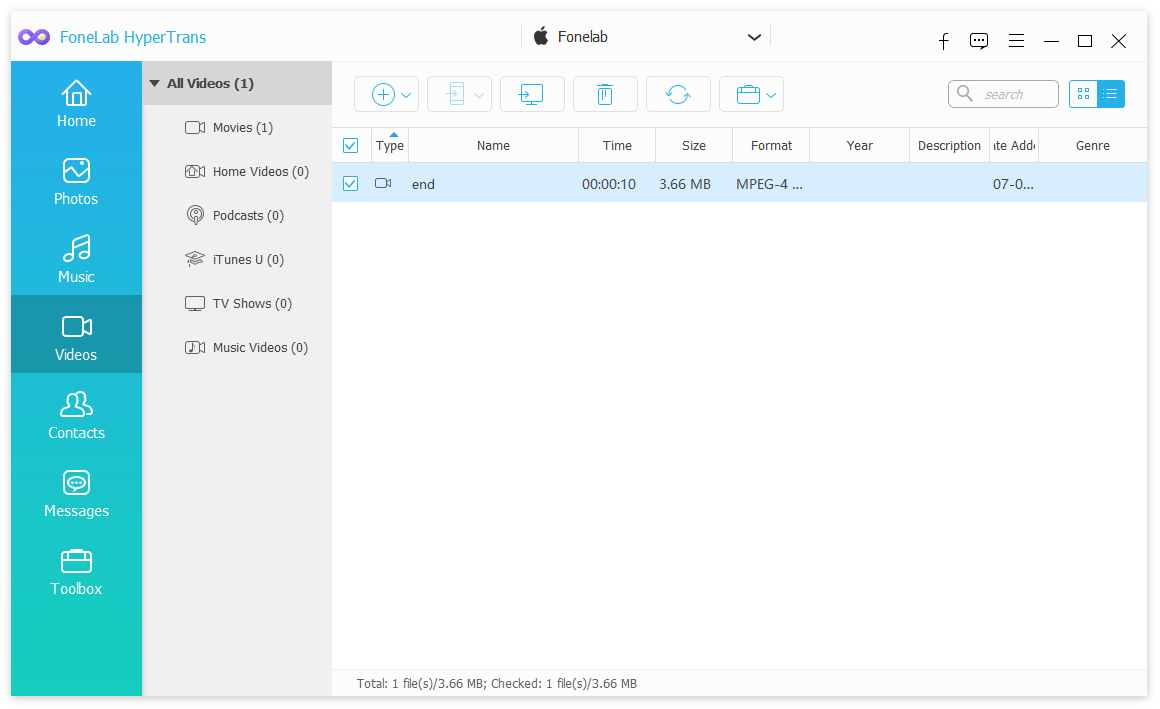
3Delete videos
Choose videos after scanning, check the boxes of the items you want to export, click the delete icon.
4Play videos
Select your videos file and click more icon. Click Play button.
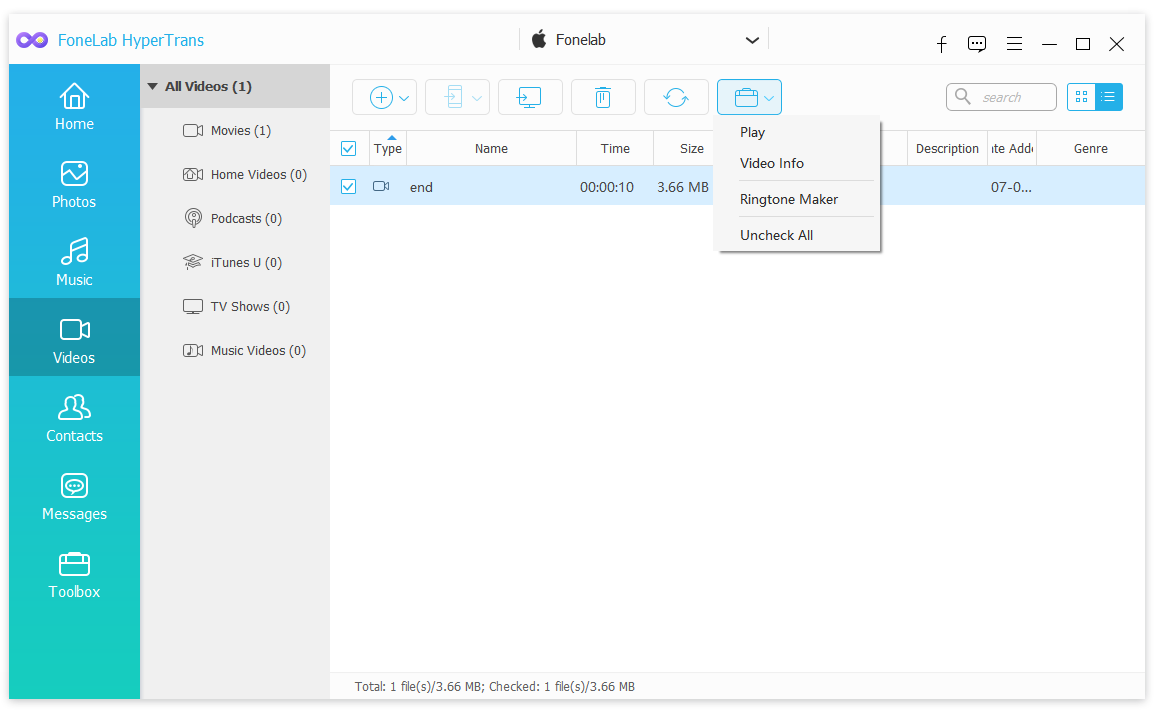
5Check videos info
Select your videos file and click more icon. Click Video info button.
6Ringtone maker
Choose videos and click ringtone icon. Adjust it and export your ringtone.
Contact
1Create new contacts
Choose Contact tab on the left. Then click the plus icon on the top of the right section. Exter the information of the item.
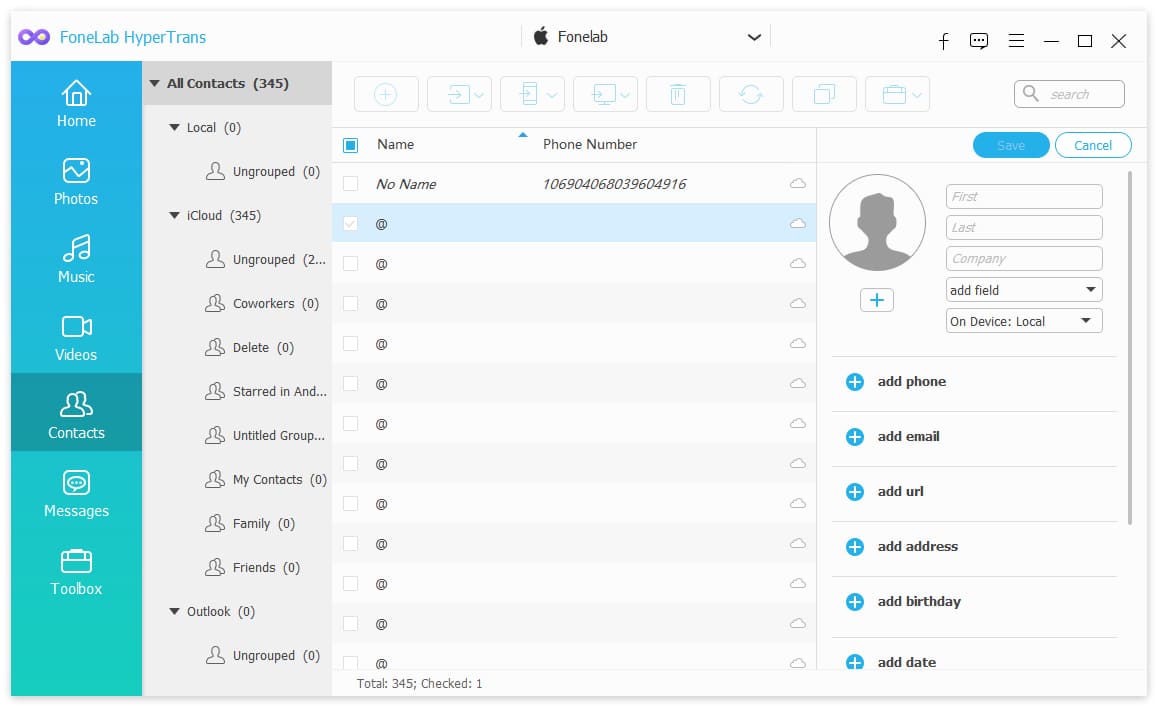
2Import contacts
Choose Contact tab on the left. Then click the import icon on the top of the right section. Select your desired items after that.
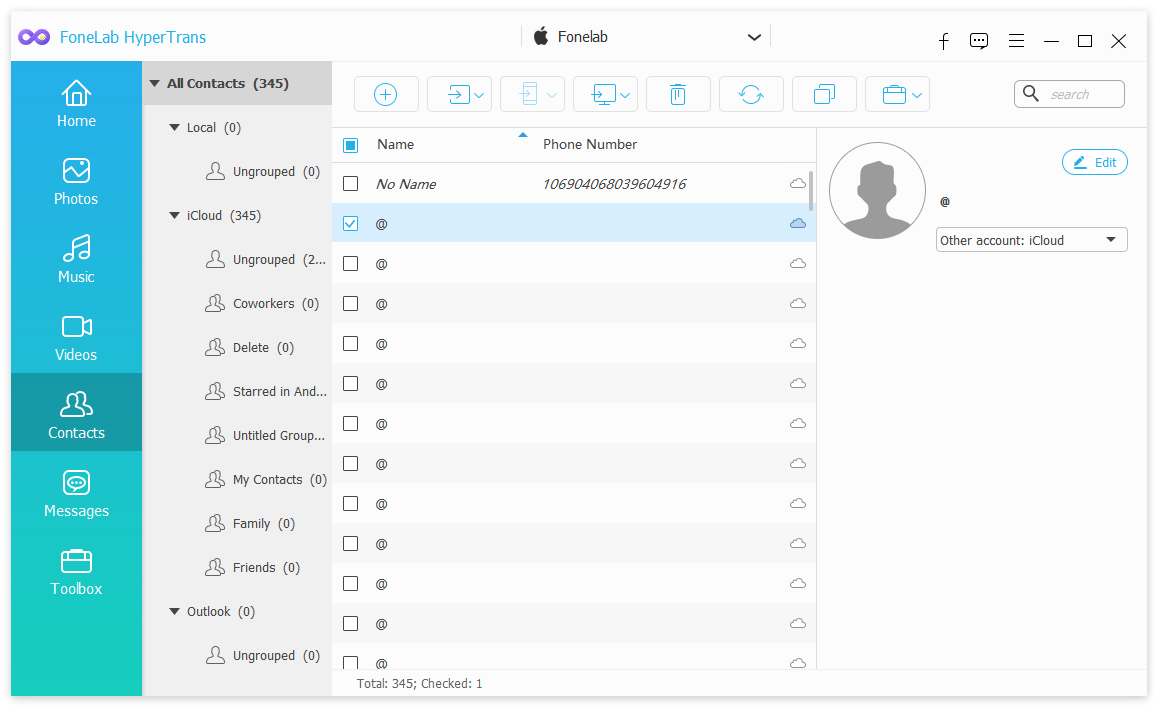
2Export contacts
Choose contacts after scanning, check the boxes of the items you want to export, click the export to device or export to computer icon.
3Delete contacts
Choose contacts after scanning, check the boxes of the items you want to export, click the delete icon.
4Find duplicated contacts
Select the duplicated icon and check the items.
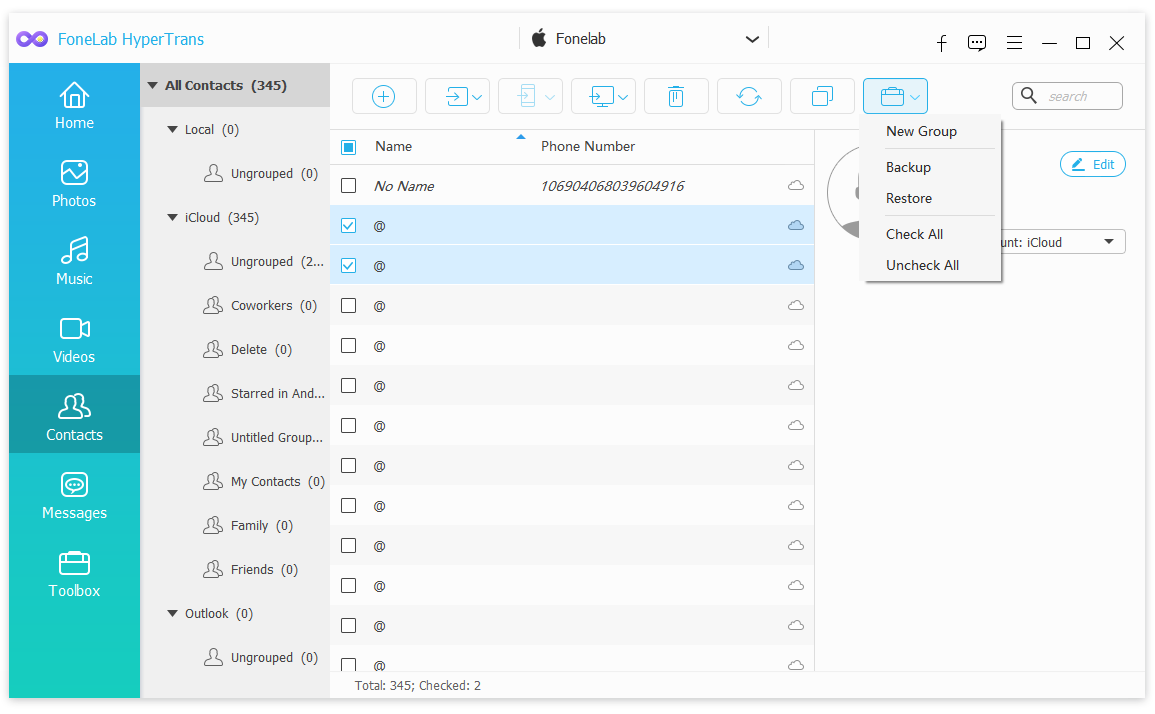
5Create new group
Select the more icon and click the New Group.
6Backup contacts
Select the more icon and click the Backup contacts.
7Restore contacts
Select the more icon and click the Restore contacts. Choose one of backup files and begin restoring.
Messages
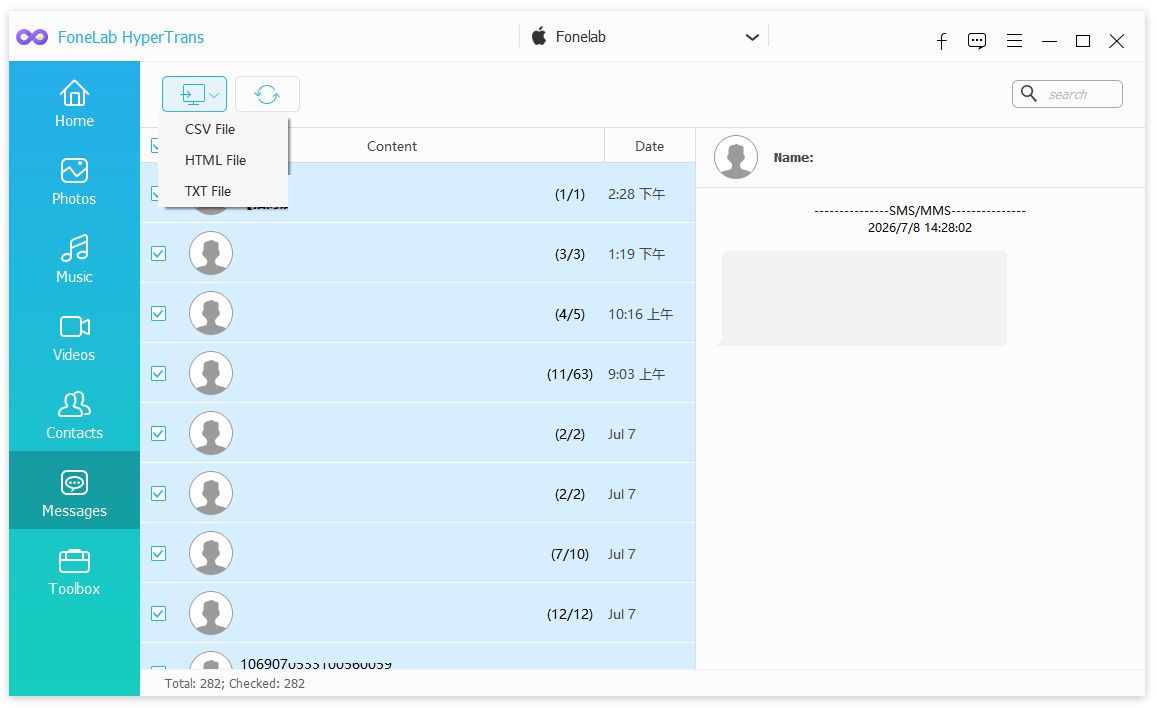
1Export messages
Choose Messages tab on the left. Choose messages after scanning, check the boxes of the items you want to export, click the export to computer icon. You can choose CSV, HTML or TXT format.
Toolbox
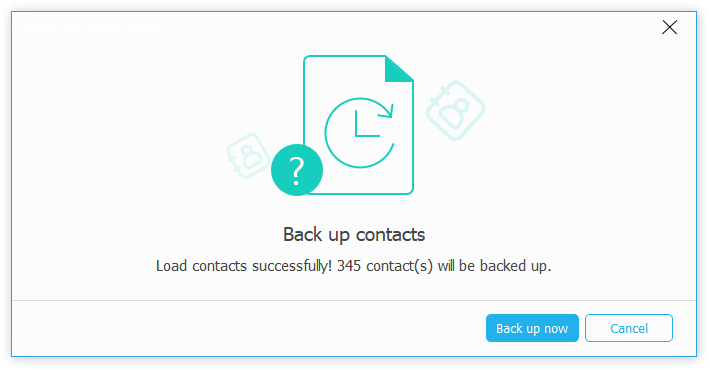
1Contacts Backup
Choose Toolbox tab on the left. Choose Contacts Backup, then click Back up now button it will begin to backup your data.
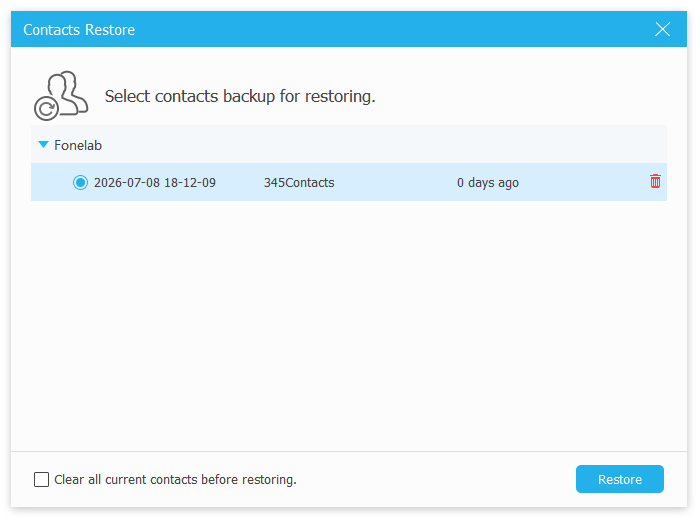
2Contacts Restore
Choose Toolbox tab on the left. Choose Contacts Restore, then choose a backup and it will begin to restore your data.
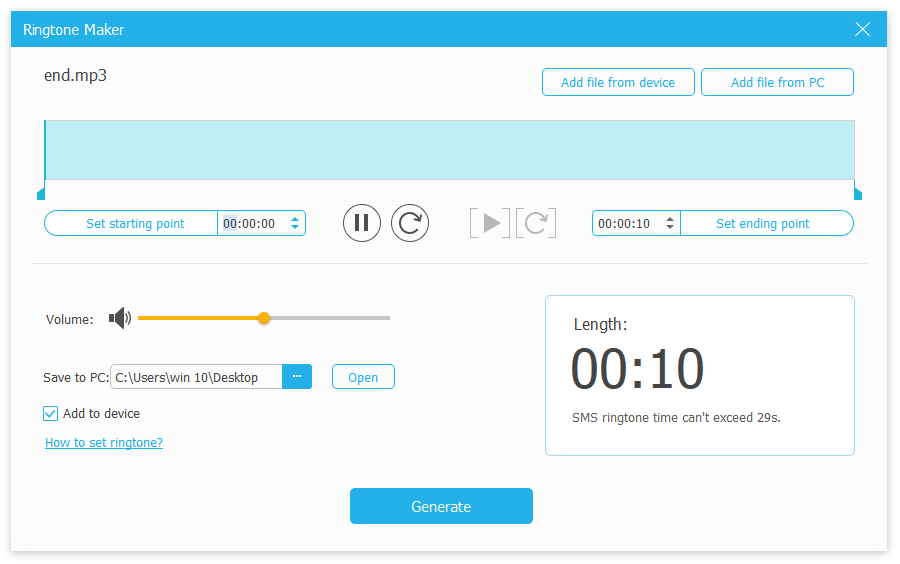
3Ringtone Maker
Choose Toolbox tab on the left. Choose Ringtone Maker, then adjust the file and export it.
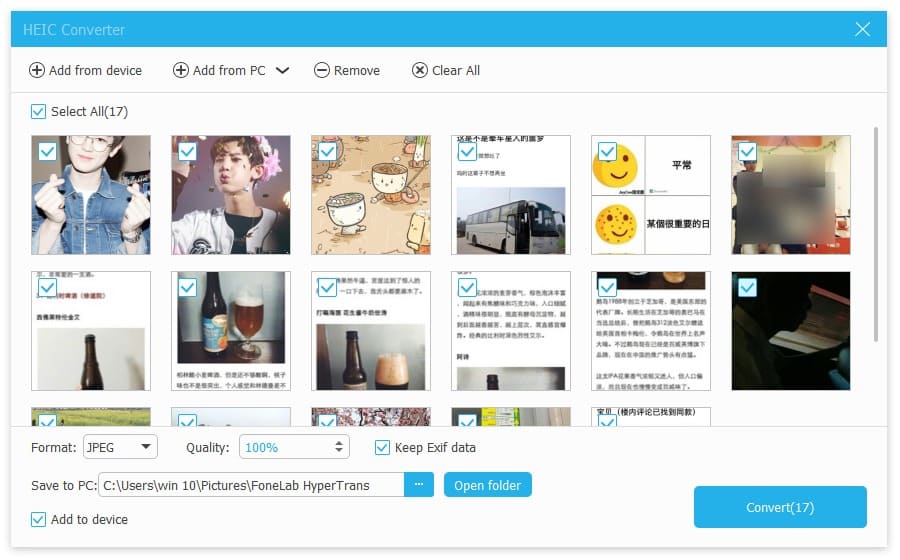
4HEIC Converter
Choose Toolbox tab on the left. Choose HEIC Converter, then choose files and click Convert button.

 iPhone Data Recovery
 iOS System Recovery
 iOS Data Backup & Restore
 iOS Unlocker
 iPhone Password Manager
 Location Changer
 Android Data Recovery
 Broken Android Data Extraction
 Android Data Backup & Restore
 Android Unlocker
 FoneTrans for iOS
 iPhone Data Eraser
 iPhone Cleaner
 HEIC Converter
 HyperTrans
 WhatsApp Transfer for iOS
 Mac Sweep
 Data Retriever
 Mac Data Retriever
 Video Converter Ultimate
 Screen Recorder
 Phone Mirror